- 7 -
Notication & Status Bar
Some indicators that inform you about the status of
your tablet are shown at the top of the screen.
Notication Shade
Notifications may come from the system, a game, an
application such as E-mail, or the music player.
When Notifications are available, related icons will
appear in the top left corner of the screen. To open
the Notification Shade, touch the Notification icon and
swipe your finger down. Some notifications allow you
to take specific actions by tapping icons within the
notication.
After you are finished with a notification, just slide
it away to the left or right. If you want to dismiss all
notifications, tap the Dismiss icon at the top of the
notication.
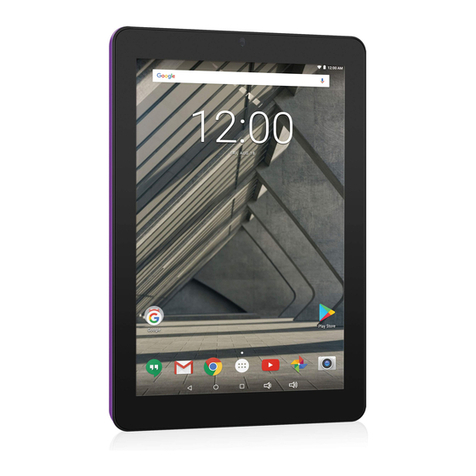
Status Bar & Quick Settings
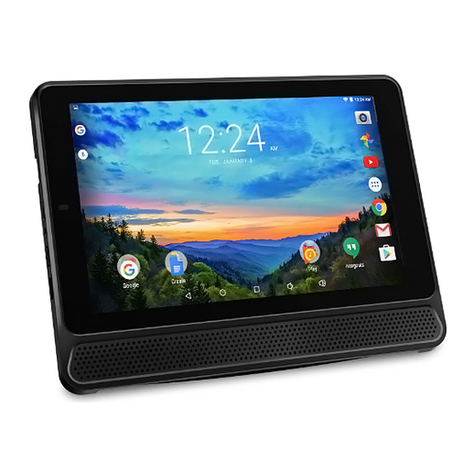
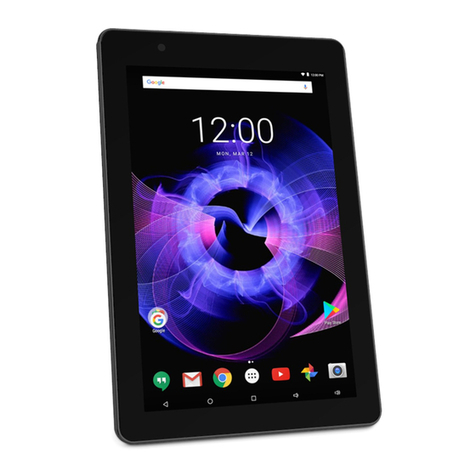
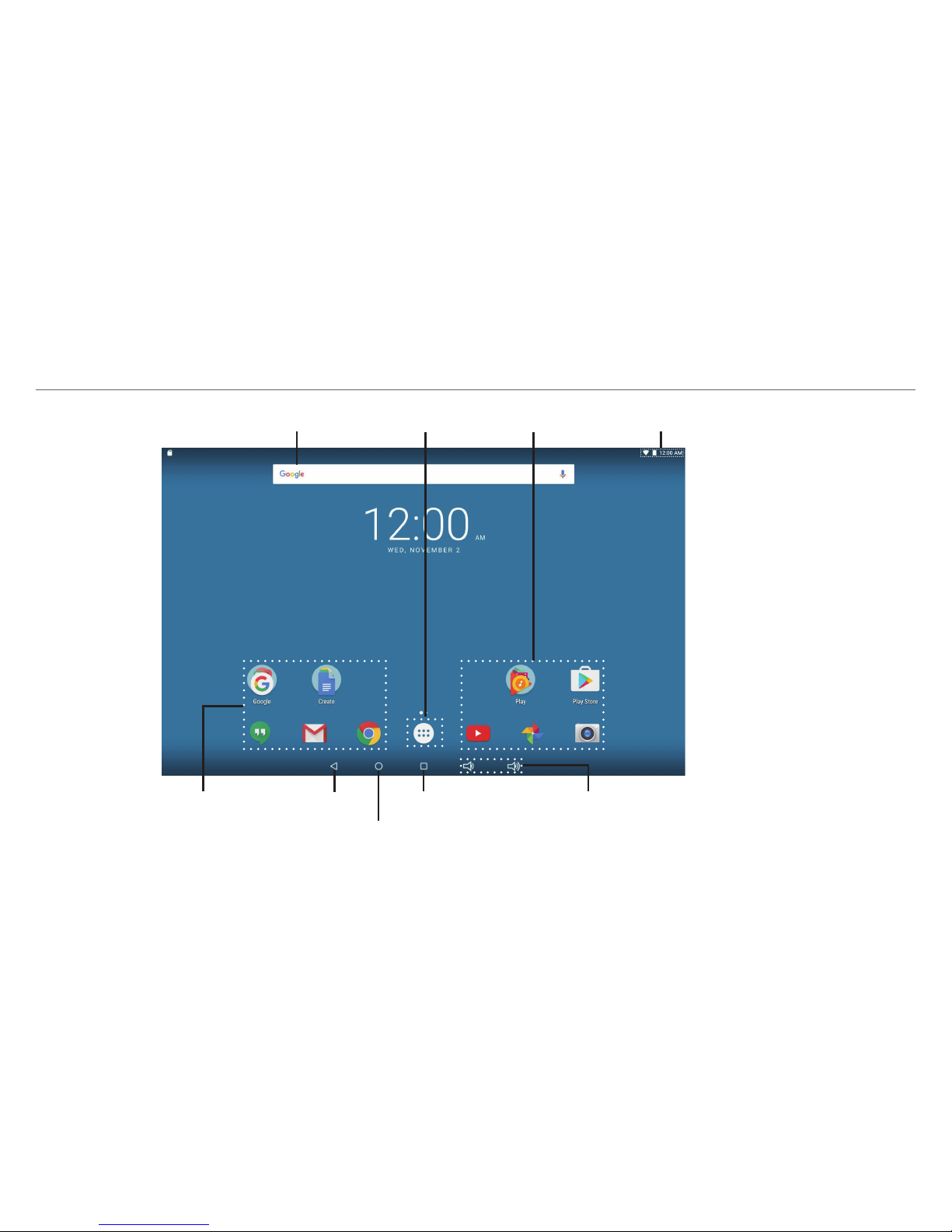
The Status Bar in the top right corner shows various
indicators, including Wi-Fi connection and battery status.
To access "Quick Settings", touch the status bar and
swipe down. You can then adjust various settings on the
tablet by touching the corresponding square.
Notication & Status Icons
The below table lists some of the frequently used icons
in the Notication & Status bar:
Message Received new message.
Music The Google Play Music app is running.
Wi-Fi Has a Wi-Fi Internet connection.
Play Store An update for an app is available.
Bluetooth Bluetooth is on.
Home Screen Icons
All Apps
Tap the All Apps icon to enter the All Apps screen.
In All Apps screen, you can:
•Move between screens: Slide up or down.
•Open an App: Tap its icon.
Item Description