manuals.online logo
Brands
  1. Home
  2. •
  3. Brands
  4. •
  5. ResortLOCK
  6. •
  7. Door Lock
  8. •
  9. ResortLOCK LockState RL 4000 User manual

ResortLOCK LockState RL 4000 User manual

Other manuals for LockState RL 4000

4

Other ResortLOCK Door Lock manuals

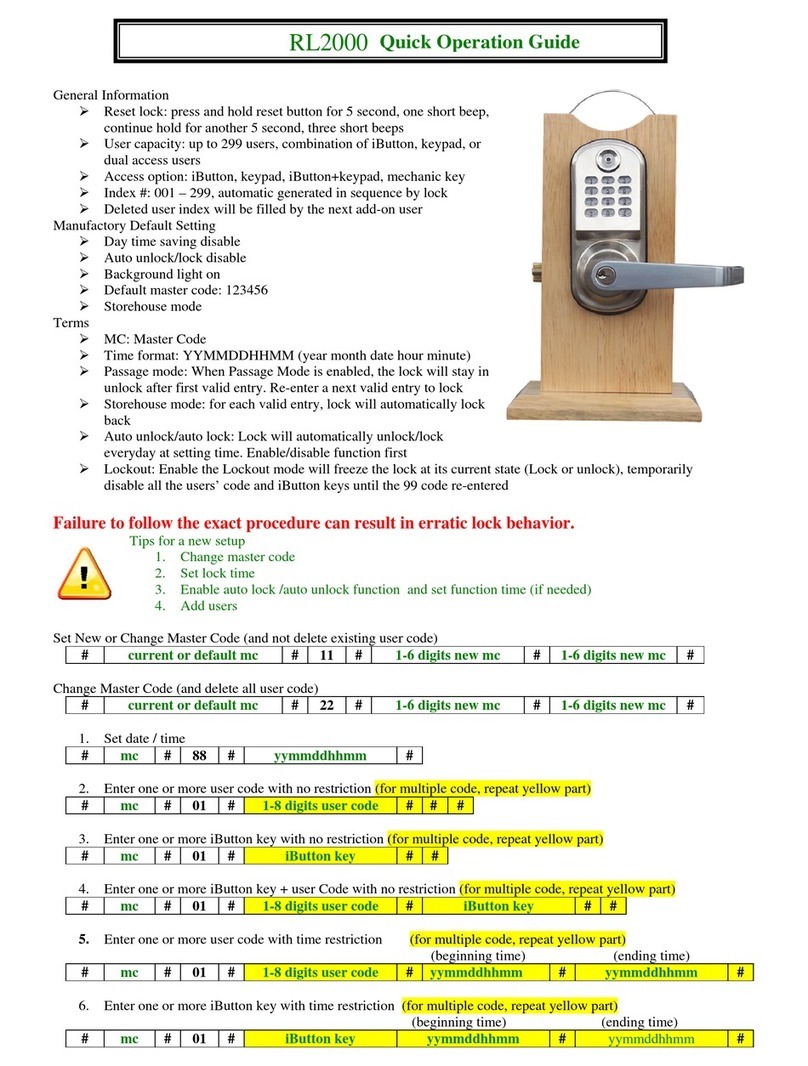
ResortLOCK RL2000 User guide

ResortLOCK

ResortLOCK RL2000 User guide

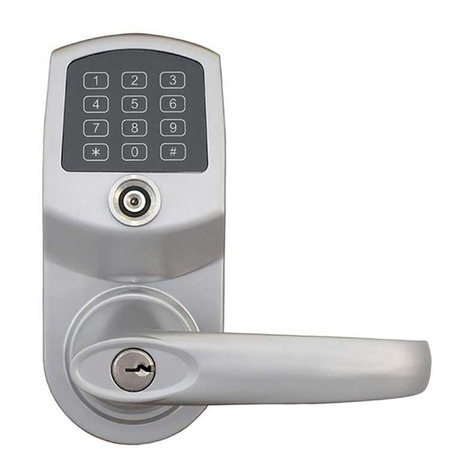
ResortLOCK LockState RL 4000 User guide

ResortLOCK

ResortLOCK LockState RL 4000 User guide

Popular Door Lock manuals by other brands

Dorma MUNDUS PREMIUM US 10 Mounting instruction

Dorma

Dorma MUNDUS PREMIUM US 10 Mounting instruction

Defiant LG600BRA4BGT Instructions for installation

Defiant

Defiant LG600BRA4BGT Instructions for installation

TRU-BOLT M1740024 manual

TRU-BOLT

TRU-BOLT M1740024 manual

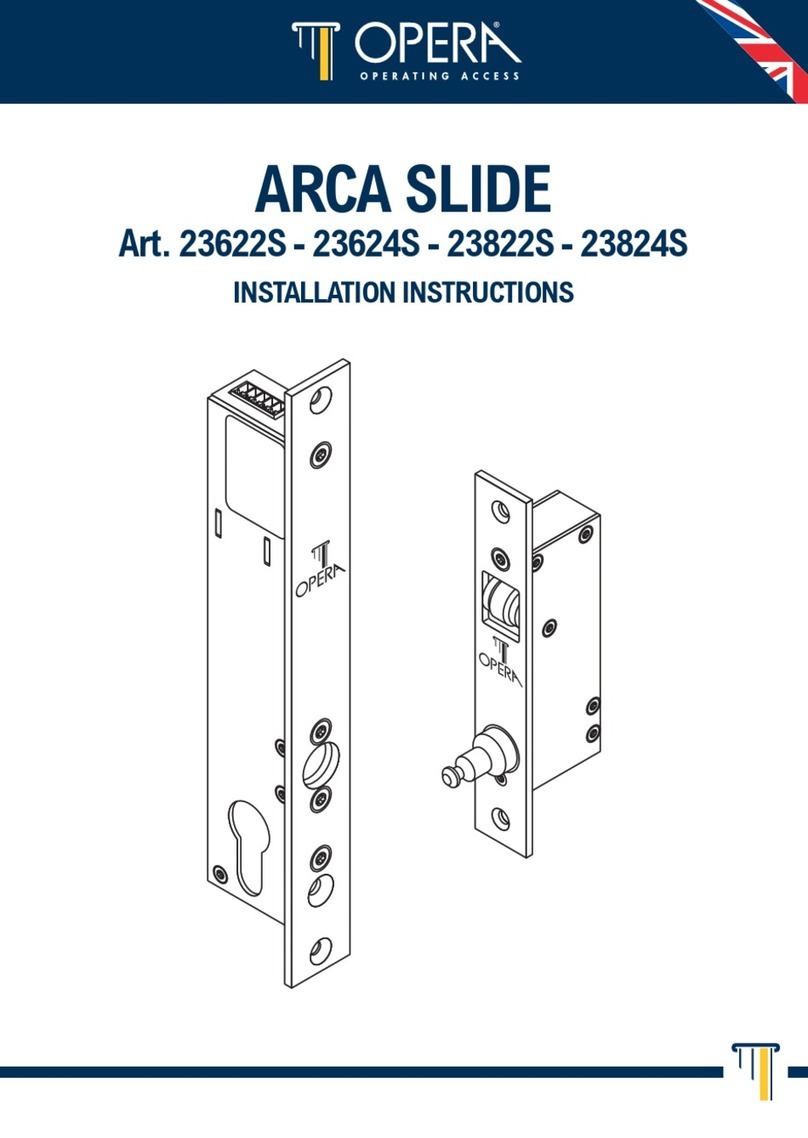
Opera ARCA SLIDE installation instructions

Opera

Opera ARCA SLIDE installation instructions

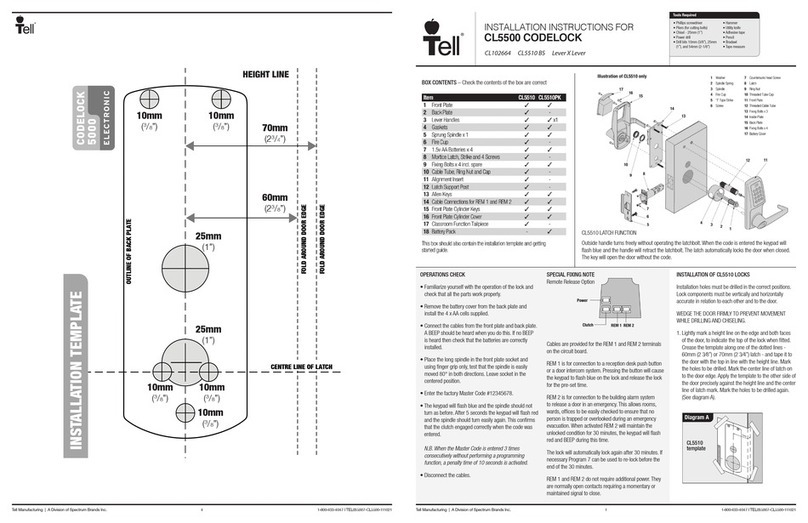
tell CODELOCK CL5500 Series installation instructions

tell

tell CODELOCK CL5500 Series installation instructions

ABH LR6000 installation instructions

ABH

ABH LR6000 installation instructions

Assa Abloy effeff 827A-IP Mounting instructions

Assa Abloy

Assa Abloy effeff 827A-IP Mounting instructions

Iseo MA1A installation guide

Iseo

Iseo MA1A installation guide

ID Lock 150 user manual

ID Lock

ID Lock 150 user manual

Lockly ACCESS TOUCH PRO user manual

Lockly

Lockly ACCESS TOUCH PRO user manual

iLoq G50S user guide

iLoq

iLoq G50S user guide

SDC Z7835 installation instructions

SDC

SDC Z7835 installation instructions

ilco 452 Installation

ilco

ilco 452 Installation

Samsung shs-h705 user guide

Samsung

Samsung shs-h705 user guide

TRU-BOLT 08102017 user manual

TRU-BOLT

TRU-BOLT 08102017 user manual

CDVI 500-LADJ quick start guide

CDVI

CDVI 500-LADJ quick start guide

Igloohome Deadbolt 2S Metal Grey Installer/user guide

Igloohome

Igloohome Deadbolt 2S Metal Grey Installer/user guide

eSSL FL-300 user manual

eSSL

eSSL FL-300 user manual

manuals.online logo
manuals.online logoBrands
  • About & Mission
  • Contact us
  • Privacy Policy
  • Terms and Conditions

Copyright 2025 Manuals.Online. All Rights Reserved.

www.ResortLock.com
LockState RL 4000
User Guide
2
Table of Contents
Section 1: General O er iew
1. Foreword ..……………………………………………. 3
2. Important Information ..……………………………… 3
3. Software Installation .…………………………………. 4
Section 2: Initial Lock Setup – Manual Management
1. Adding Lock to Code Generation Software ………….
2. Setting Up Your Lock ….……………………………. 7
Section 3: Initial Lock & User Setup – Software Managment
1. Lock Setup …………………………………………… 8
2. User Setup – Issuing Permanent Codes & iButtons ….. 11
3. Remote User Code Generation ………………………. 14
Section 3: Ad anced Access Control Management
1. Time Shift Setting …………………………………… 18
2. Time Lock Operation Setting ………………………. … 19
3. Activation/Expiration Setting ………………………. … 21
4. Audit Trail …………………………………………….. 22
5. Exception Date Setting ……………………………... … 23
. Mission Management ………………………………. … 24
7. Copy Lock Setting ………………………………….. … 2
8. History ……………………………………………… … 2
3
Section 1: General O er iew
1. Foreword
About This Manual
This manual is designed for users of ResortLock software. All installation, setup, operational
information, procedures, screen captures, and other relevant materials are contained in this manual.
Safety Warnings and Cautions
When handling a print circuit board (PCB), to guard against possible static discharges, touch a
grounded object BEFORE touching the board. Static shock could cost unexpected damage of the
board.
Design Change Disclaimer
Due to design changes and product improvements, information in this manual is subject to change
without notice. LockState assumes no responsibility for any errors that may appear in this manual.
Reproduction Disclaimer
Neither this manual nor any part of it may be reproduced, photocopied, or electronically transmitted
in any way without the written permission of LockState.
Technical Support
When you experience any difficulty installing or operating the ResortLock software, please contact
LockState at 1-888-924-5 25.
2. Important information
Manufacture Default Code Setting:
1. Default Setting for Login User Name / Password is: dallas / ibutton
2. Operator Password: The default operator password is 00000000 (8 digit Zeros)
3. System Password (Facility Code): The default System password is 000000 ( digit Zeros)
LED and Audio Indicator:
1. Program Mode: LED indicating GREEN, audio end with two beeps (Successful)
2. Program Mode: LED indicating Red, audio end with one beep (Fail)
3. Key Access Mode: LED indicating GREEN, audio end with two beeps (Valid Access)
4. Key Access Mode: LED indicating Red, audio end with one beep (Fail)
5. Unlock Mode: LED flashing GREEN, lock is in unlock mode
. Lock Mode: LED flashing RED, lock is in lock mode
Important Keys:
1. DS1982/DS1990- User Key (Default key-fob color from UCA: red, yellow, black, orange)
2. DS1994/DS1904- It contains an on board real time clock to reset the lock internal clock.
(Default key-fob color: Green)
3. DS1977- Program Key. (Default key-fob color: Purple)
4. DS199 - Firmware Upgrade Key (Default key-fob color: Blue)
4
3. Software Installation
To Download Software, go to http://resortlocks.com/E4-iKPAD.ZIP
 Once downloaded, unzip and select “SETUP” file. Follow instructions to install.
 After installed, open “Eternity4-ikpad” icon on your desktop.
Operating System
ResortLock software is comparable with Microsoft Windows 98/2000/XP/Vista. All software must
be installed using Windows administrator account, but all levels of Windows users can use the
program. Failure to install the applications may result in error messages and an incomplete
installation.
Step 1: Install 1-Wire USB Driver First
This driver will allow use of the iWire (the connector for the iButton)
1. Download driver from http://resortlock.com/Downloads/1-wire.zip
2. Select 1-Wire USB Driver Installation, the Setup Wizard will guide you through the steps.
3. Select Next. The License Agreement screen displays.
4. Select I Agree, then Next. 1-Wire USB Driver Warning screen displays.
5. Select Next. The Select Installation Folder screen displays. Check everyone or just me.
. Select Next. The Confirm Installation screen displays, then select Next to start installation.
7. Select Finish. The 1-Wire USB Driver Installation is complete.
8. Plug the 1-Wire into the USB adapter and then the USB adapter into your computer.
Step 2: Install the ResortLock Software
1. Download software from http://resortlock.com/Downloads/RL4000-Software.zip.
2. Once downloaded, unzip the zip file (right click on zip folder, select “Extract All”). Then
follow instructions for extracting.
3. Open unzipped folder and double click on SETUP.EXE file.
4. The Auto installer will guide you through the steps and create the shortcut –“ikeypadlock
Management” on your desktop.
Step 3: R nning ResortLock Software
1. Make sure you have plugged in the iWire to the USB adaptor and the USB adaptor into
your computer before starting the software.
2. Double Click on “Eternity4-ikpad” icon on your desktop.
3. Login – User Name: dallas, Password: ibutton
5
Default User Name and Password can be modified but can’t be deleted.
4. Change System Password
The default system password is 000000( Zeros). It is mandatory to change and remember the
facility system password when the user is ready to use this software. It is highly recommended that
the system password need to be changed from the default setting for security purpose.
Section 2: Initial Lock Setup – Skip if you have
Software Management Package (with iWire)
Step 1 Adding Lock to Code Generation Software
1. Lock Setting
Before you can generate remote codes, you will need to add your lock to the software. Select
“Lock Setting” by clicking on the Lock Setting Icon. You can get to the Lock Setting screen
either by clicking the lock icon in the upper menu or the side menu.
7
2. Add New Lock
a. First, click on the “Add” button to input information from your lock.
b. Next, enter the information for your lock:
 Enter the 1 -digit serial number shown on the back of your lock.
 For Lock Status, keep it as the default option.
 For Lock Type, select “Access Code”.
 Enter a lock name, such as “Vacation Rental”.
 For Lock Location, enter the address where the lock is located.
c. Hit the “Save” Button to save your lock information.
d. The information should now display in the field below. Lock Setting is now complete.
8
Step 2: Setting Up Your Lock
1. Master Code
Before you can issue new permanent codes on your lock or set the time on your lock, you’ll need to
set your master code on the lock. Your lock will not work unless you set up a new master code.
The master code will allow you to program your lock. It will not be used to unlock your door.
Again, it is just for programming purposes. Your master code can be anywhere from 1- digits.
The default code master code is 123456. If you ever have to reset your lock, it will go back to the
default master code.
Your New Master Code:__________________ (3- digits)
To set your new master code to the lock, enter the following into the lock:
# 123456 # 11 # Your Master Code # Your Master Code Again #
* Press each button slowly, not too fast. After every time you press # you will hear 2 quick beeps
and see 2 quick green flashes and then a flashing red light.
* If done incorrectly, you’ll hear a long beep and see a solid red light and will need to start this
step over.
* If done correctly, after the last # you press you’ll hear 2 quick beeps and see 2 quick green
flashes and then the keypad light will go out.
* You have now set your new 3- digit master code. You are allowed to have multiple numbers like
33433 as your code. Make sure you wrote it down.
* If you lose or forget your master code you will have to reset the lock and start over. To do this,
press the reset button on the back of your lock with a pin or small screw driver. The reset button is
located just below the battery compartment.
2. Setting the Time & Date
This sets the time zone that the lock will be located in so that the codes you issue will be in sync
with the lock.
 Enter the following into the lock to set the time zone. Please note that the time is code is in
military or 24 hour time format.
# Master Code # 88 # YYMMDDHHMM #
Example: If the date and time is 05/30/2008 at 3:32PM, you would enter:
# Master Code # 88 # 0805301532 #
* If done correctly you’ll hear 2 quick beeps and see 2 quick green flashes and then the keypad light
will go out. If done incorrectly you’ll hear a long beep, see the red light, and will need to start this
step over again.
3. Other Functions
 For other functionality like setting permanent codes, adding iButtons, auto lock/unlock and
more, please see Appendix A: Quick Operation Guide for more info.

9
Section : Initial Lock & User Setup – Software
Users
1. Lock Setup
First you’ll need to add your lock’s information, such as the serial number, name & address, to the
software. This will synchronize the software to the lock and is necessary before remote access
codes can be generated. To do this, we’ll be using the iButton. This information will be taken from
the lock by touching the iButton programming key to the lock. But before we can do that, we first
need to send the lock on a “mission” to get that information. Here is how to do that…
Step 1: Select New Lock Setup Mission from the menu.
 The following screen will then appear.
10
Step 2: Connect the iButton
Snap the iButton program key (purple key) into the iWire blue dot receptor. Use good force until
the iButton snaps into place.
Step 3: Issue Key
 Select Daylight Saving if it is daylight savings time.
 Select Classroom mode to leave the lock open after it is unlocked.
 Select Storehouse mode if you want the lock to remain open after it is unlocked. (User can
always lock the door by hitting the “Lock” button on the inside of the door.
This mission will accomplish the following:
 Retrieve the lock’s serial number
 Initialize the lock back to the manufacture default setting.
 Sets the system password, and real time to the lock.
 Set Daylight Saving enable or disable
 Set Lock Mode to normal open or normal close
 Set LED Blinking or idle
Step 4: Retrie e Serial Number From Lock
1. Before touching the iButton to the lock receptor, reset the lock by pressing the reset button
(small button just below batteries) with a pin or small screw driver for one second.
2. After depressing the button you will hear two beeps and see a solid green light on the front of
the lock.
3. While the led is solid green, touch the program key to the iButton reader on the lock (two
beeps). Now the lock information is retrieved from the lock.