Introduction and System Setup 3
1.4 Products
Products must be added to provide items to
checkweigh. Some of the functional characteristics are
also defined by the product data. For example, the
zones that are used to evaluate the weight of the
product are defined here.
When Adding a product, the user is prompted to enter
the product ID, product description, product tare
weight, indicators units to use when weighing, and the
5 zone ranges as either a percentage or weight value.
After adding a product, use the Calibrate Product
menu item to setup the weighing delay durations.
The user can edit the description, tare weight, units,
and zone ranges.
You can also delete any product from the system.
Doing so also deletes the product statistics for that
product.
You can search for a product by its ID.
1.4.1 Adding a Product
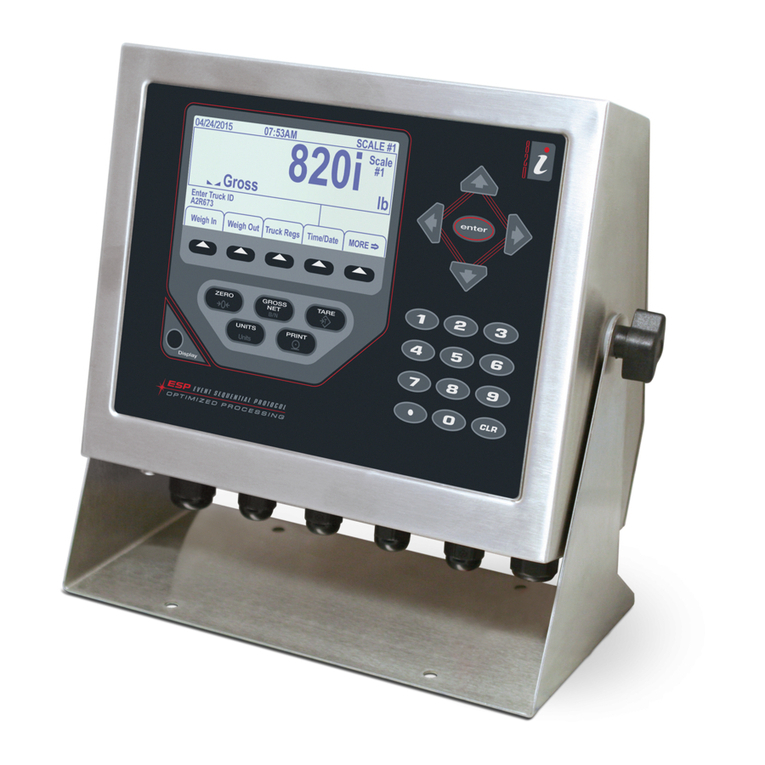
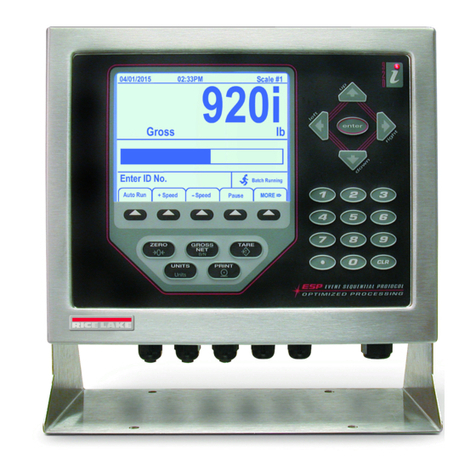
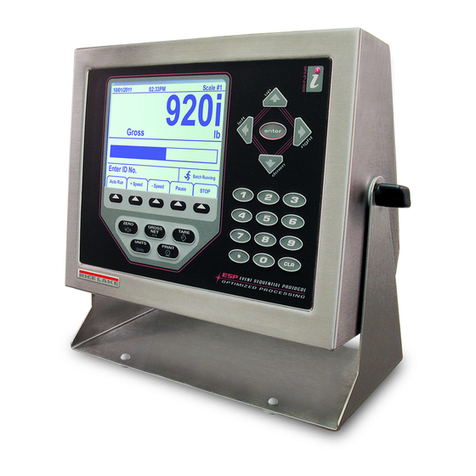
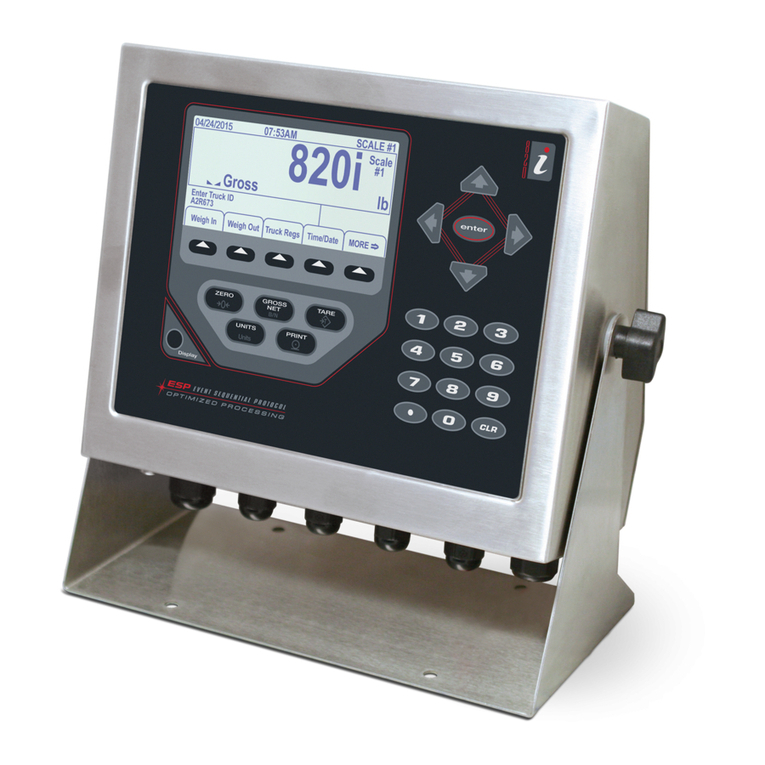
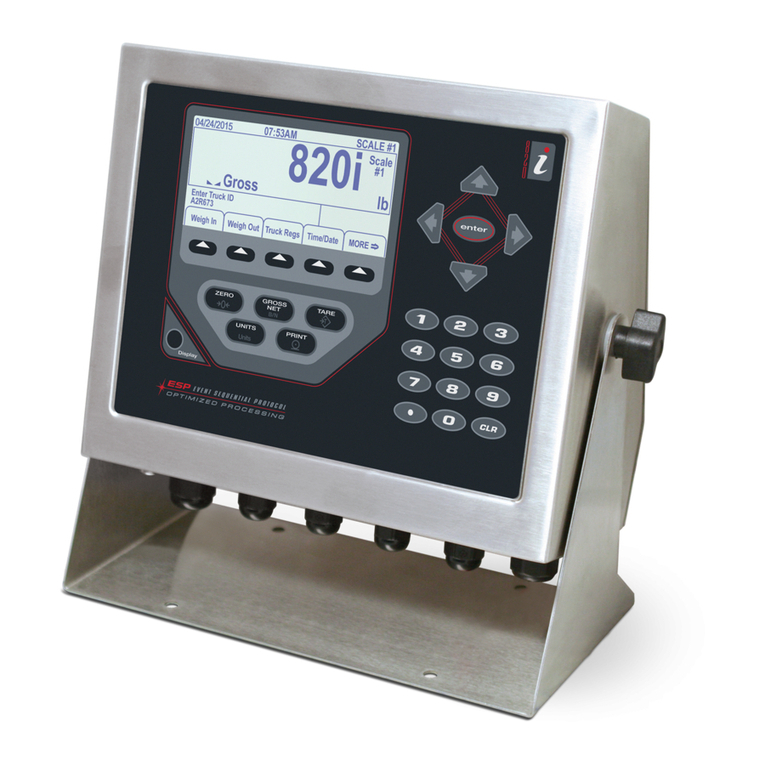
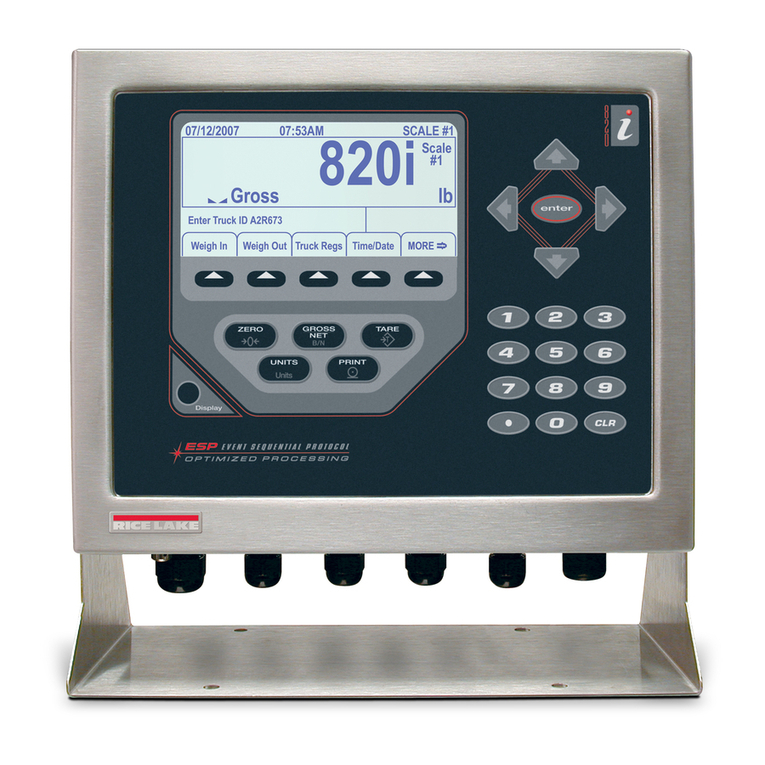
The 920i screen should appear as in Figure 1-3.
1.
4UBSU
4$"-&
4FMFDU
1SPEVDU 4FUVQ
4UBUJTUJDT .PSF
Figure 1-3. 920i screen.
1. Press Setup.
2. Press Products.
3. Press Add.
The Add Product screen appears (see
Figure 1-4)
Table 1-2 provides descriptions of each entry.
1.
)PNF
4$"-&
$BODFM &OE
)$
$ESCRIPTION
4ARE7EIGHT
5NITS
4/
4/
4ARGET
45
45
Figure 1-4. Add Product screen.
Table 1-2. Screen items and descriptions.
Screen Item Description
ID Product ID - must be one to eight characters
Description Product description - must be zero to 20 characters.
Ta r e W e i g ht System tare value while using the product in a run
Units Units of measure
TO2 Weights above this value will be considered to be in
the highest range. Setting this value to zero disables
the checking for this range.
TO1 Weights above this value and below TO2 will be
considered to be in the high range. If the highest
range value is set to zero, all weights above this value
are in the high range. Setting this value to zero
disables the checking for this range.
Ta r g e t Target weight from scale - must be specified if the
system tolerance type is either offset or percent.
TU1 Weights below this value and above TU2 will be
considered in the high range. If the lowest range value
is zero, all weights below this value and above the
minimum acceptable weight are in the low range.
Setting this value to zero disables the checking for
this range.
TU2 Weights below this value and above the minimum
acceptable weight are in the lowest range. Setting
this value to zero disables the checking for this range.
Adjust
Percent
Adjusts the weight of every item by a set percentage.
For example, if the checkweigher is consistently
reading 10% low, adjust percent can be set to 10% to
compensate.
Reject Action Stop or divert for rejected projects
Reject Delay The delay (in milliseconds) after a product is weighed
before turning on the reject diverter
Reject On
Time
The amount of time (in milliseconds) to engage the
diverter