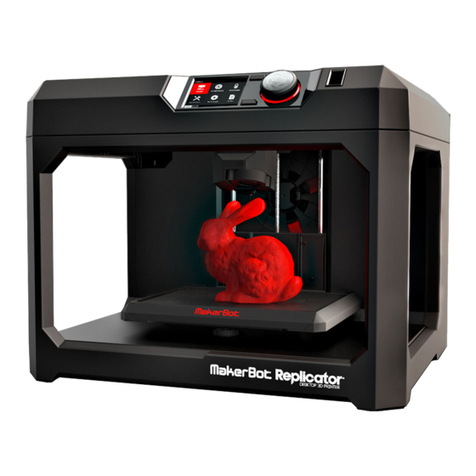
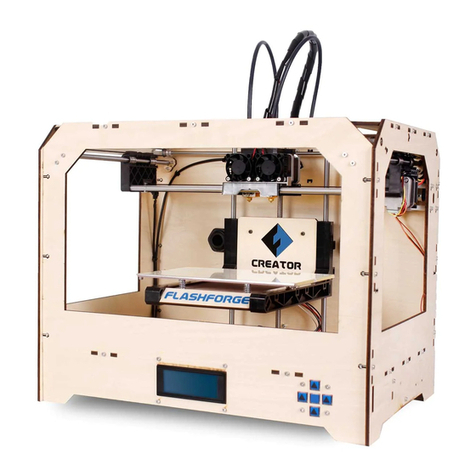
Robo 3D R1 User manual

1
CONTENTS
2 CHAPTER I: Welcome to Your ROBO 3D Experience!
3 CHAPTER II: Installing Software
4CHAPTER III: Connecting Your R1 3D Printer
8CHAPTER IV: Software Navigation
21 CHAPTER V: Slice
34 CHAPTER VI: Your First 3D Print- Workflow
40 CHAPTER VII: 3D Printing Resources
41 CHAPTER VIII: Troubleshooting

2
CH I
Welcome to your ROBO 3D experience!
We at ROBO 3D really love 3D printing and our aim is to help spread this amazing technology around the
globe. If you are reading this guide you probably have one of our units and we can’t tell you how
appreciative we are for your help in making our dream come true. We have created this guide to help
you learn how to use your new ROBO 3D printer. Whether you are a seasoned 3D modeler or are brand
new to this technology, this guide will help you along the way. This document is intended to aid you in
getting your new desktop unit up and running and printing some great 3D objects!

3
CH II
Installing Software
So you’ve got your ROBO 3D unit put together- now what? Well the next step is to get the software you
need to work with your computer. We have included a copy of our software in the box that your printer
shipped in and it is also available on our website, www.robo3d.com under the “Support” tab. This
software is easily supported by Windows and Mac operating systems.
To install the ROBO 3D Printer software by MatterHackers, first locate the 2 GB micro SD
card and USB thumb drive adapter included in your tool kit.
Insert the micro SD card into the USB SD card adapter (2.1)
(2.1)
Insert the USB adapter with SD card into an available USB port on your computer. You will
be prompted to open the drive.
Within the “ROBO 3D PRINTER” folder you will see 3 files:
- Getting Started Video (robo3d_2014.mp4)
- Macintosh compatible software (.pkg file)
- Windows compatible software (.exe file)
Select the software that matches with your operating system and follow the onscreen
prompts for installation.

4
CH III
Connecting your R1 3D Printer
Physically connect your printer
Locate a solid flat surface to place your printer- somewhere close to your computer
You also need to be close to a power outlet
Plug the USB cable that comes with your kit into the right side of the printer and
connect the other end to an available port on your computer.
*IMPORTANT!! Make sure you set the voltage on the power supply on the back
side of your printer to the correct position before use! Use a flat head
screwdriver or a pen to move the slider. Use 115 (3.1a) if you are in the U.S. If
you are out of the U.S. or need a higher voltage setting for another reason, move
the slider to the 230v (3.1b) position.
(3.1a) (3.1b)
Flip the switch on the back right side of the printer to the on position (3.2)
(3.2)

5
Connecting to the ROBO 3D Software
Click the MatterControl icon that saved on your desktop.
Make sure you are connected via USB and your printer is powered on.
After the software opens, click the “Add Printer” button at the top of the screen. (3.3)
(3.3)
A new window will pop up and you will be able to set up a 3D printer. From here you
can assign your ROBO 3D a nickname. This helps you keep track of multiple units. (3.4a)
Next find the “Select Make” drop down list and choose ROBO 3D.
Now select “R1” from the model list. (3.4b)
To save this printer, click the “Save & Continue” button as seen below. (3.4c)

6
(3.4a) (3.4b) (3.4c)
Now a new set of windows will open and prompt to “Install Communication Driver”. Do
this by clicking “Install Driver” in the bottom left corner of this screen. (3.5a)
Once the driver is finished installing a “3D Printer Setup” window will appear. Follow the
instructions on this screen to disconnect the printer and press “Continue”. (3.5b)
(3.5a) (3.5b)

7
Reconnect your ROBO 3D after this and press “Connect”. (3.6a)
Once the printer connects, you will see a “Connection Succeeded!” message. From here
click “Done”. (3.6b)
(3.6a) (3.6b)
Your ROBO 3D Printer is connected to the software!

8
CH IV
Software Configuration for Printing
ROBO 3D has teamed up with MatterHackers to provide a top of the line 3D printing software that is
very user friendly. In this chapter we will be diving into this software and explaining everything you need
to know in order to get the best possible prints out of your R1 3D printer.
There are 3 main components to MatterControl: the Home Screen (4.1a), Build Plate (4.1b) and the
Configuration Panel (4.1c).
(4.1a) (4.1b) (4.1c)
Navigating the home screen.
Your home screen is the first thing that you see when you open up the ROBO 3D version of
MatterControl. This is where you can connect to a printer, add files to be printed, create
libraries of parts, check your print history and even update your software to the latest version.
From this screen you can also navigate to the other two main screens in MatterControl. Let’s
dive into the various components of the Home Screen.
1. Queue
Your print queue is where you load files that you want to print. You can have numerous
files loaded into your queue at once, but only print one at a time.
To add a file click the button in the bottom left hand corner of the screen.
Search your computer for either an .STL, .OBJ, or .GCODE file and open it into the queue.

9
If you have loaded multiple files into the queue, then you will see them listed out in the
middle of the screen
When you click on a file listed in your queue, it will become highlighted and a preview
picture will show in the top portion of your screen. This means that this file is lined up to
be printed next. (4.2a)
(4.2a)
On the bottom right hand corner of your screen you will see a “Queue Options” button.
(4.2b) From here you will be able to access a few different options for customizing your
queue. You can import and export .STL files, export .GCODE files to folders (like an SD
card for printing without a computer) or load files from a connected SD card into your
queue.
(4.2b)

10
2. Library
Your library is where you can store different files that you frequently print. We include a
preloaded library with over twenty ROBO 3D Optimized* prints to help you get started.
To add an object to your print queue, simply hover over the item and click “Add to
Queue” (4.3a)
You can also import other files into your library by using the “Import” button (4.3a)
(4.3a)
3. History
Within the History tab, you will be able to see information on all of your previous 3D
print jobs. (4.4)
You can record information on the number of prints that you have completed, total
print time for your ROBO 3D printer and even print time/date for individual prints
Table of contents