English
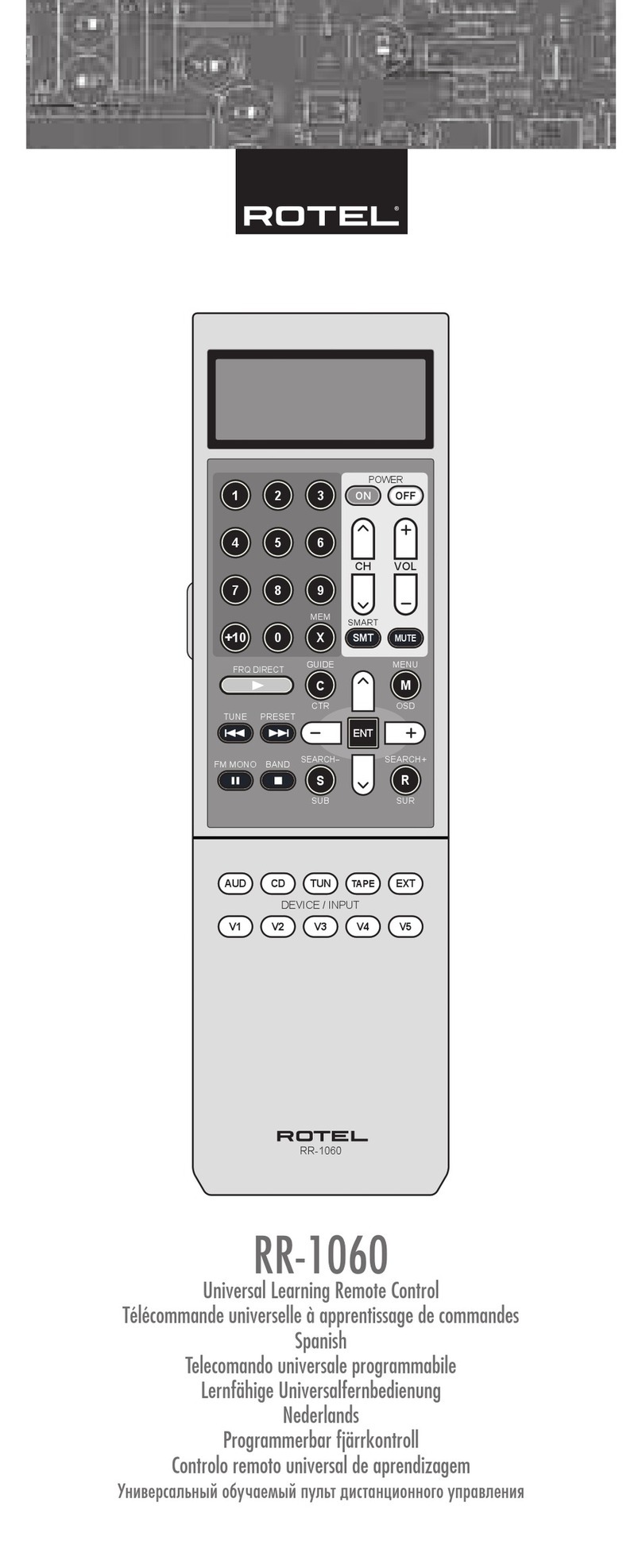
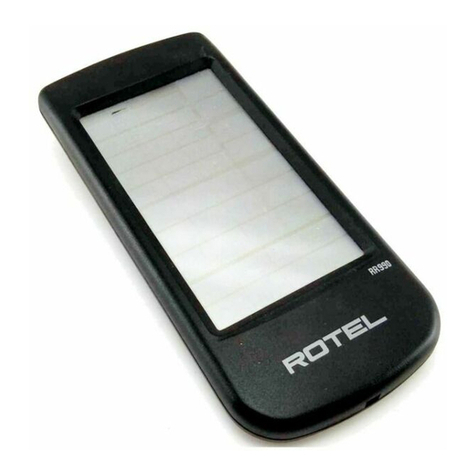
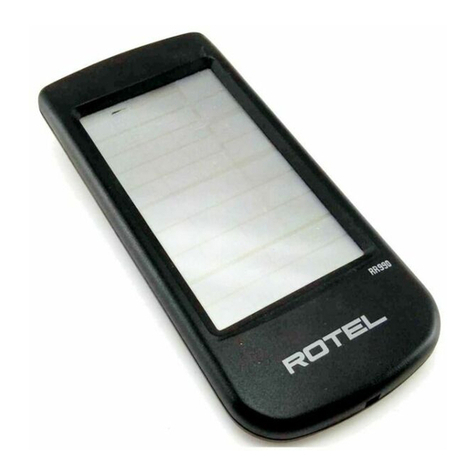
RR-1070
10
Auto Search
Select a preprogramming code by searching through the library.
•Turn on the device you want the RR-1070 to control before starting
this setup procedure.
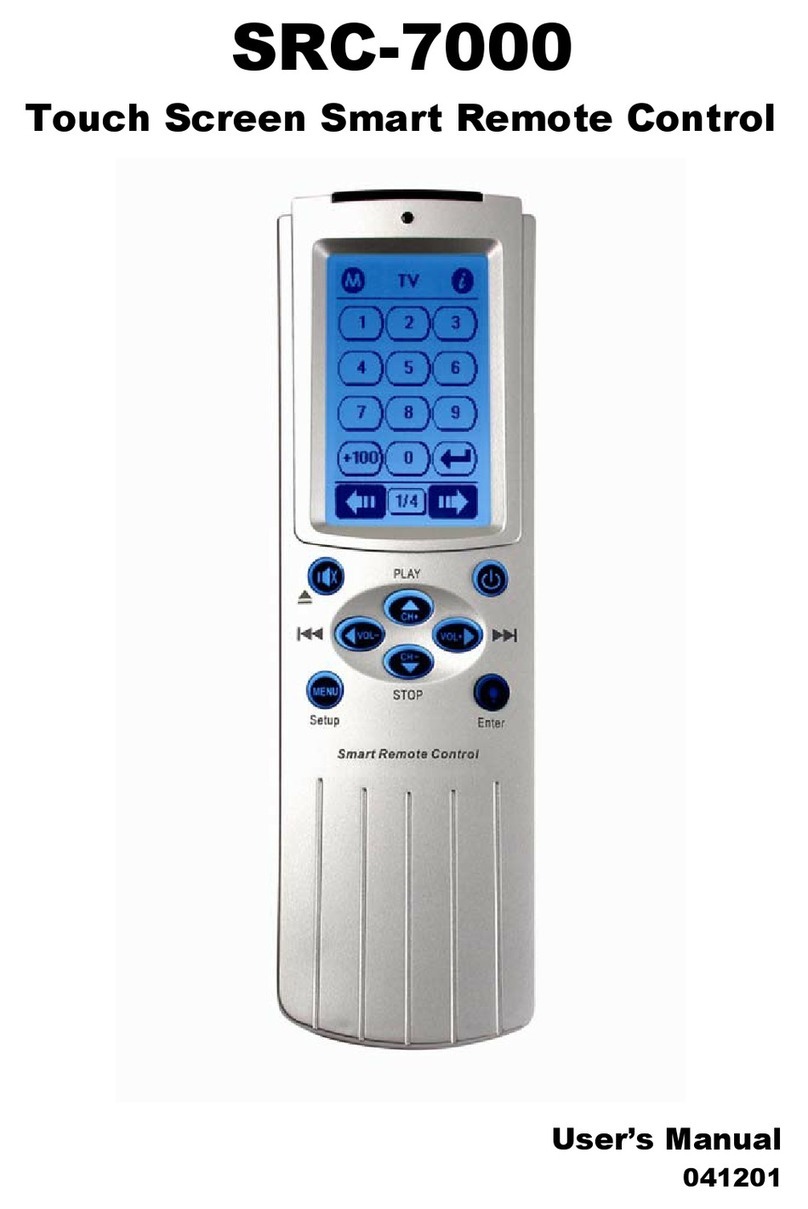
•Touch the hot key to go to the Main Menu page.
•Touch SETUP to go to the Setup page.
•Touch AUTO SEARCH to go to the Auto Search device selection
page.
•Touch one of the device keys,. (e.g. TV), to select the kind of device
you want the RR-1070 to control. The Auto Search page is shown
with the first control code set for that device selected.
•Point the RR-1070 at the device and touch once. If the device is
turned off touch OK to select that control code set. A “New code
setup is completed.” message is briefly displayed.
•If the device is not turned off keep touching slowly, patiently and
repeatedly, until your device is switched off. Then, touch OK to lock
the code. A “New code setup is completed.” message is displayed.
•You can also touch TEST KEY on the Auto Search page to test the
other active preprogramming keys for that device.
•Touch to go back and test a previous control code set.
•Touch BACK at any time to stop the process and return to the previ-
ous page.
NOTE: Some of control code sets do not have Power command. Try
touching TEST KEY on the Auto Search page to test another active key.
Or one of the VOLUME +/– or CHANNEL +/– hard keys can be used
to test a control code set.
Learning New Commands
Even if you start with a preprogramming control code set you will prob-
ably want to use the learning capabilities of the RR-1070 add control
codes or modify existing ones.
NOTE: When a key is programmed with a new control code the
previous code is overwritten. The original preprogramming code can be
restored. See the Clear Learning section of this manual. The original
code can also be restored by selecting the original preprogramming
control code set. However this will also erase all other learned
commands and customized labels.
To Program New Commands
•Touch the hot key to go to the Main Menu page.
•Touch SETUP to go to the Setup page
•Touch LEARNING to go to the Learning Device selection page.
•Touch one of the device keys,. (e.g. TV), to select the kind of device
you want to program. The first Learning page for that device is shown.
Any programmed keys are shown. Unprogrammed keys are blank.
•Each device will have from three to six pages. Touch or to
access other pages.
•Touch the key on the RR-1070 you want to reprogram. The Learn-
ing page appears.
27
Specifications
Operation System:
Integrated preprogrammed & learning infrared remote control
system
Compatibility:
Preprogrammed with code library of Televisions (TVs), Video
Cassette Recorders (VCRs), Satellite/Digital Satellite Receivers
(SAT/DSS), Cable Converters (CTVs), Laser Disc Players (LDs),
Compact Disc Players (CDs), Digital Video Disc Players (DVDs) and
Rotel Tuner/Amplifier (ROTEL)
Memory Capacity:
240 learned commands
Memory Retention After Battery Removal:
Non-volatile and permanent memory
Display Panel:
Monochrome 320 x 80 pixel touch screen LCD
EL Backlighting:
Blue-Green EL backlighting with light sensor
Operating Distance:
8 Metres (25 feet)
Power Requirement:
4 x AAA size NiMH rechargeable batteries
Charging Time:
About 17 hours
Dimensions:
220 x 51 x 25 mm
Weight :
165g (without batteries installed), 215g (with batteries installed)
Included Accessories:
1Power Cord
1AC/DC switching adaptor
(Input: 100-240V ~50/60Hz. Output: 9V, 0.667A)
1Connector (for charging purpose)
4AAA NiMH size rechargeable batteries
Optional Accessories:
Docking Charger — Quick charger
PC Link software for MS Windows 98, 2000
USB Cable
For improvement purposes, specifications and functions are
subjected to change without priority notice.