manuals.online logo
Brands
  1. Home
  2. •
  3. Brands
  4. •
  5. Samsung
  6. •
  7. Cell Phone
  8. •
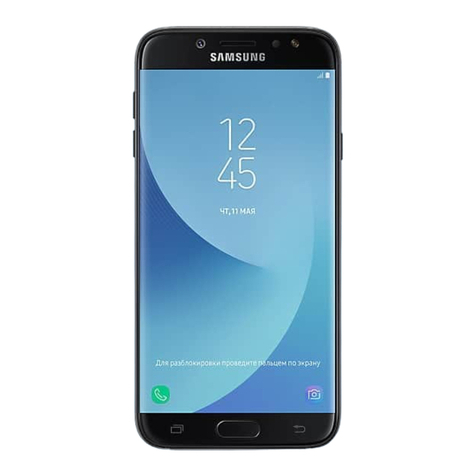
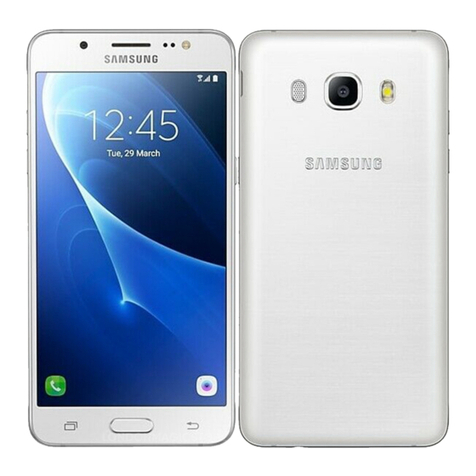
  9. Samsung SM-A700FD User manual

Samsung SM-A700FD User manual

Other manuals for SM-A700FD

1

This manual suits for next models

2

Other Samsung Cell Phone manuals

Samsung Galaxy S20 5G User manual

Samsung

Samsung Galaxy S20 5G User manual

Samsung E630 - SGH Cell Phone User manual

Samsung

Samsung E630 - SGH Cell Phone User manual

Samsung GT-S5830D User manual

Samsung

Samsung GT-S5830D User manual

Samsung SGH SGH X105 User manual

Samsung

Samsung SGH SGH X105 User manual

Samsung GT-S5830M User manual

Samsung

Samsung GT-S5830M User manual

Samsung SGH-T189N User manual

Samsung

Samsung SGH-T189N User manual

Samsung SM-A307FN User manual

Samsung

Samsung SM-A307FN User manual

Samsung SM-A336M User manual

Samsung

Samsung SM-A336M User manual

Samsung SGH-T469 User manual

Samsung

Samsung SGH-T469 User manual

Samsung SCH-R312 Series User manual

Samsung

Samsung SCH-R312 Series User manual

Samsung Galaxy S Aviator Service manual

Samsung

Samsung Galaxy S Aviator Service manual

Samsung GT-E2230L User manual

Samsung

Samsung GT-E2230L User manual

Samsung SGH-U800 User manual

Samsung

Samsung SGH-U800 User manual

Samsung SWTN375S User manual

Samsung

Samsung SWTN375S User manual

Samsung SM-J730K User manual

Samsung

Samsung SM-J730K User manual

Samsung Galaxy S4 Mini User manual

Samsung

Samsung Galaxy S4 Mini User manual

Samsung GT-S5830I User manual

Samsung

Samsung GT-S5830I User manual

Samsung SCH-W259 User manual

Samsung

Samsung SCH-W259 User manual

Samsung SGH-D720 User manual

Samsung

Samsung SGH-D720 User manual

Samsung Galaxy S7 Edge User manual

Samsung

Samsung Galaxy S7 Edge User manual

Samsung SPHA960 User manual

Samsung

Samsung SPHA960 User manual

Samsung SCH-I535 User manual

Samsung

Samsung SCH-I535 User manual

Samsung SM-J510S User manual

Samsung

Samsung SM-J510S User manual

Samsung A660 - SPH Cell Phone User manual

Samsung

Samsung A660 - SPH Cell Phone User manual

Popular Cell Phone manuals by other brands

Nokia 6700 classic user guide

Nokia

Nokia 6700 classic user guide

LG L34C user guide

LG

LG L34C user guide

Ericsson T60d manual

Ericsson

Ericsson T60d manual

Zte Score M user manual

Zte

Zte Score M user manual

Sony Xperia Z1 Compact Startup guide

Sony

Sony Xperia Z1 Compact Startup guide

AT AT-Q5 user manual

AT

AT AT-Q5 user manual

Vingtor ACM-M-A-V2 Installation/configuration

Vingtor

Vingtor ACM-M-A-V2 Installation/configuration

Olitech EasyFlip 2 Quick setup guide

Olitech

Olitech EasyFlip 2 Quick setup guide

Zte Atrium Z793C user manual

Zte

Zte Atrium Z793C user manual

Alcatel IDEAL manual

Alcatel

Alcatel IDEAL manual

Zte BLADE A520 quick start guide

Zte

Zte BLADE A520 quick start guide

switel M222 user manual

switel

switel M222 user manual

LG LG-P503 user guide

LG

LG LG-P503 user guide

LG F2410 user guide

LG

LG F2410 user guide

Argom E500 manual

Argom

Argom E500 manual

Hisense U30 user manual

Hisense

Hisense U30 user manual

Argom Tech E401 user manual

Argom Tech

Argom Tech E401 user manual

Nokia 3595 - Cell Phone - GSM Manual Del Usuario

Nokia

Nokia 3595 - Cell Phone - GSM Manual Del Usuario

manuals.online logo
manuals.online logoBrands
  • About & Mission
  • Contact us
  • Privacy Policy
  • Terms and Conditions

Copyright 2025 Manuals.Online. All Rights Reserved.

www.samsung.com
User Manual
English. 01/2015. Rev.1.3
SM-A700FD
SM-A700F
SM-A700H
2
Table of Contents
Read me first
Getting started
7 Package contents
8 Device layout
10 Using the SIM or USIM card and
battery
18 Using a memory card
21 Turning the device on and off
21 Locking and unlocking the screen
Basics
22 Using the touch screen
25 Home screen layout
29 Notifications and quick setting panels
32 Opening apps
32 Installing or uninstalling apps
34 Entering text
37 Screen capture
37 My Files
38 Power saving feature
39 Viewing help information
Network connectivity
40 Mobile data
40 Wi-Fi
41 Tethering and Mobile hotspot
Motions & usability features
43 Motions and gestures
46 Multi window
52 One-handed operation
53 Increasing touch screen sensitivity
Personalising
54 Managing the Home and Apps screens
56 Setting wallpaper and ringtones
57 Changing the screen lock method
58 Private mode
59 Easy mode
60 Transferring data from your previous
device
61 Setting up accounts
Table of Contents
3
Useful apps and features
83 S Finder
83 S Planner
85 S Voice
86 Internet
87 Music
89 Video
91 Clock
93 Calculator
93 Memo
94 Voice Recorder
95 Dropbox
96 Flipboard
96 Radio
98 Google apps
Connecting with other
devices
100 Bluetooth
102 Wi-Fi Direct
104 NFC (NFC-enabled models)
106 S Beam (NFC-enabled models)
107 Quick Connect
108 Screen Mirroring
110 Mobile printing
Phone
62 Making calls
64 Receiving calls
65 Options during calls
Contacts
66 Adding contacts
66 Importing and exporting contacts
67 Searching for contacts
Messages & email
68 Messages
70 Email
Camera
72 Basic shooting
74 Shooting modes
77 Camera settings
Gallery
79 Viewing content on the device
80 Viewing content stored on other
devices
Safety assistance
81 Emergency mode
82 Help message
Table of Contents
4
Device & data manager
111 Upgrading the device
112 Transferring files between the device
and a computer
113 Backing up and restoring data
113 Performing a data reset
Settings
114 About Settings
114 QUICK SETTINGS
114 CONNECTIONS
119 DEVICE
123 PERSONALISATION
126 SYSTEM
133 APPLICATIONS
Appendix
134 Troubleshooting
140 Removing the battery (non-removable
type)
5
Read me first
Please read this manual before using the device to ensure safe and proper use.
•
Descriptions are based on the device’s default settings.
•
Some content may differ from your device depending on the region, service provider,
model specifications, or device’s software.
•
Content (high quality content) that requires high CPU and RAM usage will affect the
overall performance of the device. Apps related to the content may not work properly
depending on the device’s specifications and the environment that it is used in.
•
Samsung is not liable for performance issues caused by apps supplied by providers other
than Samsung.
•
Samsung is not liable for performance issues or incompatibilities caused by edited
registry settings or modified operating system software. Attempting to customise the
operating system may cause the device or apps to work improperly.
•
Software, sound sources, wallpapers, images, and other media provided with this device
are licensed for limited use. Extracting and using these materials for commercial or other
purposes is an infringement of copyright laws. Users are entirely responsible for illegal
use of media.
•
You may incur additional charges for data services, such as messaging, uploading and
downloading, auto-syncing, or using location services depending on your data plan. For
large data transfers, it is recommended to use the Wi-Fi feature.
•
Default apps that come with the device are subject to updates and may no longer be
supported without prior notice. If you have questions about an app provided with
the device, contact a Samsung Service Centre. For user-installed apps, contact service
providers.
•
Modifying the device’s operating system or installing softwares from unofficial sources
may result in device malfunctions and data corruption or loss. These actions are violations
of your Samsung licence agreement and will void your warranty.
•
Depending on the region or model, some devices are required to receive approval from
the Federal Communications Commission (FCC). If your device is approved by the FCC,
you can view the FCC ID of the device. To view the FCC ID, tap
Apps
→
Settings
→
About device
.

Read me first
6
Instructional icons
Warning: situations that could cause injury to yourself or others
Caution: situations that could cause damage to your device or other equipment
Note: notes, usage tips, or additional information
7
Getting started
Package contents
Check the product box for the following items:
•
Device
•
Quick start guide
•
The items supplied with the device and any available accessories may vary
depending on the region or service provider.
•
The supplied items are designed only for this device and may not be compatible
with other devices.
•
Appearances and specifications are subject to change without prior notice.
•
You can purchase additional accessories from your local Samsung retailer. Make
sure they are compatible with the device before purchase.
•
Use only Samsung-approved accessories. Using unapproved accessories may cause
the performance problems and malfunctions that are not covered by the warranty.
•
Availability of all accessories is subject to change depending entirely on
manufacturing companies. For more information about available accessories, refer
to the Samsung website.
Getting started
8
Device layout
Microphone
Touch screen
Front camera
Proximity/Light sensor
Headset jack
Multipurpose jack
Home button
Recent apps button
Power button
SIM card / Memory card
tray (dual SIM models)
Memory card tray
(single SIM models)
SIM card tray
Earpiece
Microphone
Back button
Volume button
NFC antenna
(NFC-enabled models)
Speaker
GPS antenna
Rear camera
Flash
Main antenna
Getting started
9
•
Do not cover the antenna area with your hands or other objects. This may cause
connectivity problems or drain the battery.
•
Using a Samsung-approved screen protector is recommended. Unapproved screen
protectors may cause the sensors to malfunction.
•
Do not allow water to contact the touch screen. The touch screen may malfunction
in humid conditions or when exposed to water.
Buttons
Button Function
Power
•
Press and hold to turn the device on or off.
•
Press to turn on or lock the screen.
Recent apps
•
Tap to open the list of recent apps.
•
Tap and hold to access additional options for the current
screen.
Home
•
Press to turn on the screen while the screen is locked.
•
Press to return to the Home screen.
•
Press twice to launch
S Voice
.
•
Press and hold to launch
Google
.
Back
•
Tap to return to the previous screen.
Volume
•
Press to adjust the device volume.
Getting started
10
Using the SIM or USIM card and battery
Installing the SIM or USIM card
Insert the SIM or USIM card provided by the mobile telephone service provider.
•
Only nano-SIM cards work with the device.
•
Some LTE services may not be available depending on the service provider. For
more information about service availability, contact your service provider.
1 Insert the ejection pin into the hole on the SIM card tray to loosen the tray.
►
Dual SIM models:
►
Single SIM models:
Ensure that the ejection pin is perpendicular to the hole. Otherwise, the device may
be damaged.