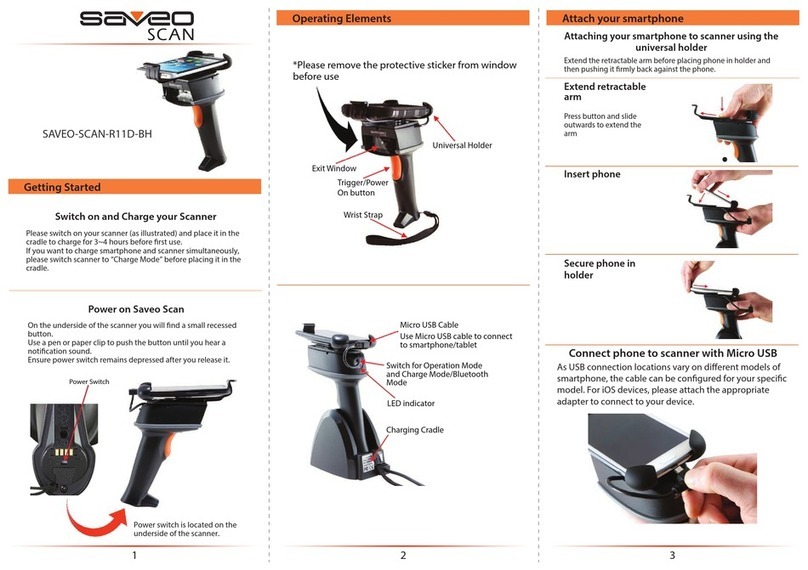
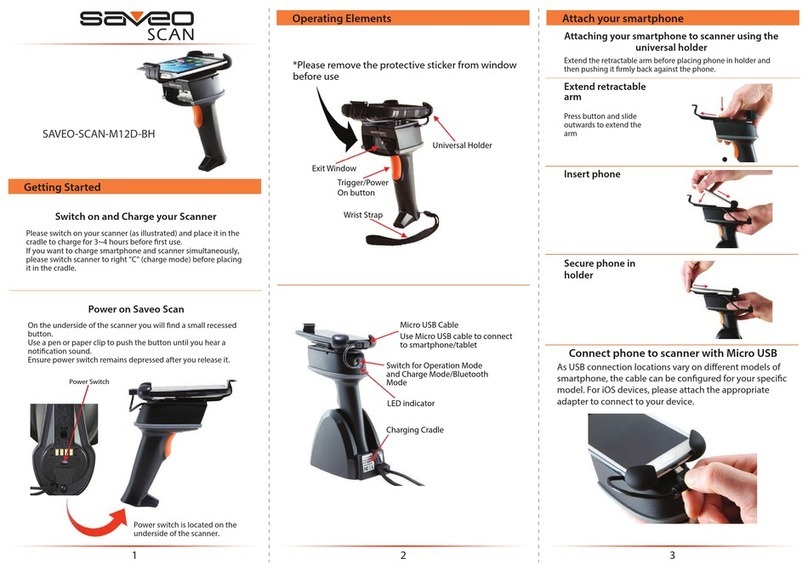
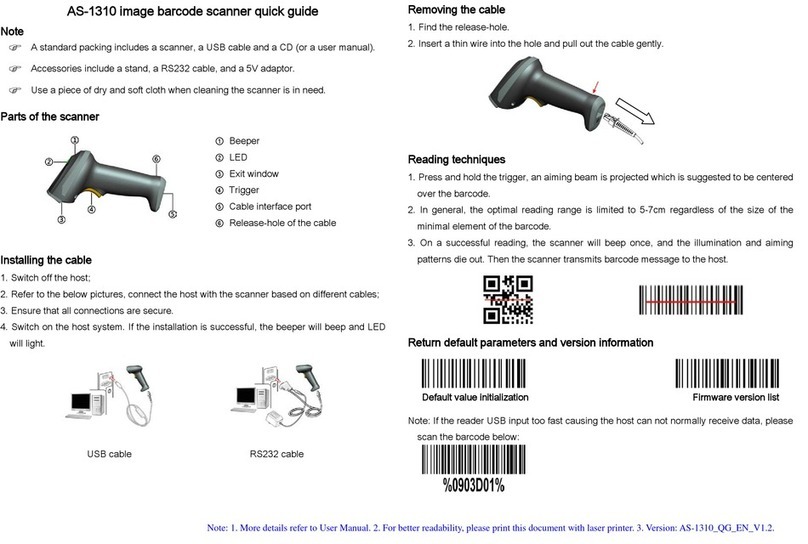
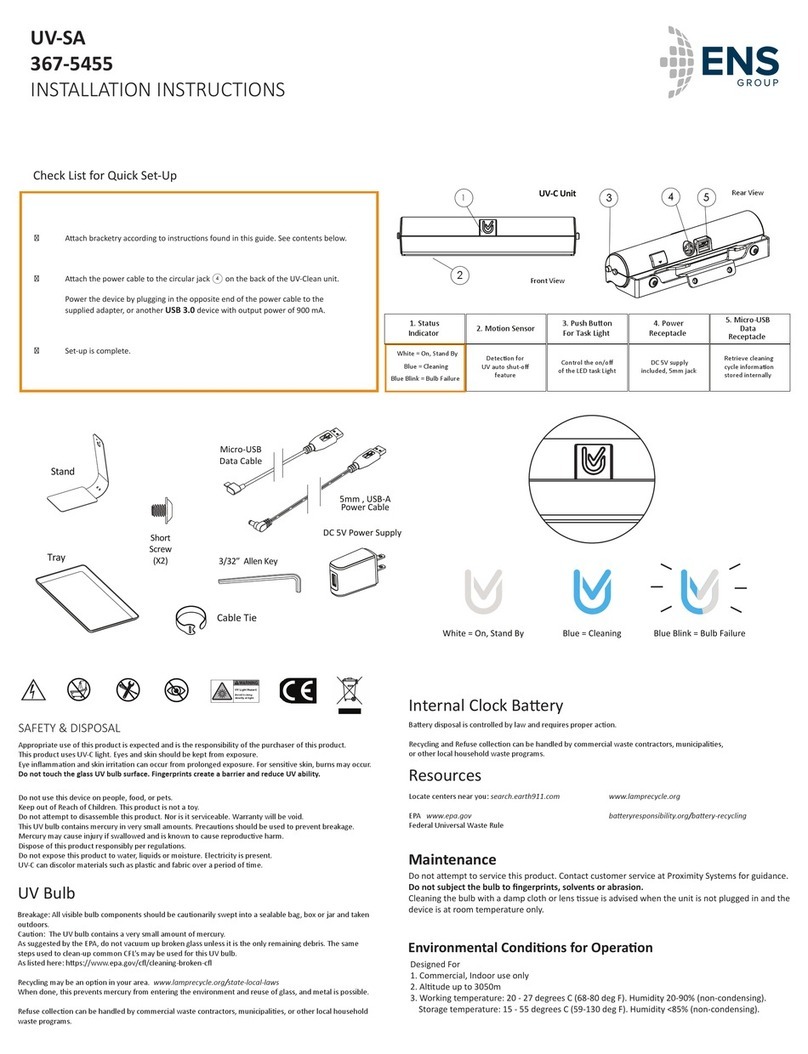
Getting Started
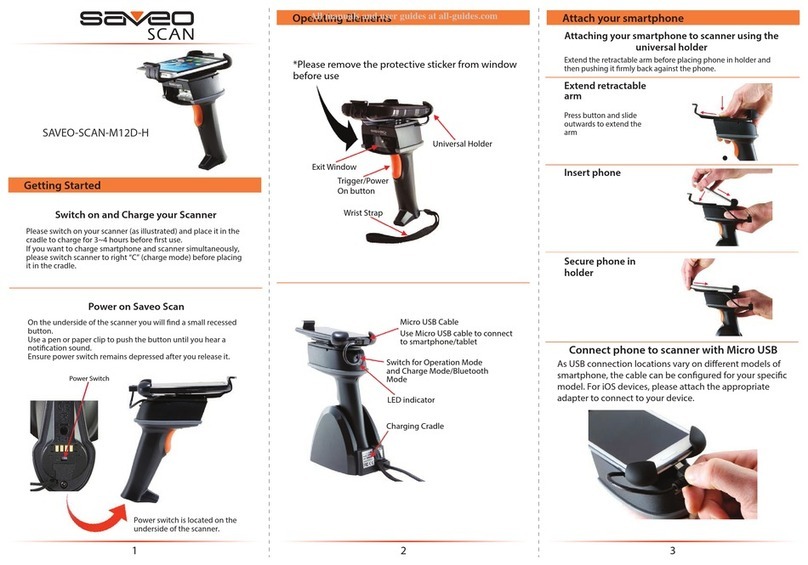
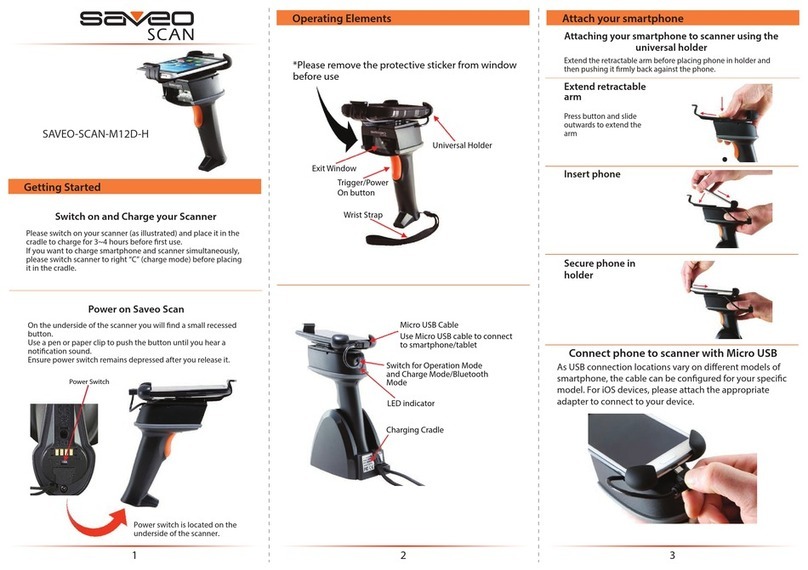
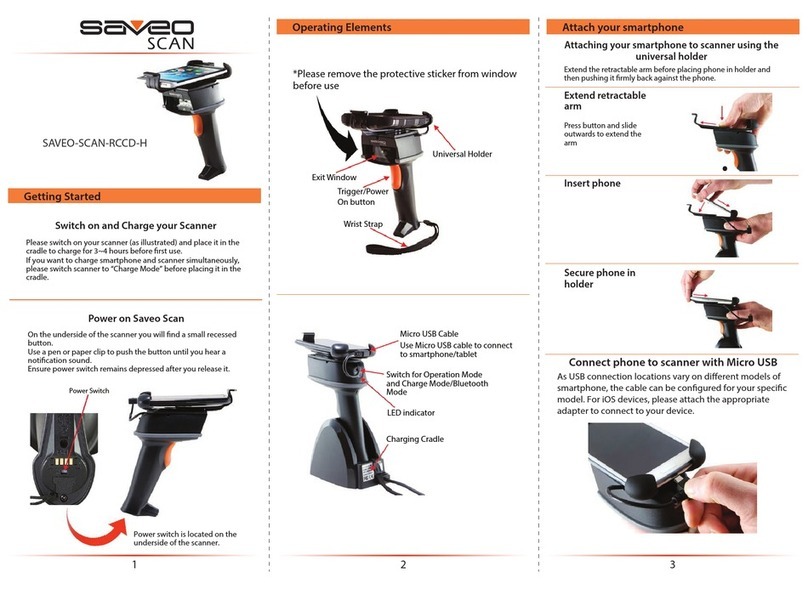
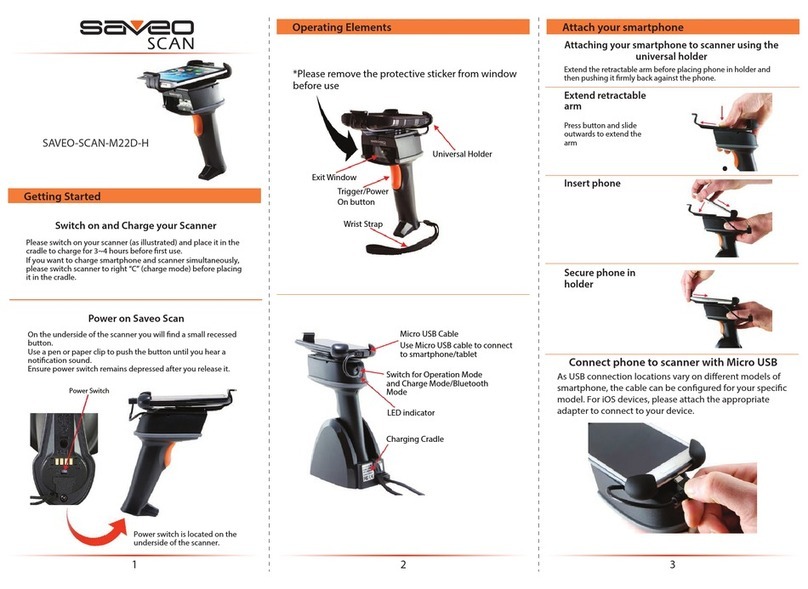
Power Switch
Power switch is located on the
underside of the scanner.
On the underside of the scanner you will nd a small recessed
button.
Use a paper clip or tooth pick to push the button until you hear a
notication sound.
Ensure power switch remains depressed after you release it.
Power on Saveo Scan
Switch on and Charge your Scanner
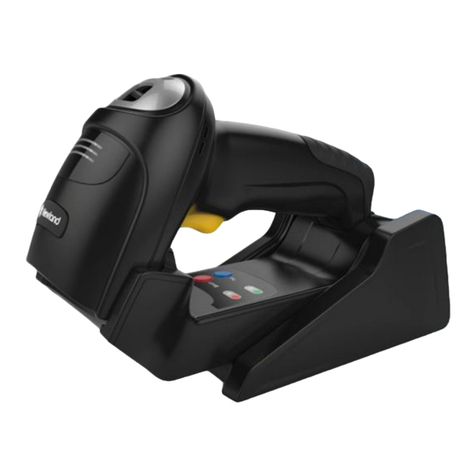
Please switch on your scanner (as illustrated) and place it in the
cradle to charge for 3~4 hours before rst use.
If you want to charge smartphone and scanner simultaneously,
please switch scanner to right “C” (charge mode) before placing
it in the cradle.
*Please remove the protective sticker from window
before use
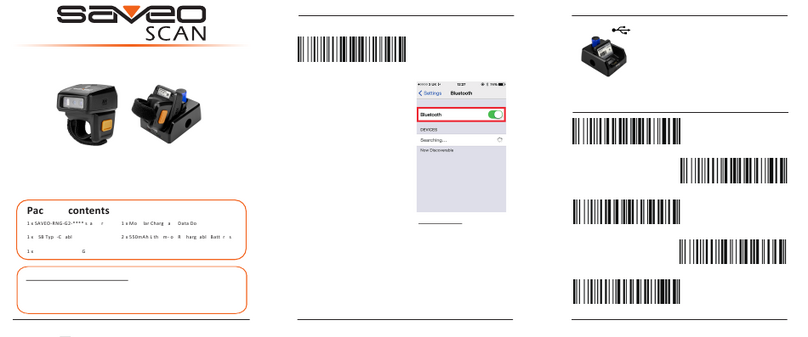
Select the Charge & Data model for the device type
by scanning the barcode below:
Trigger/Power
On button
Wrist Strap
Universal Holder
USB Type-C
Micro USB
Exit Window
Operating Elements
Optimize Device Charging
LED indicator
Charging Cradle
Switch for Operation Mode
and Charge Mode/Bluetooth
Mode
‘To Device’ Cable
Use the appropiate cable type to
connect to smartphone/tablet
SAVEO-RV2-Z12D
Extend retractable
arm
Press button and slide
outwards to extend the
arm
Attaching your smartphone to scanner using the
universal holder
Extend the retractable arm before placing phone in holder and
then pushing it rmly back against the phone.
Secure phone in
holder
Insert phone
Attach your smartphone
12 3
Connect phone to scanner
USB connection typo and port location vary on dierent
models of smartphone, the cable can be congured for
your specic model, Micro USB or USB Type-C. For iOS
devices, please use a Saveo Lightning cable.
Type-C
Micro USB
For Optimal Charging, please use the original USB
cable & adaptor supplied with your mobile device.