? ???
2
ENTER
? ???
Enter via Go to
designated control panel
route
? ???
Interrupted Zone (x)
Exit Tone
? ???
Investigate cause and
restart setting sequence
Repeat for each zone
Zone
No. OMIT
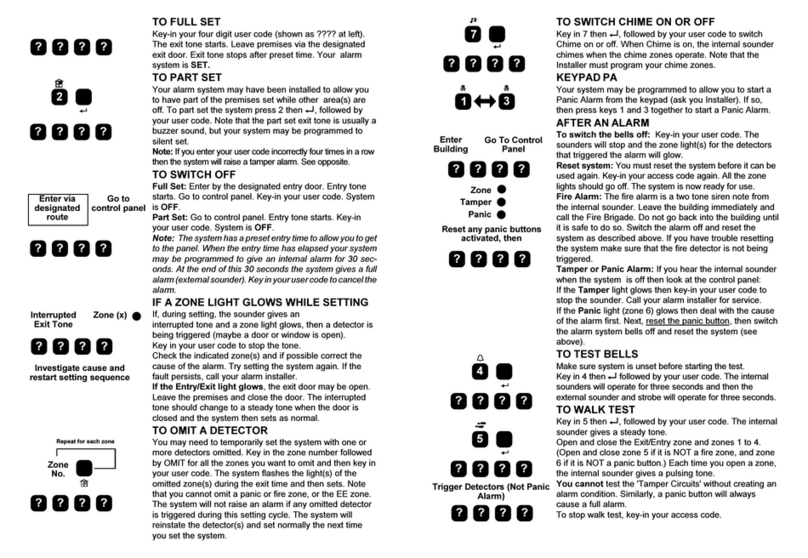
TO FULL SET
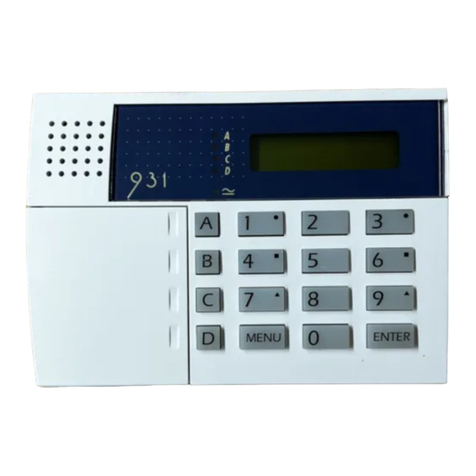
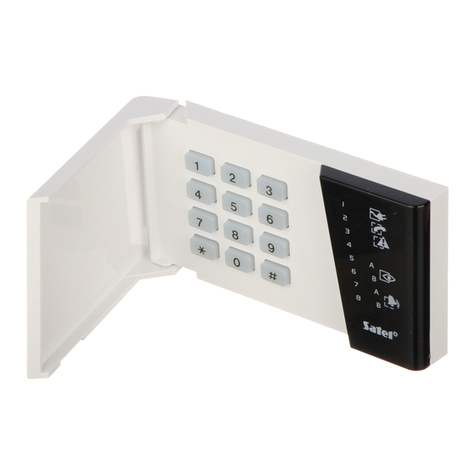
Key-in your four digit user code (shown as ???? at left).
The exit tone starts. Leave premises via the designated
exit door. Exit tone stops after preset time. Your alarm
system is SET.
TO PART SET
Your alarm system may have been installed to allow you
to have part of the premises set while other area(s) are
off. To part set the system key in 2 then ENTER, followed
by your user code. Note that the part set exit tone is
usually a buzzer sound, but your system may be pro-
grammed to silent set.
Note: If you enter your user code incorrectly four times in
a row then the system will raise a tamper alarm. See
opposite.
TO SWITCH OFF
Full Set: Enter by the designated entry door. Entry tone
starts. Go to control panel. Key-in your user code. System
is OFF.
Part Set: Go to control panel. Entry tone starts. Key-in
your user code. System is OFF.
Note: The system has a preset entry time to allow you to get
to the panel. When the entry time has elapsed your system
may be programmed to give an internal alarm for 30 sec-
onds. At the end of this 30 seconds the system gives a full
alarm (external sounder). Key in your user code to cancel the
alarm.
IF A ZONE LIGHT GLOWS WHILE SETTING
If, during setting, the sounder gives an
interrupted tone and a zone light glows, then a detector is
being triggered (maybe a door or window is open).
Key in your user code to stop the tone.
Check the indicated zone(s) and if possible correct the
cause of the alarm. Try setting the system again. If the
fault persists, call your alarm installer.
If the Entry/Exit light glows, the exit door may be open.
Leave the premises and close the door. The interrupted
tone should change to a steady tone when the door is
closed and the system then sets as normal.
TO OMIT A DETECTOR
You may need to temporarily set the system with one or
more detectors omitted. Key in the zone number followed
by OMIT for all the zones you want to omit and then key in
your user code. The system flashes the light(s) of the
omitted zone(s) during the exit time and then sets. Note
that you cannot omit a panic or fire zone, or the EE zone.
The system will not raise an alarm if any omitted detector
is triggered during this setting cycle. The system will
reinstate the detector(s) and set normally the next time
7
ENTER
? ???
1 3
Enter Go To Control
Building Panel
? ???
Zone
Tamper
Panic
Reset any panic buttons
activated, then
? ???
4
ENTER
? ???
5
ENTER
? ???
Trigger Detectors (Not Panic
Alarm)
you set the system.
TO SWITCH CHIME ON OR OFF
Key in 7 then ENTER, followed by your user code to
switch Chime on or off. When Chime is on, the internal
sounder chimes when the chime zones operate. Note that
the Installer must program your chime zones.
KEYPADPA
Your system may be programmed to allow you to start a
Panic Alarm from the keypad (ask you Installer). If so,
then press keys 1 and 3 together to start a Panic Alarm.
AFTER AN ALARM
To switch the bells off: Key-in your user code. The
sounders will stop and the zone light(s) for the detectors
that triggered the alarm will glow.
Reset system: You must reset the system before it can
be used again. Key-in your access code again. All the
zone lights should go off. The system is now ready for
use.
Fire Alarm: The fire alarm is a two tone siren note from
the internal sounder. Leave the building immediately and
call the Fire Brigade. Do not go back into the building until
it is safe to do so. Switch the alarm off and reset the
system as described above. If you have trouble resetting
the system make sure that the fire detector is not being
triggered.
Tamper or Panic Alarm: If you hear the internal sounder
when the system is off then look at the control panel:
If the Tamper light glows then key-in your user code to
stop the sounder. Call your alarm installer for service.
If the Panic light (zone 6) glows then deal with the cause
of the alarm first. Next, reset the panic button, then switch
the alarm system bells off and reset the system (see
above).
TO TEST BELLS
Make sure system is unset before starting the test.
Key in 4 then ENTER followed by your user code. The
internal sounders will operate for three seconds and then
the external sounder and strobe will operate for three
seconds.
TO WALK TEST
Key in 5 then ENTER, followed by your user code. The
internal sounder gives a steady tone.
Open and close the Exit/Entry zone and zones 1 to 4.
(Open and close zone 5 if it is NOT a fire zone, and zone
6 if it is NOT a panic button.) Each time you open a zone,
the internal sounder gives a pulsing tone.
You cannot test the 'Tamper Circuits' without creating an
alarm condition. Similarly, a panic button will always
cause a full alarm.
? ? ? ?
? ? ? ?