SeaLevel 3820 User manual
Other SeaLevel Computer Hardware manuals
SeaLevel
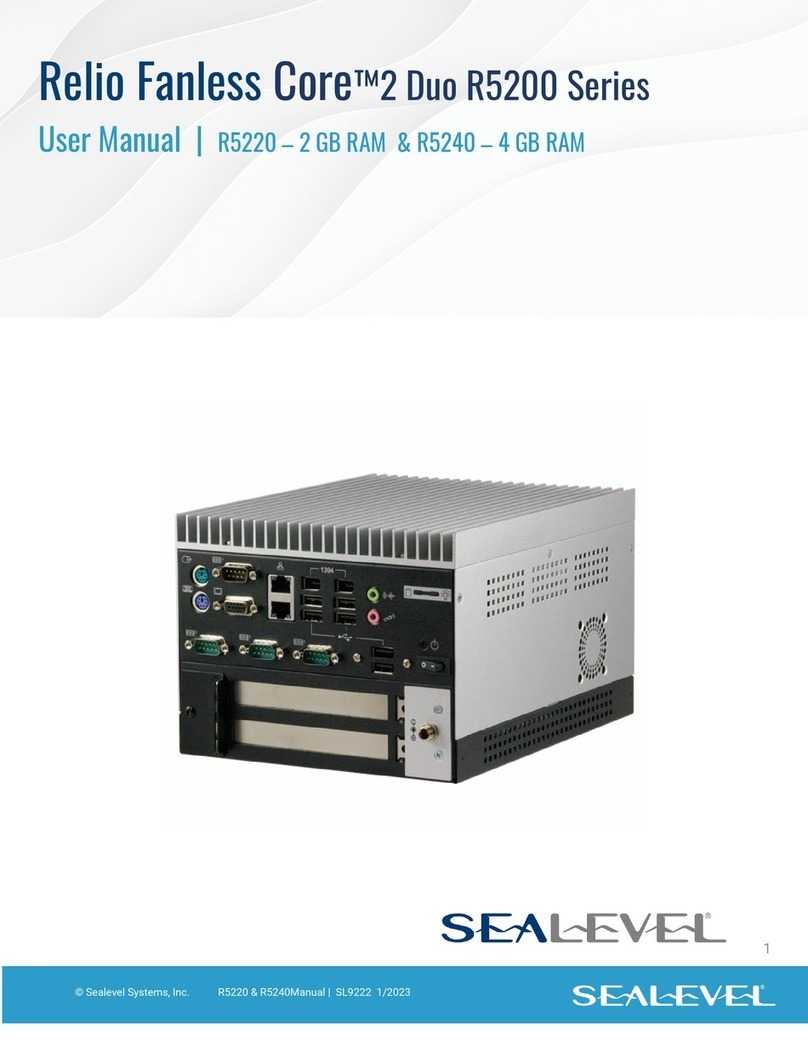
SeaLevel Relio Fanless Core 2 Duo R5200 Series User manual
SeaLevel
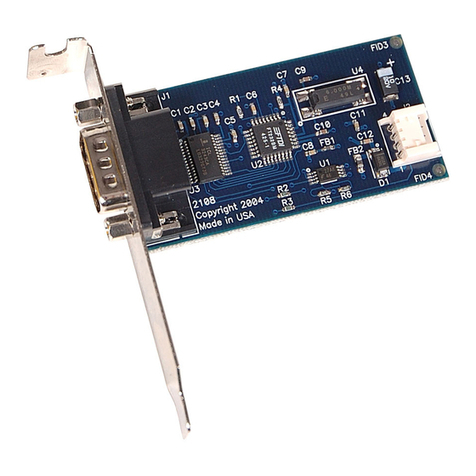
SeaLevel SeaLINK+232.PC User manual
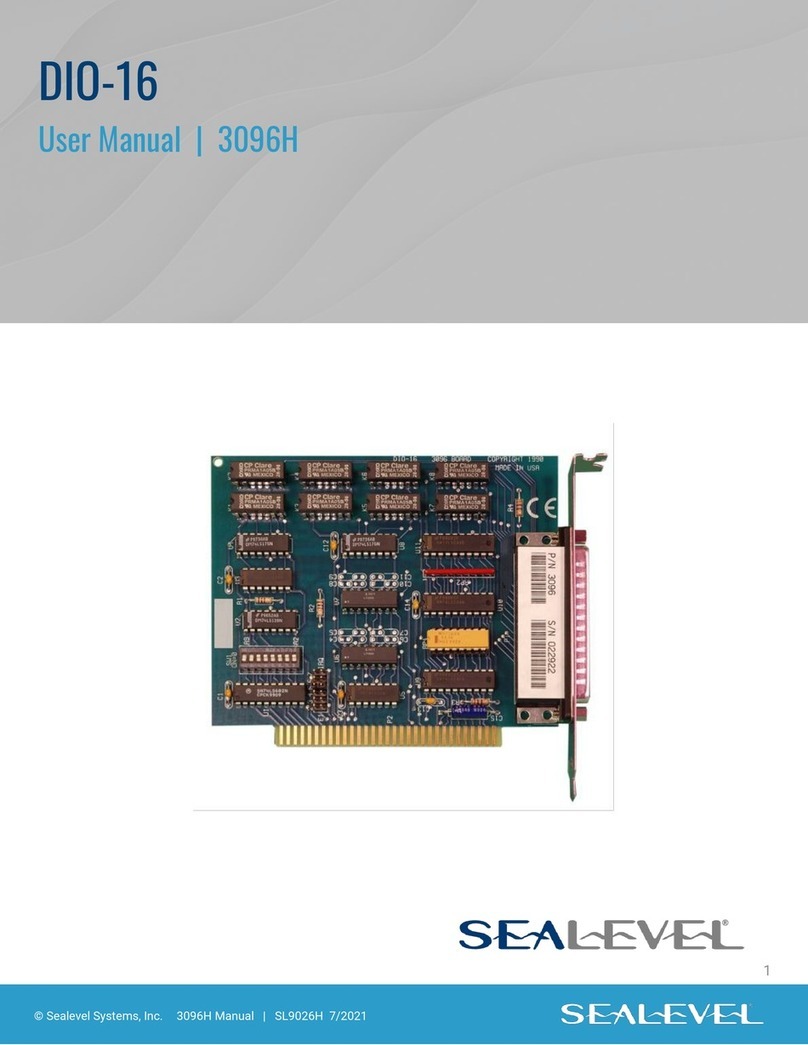
SeaLevel
SeaLevel SeaPORT DIO-16 User manual
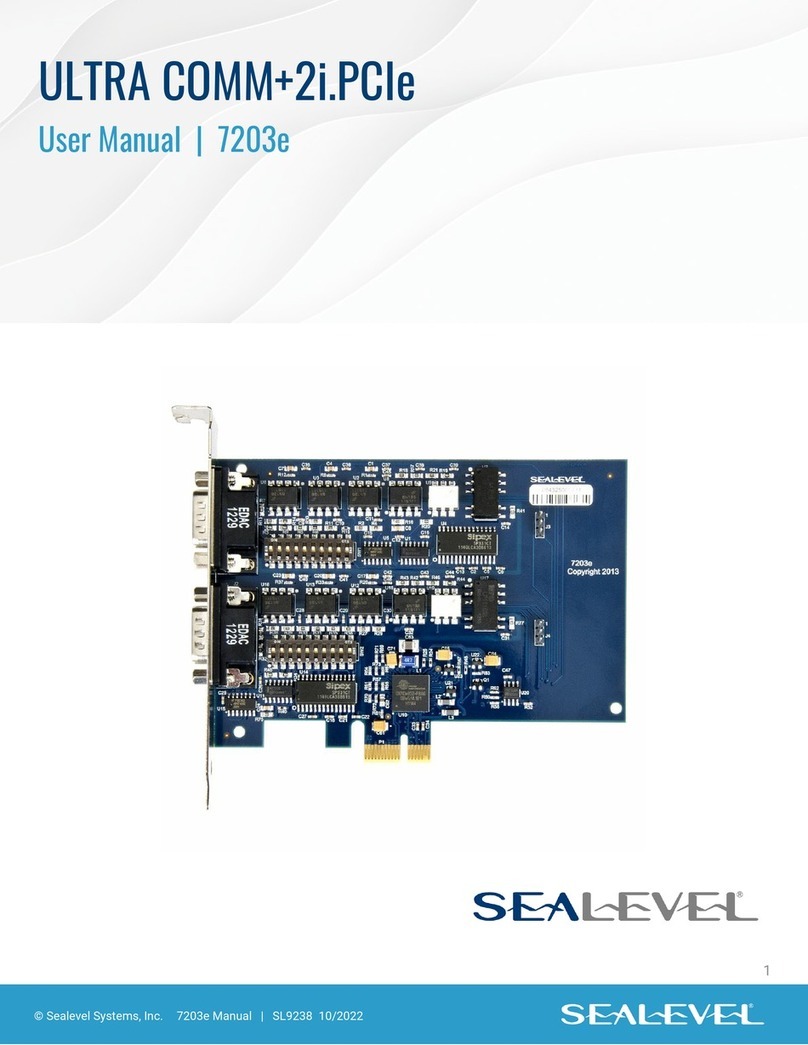
SeaLevel
SeaLevel ULTRA COMM+2i.PCIe User manual
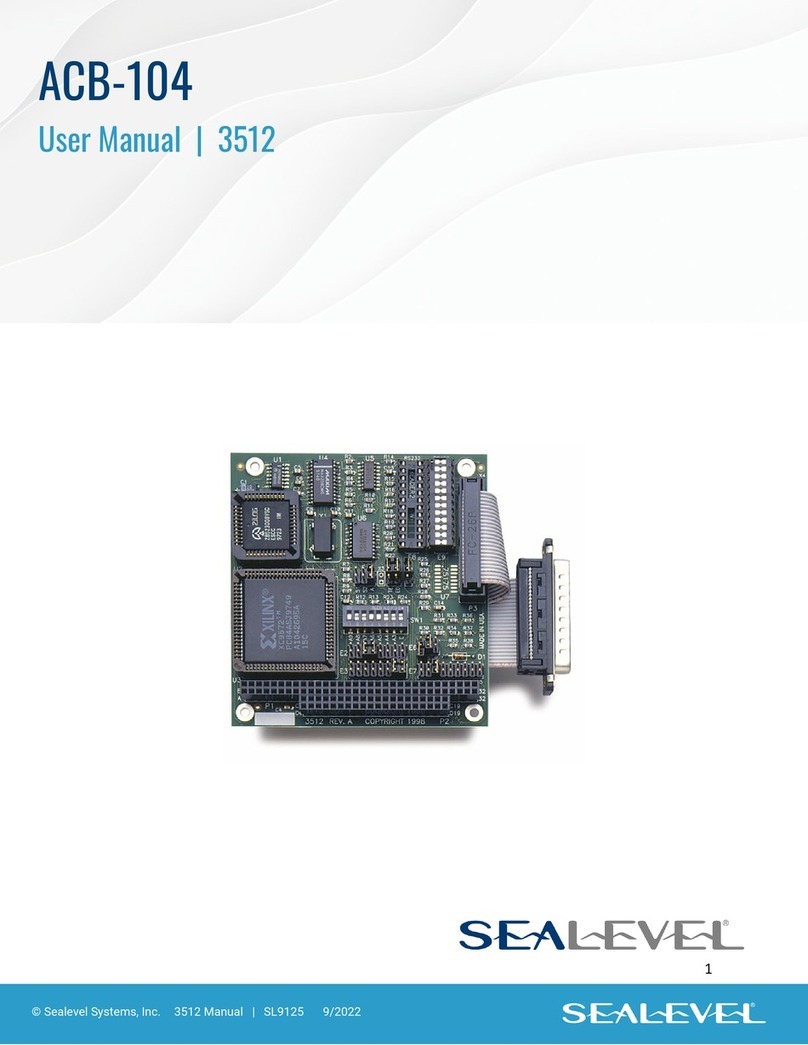
SeaLevel
SeaLevel ACB-104 User manual
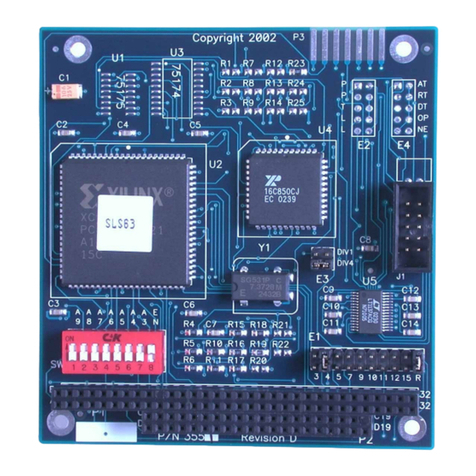
SeaLevel
SeaLevel SIO-104 User manual
SeaLevel
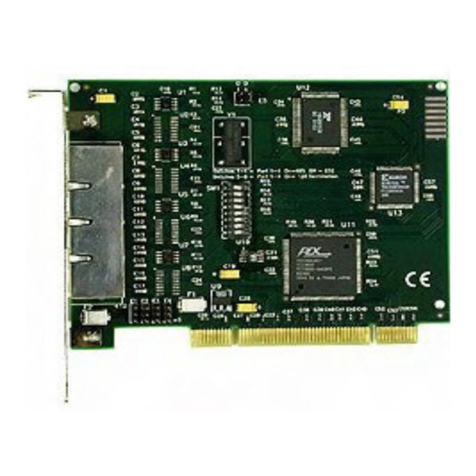
SeaLevel POS+4.PCI User manual

SeaLevel
SeaLevel 7802e User manual
SeaLevel
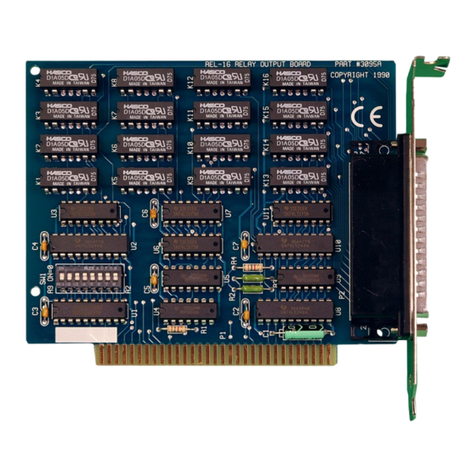
SeaLevel SeaPORT REL-16 User manual
SeaLevel
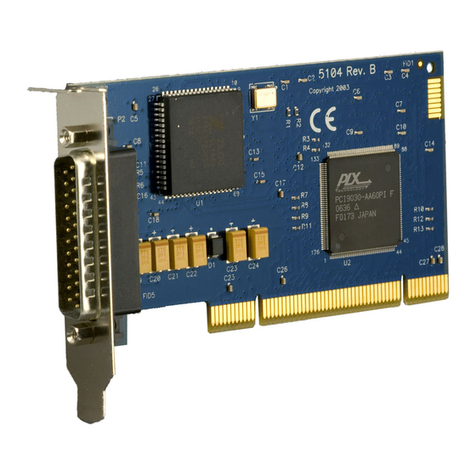
SeaLevel ACB-MP.LPCI User manual
SeaLevel
SeaLevel COMM+232.PCIe User manual
SeaLevel
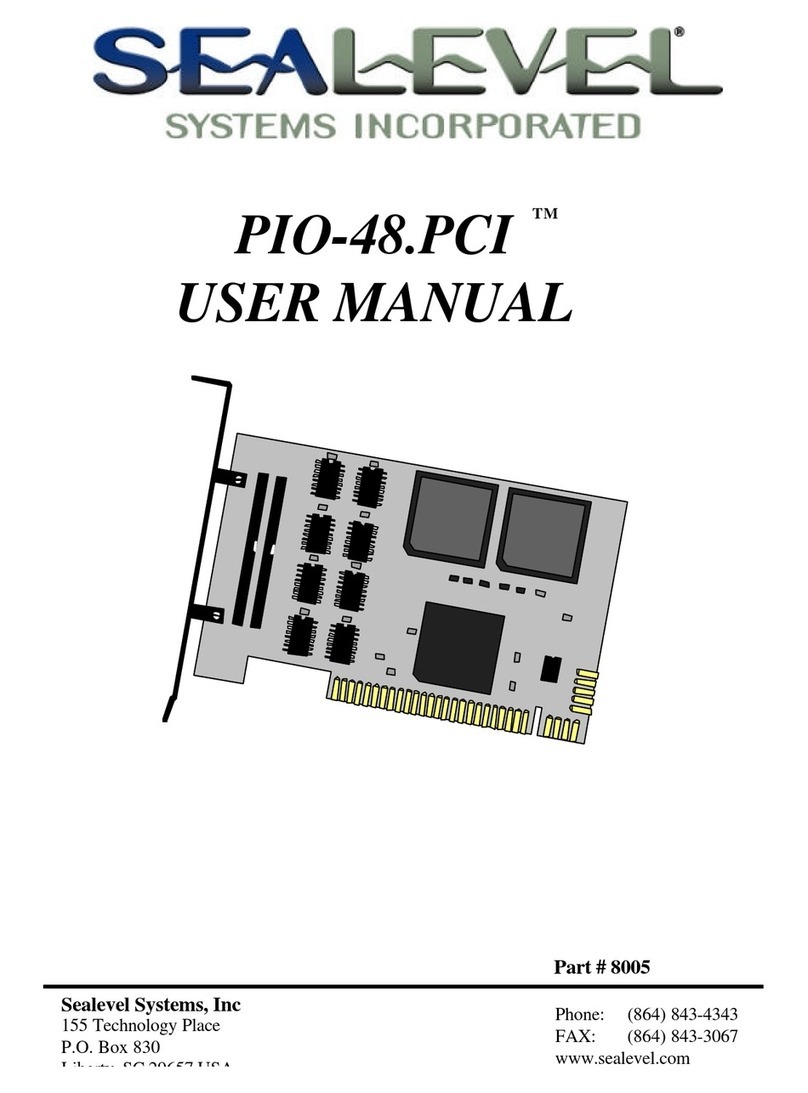
SeaLevel PIO-48.PCI User manual

SeaLevel
SeaLevel COMM+2 User manual
SeaLevel
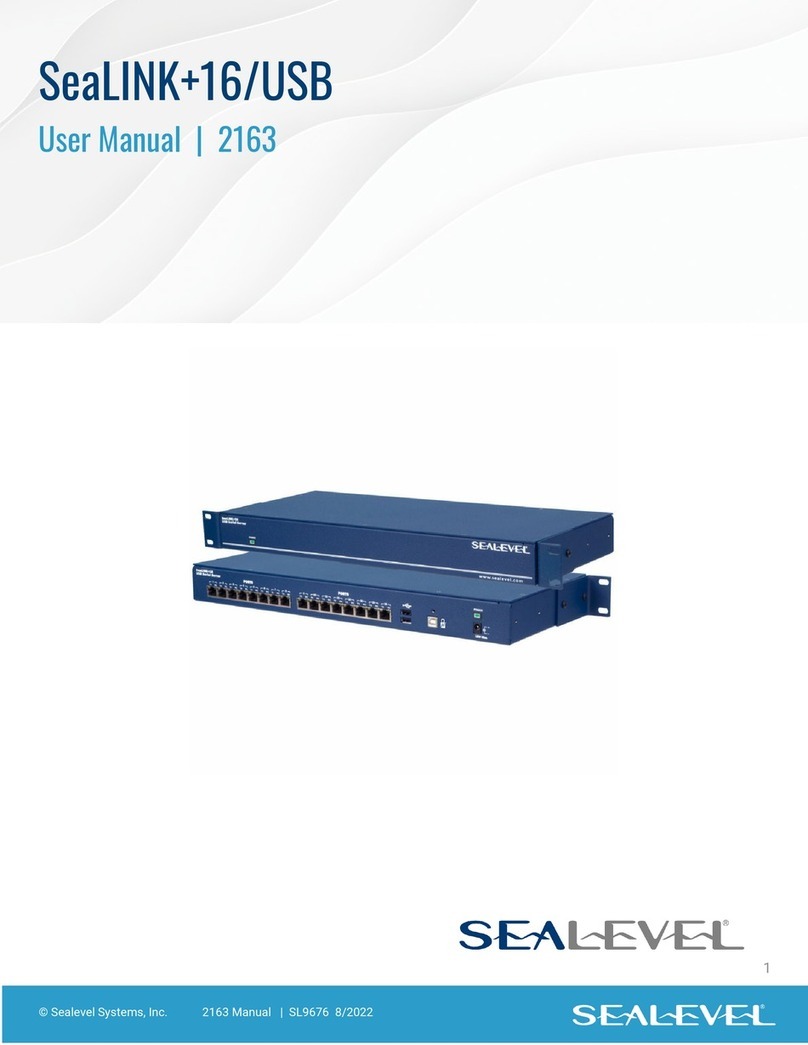
SeaLevel SeaLINK+16/USB User manual

SeaLevel
SeaLevel SIO4-104.485 User manual
SeaLevel
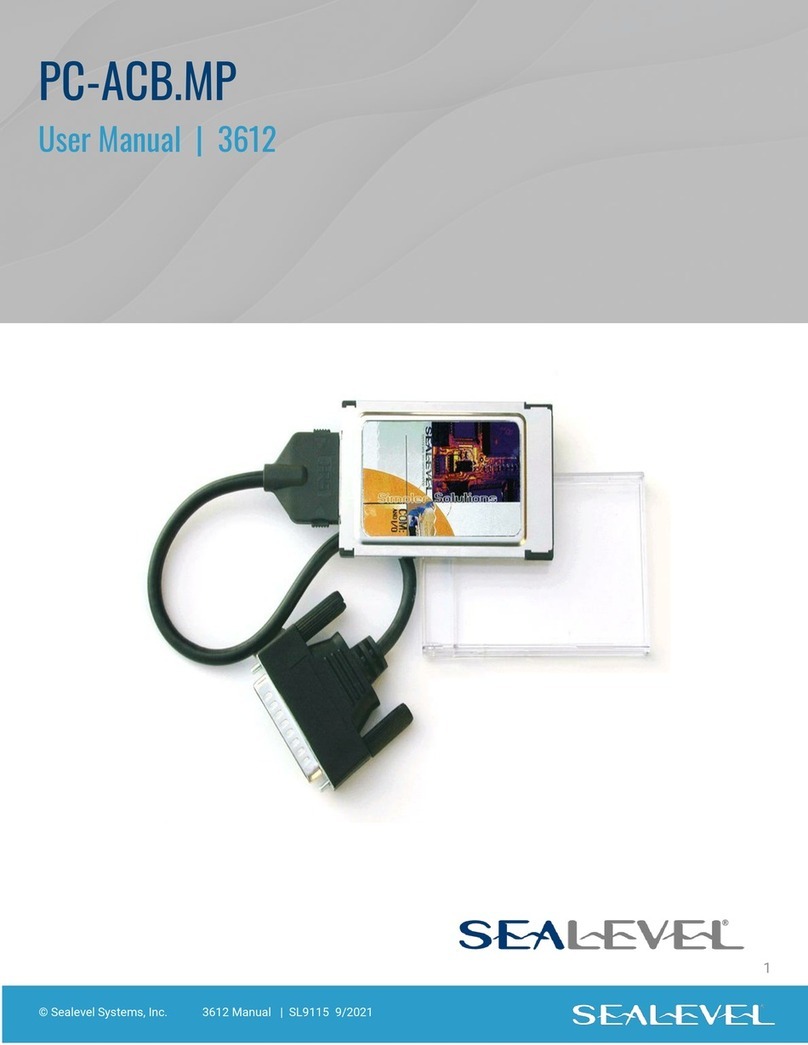
SeaLevel PC-ACB.MP User manual
SeaLevel
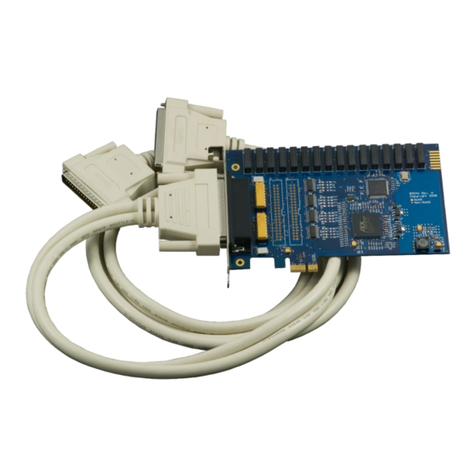
SeaLevel DIO-32.PCIe User manual
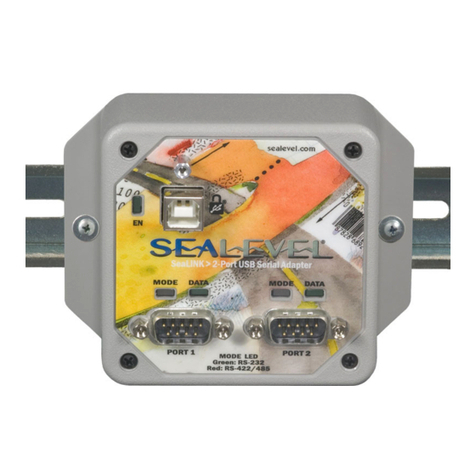
SeaLevel
SeaLevel SeaLINK +2.SC User manual
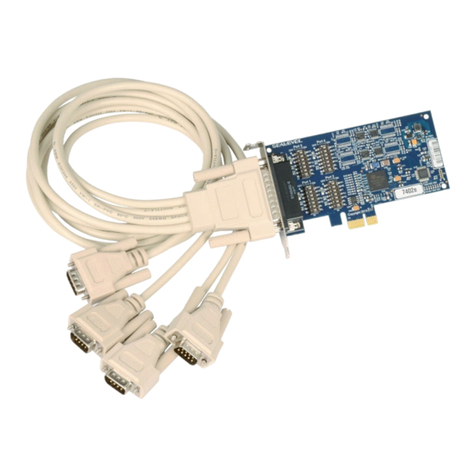
SeaLevel
SeaLevel COMM+4/422.PCIe User manual

SeaLevel
SeaLevel ISO-COMM User manual

Popular Computer Hardware manuals by other brands

EMC2
EMC2 VNX Series Hardware Information Guide

Panasonic
Panasonic DV0PM20105 Operation manual

Mitsubishi Electric
Mitsubishi Electric Q81BD-J61BT11 user manual

Gigabyte
Gigabyte B660M DS3H AX DDR4 user manual

Raidon
Raidon iT2300 Quick installation guide

National Instruments
National Instruments PXI-8186 user manual