manuals.online logo
Brands
  1. Home
  2. •
  3. Brands
  4. •
  5. Sharp
  6. •
  7. Laptop
  8. •
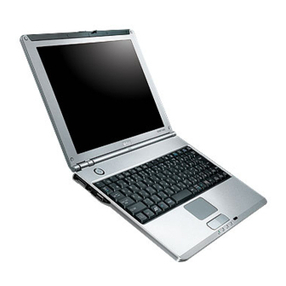
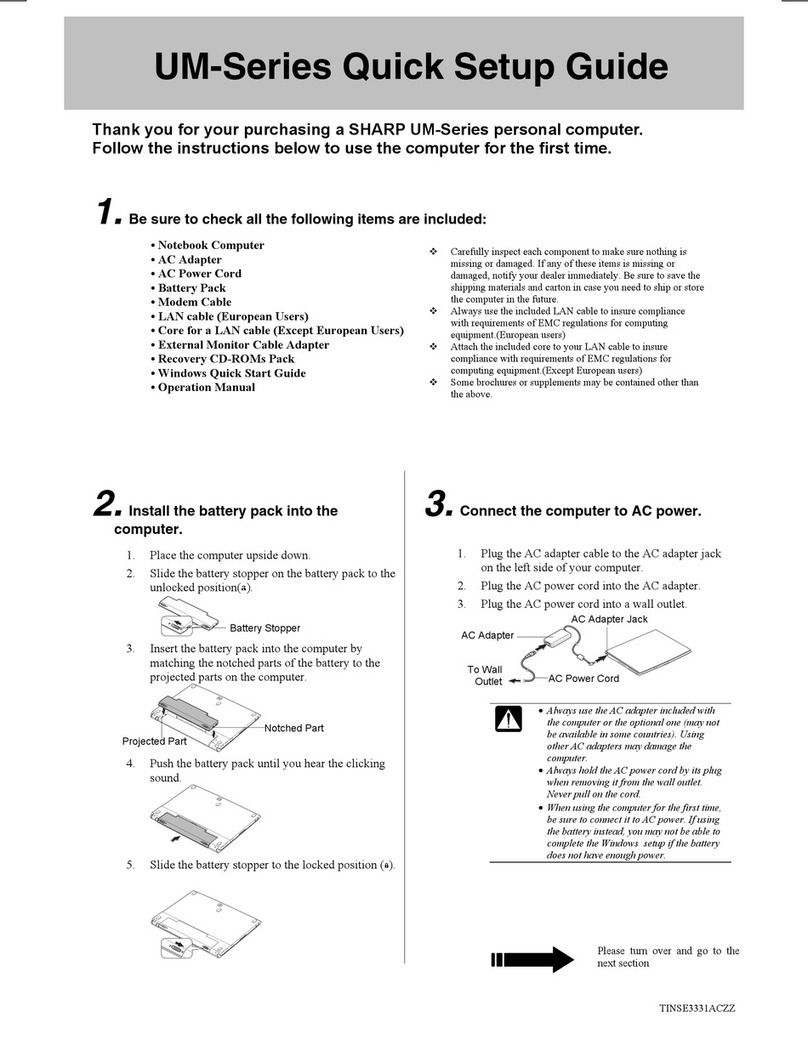
  9. Sharp Actius PC-UM30W User manual

Sharp Actius PC-UM30W User manual

Other manuals for Actius PC-UM30W

2

Other Sharp Laptop manuals

Sharp Actius PC-UM32W User manual

Sharp

Sharp Actius PC-UM32W User manual

Sharp PC-9300 User manual

Sharp

Sharp PC-9300 User manual

Sharp UM20 User manual

Sharp

Sharp UM20 User manual

Sharp Actius PC-MC22 User manual

Sharp

Sharp Actius PC-MC22 User manual

Sharp Actius PC-AV18P User manual

Sharp

Sharp Actius PC-AV18P User manual

Sharp Actius PC-MV12 User manual

Sharp

Sharp Actius PC-MV12 User manual

Sharp PC-A250 User manual

Sharp

Sharp PC-A250 User manual

Sharp PC-MV10 Series User manual

Sharp

Sharp PC-MV10 Series User manual

Sharp Actius PC-MC24 User manual

Sharp

Sharp Actius PC-MC24 User manual

Sharp PC-W100T User manual

Sharp

Sharp PC-W100T User manual

Sharp Actius PC-GP22W User manual

Sharp

Sharp Actius PC-GP22W User manual

Sharp PC-AL27 - Actius AL27 - Mobile Athlon 64 1.6... User manual

Sharp

Sharp PC-AL27 - Actius AL27 - Mobile Athlon 64 1.6... User manual

Sharp Actius PC-GP22W User manual

Sharp

Sharp Actius PC-GP22W User manual

Sharp Actius PC-UM20 User manual

Sharp

Sharp Actius PC-UM20 User manual

Sharp PW-B2 User manual

Sharp

Sharp PW-B2 User manual

Sharp Actius PC-GP20 User manual

Sharp

Sharp Actius PC-GP20 User manual

Sharp MV12W - Actius - PIII-M 1 GHz User manual

Sharp

Sharp MV12W - Actius - PIII-M 1 GHz User manual

Sharp Actius PC-RD20 User manual

Sharp

Sharp Actius PC-RD20 User manual

Sharp Actius PC-MV10 User manual

Sharp

Sharp Actius PC-MV10 User manual

Sharp PC-GP Series User manual

Sharp

Sharp PC-GP Series User manual

Sharp PC-A280 User manual

Sharp

Sharp PC-A280 User manual

Sharp PC-TN1 Series User manual

Sharp

Sharp PC-TN1 Series User manual

Sharp PC-MV Series Configuration guide

Sharp

Sharp PC-MV Series Configuration guide

Sharp Actius PC-UM20 User manual

Sharp

Sharp Actius PC-UM20 User manual
Popular Laptop manuals by other brands

EUROCOM ARMADILLO 2 W840AU Service manual

EUROCOM

EUROCOM ARMADILLO 2 W840AU Service manual

HP EliteBook 8570p Maintenance and service guide

HP

HP EliteBook 8570p Maintenance and service guide

Toshiba L300-EZ1522 Specifications

Toshiba

Toshiba L300-EZ1522 Specifications

HP Compaq 6520s Maintenance and service guide

HP

HP Compaq 6520s Maintenance and service guide

Lenovo ThinkPad T530 null

Lenovo

Lenovo ThinkPad T530 null

IBM THINKPAD T41 - Warranty user manual

IBM

IBM THINKPAD T41 - Warranty user manual

Lenovo ThinkPad X1 Carbon user guide

Lenovo

Lenovo ThinkPad X1 Carbon user guide

Lenovo ThinkPad T400s Ghid de service şi depanare

Lenovo

Lenovo ThinkPad T400s Ghid de service şi depanare

Toshiba TE2000 user manual

Toshiba

Toshiba TE2000 user manual

Acer SP514-51N user manual

Acer

Acer SP514-51N user manual

Fujitsu P1620 - LifeBook - Core 2 Duo 1.2 GHz Getting started

Fujitsu

Fujitsu P1620 - LifeBook - Core 2 Duo 1.2 GHz Getting started

IBM ThinkPad 240 Quick reference guide

IBM

IBM ThinkPad 240 Quick reference guide

Dell G3 15 Setup and specifications

Dell

Dell G3 15 Setup and specifications

Clevo D400P Service manual

Clevo

Clevo D400P Service manual

HP EliteBook 840r G4 Maintenance and service guide

HP

HP EliteBook 840r G4 Maintenance and service guide

Clevo NL51CU Service manual

Clevo

Clevo NL51CU Service manual

Dell Inspiron 3700 Get started

Dell

Dell Inspiron 3700 Get started

Toshiba R700-S1320 Specifications

Toshiba

Toshiba R700-S1320 Specifications

manuals.online logo
manuals.online logoBrands
  • About & Mission
  • Contact us
  • Privacy Policy
  • Terms and Conditions

Copyright 2025 Manuals.Online. All Rights Reserved.

UM30WU-2 UM30WU-2
Errata
On page A-2
2. Open the display cover and set the provided memory
upgrade tool with the projected part pointed to the left as
shown below; then, gently insert the tool straight into the
small hole of the glide pad. (Never insert anything but the
provided memory upgrade tool.)
3. Push down the tool into the hole, slide it completely to the
left and lift it up. The glide pad is slightly opened.
Errata
On page A-2
2. Open the display cover and set the provided memory
upgrade tool with the projected part pointed to the left as
shown below; then, gently insert the tool straight into the
small hole of the glide pad. (Never insert anything but the
provided memory upgrade tool.)
3. Push down the tool into the hole, slide it completely to the
left and lift it up. The glide pad is slightly opened.
Projected Part Projected Part
Go to the other side
UM30WU-2 UM30WU-2
4. Hold the tool with its projected part hooked on the glide pad
and gently open the pad.
On page A-10
Wrong
7. In Boot Sequence of the Main menu,
Correct
7. In Boot Sequence of the Boot menu,
4. Hold the tool with its projected part hooked on the glide pad
and gently open the pad.
On page A-10
Wrong
7. In Boot Sequence of the Main menu,
Correct
7. In Boot Sequence of the Boot menu,