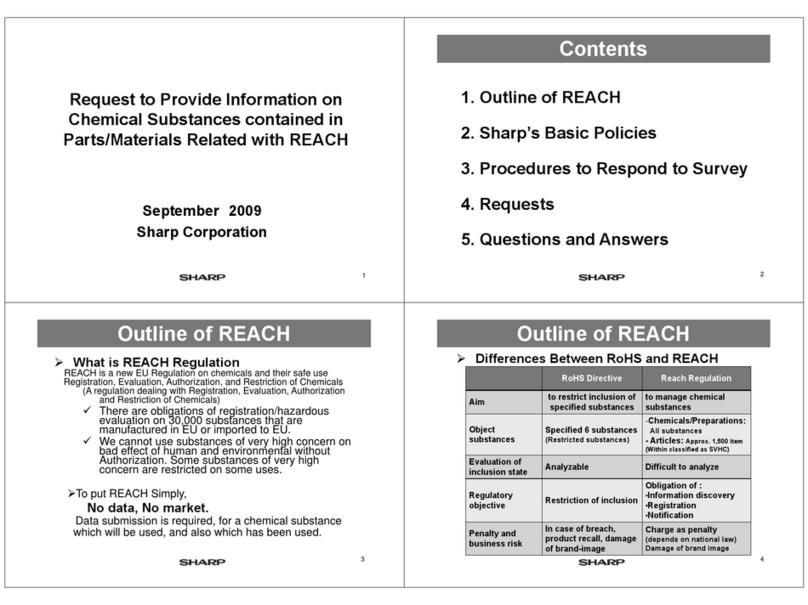
CONFIGURING THE PRINTER DRIVER USING THE MACHINE AS A NETWORK PRINTER
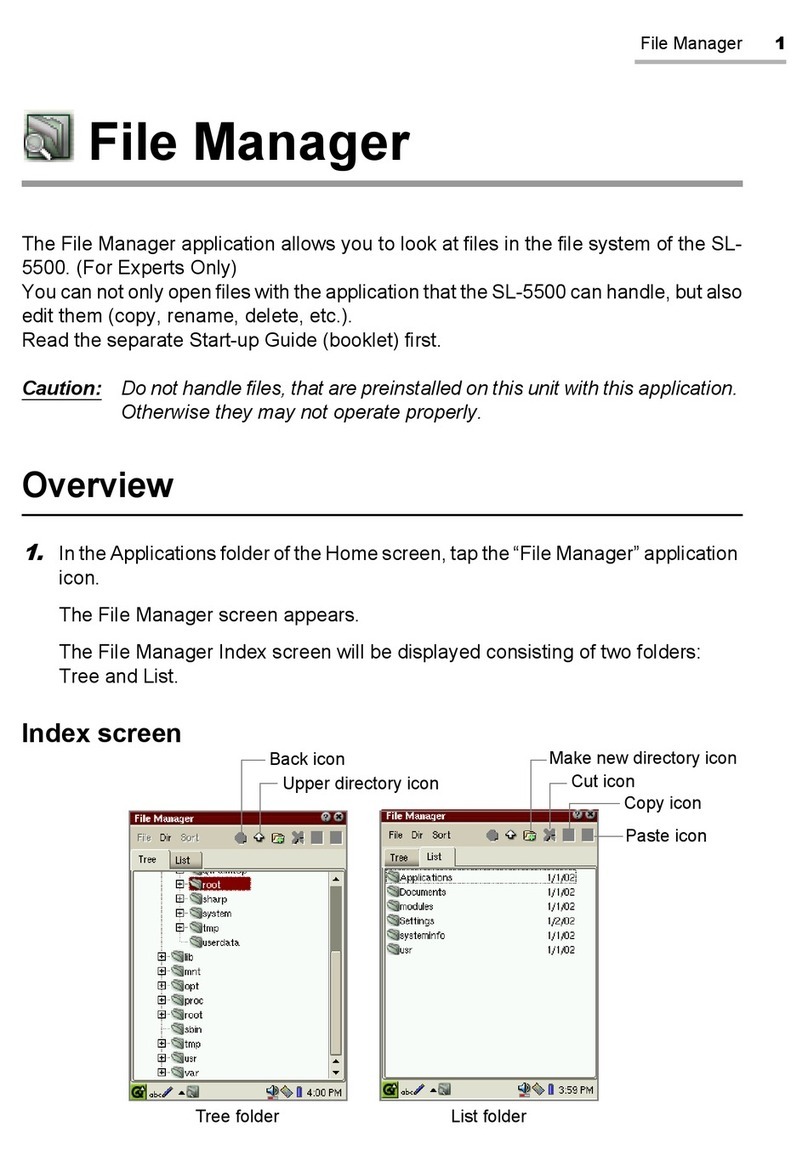
MAC OS 8.6 - 9.x SETTING THE IP ADDRESS OF THE MACHINE
P';nt", D'iver
~:~I~I.t
d"·
..
ren.ble, yooloo,olho p"nlerlumilonollhe _j
P,int",
Slalul
Manila'
~:~
~~~~'ol~,o,b~;~Ck
Ih~
,I~l"'
01Ihonel"",,1;pr",lerDn
..:.J
Ifyou
wish
toviewthe
Discover
and
LinkTool
manual
(for
network
administrators),
see
"Viewing
the
Discover
andLink
Tool
manual"
(p.?).
P,int", Adtninid'ftlion Utilily
~,~'pl,:n~e~I~'~~!~~~~~~"',~~~~~ni'ltOIO"
lochool; Ihe,Iolu, 01
_j;
DilCove, and Link Tool
...;.
TI"
"u,ed IDconligur. and cI",cI; 11",IP
odd'e"
ollhe
"
hi
~:I:~~·
which" o,ed when
11",
mool",,,,, oo"""cled,o 0
[D"pla~R"admel
~
l.::]J
Selecta software10beinstalled
Select a software to be Installed
Click
the
"Administrator
Tools"
button.
:
Click
the
"Discover
and
Link
Tool"
button.
The Discover and Link Tool starts.
If aprint server card is installed, use
"NICManager"
to set the
JP
address
("NJCManager"
is
on the "User Software"
CD-ROM
that accompanied the print server card). For more
information, see the "Print Server Card User's Manualuon the
CD~ROM.
If the
language
selection
screen
appears
after
you
double
clickthe
"Setup"
icon,
select
the
language
that
you
wish
to
use
and
clickthe
"Next"
button.
(Normally
the
correct
language
is
selected
automatically.)
Click
the
"start"
button,
click
"My
Computer"
(
~.I),
and
then
double-click
the
CD-ROM
icon
(,;,d
).
In Windows 95/98/Me/NT 4.0/2000,
double-click "My Computer" and then
double-click the CD-ROM icon.
Insertthe CD-ROM
into
your
computer's
CD-ROM drive.
Make
sure
that
the
LAN cable is
connected to the
machine
and
then
turn
on the machine.
The "SOFTWARE LICENSE"
window
will
appear. Make sure that you understand
the contents of the license agreement,
and then
click
the "Yes" button.
• Read the message in the "Welcome"
window
and then
click
the "Next" button.
~
Double-click the
"Setup"
icon
(;SS).
ICDcautionl
Before installing the printer driver, be sure to set the IP address of the machine. Consult your network
administrator for the correct IP address, subnet mask, and default gateway to be entered. If a DHCP
server
will
automatically
assign
an IP
address
to the machine,
the
following
procedure
is
not
necessary. (To check the IP address assigned to the machine by DHCP, see "Checking the
JP
address when DHCP is used" (p.6).)
J&l.
unrent
Printer
oescnpuon
HII' (PPD15elected:
~
"5HARPAR-M277.PPD"
Installable
Options
Click
the
"OK"
button
to
close
the
dialog
box.
Installed
RAM:I
Standard
&-1M1l
RAM ;; I
Output Tray Options: INotlnstalJed
~
I
Input
TrayOlltlollS: ITwoTrays ; I
Verify that
the
machine is selected in
the "Select aPostScript Printer" list,
and
then
click
the
"Setup"
button
and
the
"Configure"
button.
IAuto5etllll I I serect
ron.
I
IPrInter lufo I I
renncnre
h;J
current
Printer
[)e~criptilln
File (PPDl5elected:
"5HARP
AIl-M217.PPO"
Click
the
Close
box
(0
)
to
close
the
Chooser.
• Set
the
printer
configuration
based on
the
options
that
have been installed,
and then
click
the
"OK"
button.
Be sure to select the correct printer
configuration. If not, printing may not take
place correctly.
This
completes
the
configuration
of
the
printer
driver.
Select "Chooser"
from
the Apple Menu.
IiI
Click
the
"LaserWriter 8" icon.
oThe model name of your
network-connected machine
("SCxxxxxx") appears in the "Select a
PostScript Printer" list on the right.
The name of the machine that appears
is the name that was entered in the
AppleTalk settings when the network
settings were configured ("xxxxxx" is a
sequence of characters that varies
depending on your machine).
olf multiple AppleTalk zones are
displayed, select the zone which
includes the printer.
Click
the machine's model name
("SCxxxxxx")
in the "Select a
PostScript
Printer" list.
11
Click
the "Create" button.
oIf the "Select a Posttscript"? Printer
Description File" dialog box appears,
select the PPD file of the machine and
then click the "Select" button.
oIf the "Select a PostScript'M Printer
Description File" dialog boxdoes not
appear, follow these steps to select the
PPD file manually when you return to
the Chooser dialog box.
1) Verify that the machine is selected in
the "Select a PostScript Printer" list,
and then click the "Setup"button and
the "Select RPD" button.
2)t>efecfthEtf'Pi:HiTeofthe
machine~-
and then click the "Open"(or "Select")
button.
3) Click the "OK" button.
• The
printer
or
printers
connected
to
the
network
will
be detected.
Click
the
printer
to be
configured
(the machine).
36 5