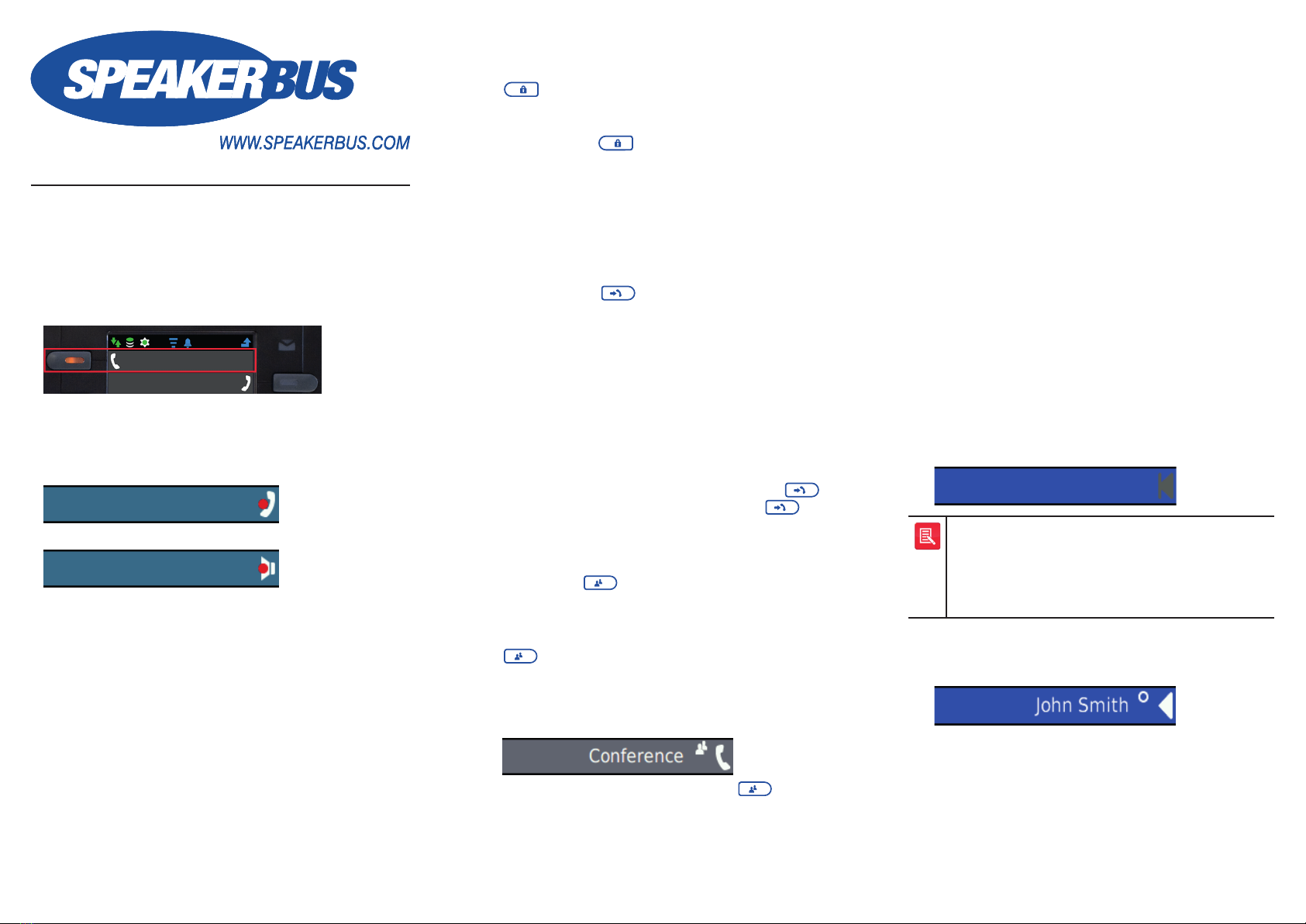
QUICK START GUIDE
HANDSETS/HEADSETS
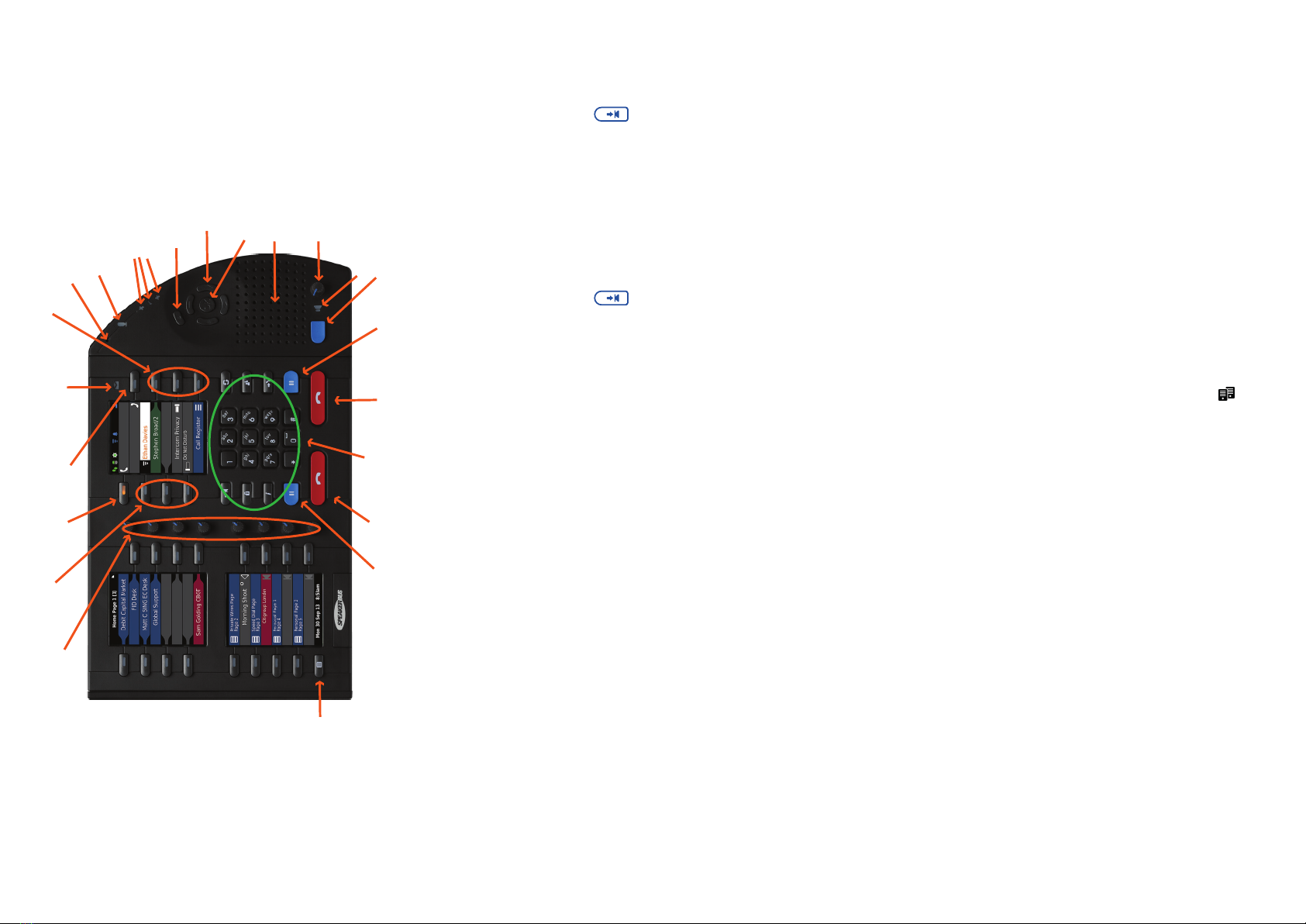
Ensure the correct handset/headset is active prior to making
and receiving calls. The active handset/headset is identied by
the orange lamp soft key. To make a handset/headset active,
press its soft key.
MUTING/UNMUTING CALLS
To mute/unmute a call press the appropriate handset soft
key on the unit or press the button on the physical handset (if
enabled). The soft key will turn red.
(Handset mute)
(Speaker mute - in hands-free mode)
MAKING CALLS
The iD 808 can originate calls by dialling directly from the dial
pad, selecting speed dials or by using the directories.
ANSWERING CALLS
The iD 808 announces an incoming call with a ring,
illuminating soft key and animated icon on the appearance
nger. To answer a call press the illuminating soft key.
BARGE IN / JOINING A LINE
To join a busy line:
1. Press the soft key associated with the nger the
exclamation icon is displayed on.
iD 808 Deskstation, QS808/R12, January 2017
MAKING A LINE PRIVATE
1. Ensure the appropriate handset is selected by pressing
the required handset soft key and then press privacy /
. A pad lock icon is displayed next to the phone /
speaker icon. The line will become private when a call is
made.
2. Press privacy / again to turn off line privacy.
MOVING CALLS BETWEEN HANDSETS /
HEADSETS
1. During a call select the second handset/headset soft key.
2. Select the active line soft key to move the call.
TRANSFERRING CALLS
1. Press transfer /.
The line status changes to an on hold state.
2. Do one of the following:
● Dial the required number using the dial pad.
●Locate and press the required speed dial.
●Press ▼to highlight Directories on the right screen
and click OK. Locate and select the required contact.
●Locate and select the required address or contact
using the call register (press Q followed by OK to
access the menu system option 2-Call Register).
3. To transfer the call immediately press transfer / or
speak to recipient before pressing transfer / .
CONFERENCE CALLS
1. Call the rst conference participant.
2. Press conf. / when the call is connected.
A conference call information box is displayed for a few
seconds, stating the call has been added to a conference.
3. Call the second conference participant, press conf. /
once the call is connected.
A conference call information box is displayed for a
few seconds, stating that the call has been added to a
conference. The conference icon is also displayed on the
handset nger.
4. To add further participants press conf. / and repeat
step 3 until the maximum has been reached.
CREATING SPEED DIALS
1. Press OK to display Main menu.
2. Using ◄or ►locate Program menu.
3. Using ▲or ▼highlight Speed Dials and press OK.
4. Highlight Add and press OK.
5. Locate an available key and press its associated soft key.
This displays the Speed Dial Edit screen.
6. Complete the details into the appropriate option/text
boxes.
7. When nished highlight Save and press OK.
8. Press and hold Qto return to the idle screen.
ASSIGNING AN ACTIVE CALL TO A SPEAKER
CHANNEL
To assign an active call/line, ARD, MRD, VPW, Hoot or
Intercom appearance to a speaker channel:
1. Ensure the appropriate handset is active with a call
present selected by pressing the left or right handset soft
key.
2. Locate either an available speaker channel or an idle
occupied speaker channel, and press its associated
soft key. An available speaker channel contains the icon
below.
An occupied speaker channel has an (a) idle call/line,
ARD, VPW or Intercom appearance, or (b) MRD or
Hoot attached to it. With the exception of MRDs and
Hoots, an occupied idle speaker channel will be over
written and lost when a new call/line, ARD, MRD,
Hoot, VPW or Intercom appearance is assigned to it.
As soon as the call/line, ARD, MRD, VPW, Hoot or
Intercom appearance is moved from the handset or
hands-free to a dynamic speaker channel, the icon below
is displayed.
MOVING AN ACTIVE APPEARANCE TO A
HANDSET
To move an appearance (call/line, ARD, MRD, VPW, Hoot or
Intercom appearance) from a speaker to a handset.
1. Press the appropriate speaker channel’s soft key twice in
quick succession.