manuals.online logo
Brands
  1. Home
  2. •
  3. Brands
  4. •
  5. Speco
  6. •
  7. Security Camera
  8. •
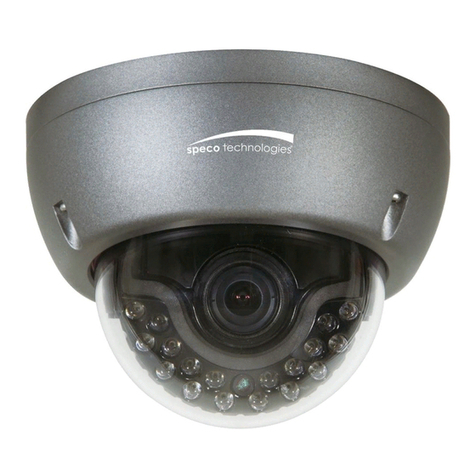
  9. Speco 960H Series User manual

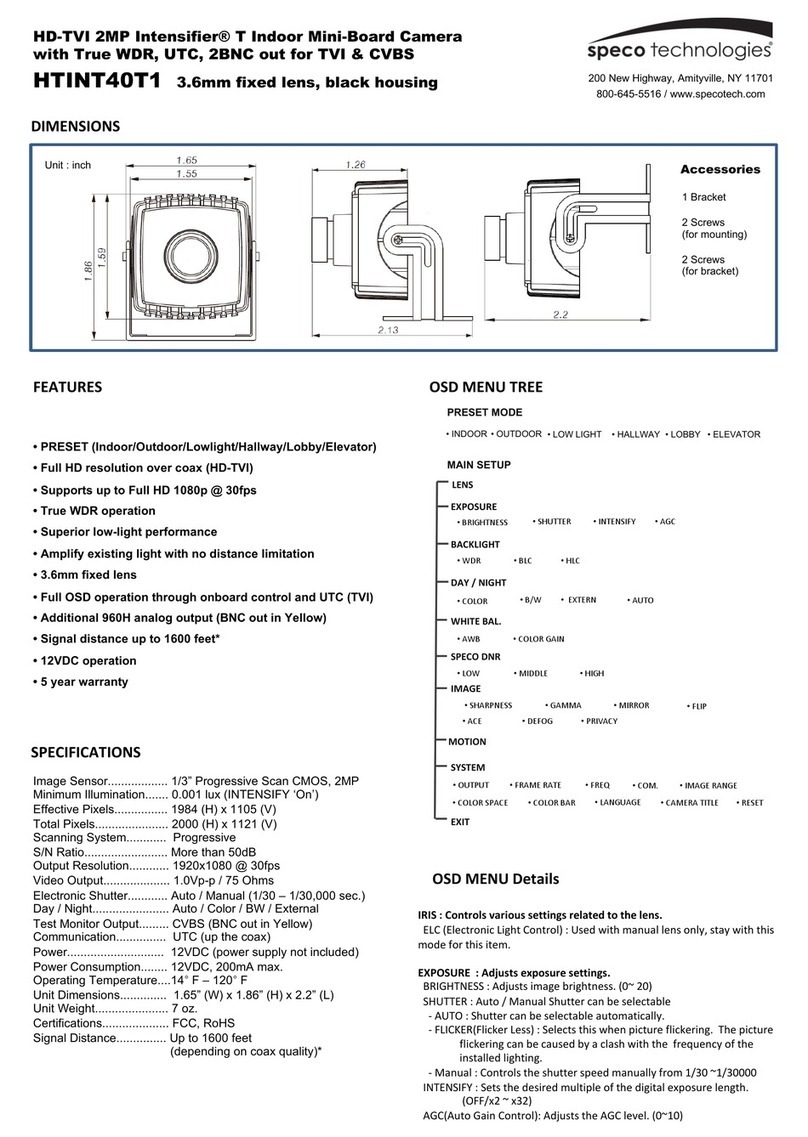
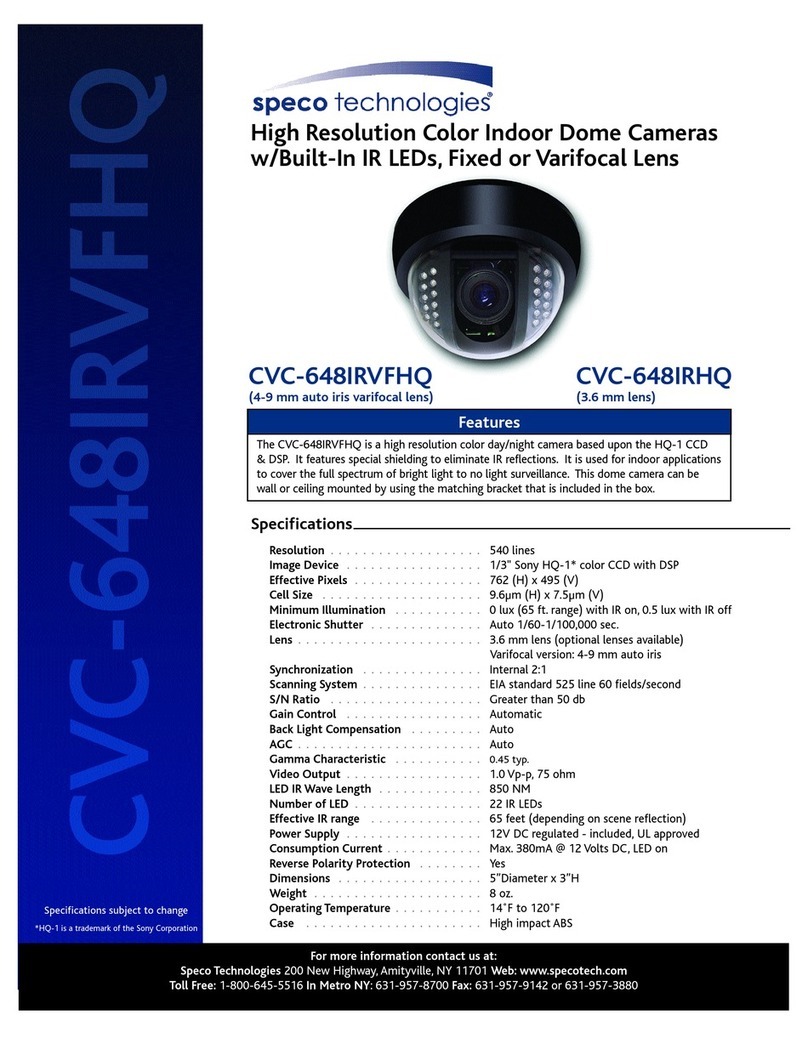
Speco 960H Series User manual

This manual suits for next models

1

Other Speco Security Camera manuals

Speco HTFD4T Installation manual

Speco

Speco HTFD4T Installation manual

Speco H4FB1 User manual

Speco

Speco H4FB1 User manual

Speco VL-10 User manual

Speco

Speco VL-10 User manual

Speco LEDome User manual

Speco

Speco LEDome User manual

Speco PROVIDEO CVC-620WP User manual

Speco

Speco PROVIDEO CVC-620WP User manual

Speco INTENSIFIER3 HT647HRTP User manual

Speco

Speco INTENSIFIER3 HT647HRTP User manual

Speco HT-8WMTDV User manual

Speco

Speco HT-8WMTDV User manual

Speco IP-INTB1 User manual

Speco

Speco IP-INTB1 User manual

Speco CILT13D1G User manual

Speco

Speco CILT13D1G User manual

Speco O8FT1 User manual

Speco

Speco O8FT1 User manual

Speco ONSIP OD8 User manual

Speco

Speco ONSIP OD8 User manual

Speco HT5100BPVFG User manual

Speco

Speco HT5100BPVFG User manual

Speco VL-62 User manual

Speco

Speco VL-62 User manual

Speco o2vld5 User manual

Speco

Speco o2vld5 User manual
Speco CVC627MT User manual

Speco

Speco CVC627MT User manual

Speco HTSD12XH User manual

Speco

Speco HTSD12XH User manual

Speco HTSD10X User manual

Speco

Speco HTSD10X User manual

Speco OIPC21T7B User manual

Speco

Speco OIPC21T7B User manual

Speco CVC-644DC User manual

Speco

Speco CVC-644DC User manual

Speco HT650PT10X User manual

Speco

Speco HT650PT10X User manual

Speco HTSD37X User manual

Speco

Speco HTSD37X User manual

Speco VL-10 User manual

Speco

Speco VL-10 User manual

Speco O2VB1N User manual

Speco

Speco O2VB1N User manual

Speco CVC-652HZ User manual

Speco

Speco CVC-652HZ User manual

Popular Security Camera manuals by other brands

ADEMCO RapidDome Owners Operating & Installation Guide

ADEMCO

ADEMCO RapidDome Owners Operating & Installation Guide

EverFocus EBA2880 user manual

EverFocus

EverFocus EBA2880 user manual

Honeywell OptiCAM-IR Installation and setup guide

Honeywell

Honeywell OptiCAM-IR Installation and setup guide

Uniq UC-600 user manual

Uniq

Uniq UC-600 user manual

OPTICOM NVD-120-S datasheet

OPTICOM

OPTICOM NVD-120-S datasheet

Steren CCTV-221 instruction manual

Steren

Steren CCTV-221 instruction manual

Arm Electronics C420BCDNVFIR Features

Arm Electronics

Arm Electronics C420BCDNVFIR Features

Eneo PLD-2036PTZ installation guide

Eneo

Eneo PLD-2036PTZ installation guide

Axis AXIS M20 Series installation guide

Axis

Axis AXIS M20 Series installation guide

Panasonic KX-HCM230 operating instructions

Panasonic

Panasonic KX-HCM230 operating instructions

COP-USA CC15NV-SL Specifications

COP-USA

COP-USA CC15NV-SL Specifications

Active Silicon HARRIER H.264 quick start guide

Active Silicon

Active Silicon HARRIER H.264 quick start guide

Motorola Avigilon 1.3C-H5SL-BO1-IR installation guide

Motorola

Motorola Avigilon 1.3C-H5SL-BO1-IR installation guide

INSTEON 2864-232 user manual

INSTEON

INSTEON 2864-232 user manual

Wisenet XNB-6002 quick start guide

Wisenet

Wisenet XNB-6002 quick start guide

Axis M5525-E user manual

Axis

Axis M5525-E user manual

Vitek VTC-IR62NZ922 user guide

Vitek

Vitek VTC-IR62NZ922 user guide

Panasonic WV-SF342 Specifications

Panasonic

Panasonic WV-SF342 Specifications

manuals.online logo
manuals.online logoBrands
  • About & Mission
  • Contact us
  • Privacy Policy
  • Terms and Conditions

Copyright 2025 Manuals.Online. All Rights Reserved.

Installation and
Operation Manual
SPECO 960H series
O
O
O
O
O
O
O
u
u
u
t
t
t
t
t
d
dd
d
d
d
d
d
ooo
o
o
o
o
o
oooo
o
o
o
o
o
o
o
o
o
o
o
o
o
o
rr
r
r
M
M
M
M
M
M
M
M
M
M
M
M
M
M
M
M
M
M
M
M
ii
n
n
n
n
n
n
n
n
n
n
n
n
n
n
n
ii
i
i
i
i
i
i
i
i
i
i
i
i
i
a
a
a
a
a
a
a
t
t
t
tt
t
t
t
uu
u
u
u
u
u
u
u
u
u
u
u
r
r
r
r
r
ee
e
e
e
e
e
e
e
e
e
e
C
C
C
C
C
C
C
a
a
a
a
a
a
a
mm
m
mm
m
m
m
m
eee
e
e
e
e
e
e
e
e
e
e
r
r
r
r
a
a
a
a
HINTMD1H
H
H
H
H
H
H
H
H
H
H
H
H
H
H
H
2User Information
Explanation of two Symbols
The lightning flash with arrowhead symbol,
within an equilateral triangle, is intended to
alert the user to the presence of uninsulated
"dangerous voltage" within the product's
The exclamation point within an equilateral
triangle is intended to alert the user to the
presence of important operating and
maintenance-(servicing) instructions in the
THE GRAPHIC SYMBOLS WITH SUPPLEMENTAL MARKING ARE
ON THE BOTTOM OF THE SYSTEM.
"WARNING-TO PREVENT FIRE OR SHOCK HAZARD, DO NOT
EXPOSE THE UNIT TO RAIN OR MOISTURE"
enclosure that may be of sufficient magnitude to constitute a
risk of electric shock to persons.
literature accompanying the appliance.
CAUTION! TO REDUCE THE RISK OF ELECTRIC SHOCK,
DO NOT REMOVE COVER (OR BACK). NO USER
SERVICEABLE PARTS INSIDE. REFER SERVICING
TO QUALIFIED SERVICE PERSONNEL.
CAUTION
RISK OF ELECTRIC SHOCK
DO NOT OPEN
User Information
Regulatory Notice 3
Regulatory Notice
This equipment has been tested and found to comply with
limits for a Class A digital device, pursuant to part 15 of the
FCC Rules. These limits are designed to provide reasonable
protection against harmful interference when the equipment
is operated in a commercial environment.
This equipment generates, uses, and can radiate radio frequency
energy and, if not installed and used in accordance with the
instruction manual, may cause harmful interference to radio
communications. Operation of this equipment in a residential
area is likely to cause harmful interference in which case the
user will be required to correct the interference at their own
expense.
Changes or modifications not expressly approved
by the manufacturer could void the user's authority
to operate the equipment.
WARNING
When this camera is installed near equipment,
like a wireless communication device that emits
a strong electromagnetic field, some irregularity
such as noise on the monitor screen may happen.
CAUTION
• This installation should be made by a qualified service person
and should abide to all local codes.
Contents
4
1. 6
2. Features 7
3.
3.1.
Composition
Parts
8
8
6.
6.1.
6.2.
6.3.
6.3.1.
6.3.2.
6.3.3.
6.3.4.
6.3.5.
6.3.6.
6.4.
6.4.1.
6.4.2.
6.4.3.
6.5.
6.5.1.
6.5.2.
6.5.3.
6.5.4.
6.5.5.
6.6.
6.6.1.
6.6.1.1.
6.6.1.2.
Operating Camera
Camera OSD menu
PRESET
EXPOSURE
LENS
(DC or ESC)
BRIGHTNESS
– Adjusts brightness of the image.
SHUTTER
– Adjusts the shutter speed.
FLK
(FLICKERLESS)
AGC
(Auto Gain Control)
INTENSIFY
WHITE BAL.
– White Balance Setup
ATW
PUSH
MANUAL
DAY / NIGHT
AUTO
DAY
– For color mode only.
NIGHT
– For BLACK and WHITE mode only.
EXTERN
IRED
BACKLIGHT
BLC
(back-light compensation)
, HLC
(high-light compensation)
OFF
– Disable
BLC
– To lighten a darker part of the image.
11
11
14
14
14
14
14
15
15
15
15
15
15
15
16
16
16
17
17
18
18
18
18
18
4.
4.1.
4.1.1.
4.2.
Installation
Connection
Make the connections
Camera mounting
9
9
9
9
5.
5.1.
5.1.1.
5.1.2.
Name and Functions
Camera controls
Menu navigation
Monitoring and switches
10
10
10
Contents
Important Safety Instructions
Contents 5
7
7.1
Troubleshooting
Resolving problems
27
27
8
8.1
8.2
Technical Data
Specifications
– HINTMD1H
Dimensions
28
28
29
6.6.1.3.
6.6.2.
6.6.2.1.
6.6.2.2.
6.6.2.3.
6.7.
6.8.
6.8.1.
6.8.2.
6.8.3.
6.8.4.
6.8.5.
6.8.6.
6.8.7.
6.8.7.1.
6.8.7.2.
6.8.8.
6.8.8.1.
6.8.8.2.
6.9.
6.9.1.
6.9.1.1.
6.9.1.2.
6.9.1.3.
6.9.2.
6.9.3.
6.9.4.
6.9.5.
6.9.6.
6.9.7.
6.9.8.
6.10.
6.10.1.
6.10.2.
HLC
– Force blocking the bright part.
D-WDR
(Digital Wide Dynamic Range)
, DEFOG
OFF
– Disable
D-WDR
DEFOG
SPECO DNR
– Digital Noise Reduction
IMAGE
SHARPNESS
– To adjust SHARPNESS of the image.
CHROMA
– To adjust the color intensity of the image.
MONITOR
SHADING
H-MIRROR
– Horizontal image flip
POSI/ NEGA
– Invert the colors of the images
MOTION
– Motion detect
OFF
– Disable
ON
PRIVACY
OFF
– Disable
ON
SYSTEM
OSD
– On Screen Display
CAM TITLE
ID DISPLAY
FONT COLOR
CAM ID
– CAMERA ID (RS-485 Communication ID)
SYNC
BAUDRATE
COAXIAL
DEFECT
(Pixel defect compensation)
LANGUAGE
VERSION
– Camera Software History ..
EXIT
SAVE
PRESET
– In the state of the EXIT, press menu button exit.
19
20
20
20
20
20
21
21
21
21
21
21
21
22
22
22
23
23
23
24
24
24
24
24
25
25
25
25
25
25
25
26
26
26
Important Safety Instructions
6
1. Important Safety Instructions
1.
2.
3.
4.
5.
6.
7.
8.
9.
10.
11.
12.
Read these instructions.
Keep these instructions.
Heed all warnings.
Follow all instructions.
Clean only with a dry cloth.
Do not block any ventilation openings. Install in accordance
with the manufacturer's instructions.
Do not install unit near any heat sources such as radiators,
heat registers, stoves, or other apparatus (including
amplifiers) that produce heat.
Protect the power cord from being walked on or pinched
particularly at plugs, convenience receptacles, and the point
where they exit from the apparatus.
Only use attachments/accessories specified by the
manufacturer.
Unplug this apparatus during lightning storms or when
unused for long periods of time.
Refer all servicing to service personnel. Servicing is required
when the apparatus has been damaged in any way, such
as power supply cord or plug is damaged, liquid has been
spilled or objects have fallen into the apparatus, the
apparatus has been exposed to rain or moisture, does not
operate normally, or has been dropped.
Do not install the camera in extreme temperature conditions.
Operate the camera under conditions where temperatures
are within -10°C(14°F) to +50°C(122°F). Especially be careful
for ventilation under high temperature.
Features 7
2. Features
Min Illumination (F1.2, 30IRE, ICR B/W)
Works under extreme low illumination conditions:
– INTENSIFIER [X32] : Color 0.005 Lux
Variety of convenience functions
Provides special functions for advanced manipulation of
your device, including:
– Adjustable sharpness enhancement [700 TV Lines]
– Adjustable privacy mask [8 masks]
– Adjustable motion detection [4 areas]
– SPECO DNR [Digital Noise Reduction]
– INTENSIFIER [X32]
– BLC [Backlight Compensation]
– POSI / NEGA
– MIRROR [Horizontal]
– Coaxial communication [Pelco-C]
D-WDR (Digital Wide Dynamic Range)
Greatly improves image quality and detail even in backlight
conditions, by increasing exposure in dark areas while
decreasing it in bright areas, resulting in a corrected image
with clear details in both bright and dark areas.
1/3 inch High Sensitivity CCD
Composition
8
3. Composition
3. 1. Parts
The camera unit consists of the following parts:
• CAUTION: Installation should only be performed by
qualified service personnel in accordance with the
National Electrical Code or applicable local codes.
1
2
3
4
5
No.
Plastic anchors
Dome base
Mounting screws
Dome cover
L-wrench for dome cover mounting
Parts
5
4
2
1
3
Installation 9
4. Installation
4. 1. Connection
Connecting to Power and Video
4.1.1. Make the connections
• The wire is non-polarized.
• Use 24V AC power source or 12V DC power source.
4. 2. Camera mounting
– Use cables and conduits that are suitable for the installation.
– Particular attention should be paid in the installation so that no
moisture is allowed to penetrate into the unit through the cables
or conduits during the life time of the product.
– Products of which the internal parts are exposed to moisture
because improper installation are not covered by warranty.
1
2
No.
Video Output
Power Input
Function
Terminal Color
Remarks
Yellow
Red
1.0 Vp-p
24V AC (±20%) / 12V DC (±10%)
1
2
12V DC
24V AC
AC AC
Remove the top cover.
Fix the base on the wall or ceiling.
Put the dome cover over the base.
Fix the dome cover on the base with the L-wrench.
Adjust the rotational position of the camera for desired viewing of the side.
Video Output
GND
360°
Horizontal
360°
Pan
Tilt
90°
Name and Functions
10
DOWN
RIGHT
LEFT
UP
5. Name and Functions
5. 1. Camera controls
• NOTE: Push the Joy stick for one second, and the OSD
appears on the screen. Move the Joy Stick up, down, left
& right to control the OSD functions.
5.1.1. Menu navigation
1
2
3
4
5
No.
Up
Down
Left
Right
Menu(Center)
Parts
Move the cursor up in the screen.
Move the cursor down in the screen.
Move the cursor left in the screen.
Move the cursor right in the screen.
Press straight down to open menu or set.
Remarks
5.1.2. Monitoring and switches
6
No.
Service
monitor
connector
Parts
When installing the camera, connect a
service monitor to set angle of view and
focus of the screen.
(This output cannot be used simultaneously
with the main video output.)
Remarks
6
5
DOWN
RIGHT
LEFT
UP
43
2
1