ST iNEMO STEVAL-MKI062V2 Series User manual
Other ST Microcontroller manuals
ST
ST STM32L496 Series Installation and operating instructions
ST
ST STM32L1 Series Installation and operating instructions
ST
ST SimpleMAC STM32W108 Series User manual
ST
ST STM8A-DISCOVERY User manual
ST
ST STM32F423 Series User manual
ST
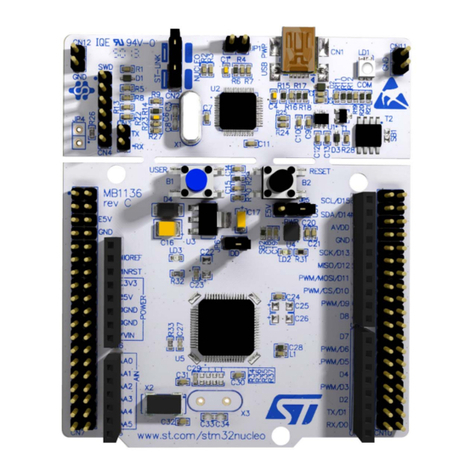
ST STM32 Nucleo User manual
ST
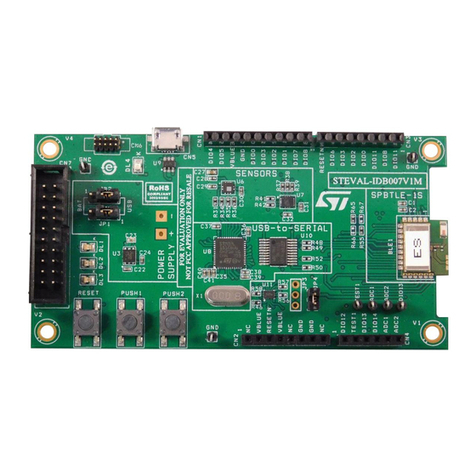
ST STEVAL-IDB007V1M SPBTLE-1S User manual
ST
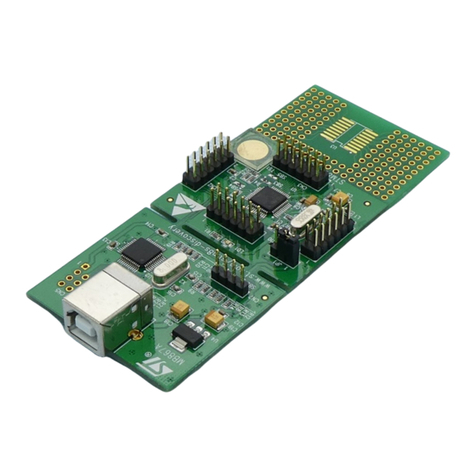
ST STM8S Installation and operating instructions
ST
ST STM32 Nucleo Installation and operating instructions
ST
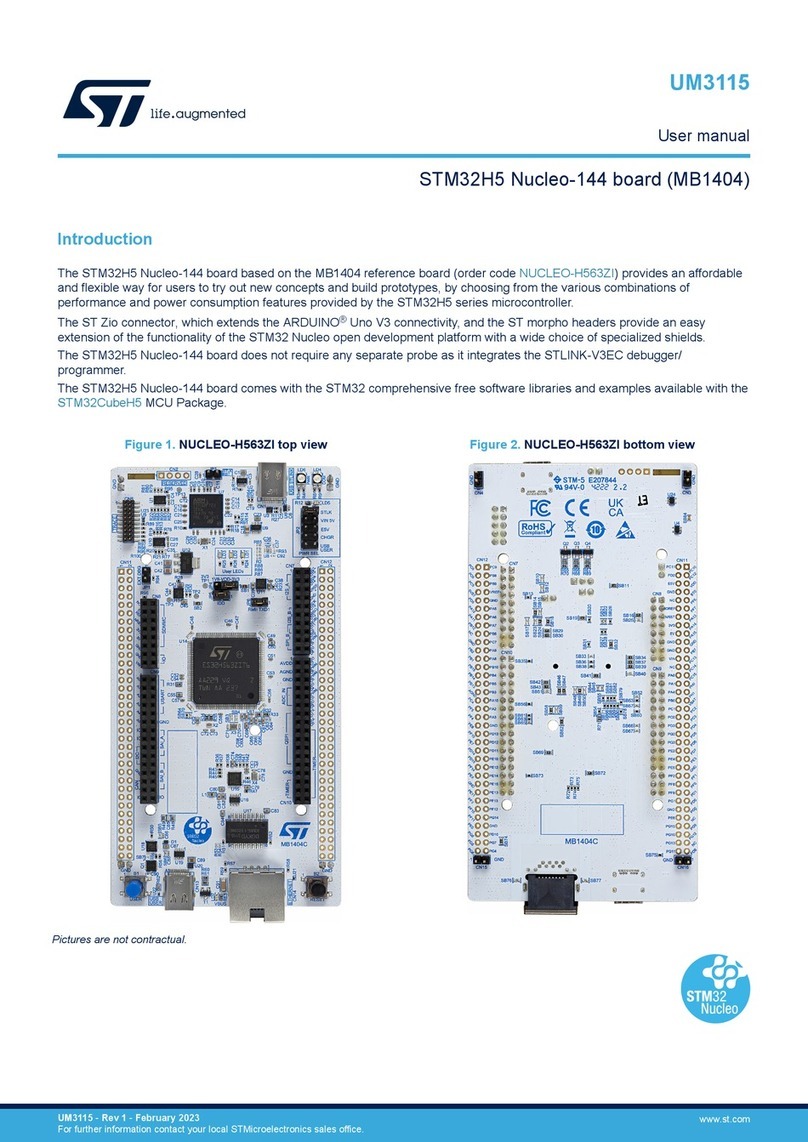
ST STM32H5 Nucleo-144 User manual
ST
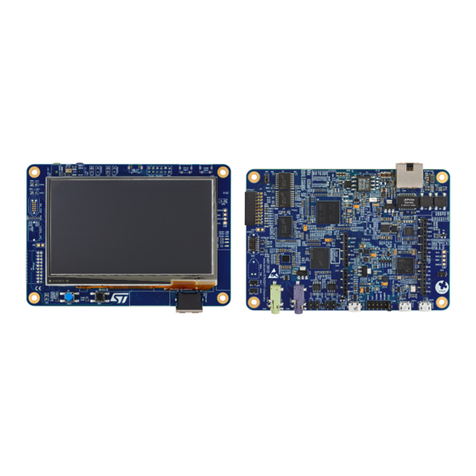
ST STM32H745I-DISCO User manual
ST
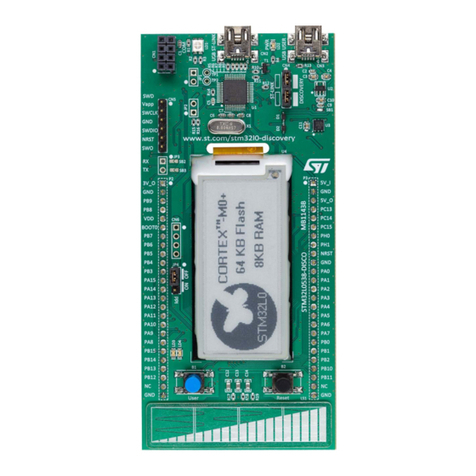
ST STM32L053 User manual
ST
ST SPC560P34 User manual
ST
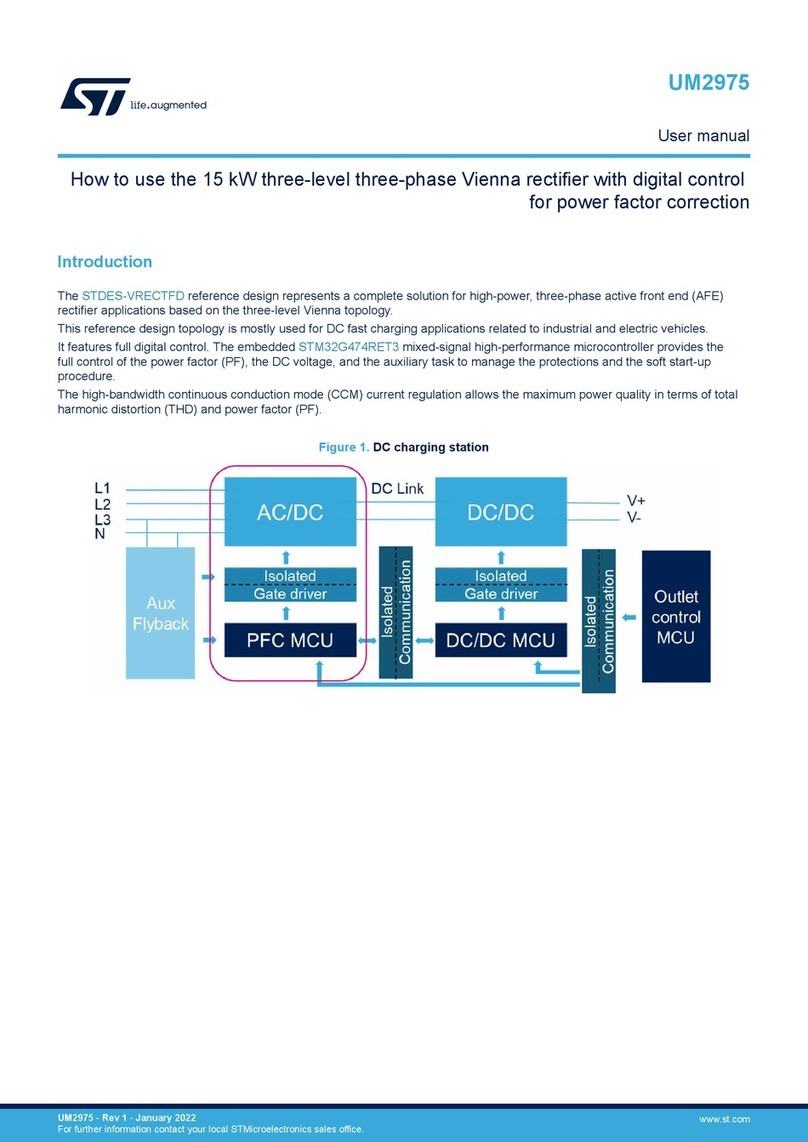
ST UM2975 User manual
ST
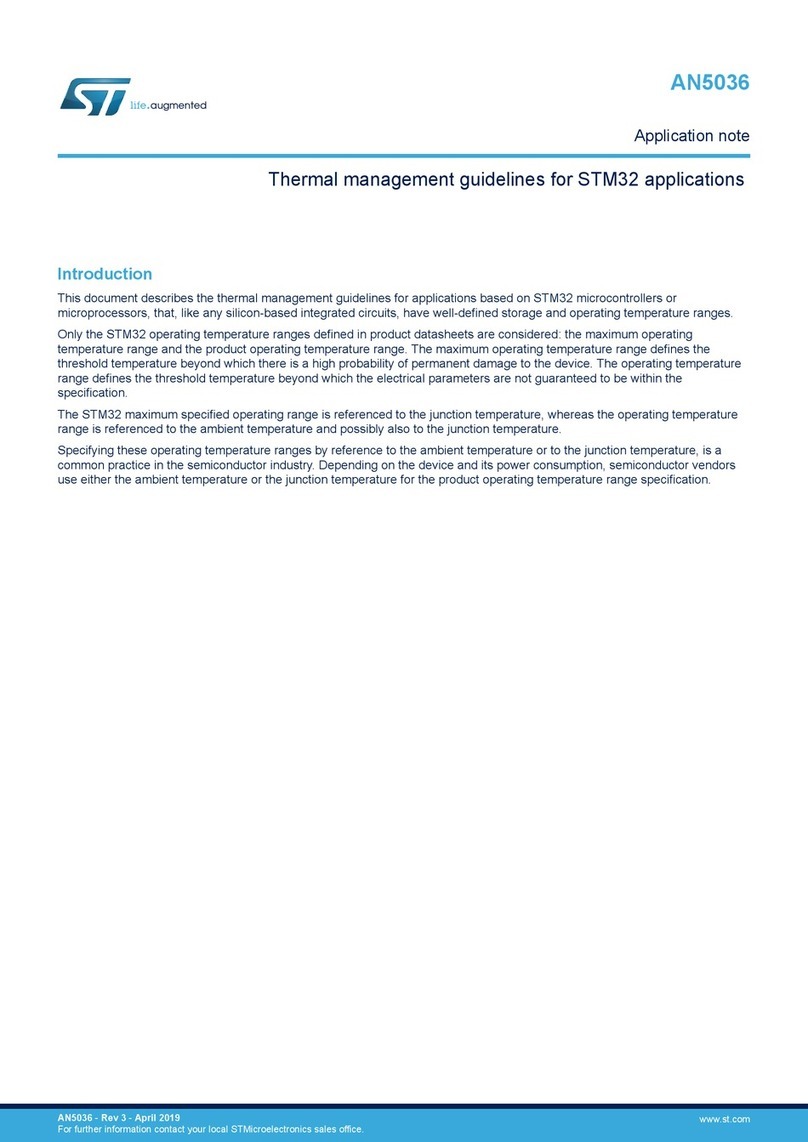
ST STM32 Nucleo Installation and operating instructions
ST
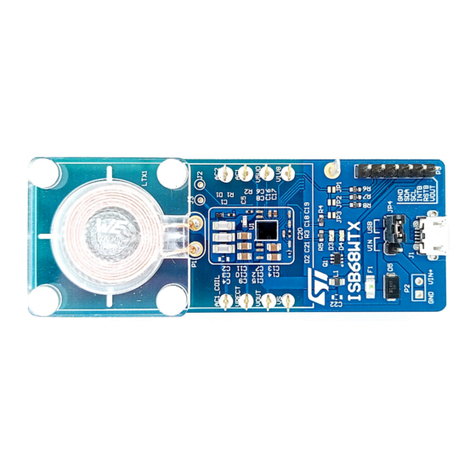
ST STEVAL-ISB68WTX User manual
ST
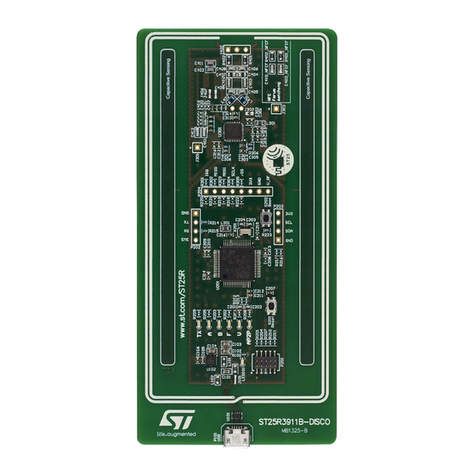
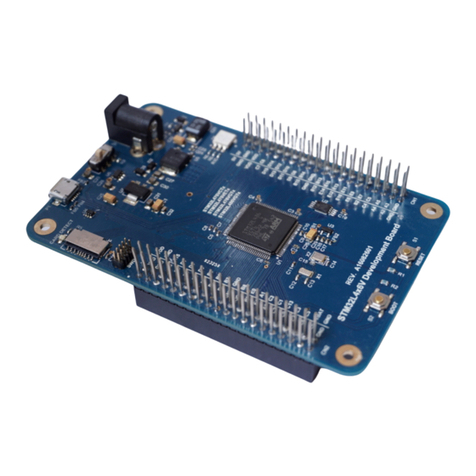
ST ST25R3911B-DISCO User manual
ST
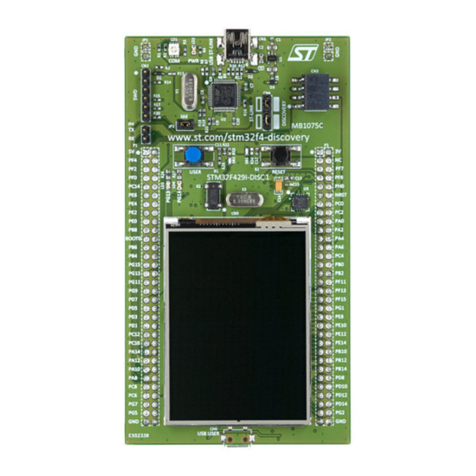
ST STM32L4x6 User manual
ST
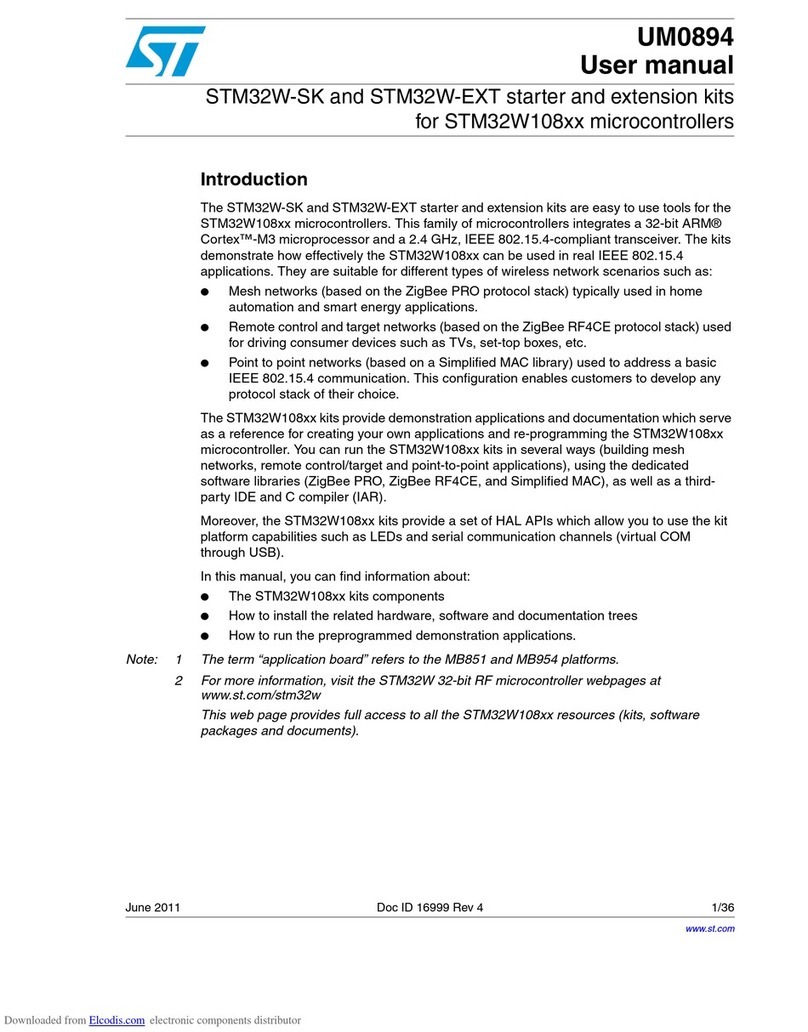
ST 32F429IDISCOVERY User manual
ST
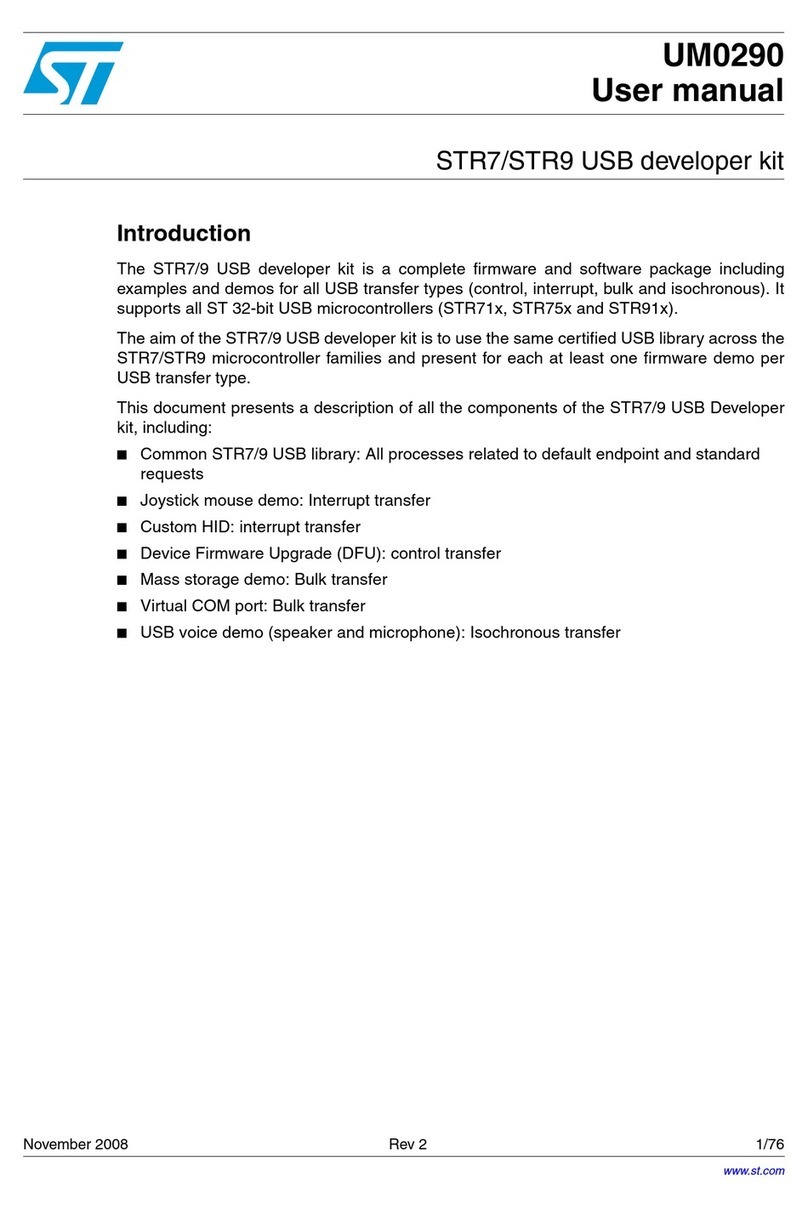
ST STM32W-SK User manual

Popular Microcontroller manuals by other brands

Novatek
Novatek NT6861 manual
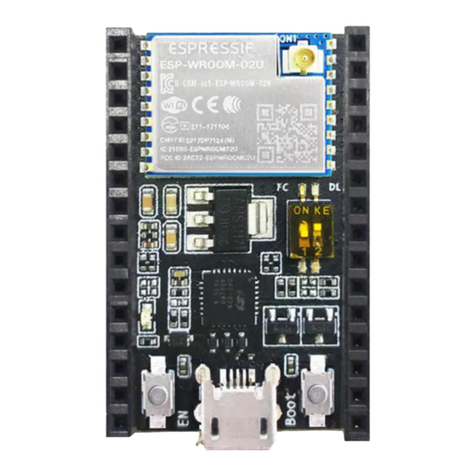
Espressif Systems
Espressif Systems ESP8266 SDK AT Instruction Set
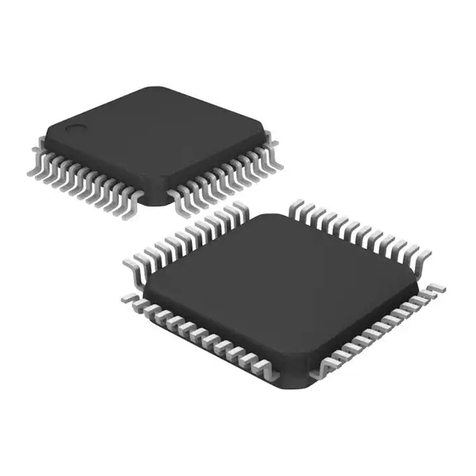
Nuvoton
Nuvoton ISD61S00 ChipCorder Design guide
STMicrolectronics
STMicrolectronics ST7 Assembler Linker user manual
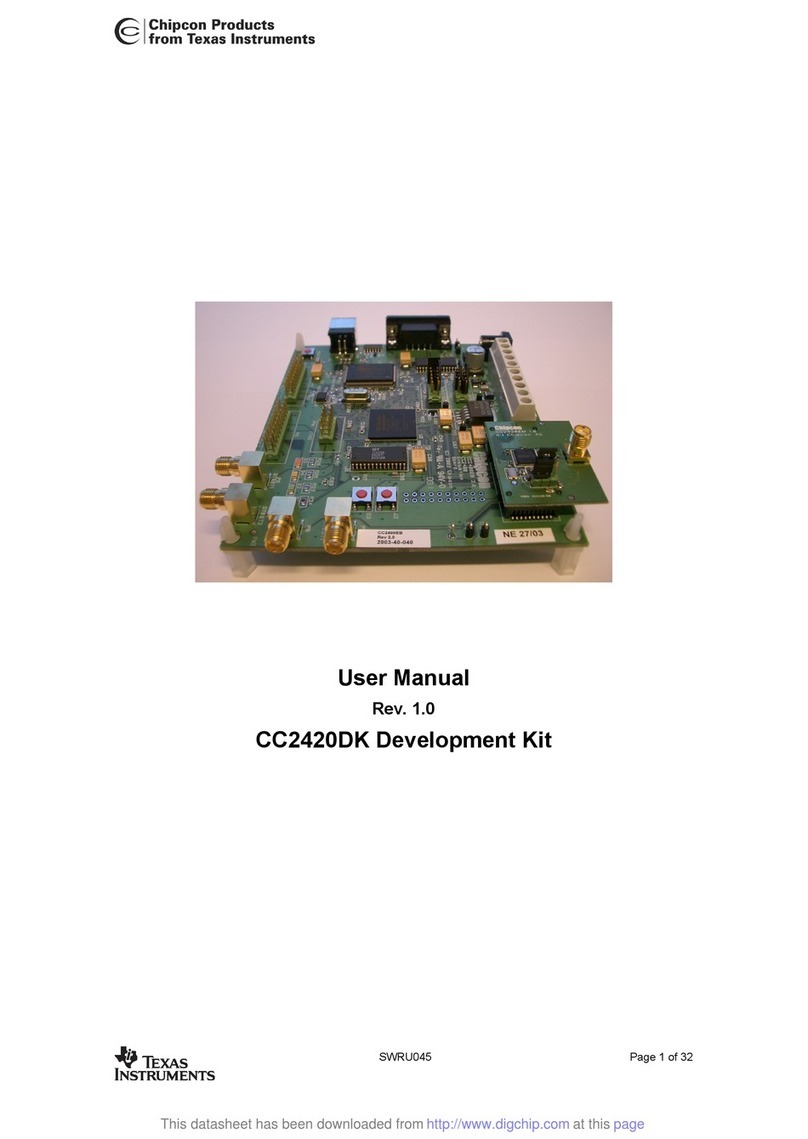
Texas Instruments
Texas Instruments Chipcon CC2420DK user manual
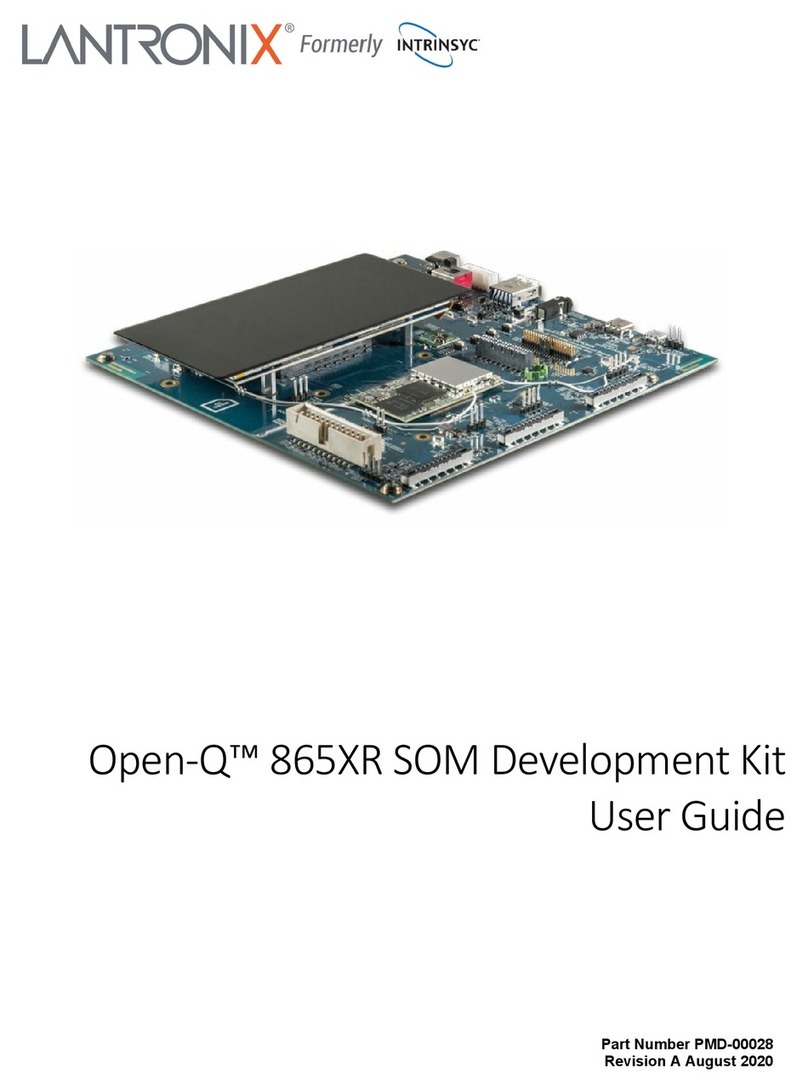
Lantronix
Lantronix Intrinsyc Open-Q 865XR SOM user guide