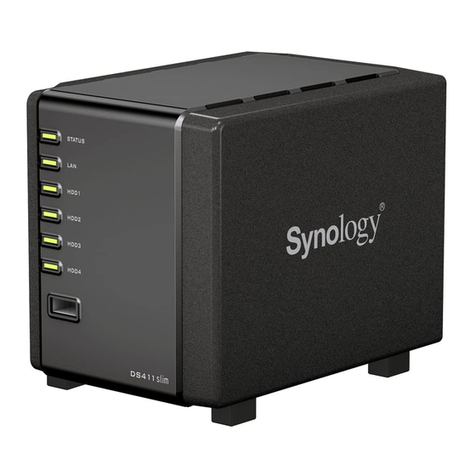
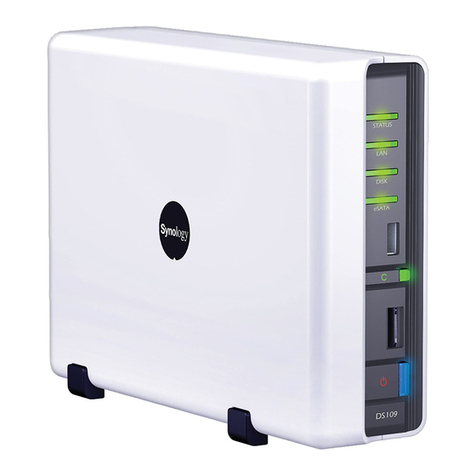
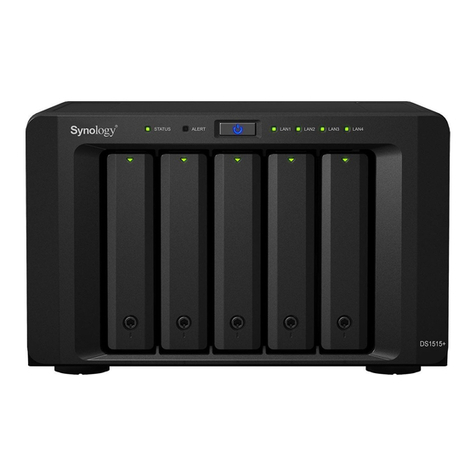
Synology RackStation RS819 Manual
Other Synology Storage manuals

Synology
Synology SA3410 User manual
Synology
Synology RS1221+ Manual
Synology
Synology BeeDrive BDS70 User manual
Synology
Synology DiskStation DS214play User manual
Synology
Synology DiskStation DS1517+ Manual

Synology
Synology DiskStation DS409slim User manual
Synology
Synology DiskStation DS119j Manual
Synology
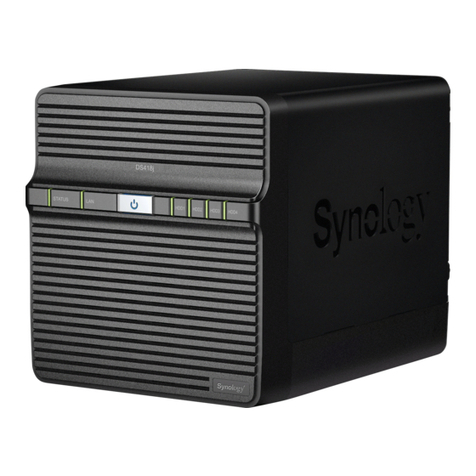
Synology DiskStation DS418j Manual
Synology
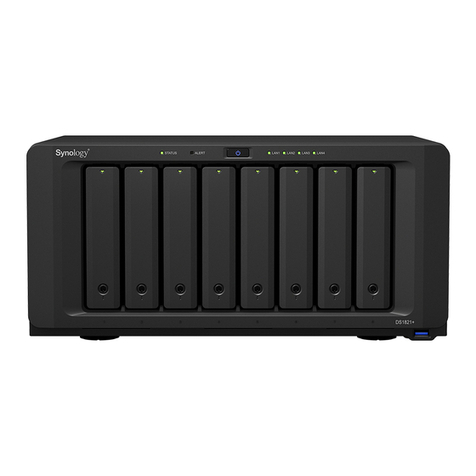
Synology DS1821+ Manual
Synology
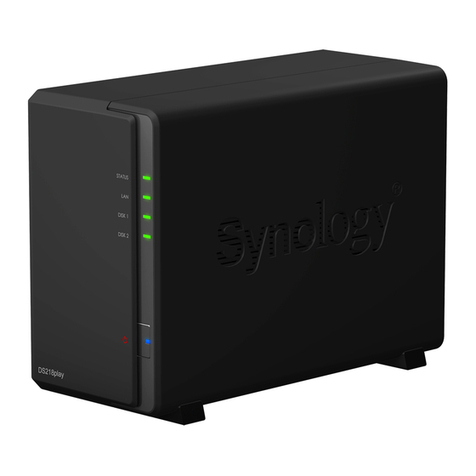
Synology DiskStation DS218play Manual
Synology
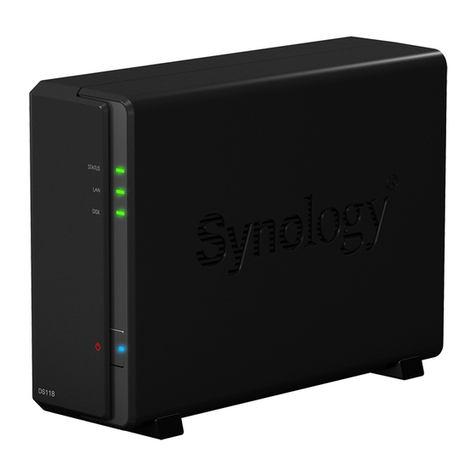
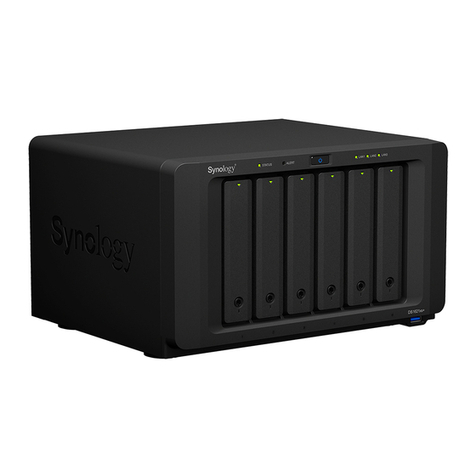
Synology DiskStation DS118 Manual
Synology
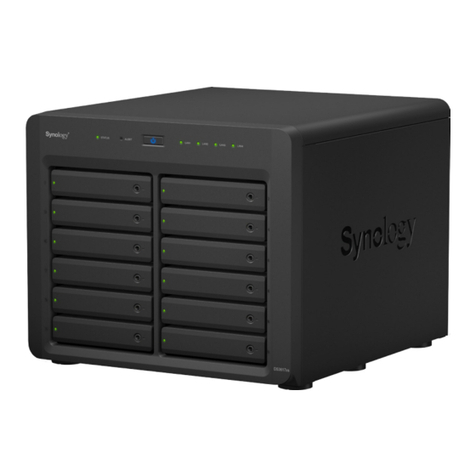
Synology DiskStation DS3617xs Manual
Synology
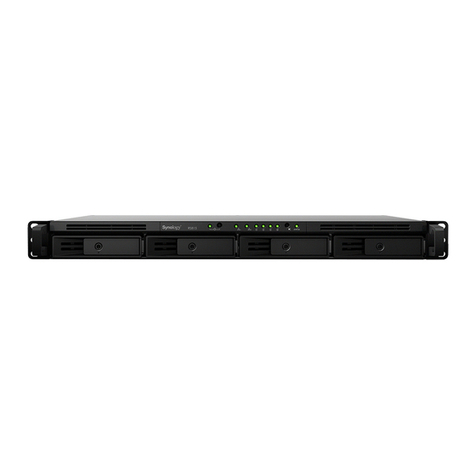
Synology RackStation RS815 User manual
Synology
Synology DS1621xs+ Manual
Synology
Synology DS224+ User manual

Synology
Synology DS3611xs User manual
Synology
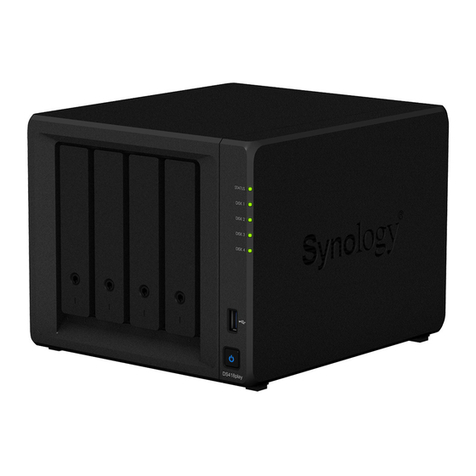
Synology DS418play Manual
Synology
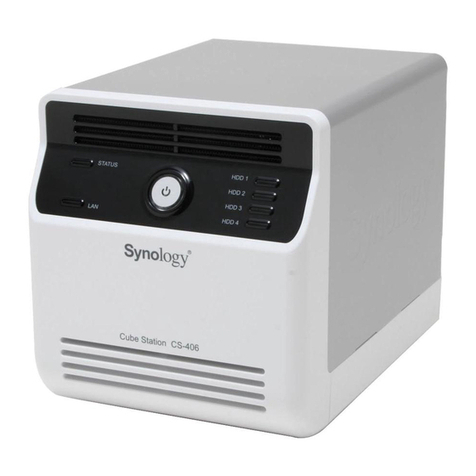
Synology CS-406 User manual
Synology
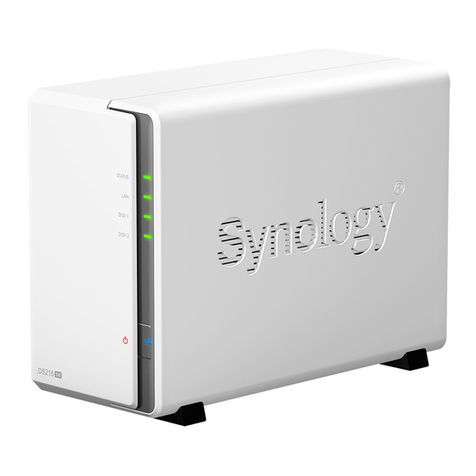
Synology DiskStation DS216se User manual
Synology
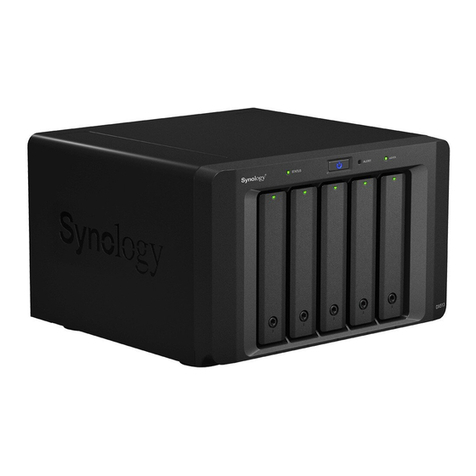
Synology DX513 User manual