manuals.online logo
Brands
  1. Home
  2. •
  3. Brands
  4. •
  5. Tandberg Data
  6. •
  7. Network Hardware
  8. •
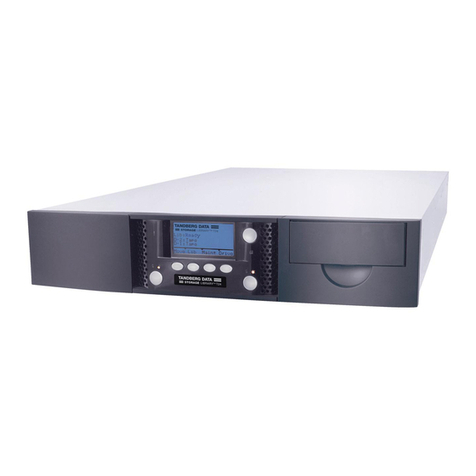
  9. Tandberg Data SUPERLOADER DLT - User manual

Tandberg Data SUPERLOADER DLT - User manual

This manual suits for next models

1

Other Tandberg Data Network Hardware manuals
Tandberg Data RDX QuikStor User manual

Tandberg Data

Tandberg Data RDX QuikStor User manual

Tandberg Data MSERIES User manual

Tandberg Data

Tandberg Data MSERIES User manual

Tandberg Data SUPERLOADER DLT MAGAZINE User manual

Tandberg Data

Tandberg Data SUPERLOADER DLT MAGAZINE User manual

Tandberg Data MSERIES FC USER User manual

Tandberg Data

Tandberg Data MSERIES FC USER User manual

Tandberg Data RDX QuikStation 4 User manual
Tandberg Data

Tandberg Data RDX QuikStation 4 User manual

Tandberg Data SLR AUTOLOADER - SERVICE AND Installation and operating manual

Tandberg Data

Tandberg Data SLR AUTOLOADER - SERVICE AND Installation and operating manual

Tandberg Data MSERIES RMC USER User manual

Tandberg Data

Tandberg Data MSERIES RMC USER User manual

Tandberg Data BARCODE READER User manual

Tandberg Data

Tandberg Data BARCODE READER User manual

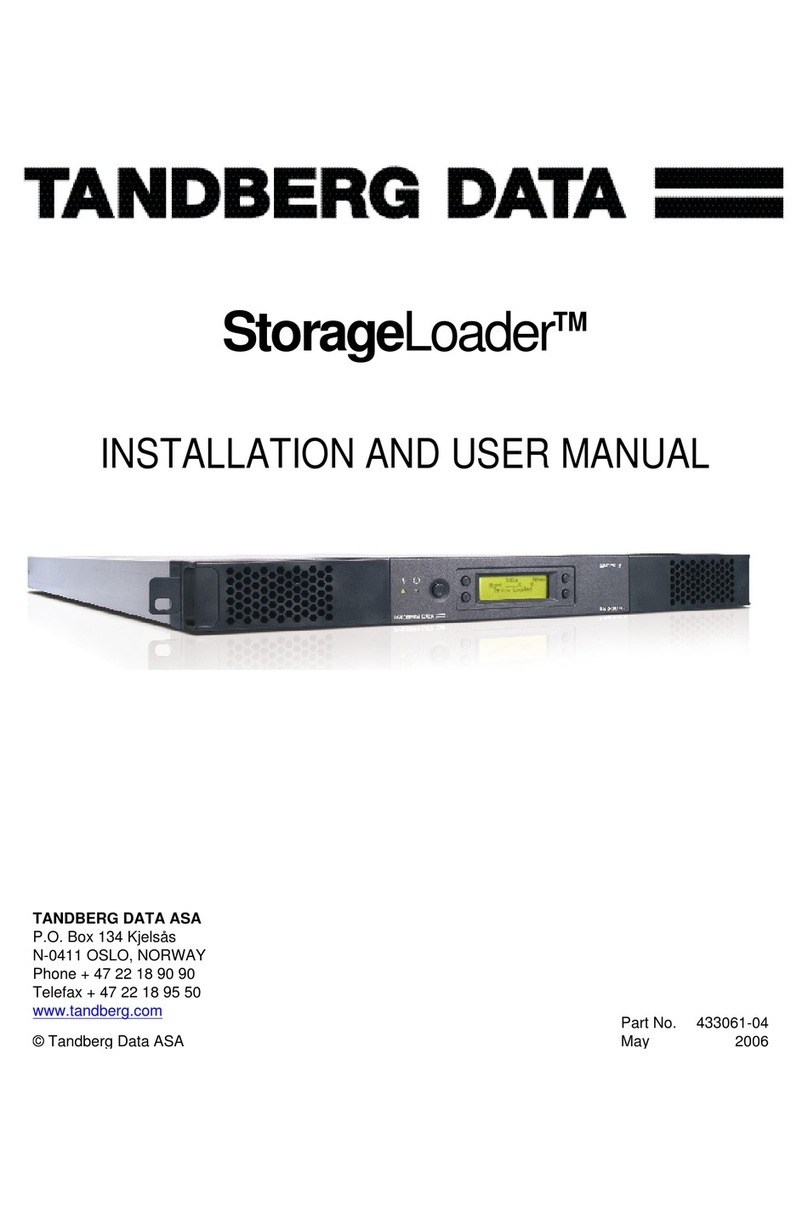
Tandberg Data StorageLoader User manual

Tandberg Data

Tandberg Data StorageLoader User manual

Tandberg Data RDX QuikStation 4 Operating and maintenance instructions

Tandberg Data

Tandberg Data RDX QuikStation 4 Operating and maintenance instructions

Tandberg Data MSERIES USER User manual

Tandberg Data

Tandberg Data MSERIES USER User manual

Tandberg Data SLR7-140 PROGRAMMER User manual

Tandberg Data

Tandberg Data SLR7-140 PROGRAMMER User manual

Tandberg Data SUPERLOADER User manual

Tandberg Data

Tandberg Data SUPERLOADER User manual

Tandberg Data Magnum 224 User manual

Tandberg Data

Tandberg Data Magnum 224 User manual

Tandberg Data Autoloader Tandberg LTO2 User manual

Tandberg Data

Tandberg Data Autoloader Tandberg LTO2 User manual

Tandberg Data SLR User manual

Tandberg Data

Tandberg Data SLR User manual
Tandberg Data Tape Backup System DLT4000 User manual

Tandberg Data

Tandberg Data Tape Backup System DLT4000 User manual

Popular Network Hardware manuals by other brands

socomec SNMP Card II quick start guide

socomec

socomec SNMP Card II quick start guide

NVR SYSTEMS 4-CH user manual

NVR SYSTEMS

NVR SYSTEMS 4-CH user manual

Draytek VigorSwitch G1240 quick start guide

Draytek

Draytek VigorSwitch G1240 quick start guide

Westermo TD-34 LV installation manual

Westermo

Westermo TD-34 LV installation manual

LaCie Network Space MAX Quick install guide

LaCie

LaCie Network Space MAX Quick install guide

ZoneVu ZSI-450-IP Installation guide & user manual

ZoneVu

ZoneVu ZSI-450-IP Installation guide & user manual

QNAP Turbo NAS Application notes

QNAP

QNAP Turbo NAS Application notes

OpenEye MV Series quick start guide

OpenEye

OpenEye MV Series quick start guide

Huawei SmartAX MT880a quick start guide

Huawei

Huawei SmartAX MT880a quick start guide

Proxim Tsunami QuickBridge 2454-R installation guide

Proxim

Proxim Tsunami QuickBridge 2454-R installation guide

Bay Networks CLAM quick start guide

Bay Networks

Bay Networks CLAM quick start guide

Innodisk SATADOM-SH 3SE Series manual

Innodisk

Innodisk SATADOM-SH 3SE Series manual

Cisco CGR 1000 Series Getting connected guide

Cisco

Cisco CGR 1000 Series Getting connected guide

Matrix Switch Corporation MSC-HD161DEL product manual

Matrix Switch Corporation

Matrix Switch Corporation MSC-HD161DEL product manual

National Instruments NI 653x user manual

National Instruments

National Instruments NI 653x user manual

B&B Electronics ZXT9-IO-222R2 product manual

B&B Electronics

B&B Electronics ZXT9-IO-222R2 product manual

Yudor YDS-16 user manual

Yudor

Yudor YDS-16 user manual

D-Link ShareCenter DNS-320L datasheet

D-Link

D-Link ShareCenter DNS-320L datasheet
manuals.online logo
manuals.online logoBrands
  • About & Mission
  • Contact us
  • Privacy Policy
  • Terms and Conditions

Copyright 2025 Manuals.Online. All Rights Reserved.

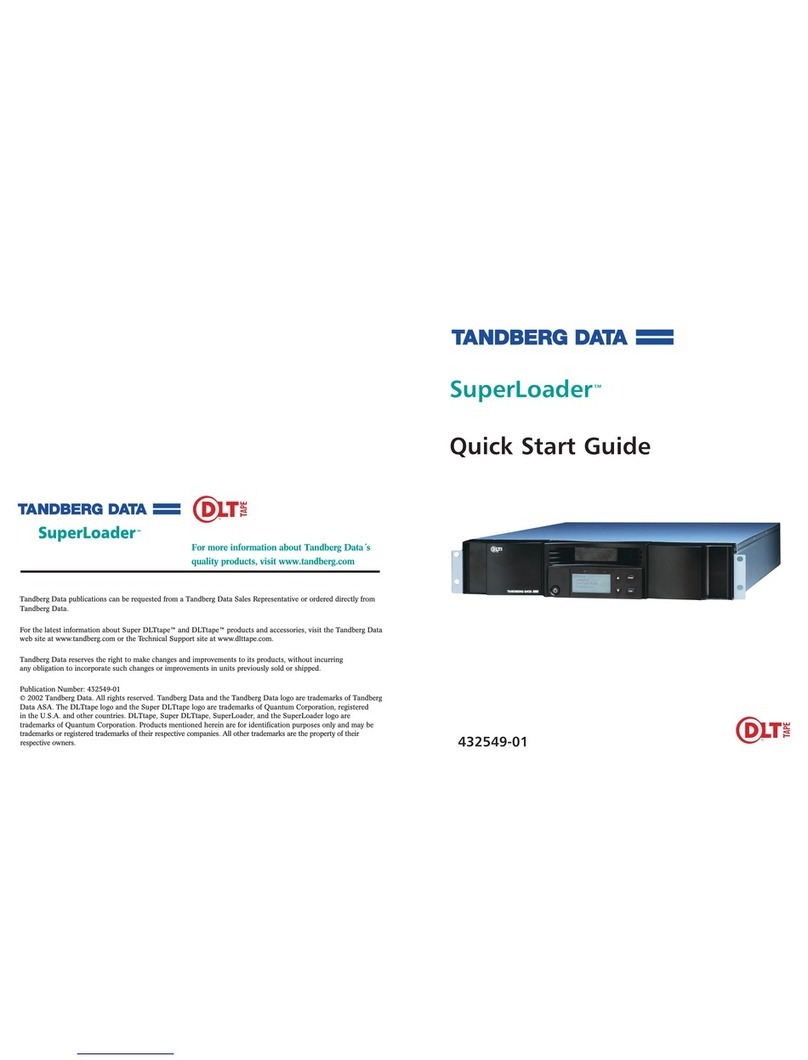
432549-01
Quick Start Guide
SuperLoader™
For more information about Tandberg Data´s
quality products, visit www.tandberg.com
Tandberg Data publications can be requested from a Tandberg Data Sales Representative or ordered directly from
For the latest information about Super DLTtape™ and DLTtape™ products and accessories, visit the Tandberg Data
web site at www.tandberg.com or the Technical Support site at www.dlttape.com.
Tandberg Data reserves the ri ht to make chan es and improvements to its products, without incurrin
any obli ation to incorporate such chan es or improvements in units previously sold or shipped.
Publication Number: 432549-01
© 2002 Tandberg Data. All ri hts reserved. Tandberg Data and the Tandberg Data lo o are trademarks of Tandberg
Data ASA. The DLTtape logo and the Super DLTtape logo are trademarks of Quantum Corporation, registered
in the U.S.A. and other countries. DLTtape, Super DLTtape, SuperLoader, and the SuperLoader logo are
trademarks of Quantum Corporation. Products mentioned herein are for identification purposes only and may be
trademarks or registered trademarks of their respective companies. All other trademarks are the property of their
Tandberg Data.
respective owners.
Caution
Do not rest the autoloader on the
unpacked side. The weight of the unit
could bend the metal flange on the
front end.
While one unpacker steadies the
autoloader, the other unpacker should
remove the foam packaging from the
other side of the unit and set down the
unit.
Remove the foam inserts from the front
of the unit.
• Power cord
• uick Start Guide
Each unpacker should:
1. Position him/herself along a length-
wise side of the carton, facing the
other unpacker.
2. Reach in through the openings in
the foam packaging and grip the
autoloader securely.
3. In a coordinated motion with the
other unpacker, lift the autoloader
out of the box and place it on a flat,
stable surface.
While one unpacker steadies one side
of the autoloader, the other unpacker
should grip the front of the autoloader
with one hand and remove the foam
packaging from the other side of the
unit.
d
e
f
g
3
!
1Unpack the
autoloader
This guide contains
a sequence of steps
recommended for
unpacking, installing,
and setting up your
autoloader.
For additional information:
Refer to the enclosed CD-ROM,
visit www.tandberg.com
Tandberg Data recommends that two
people unpack the autoloader and that
you practice good ergonomic techniques
to lessen the risk of personal injury and
damage to the unit.
Look for markings on the carton that indi-
cate the top. If necessary, re-position the
carton so that it is upright according to
the markings.
Use a utility knife or scissors to cut the
packing tape along the length and ends
of the carton.
Remove the accessories box from the car-
ton. The accessories box contains the fol-
lowing items:
• Cable(s)
• Documentation CD
• Mounting hardware (brackets and
screws)
a
b
c
2
Short autoloader
brackets (part number
74-60604-02)
Long autoloader
brackets (part number
74-60604-01)
8 support bracket
screws
Support brackets
5
Tools
•#2 Phillips screwdriver
Parts
• 4 autoloader brackets (2 long and 2
short, to accommodate different rack
depths)
• 2 support brackets
• 8 10-32 x 1/4 inch button head screws
for the support brackets (4 per support
bracket)
Note: You also need 8 clip nuts and 8
screws, which are not included with your
autoloader but should be included with
your cabinet.
Prepare parts
and tools
2
Sections 2 4 explain
how to prepare and
install the autoloader.
It takes two people to safely rackmount
your autoloader.
Warnin
Before you begin, lower the rack’s leveler
feet and extend the rack’s anti-tip device.
Failure to extend the anti-tip device could
result in personal injury or damage to the
tape autoloader if the rack tips over.
Caution
Do not remove the top cover of the
autoloader during the installation process.
Removing the top cover could result in
damage to the autoloader.
Caution
Ensure that the rack and all equipment
mounted in the rack have a reliable
ground connection. Verify that the total
current of the rack components does not
exceed the current rating of the power
distribution unit or outlet receptacles.
!
!
!
Rackmount the
autoloader
4
7
Choose a
location
3
Choose a location to install the
autoloader.
Caution
Position the autoloader so that no cooling
vents or exhaust from other devices are
located directly in front of the unit; this
helps minimize the amount of foreign
debris entering the tape path. Excessive
dust and debris can damage tapes and
tape drives.
For details about accessing
cartridges and removing magazines,
see the User Manual.
!
6
Select the long or short autoloader brack-
ets and attach them to the rear of the
autoloader. (Procedure continues.)
Autoloader
bracket
b
9
Rail in rack
Outer cover
of rack
Outer cover
of rack
Clip nuts
Rackmount the
autoloader,
continued
For details about this procedure, see
the User Manual.
Install two clip nuts, 1.75 inches apart,
onto each of the four rails of the rack,
making sure that you install each pair of
clip nuts at exactly the same level.
a
8
Put the autoloader into the rack and do
the following:
1. Position the autoloader in the rack so
that each autoloader bracket rests on a
support bracket. Each autoloader
bracket should slide along the lip of the
support bracket. (Procedure continues.)
Autoloader bracket
Support bracket
d
11
Rackmount the
autoloader,
continued
cAttach one support bracket to each rear
rail, loosely installing the screws through
the clip nuts. Make sure that you attach
the side of the support bracket that has
only two holes, and do not tighten the
screws yet. You will tighten the screws in
Step h.
Outer cover of rack
Rear rail in rack
Support bracket
10
Loosely install the four screws that
connect the support brackets (two
screws per support bracket) to the
autoloader brackets.
e
Verify that the autoloader is level.
Adjust as needed.
Tighten the four screws that attach the
two front ears to the front rails.
Tighten the four screws that connect
the two support brackets to the two
autoloader brackets.
Tighten the four screws that connect
the two support brackets to the two
rear rails.
f
g
h
i
Autoloader bracket
Support bracket
13
Rackmount the
autoloader,
continued
2. Slide the autoloader in place so that
the front ears of the autoloader align
with the front clip nuts. Then loosely
install the four screws that connect the
two support brackets to the two front
rails.
Front rail
Front ear
12
e
f
g
If the autoloader will be the last device
on the SCSI bus, install the supplied
SCSI terminator to the remaining port
that is on the autoloader/DCA and then
tighten the screws.
Attach the other end of the SCSI cable
to the SCSI host adapter card.
Power back on any peripheral devices
that you powered off in Step b.
Double-stacked SCSI connector
Note: Do not power on the host comput-
er at this time. You must configure the
autoloader for SCSI and Ethernet prior to
powering on the host.
15
5Make the SCSI
connection
Caution
When installing cables, be careful not to
damage the SCSI pins on the connectors.
Damaged pins will cause the connection
to fail.
If the host computer is connected to a
network, check with the system adminis-
trator before turning off power.
Properly power off all peripheral devices
connected to the host computer.
Power off the host computer.
Install the supplied 68-pin SCSI cable to
the double-stacked SCSI connector that is
on the back of the autoloader/DCA and
tighten the screws. You can install the
SCSI cable in either port.
Note: Notice that the connector on the
end of the cable is offset. Make sure that
you install it with the correct orientation
so that you can fit a terminator or anoth-
er cable in the other port.
!
d
a
b
c
Sections 5 9 explain
how to set up the
autoloader.
1
7Power on the
autoloader
Push the power switch on the back
of the autoloader to the on position
(the 1 is pressed).
When you first power on the
autoloader, it automatically runs a
Power On Self Test (POST). During
the POST, the left (green) LED flash-
es. After the POST, the left (green)
and right (amber) LED flash alter-
nately.
Wait while the autoloader performs
its power-on sequence. During this
time, the following activities occur:
• The LCD displays the model and
firmware.
• The LCD displays the tests being
performed as part of the internal
power-on.
Note: If the autoloader displays a
warning message, press Escape to
clear the message.
• The autoloader performs a calibra-
tion and magazine element status.
The Ready LED flashes green. A +
appears in the upper right corner
of the LCD while calibration is in
progress.
When the power-on sequence com-
pletes and the autoloader is ready,
the LCD displays a list of the
autoloader options that are present
and the Ready LED is steady green.
Note: If there is a warning message
indicating a change, you may need to
press Escape to clear the message.
Note: After the first time you power
on the autoloader, you should use
the switch on the front to power on
and off the autoloader.
a
b
17
6Connect the
power cord
Note: The first time you power on the
autoloader, do not power on the host.
Make sure that the power switch on the
back of the autoloader is off (the 0 is
pressed).
Connect the female end of the power
cord to the power connector on the back
of the autoloader.
Plug the male end of the power cord into
the power source.
a
b
c
16
9Set the
Ethernet
Ethernet is the method that the
autoloader uses to access a network.
The Ethernet connection is how you
access the Web Administration to
modify the SuperLoader configura-
tions, such as the IP address. Each
Ethernet device must have a unique IP
address.
Use the front panel to determine and
modify the static IP address or set the
SuperLoader to a dynamic address.
If you are not using a dynamic address,
you must set the IP address and
Subnet mask.
For more details, see the User
Manual.
19
8Set the SCSI ID
Each SCSI device that is attached to a
server or workstation must have a unique
SCSI ID. The SuperLoader is set to a
default SCSI ID of 5. Use the front panel
or Web Administration to change the SCSI
ID if necessary.
For details about setting the SCSI ID,
see the User Manual.
18