manuals.online logo
Brands
  1. Home
  2. •
  3. Brands
  4. •
  5. Tascam
  6. •
  7. Voice Recorder
  8. •
  9. Tascam DR-05 How to use

Tascam DR-05 How to use

Other manuals for DR-05

9

Other Tascam Voice Recorder manuals

Tascam DR-40 Instruction Manual

Tascam

Tascam DR-40 Instruction Manual

Tascam HS-P82 User manual

Tascam

Tascam HS-P82 User manual

Tascam DR-100 MKIII User manual

Tascam

Tascam DR-100 MKIII User manual

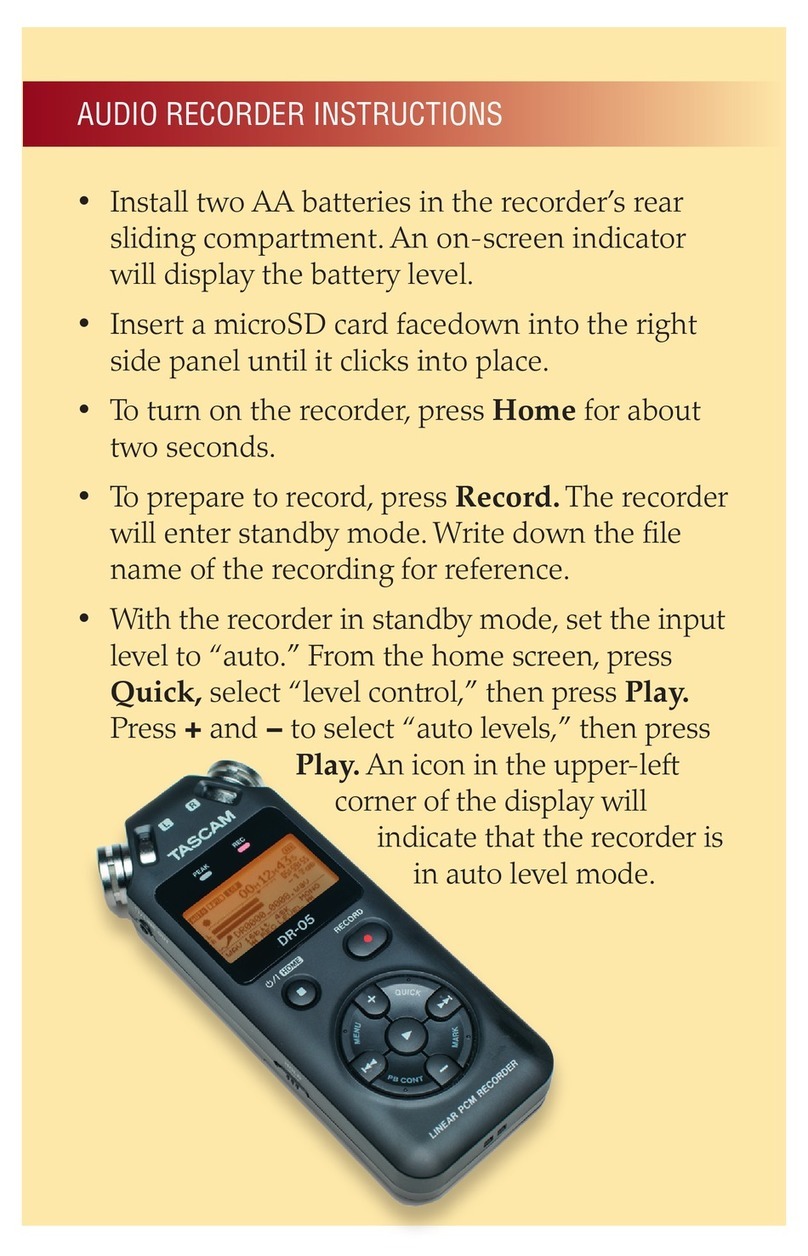
Tascam DR-05 User manual

Tascam

Tascam DR-05 User manual

Tascam DA-78HR User manual

Tascam

Tascam DA-78HR User manual

Tascam DR-07 User manual

Tascam

Tascam DR-07 User manual

Tascam DR-701D User manual

Tascam

Tascam DR-701D User manual

Tascam DR100 MkII User manual

Tascam

Tascam DR100 MkII User manual

Tascam DR-100MKIII User manual

Tascam

Tascam DR-100MKIII User manual

Tascam DR-70D User manual

Tascam

Tascam DR-70D User manual

Tascam AUDIO RECORDER User manual

Tascam

Tascam AUDIO RECORDER User manual

Tascam GB-10 Instruction Manual

Tascam

Tascam GB-10 Instruction Manual

Tascam DA-88 User manual

Tascam

Tascam DA-88 User manual

Tascam DR-05 Guide

Tascam

Tascam DR-05 Guide

Tascam DR-07mk II User manual

Tascam

Tascam DR-07mk II User manual

Tascam DR-05X User manual

Tascam

Tascam DR-05X User manual

Tascam dr-44wl User manual

Tascam

Tascam dr-44wl User manual

Tascam HS-P82 User manual

Tascam

Tascam HS-P82 User manual

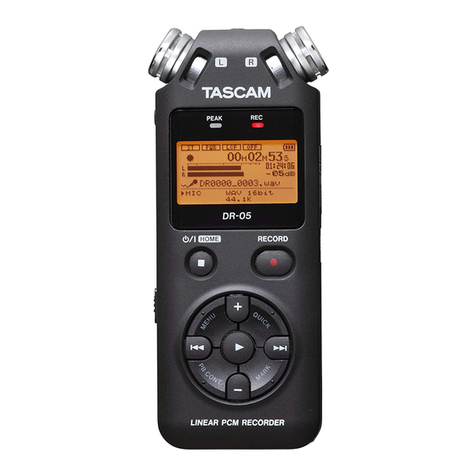
Tascam DR-05 User manual

Tascam

Tascam DR-05 User manual

Tascam DR-40 User manual

Tascam

Tascam DR-40 User manual

Tascam DR100 Mk3 User manual

Tascam

Tascam DR100 Mk3 User manual

Tascam DR-22WL User manual

Tascam

Tascam DR-22WL User manual

Tascam DR-22WL User manual

Tascam

Tascam DR-22WL User manual

Tascam DA-78HR Guide

Tascam

Tascam DA-78HR Guide

Popular Voice Recorder manuals by other brands

Sony ICD-UX533F quick start guide

Sony

Sony ICD-UX533F quick start guide

RCA VR5230 quick start guide

RCA

RCA VR5230 quick start guide

Ramsey Electronics BULLSHOOTER ENDLESS LOOP BS2C Assembly and instruction manual

Ramsey Electronics

Ramsey Electronics BULLSHOOTER ENDLESS LOOP BS2C Assembly and instruction manual

Sony TCM-400DV Specification sheet

Sony

Sony TCM-400DV Specification sheet

LogTag TREL30-16 user guide

LogTag

LogTag TREL30-16 user guide

SVAT CVP800 user manual

SVAT

SVAT CVP800 user manual

Marantz PMD620 Service manual

Marantz

Marantz PMD620 Service manual

Zoom H4next Operation manual

Zoom

Zoom H4next Operation manual

Roland BR-900CD manual

Roland

Roland BR-900CD manual

JVC ProHD GY-HMZ1U Basic user's guide

JVC

JVC ProHD GY-HMZ1U Basic user's guide

Panasonic PQT8531-P operating instructions

Panasonic

Panasonic PQT8531-P operating instructions

Sanyo TRC-6400 Brochure & specs

Sanyo

Sanyo TRC-6400 Brochure & specs

Olympus DW-90 instructions

Olympus

Olympus DW-90 instructions

Sanyo ICR-B150 instruction manual

Sanyo

Sanyo ICR-B150 instruction manual

Korg D4 owner's manual

Korg

Korg D4 owner's manual

Sony ICD-SX46 - Ic Recorder Specifications

Sony

Sony ICD-SX46 - Ic Recorder Specifications

Olympus DIGITAL VOICE RECORDER WS-200S Mode d'emploi

Olympus

Olympus DIGITAL VOICE RECORDER WS-200S Mode d'emploi

DVS Pronto2K Hardware guide

DVS

DVS Pronto2K Hardware guide

manuals.online logo
manuals.online logoBrands
  • About & Mission
  • Contact us
  • Privacy Policy
  • Terms and Conditions

Copyright 2025 Manuals.Online. All Rights Reserved.

TASCAM DR-05 1
Updates
Always use the most recent rmware for this device.
Please visit the TASCAM web site at http://tascam.com/ to
check for the latest rmware.
Maintenance items
V1.01 fixes
The eect of the playback equalizer (PLAY EQ) has been
•
adjusted.
If a folder created by a computer was present and
•
you created an additional new folder and then tried
to record to it, recording to the new folder would not
occur in some cases. This has been xed.
Operation reliability has been improved.
•
Confirmation of firmware version
Conrm the rmware version of your DR-05 before
conducting a rmware update.
1 Turn the unit’s power ON.
2 Press the MENU button to open the
MENU
screen.
3 Use the +/− buttons to select the
OTHERS
menu item, and press the Ábutton to open the
OTHERS
submenu.
4 Use the +/− buttons to select the
INFORMATION
menu item, and press the Ábutton to open the
INFORMATION
screen
FILE (1/3)
page.
5 Use the +/− buttons to open the
SYSTEM (3/3)
page where you can check the
System Ver.
item that shows the firmware version.
If the
System Ver.
shown here is the same or
newer than the rmware version that you planned to
update to, then there is no need to update it.
Firmware update procedures
CAUTION
When updating the rmware, be sure that the batteries
have sucient charge or power the unit using a TASCAM
PS-P515U AC adaptor (sold separately) or USB bus power
from a computer.
The program has been set so that the update will not be
conducted if battery power is insucient.
1 Download the most recent firmware from the
TASCAM web site (http://tascam.com/). If the file
that you have downloaded is compressed in ZIP
format, for example, decompress it.
2 Turn the unit’s power ON and use the included
USB cable to connect it with a computer. This unit
will be recognized as an external drive (external
storage device) by the computer.
3 Copy the downloaded firmware (DR05-29.101 for
V1.01) to the UTILITY folder on the DR-05.
4 After copying has completed, disconnect the
unit from the computer following the correct
procedures, and turn the unit power OFF.
5 While pressing and holding both the MARK and
Âbuttons, turn the unit power ON.
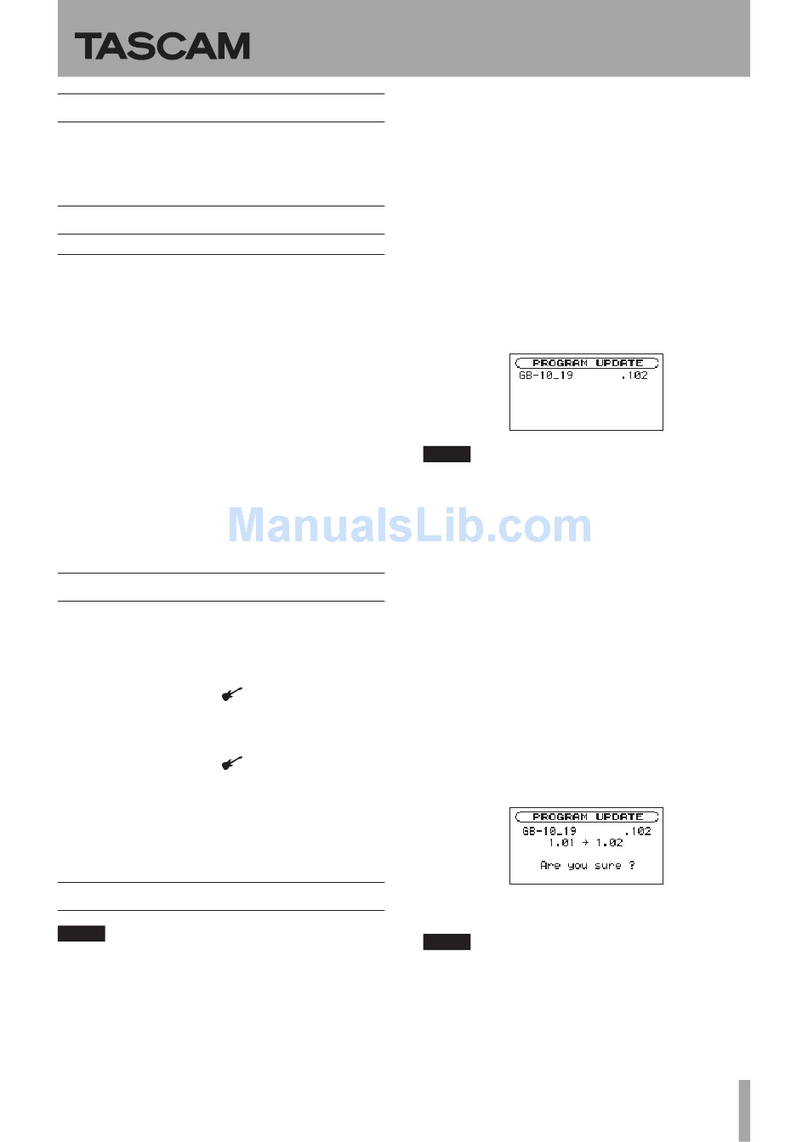
The unit starts up in update mode, and the update le
appears on the screen.
CAUTION
If this screen does not appear, turn the power OFF.
•
Then while pressing and holding both the MARK and
Âbuttons, turn the unit’s power ON again. Continue
to press and hold the MARK and Âbuttons rmly
until this screen appears.
When rmware has been copied to this unit’s
•UTILITY
folder from a Mac, in addition to the rmware le itself,
another le with “._”added to the beginning of the
rmware name is also shown. Use the le without the
“._”at the beginning of the name.
NOTE
This screen shows a list of the rmware update les
•
inside the UTILITY folder of the unit. Also, the screen
shows the rmware copied at Step 3 above.
No
Update File
appears if there is no update le in
the UTILITY folder.
The screen shown is an example. The actual display
•
diers.
DR-05 Release Notes
D01154700A
2TASCAM DR-05
DR-05 Release Notes
6 Use the +/− buttons to select the firmware and
press the Ábutton to open the following screen.
The current version appears on the left and the
updated version appears on the right.
NOTE
The screen shown is an example. The actual display diers.
7 Press the Ábutton to start the update.
8 When the update is complete,
Update
Complete
appears at the bottom of the screen,
and then the power turns OFF automatically. Turn
the power ON again.
9 Follow the “Confirmation of firmware version”
instructions above to check that the
System
Ver.
is now the most recent version of the
firmware.
This completes the procedure for updating this unit.
10 Connect to a computer with USB and delete the
firmware update from the unit’s UTILITY folder.