TeleAdapt Mini MP3 Player User manual

Mini MP3 Player
Instruction Manual
TeleAdapt Ltd
The Technology Park Colindeep Lane London NW9 6TA UK Tel: +44 (0)20 8233 3000 Fax: +44 (0)20 8233 3132
Email: [email protected]
Offices in the UK, USA & Hong Kong
©2003 The TeleAdapt Group, all rights reserved, TeleAdapt™ and the TeleAdapt Group logo are
trademarks of TeleAdapt Ltd. Patents Pending
All Trademarks Acknowledged
for a complete guide to mobile connectivity
visit us at
www.teleadapt.com
Manufactured in more than one country
Mobile Pro

How to use the Digital Audio Management Software 23
Sending files to the MiniMP3 23
Uploading files from your MiniMP3 25
Deleting files using the Manager software 25
Formatting the MiniMP3 Player memory 26
To refresh USB connection 27
Internal Memory Display 27
Pre-listening to audio tracks before downloading 27
Windows
®
2000 USB connection & Music Management 28
Windows
®
2000 - Basic File Transfer Operation 29
Windows
®
2000 - Audio Media Management 30
Windows
®
2000 - Installation of Manager Software 31
Windows
®
XP USB connection & Music Management 32
Windows
®
XP - Basic File Transfer Operation 34
Windows
®
XP - Installation of Manager Software 35
Proper Handling 36
Troubleshooting 36
Worldwide Limited Hardware Warranty 37
Credits 38
Contents
Player overview 3
The Mode Selector 5
Accessories Supplied 5
Installing the Battery 6
Standard LCD Icons 6
Turning the power on/off 7
Playing MP3 music 7
Using the Main Options Menu when in Play Mode 9
Voice Recording Mode 9
Equalizer Mode 12
Repeat Mode 13
The Backlight 14
Deleting Files 15
Memory Display 16
USB Connection to your laptop or PC 16
PC System Requirements 17
USB Connection with your operating system 17
Windows
®
’98 SE - Installation of Driver/Manager Software 18
Windows
®
’98 SE - Basic File Transfer Operation 21
Windows
®
’98 SE - Audio Media Management 22
2
1

43
Player overview
Thank you for purchasing the MiniMP3 Player
from TeleAdapt.
Music on the move has never been easier or more
flexible! Until now, portable listening has not been a
reality, especially when jogging or riding a bike.
Now you can enjoy high quality digital music in virtually
any situation, with the Teleadapt MiniMP3. The portable
MiniMP3 gives you compact audio – With no cables, cradle
or extra peripherals, just quality headphones and a stylish
player providing a futuristic and manageable Digital Audio
experience! The MiniMP3 also acts as a storage device,
like having an extra removable drive on your computer.
The MiniMP3 also has an integrated digital voice recorder,
ideal for recording quick memos or contact details when
on the move.
Features:
•
File formats supported includes MPEG Layer 3 (MP3) &
Windows®Media Audio (WMA)
•
128MB fixed Multimedia Memory
•
1 AAA Battery for up to 12 hours playing time
•
Multi Function Blue Backlight LCD Display (Programmable)
•
ID3 TAG Song Title Display support
•
Digital Volume Control
•
Stereo Headphones Output
•
Play/Pause
Fig 1
Fig 2
•
Track Forward and Reverse
•
Mode (Random, Normal, Repeat All, Repeat & Preview)
•
5 Mode Equalizer (Jazz, Classic, Rock, Pop & Normal)
•
Dynamic Bass Booster
•
Integrated Digital Voice Recorder with Microphone
•
Auto Power Down
•
Low Battery Indicator
•
Direct USB Connection & Download
•
Lock/Hold Key
•
Digital Audio Management Software
•
No moving parts, virtually jog free music
•
Provided with Headphones
•
Dimensions : 95mm x 30mm x 23mm
•
Weight: 34g excluding battery
Microphone
Play/Pause &
Power On/Off
Volume +/–
LCD Display
Headphone
Socket
Hold Button
USB Connector

65
The Mode Selector
Accessories Supplied
•
Windows®’98 Driver Installation CD with Digital Audio
Management software
•
Stereo Headphones
•
Neckstrap
•
Manual
•
1 x USB extension cable
•
1 x AAA Battery
Installing the Battery
1 x AAA Alkaline Battery is supplied.
Pull off USB cap to reveal USB connector.
Then slide the back cover as shown below.
Insert the battery with +/- signs as shown.
Standard LCD Icons
Fig 3
Slide Back Cover To Insert Battery

87
Turning the power on/off
To power the unit on, press the Play/Pause button, after 2
seconds the blue backlight LCD will light with LCD in Music
Mode. The Backlight will switch off after 8 seconds. The
player will automatically shut down after 30 seconds if not
used. To power down the player manually, keep the
Play/Pause pressed for 3 seconds.
Playing MP3 music
1. Turn the player on by pressing the Play/Pause button,
the following screen will be displayed
There are 4 pre-programmed tracks in the player
2. You can begin playing the first track by pressing the
PLAY/PAUSE button again
3. Or, you can select a track by flicking through the titles
using the Mode Selector
See Fig 3 on page 5
4. To fast forward/rewind a track, press Play/Pause to Play
and hold the Mode Selector in the FF or REW position until
you have reached the desired stage in the song and release
5. You can adjust the volume using the volume control
6. You can disable all accidental button presses by moving
the Hold button in the direction of the arrow
See Fig 2 on page 4

109
Using the Main Options Menu
when in Play Mode
1. While the player is switched on you can access the Main
Options Menu by pushing the Mode Selector in - See Fig 3
on page 4
2. You can now move along the menu by moving the
Selector to the right, the following options are available;
REC Enter the Voice Recording Mode
EQ Equaliser Mode
Repeat Repeat Mode
Backlight Backlight Mode
Del File Delete Audio File Mode
Memory Info Memory Information Mode
Return Return to the Main Menu
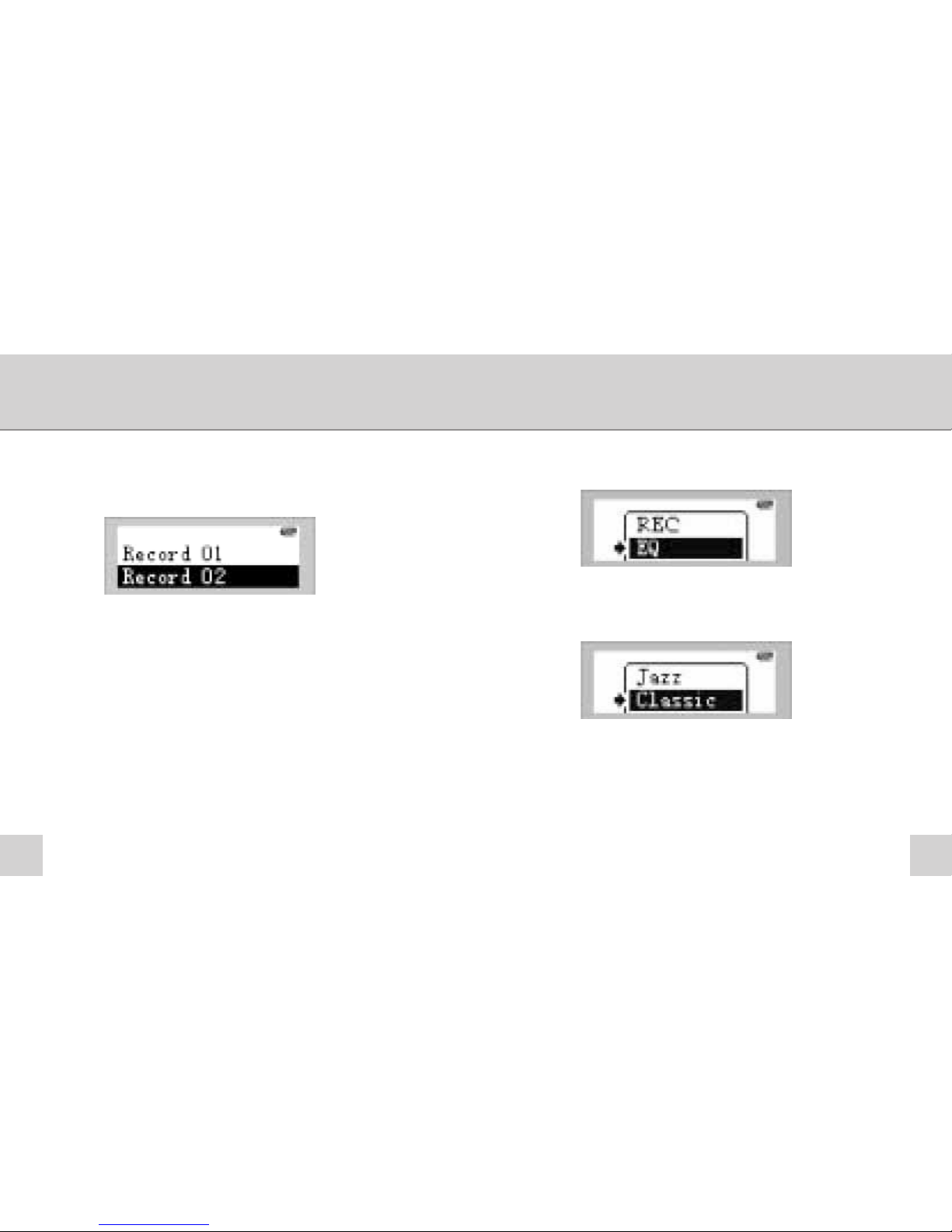
2. If you have no recorded files then the following will be
displayed
3. To begin your first Voice Recording, press the Mode
Selector again, select the Record Mode and push the Mode
Selector once more
The player will begin to record. You can then position the
microphone accordingly – See Fig 1 on page 4
Voice Recording Mode
1. Select the REC Mode as above and push the Mode
Selector in when REC is highlighted
1211
4. To stop the recording, press the PLAY/PAUSE button.
To create another voice recording repeat steps 3 and 4.
Repeat steps 3 & 4, you will now have two Voice Recordings
Note: While recording, only PLAY/STOP button is
operational
5. You can play these recordings by using the Mode Selector
to highlight the item and pressing the PLAY/PAUSE button
6. To delete any voice recordings, press the Mode Selector
and scroll down to Del REC File
7. To exit the Voice Recorder scroll the Mode Selector to
Music Mode and press, you will then return to the main
player mode
Equalizer Mode
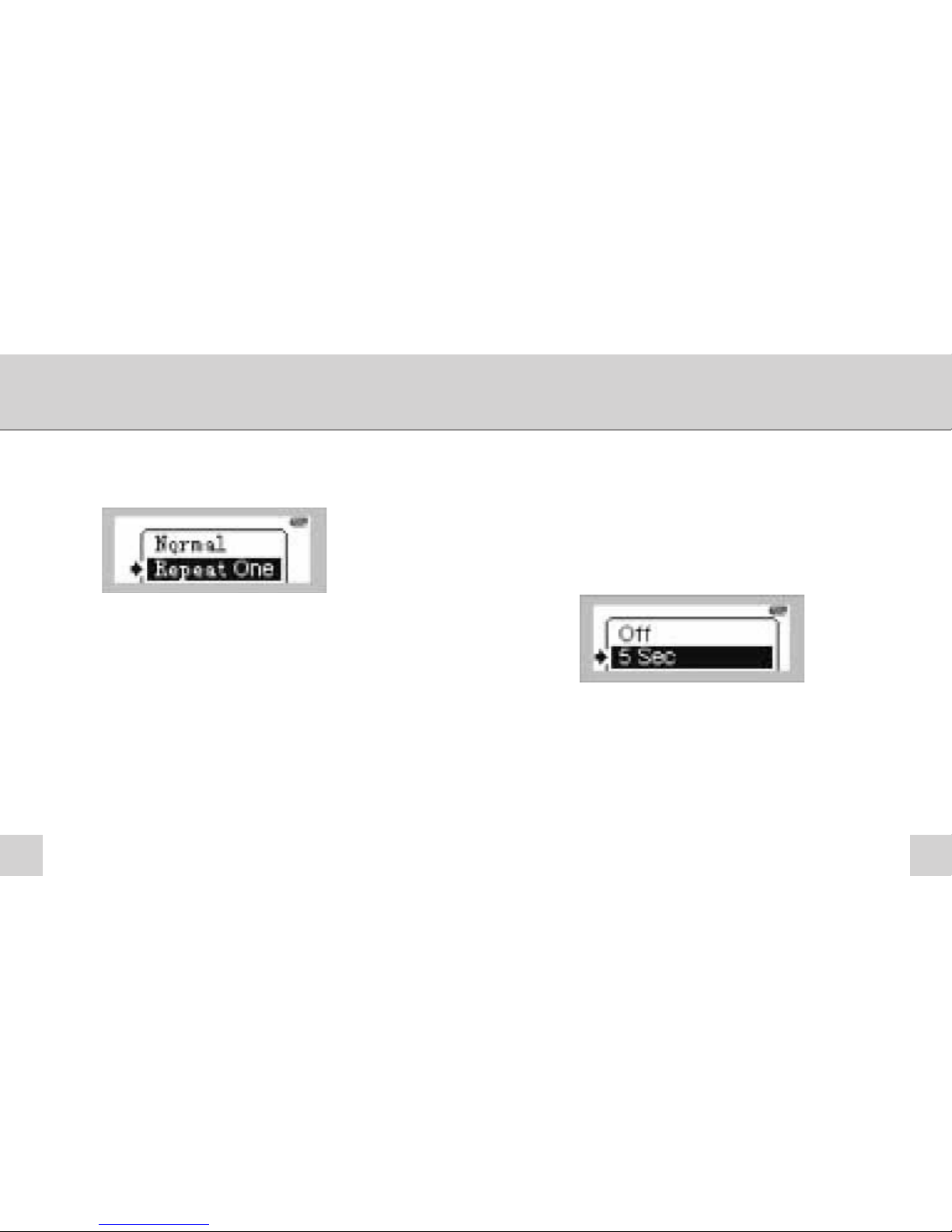
1. When in Play Mode press the Mode Selector and scroll
down one to EQ and press the Mode Selector again
2. You can then scroll through the Equalizer settings and
select from Jazz, Classic, Rock, Pop & Normal by pressing the
Mode Selector again. You will then be returned to Play Mode
1413
Repeat Mode
1. When in Play Mode press the Mode Selector and scroll
down one to Repeat and press the Mode Selector again.
You can then scroll through the following options
Random – Plays all the songs in a Random order then stops
Normal – Plays all the songs in order then stops
Repeat all – Plays all songs in order, then repeats
Repeat one – Repeats the current track
Preview – Previews the first 10 seconds of each track
Return – Returns to Play Mode
The Backlight
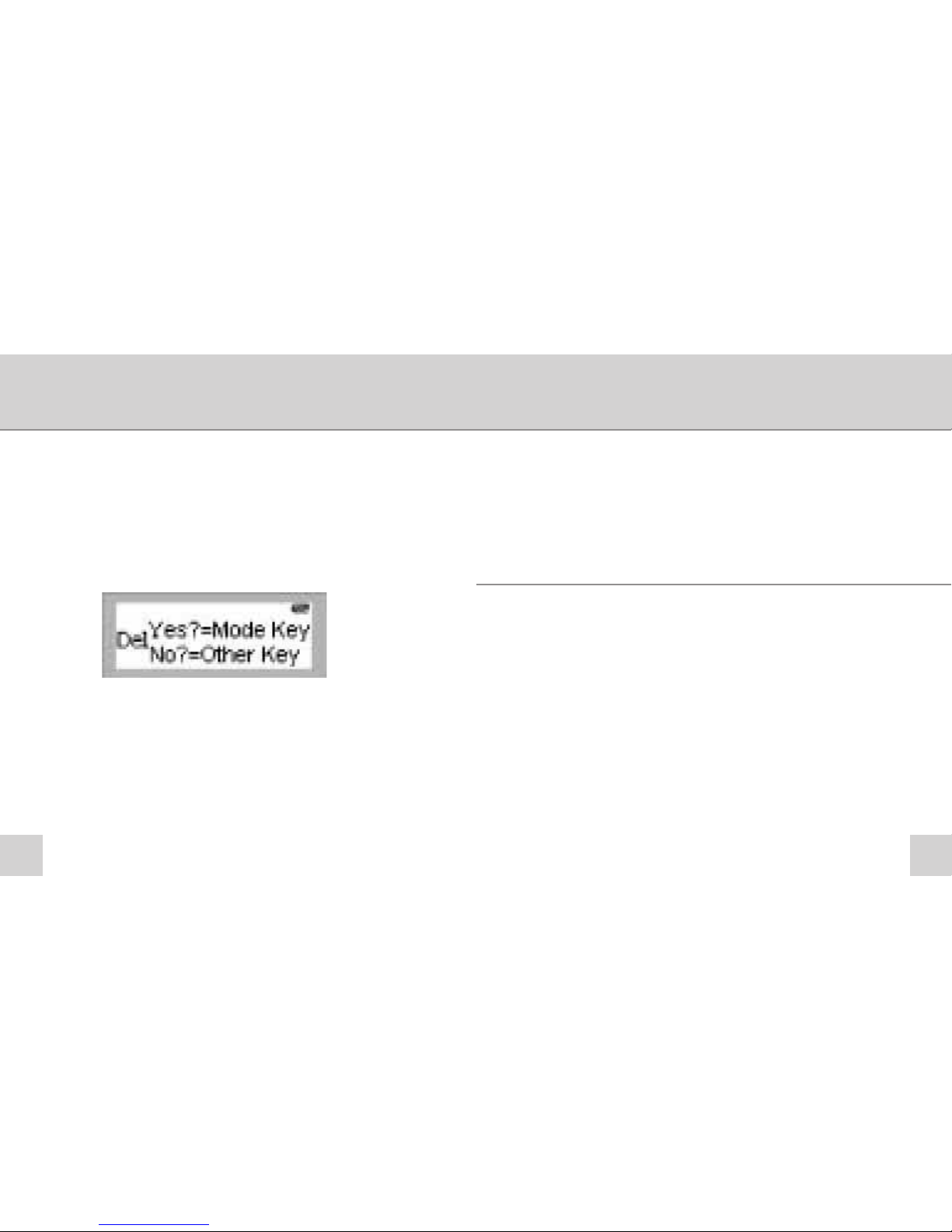
The Backlight has various settings from Off, On for 5
seconds through to 20 seconds, this determines how long
the backlight stays on after the player is turned on.
Push the Mode toggle once and scroll down the Main Menu
to Backlight, push the Mode toggle again to enter the
Backlight Menu. Scroll through the options and push the
Mode toggle in again once you have chosen your setting.
The player will then automatically return to the Music Mode.
1615
Deleting Files
1. When in Play Mode press the Mode Selector and scroll
down one to Del File and press the Mode Selector again to
enter the Delete File Menu
Note: If a song is playing it will be stopped when the
Delete File option is selected
2. Scroll through the songs until you reach the song you
wish to delete and press the Mode Selector
Press the mode Selector again to delete the song or any
other key to return to the song list. Press the Play/Pause
button to return to the Main Menu
Memory Display
1. When in Play Mode press the Mode Selector and scroll down
five times to Memory Info and press the Mode Selector again.
This screen shows you the total amount of memory
available in the MiniMP3.
USB Connection to your laptop or PC
The MiniMP3 Player connects directly to your USB port on
your computer, or you can use the supplied USB extension
cable to do this
Note: Please note the System Requirements BEFORE
connecting the MiniMP3. DO NOT connect more than one
MiniMP3 to your computer at any one time.
1817
PC System Requirements
•
Pentium II 233Mhz (266Mhz recommended)
•
USB Port
•
64MB RAM (128MB recommended)
•
20MB free hard-disk space
(For music storage more is recommended)
•
4 x IDE CD-ROM drive or more
•
Sound Card & Internet Access (Recommended)
•
Windows®’98 (Driver required, CD supplied)
•
Plug and Play for Windows®2000 & Windows®XP
Windows®’98 SE - Installation of
Driver/Manager Software
Note: DO NOT connect your MiniMP3 player until you have
installed the software.
Exit all other applications that may be running on your
computer and insert the Installation CD into your CD-ROM
Drive and the installation will begin automatically.
The following screen will be shown;
Click on Install Drive to install the Windows®’98
MiniMP3 driver.
Follow the onscreen instructions.
USB Connection with your
operating system
Windows®’98 SE – Driver required, please read on for instructions
Windows®2000 – Plug and Play, please read on for instructions
Windows®XP – Plug and Play, please read on for instructions
Table of contents