3 Forge 5GigE Installation
3. Optimize the settings of your Ethernet card
a. In Start->All Programs-> Spinnaker SDK->SpinView, right click on the Network Adapter and select Adapter
Configuration. The Adapter Config Utility lists your network adapters and allows you to access the following:
nAdapter IP address
nSubnet mask
nDefault gateway
nReceive buffers
nTransmit buffers
nJumbo packets
Note: See How to Optimize GigENetwork Adapter Settings for more
information on configuring for best performance.
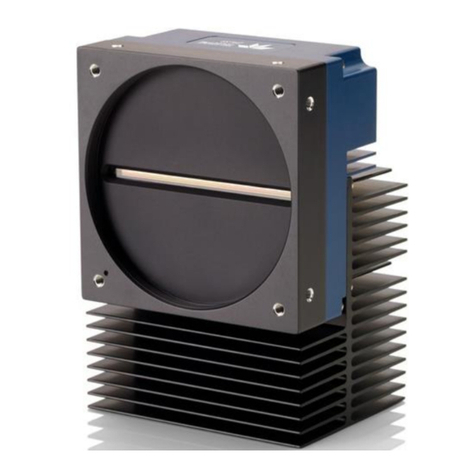
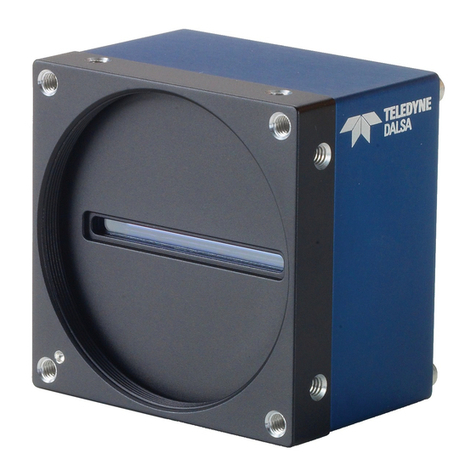
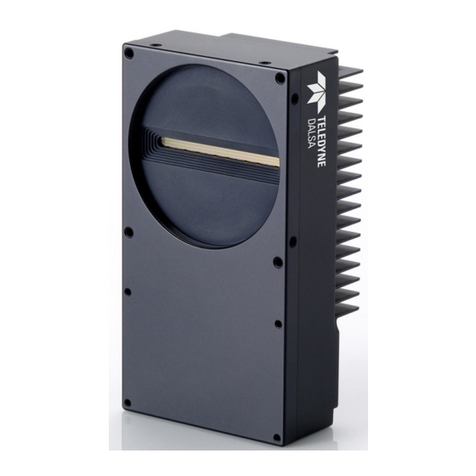
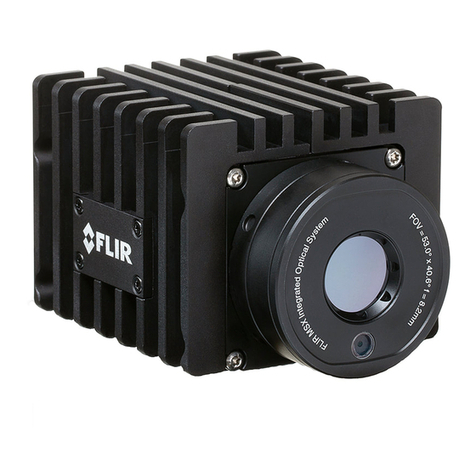
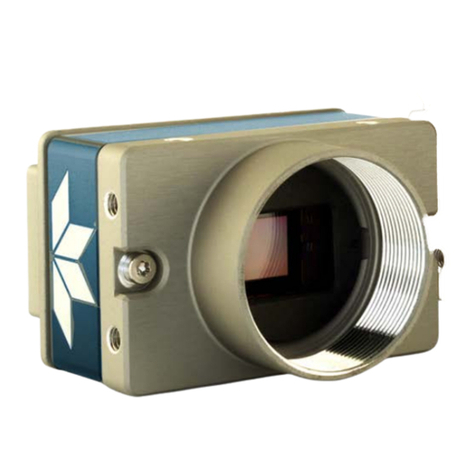
3.3 Installing your Forge 5GigE
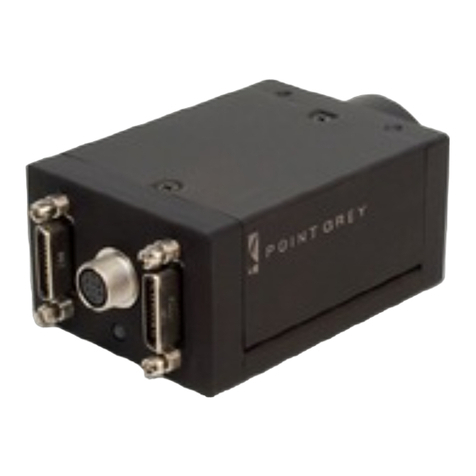
1. Attach a Lens
Unscrew the dust cap from the lens holder to install a lens.
2. Connect the interface Card and Cable to the Camera
Plug the interface cable into the host controller card and the camera. The cable jack screws can be used for a secure
connection. If using PoE, connect a powered Ethernet switch or Ethernet power injector in between the card and the
camera.
When the camera is first connected, the operating system automatically installs the camera driver. Camera drivers are
available with the Spinnaker SDK installation.
3. Plug in the GPIO connector
GPIOis used for power, trigger, serial input output, and strobe.
4. Confirm Successful Installation
Run the SpinView application: Start->All Programs-> Spinnaker->SpinView
The SpinView application can be used to test the camera's image acquisition capabilities and make changes to the
camera's installation configuration.
5. Configure IPSettings if necessary
By default, a dynamic IPaddress is assigned to the camera according to the DHCP protocol. If DHCP addressing fails, a
link-local address is assigned. If necessary, in SpinView change the IPaddress of the camera to be on the same subnet
as the NIC.
3.4 Powering your Forge 5GigE
Power can be provided over the Ethernet interface (PoE). To use PoE, you must also have a powered Ethernet card, a
powered Ethernet switch, or an Ethernet power injector.
Power can also be provided externally through the GPIO interface: 12 V nominal (8 - 24 V). Power consumption is 7 W
maximum.
1/18/2023
©2015-2023 FLIR Integrated Imaging
Solutions Inc. All rights reserved.
Teledyne FLIR Forge®Installation Guide 5