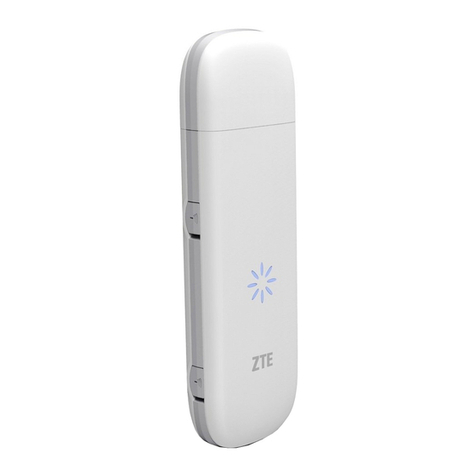
Telit Wireless Solutions MX20 User manual

Welcome to use MX20 USB Modem.
Your user guide is designed to:
First, explain simply how to use your phone, so finding the best way
to enjoy your life.
Then, ensure that you can get the best services offered.
The product you hold can be recycled, so please contact your local
dealer for the information on how to dispose of your used appliance.
Function Introduce
Support EDGE / GPRS / GSM
Phonebook ManagementP17
Support Windows 2000 & XP
Driver Auto InstallationP3
Connect to Internet P8
Send and receive SMS P11


Content
Safety Precautions......................................................................... III
1.Get to Know Your USB Modem................................................... 1
Your USB Modem .................................................................................1
Indicator................................................................................................1
Icon introduction ...................................................................................2
2.Installation Guide......................................................................... 3
System requirements............................................................................3
Device Driver and Dashboard Management Program Installation ........3
Install SIM card .....................................................................................4
Uninstall the Dashboard Management Program...................................5
3.Dashboard Management Interface ............................................. 6
Enter Dashboard Management Program ..............................................6
Interface introduction ............................................................................6
4.Internet Connection..................................................................... 8
Network connection setting...................................................................9
Create a new configuration ...............................................................9
Modify a configuration.......................................................................9
Delete a configuration.......................................................................9
Internet Connection & Disconnection..................................................10
Connect to the Internet ...................................................................10
Disconnect from the Internet...........................................................10
View Internet history ...........................................................................10
5.SMS ..............................................................................................11
New SMS............................................................................................11
Inbox...................................................................................................12
View a SMS ....................................................................................12
Reply a SMS...................................................................................13
Delete a SMS..................................................................................13
Clear Inbox .....................................................................................13
Forward a SMS...............................................................................13
SMS storage management .............................................................13
Extract number ...............................................................................15
Export a SMS..................................................................................15
Outbox ................................................................................................16
Draft....................................................................................................16
6.Contacts...................................................................................... 17
The management of contacts .............................................................17
New contact ....................................................................................17
-I-

Modify a contact..............................................................................17
Delete a contact..............................................................................17
Application of contact entries..............................................................18
Send SMS.......................................................................................18
Search for a contact entry...............................................................18
The storage management of contact ..................................................19
Import contact .................................................................................19
Export contact.................................................................................19
Storage management of contact .....................................................19
7.Options Settings ........................................................................ 21
General setting ...................................................................................21
Security setting ...............................................................................21
Power setting ..................................................................................22
Messaging settings .............................................................................22
Network setting...................................................................................23
Auto Select .....................................................................................23
Manual Select .................................................................................23
8.Troubleshooting......................................................................... 24
Can’t access to Internet ......................................................................24
PIN/ PUK code lock ............................................................................24
USIM card state is incorrect................................................................25
9.USB Modem Maintenance......................................................... 26
10.Safety Information.................................................................... 27
Using environment..............................................................................27
Medical devices ..................................................................................27
The notice of using spare parts...........................................................28
Other safety information .....................................................................28
-II-

Safety Precautions
Please read these simple guidelines. Breaking the rules may be
dangerous or illegal. Further detailed information will be given in this
manual.
You must not use the
USB Modem while
driving.
The USB Modem may
disturb the
communication
network of aeroplanes,
so please switch off the
device on board.
All USB Modem may
be disturbed, so as to
influence its capability.
Switch off your device
in areas where the use
of the device is
prohibited. Follow the
instructions given by
the respective medical
faculty regarding the
use of the device on
their premises.
In order to ensure the
best performance and
to avoid damage to the
USB Modem, please
only use the original
accessories.
Please turn off the USB
Modem in gas station
or the places near fuel,
chemical solvent or
other dangerous items,
to avoid explosion.
Please turn off the USB
Modem in explosion
spots or in places
where” Switch off
bidirectional radio” icon
are displayed. Pay
attention and obey any
relative regulations and
rules.
Please neither burn
USB Modem nor use
USB Modem as
ordinary rubbish.
Please obey the
environmental policy of
the local government,
to dispose and recycle
them in time.
-III-

You must not
disassemble USB
Modem or its
accessories by
yourself. Please
contact the appointed
maintenance personnel
to repair.
Please put the USB
Modem and the
accessories out of
reach of the children
and don’t let them use
USB Modem without
adults around.
Please back up the
important information
stored in USB Modem
to avoid losing
important information.
Please switch off the
USB Modem when
near the high–precision
electronic devices;
otherwise, it may cause
electronic device
problems.
Cautions:
Any unapproved changes or modifications by the party responsible
for compliance might infringe the user’s authority to operate this
mobile phone.
This mobile phone may generate radio frequency energy, which, if
not installed and used in accordance with the instructions, may
cause harmful interference to radio communications. However, there
is no guarantee that interference will not occur in a particular
installation. If this mobile phone does cause harmful interference to
radio or television reception, which can be determined by turning
the equipment off and on, the user is encouraged to try one or more
of measures listed below to clear the interference:
--Reorient or relocate the receiving antenna.
--Increase the separation between the equipment and receiver.
--Connect the equipment into an outlet on a circuit different from
that to which the receiver is connected.
--Consult the dealer or an experienced radio/TV technician for help.
Attention: 1. Please send used li-ion batteries to appropriate
-IV-

disposal locations or return them to our company. Do not dispose of
the batteries in the dustbin.
2. For body worn operation this phone has been tested and meets
FCC RF exposure guidelines when used with an accessory that
contains no metal and that positions the handset a minimum of 1.5
cm from the body. Use of other accessories may not ensure
compliance with FCC RF exposure guidelines
Statement: This device complies with Part 15 of the FCC Rules.
Operation is subject to the following two conditions: (1) this device
may not cause harmful interference, and (2) this device must accept
any interference received, including interference that may cause
undesired operation.
Changes or modifications not expressly approved by the party
responsible for compliance could void the user's authority to
operate the equipment.
-V-


Get to Know Your USB Modem
MX20 -1-
1.Get to Know Your USB Modem
Your USB Modem
Statement:the earphone slot is not used for telephone call now.It is
onl future.y for preparatory funtion in the
Indicator
There are four colors of the Indicator Light: Red, Yellow, Blue and
Green. The different color shows the different network service / status
of USB Modem.
Status of indicator light Indication
Blue(Flash) At 3G network currently
Green(Flash) At 2G network currently

Get to Know Your USB Modem
-2- MX20
fRed No network service or power of
Yellow ervice
or system powering on
Activating the network s
Icon introduction
Icon Description
e better the signal strength.
Shows the strength of the network signal, the more the
number of bars, th
Unread message
ue to receive and
Message memory full. Please delete undesired
message and you can then contin
send message normally.
/Shows the network type is GSM or UTMS.
/ / nt data service type is EDGE /GPRS /Shows the curre
HSDPA
Appears when roaming.
Table of contents
Other Telit Wireless Solutions Modem manuals

Telit Wireless Solutions
Telit Wireless Solutions GE863-QUAD Pb free Installation manual

Telit Wireless Solutions
Telit Wireless Solutions GT864-3G User manual

Telit Wireless Solutions
Telit Wireless Solutions CE910-DUAL Installation manual

Telit Wireless Solutions
Telit Wireless Solutions EZ10 Series Technical specifications

Telit Wireless Solutions
Telit Wireless Solutions FT980 Series User manual

Telit Wireless Solutions
Telit Wireless Solutions M868-TinyPlus User manual

Telit Wireless Solutions
Telit Wireless Solutions CE910 Series Installation manual