Teltonika RUT905 User manual
Other Teltonika Network Router manuals

Teltonika
Teltonika FMx 640 User manual
Teltonika
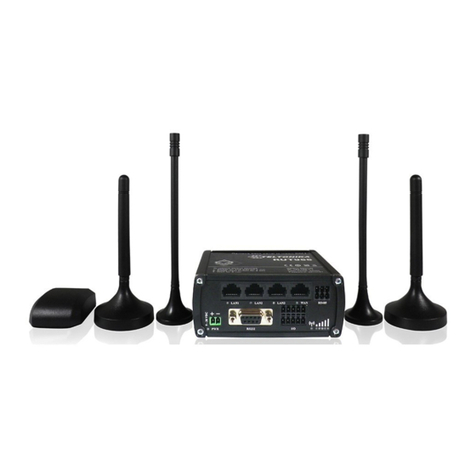
Teltonika RUT9 Series User manual
Teltonika
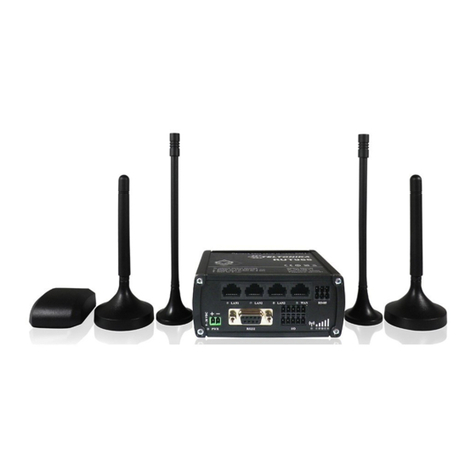
Teltonika RUT9 Series User manual
Teltonika
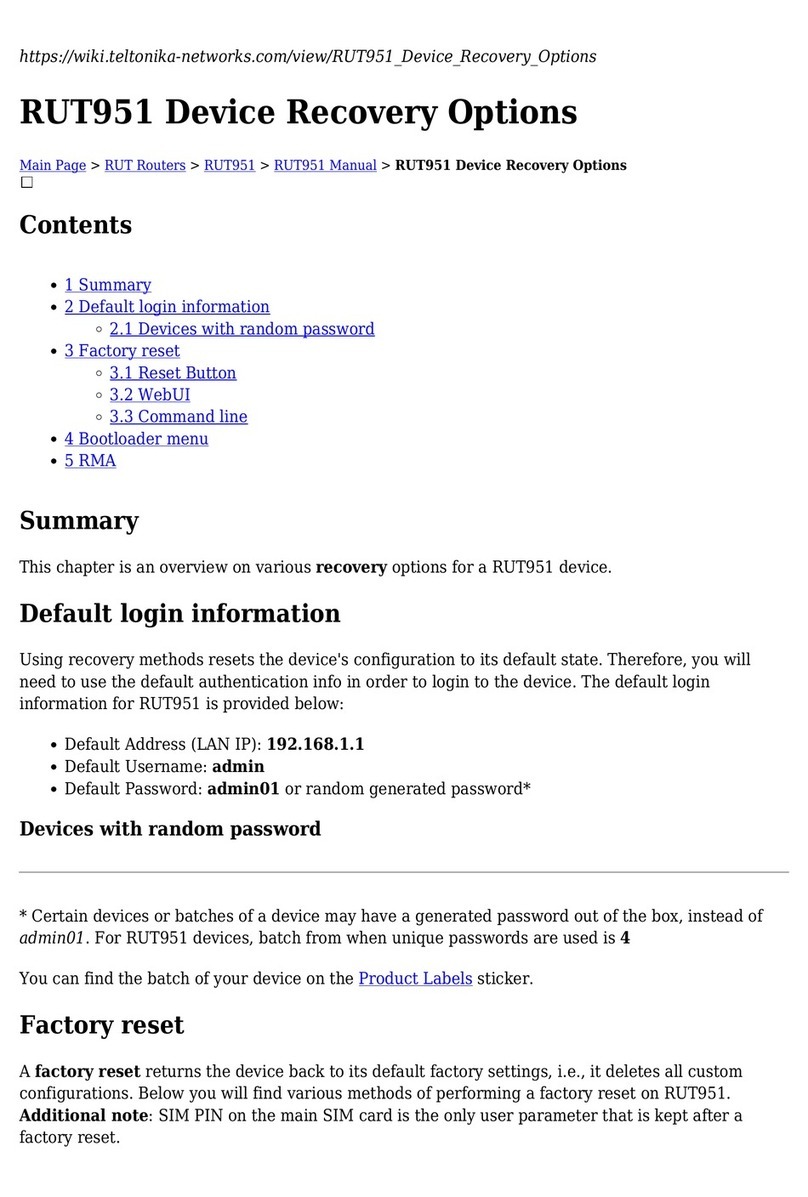
Teltonika RUT951 User manual

Teltonika
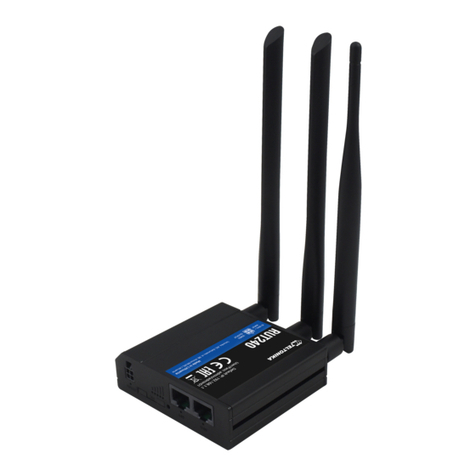
Teltonika RUT240 User manual
Teltonika
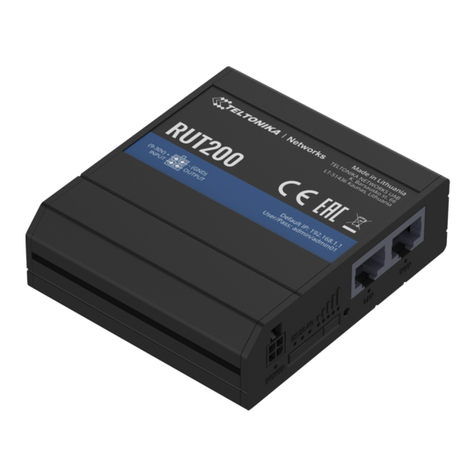
Teltonika RUT200 User manual
Teltonika
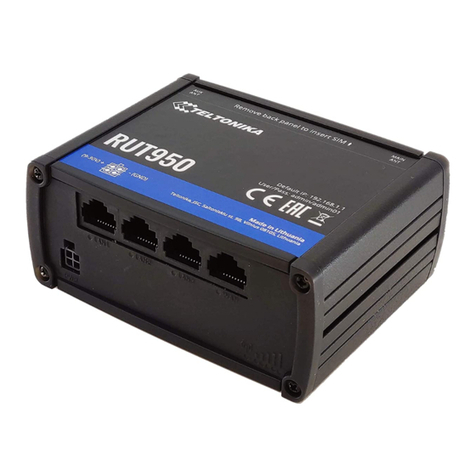
Teltonika RUT950 User manual
Teltonika
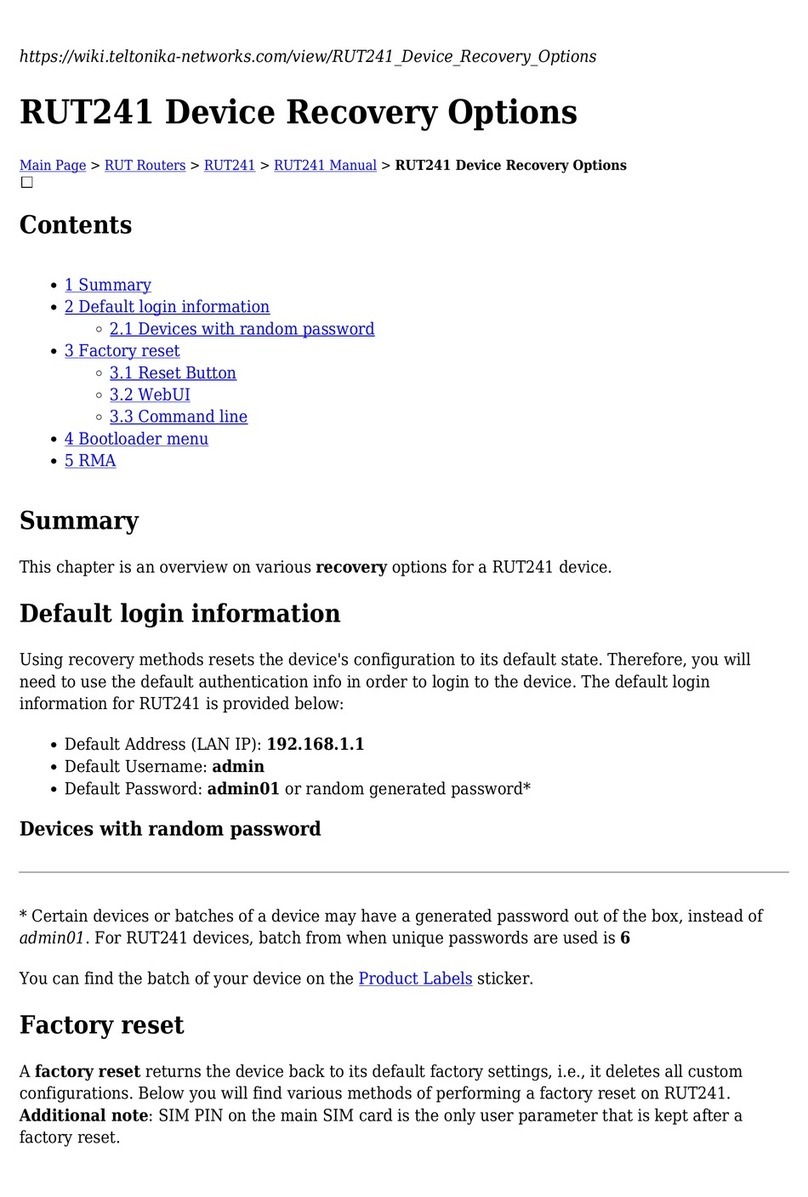
Teltonika RUT241 User manual
Teltonika
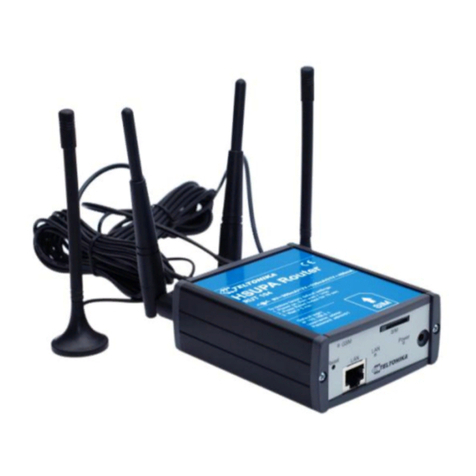
Teltonika RUT104 HSUPA User manual
Teltonika
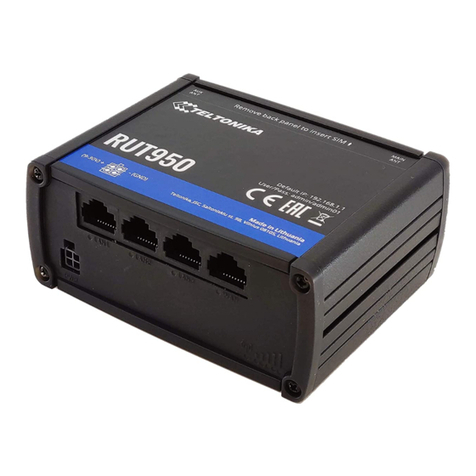
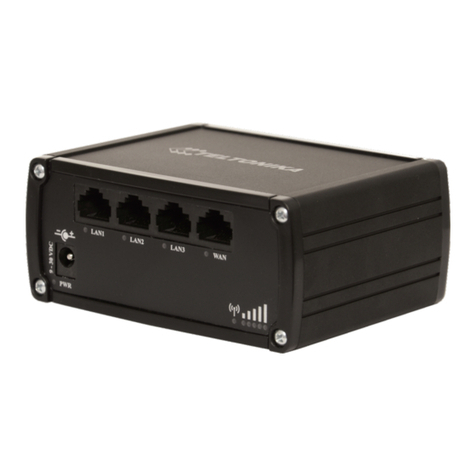
Teltonika RUT950 User manual
Teltonika
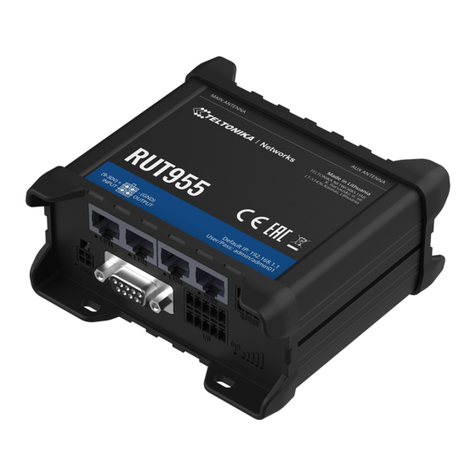
Teltonika RUT900 User manual
Teltonika
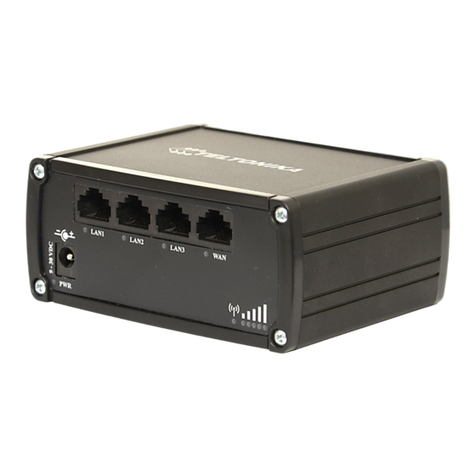
Teltonika RUT955 User manual
Teltonika
Teltonika RUT950 LTE User manual
Teltonika
Teltonika TMT250 Installation and user guide

Teltonika
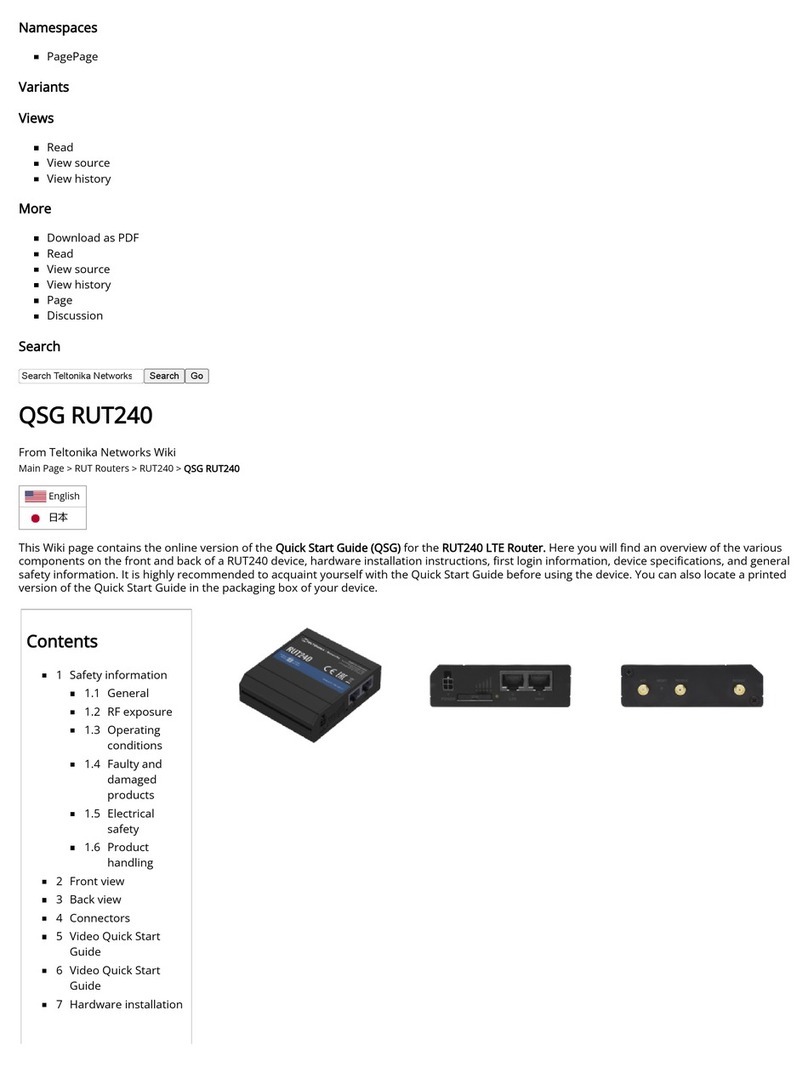
Teltonika QSG RUT240 User manual
Teltonika
Teltonika RUT240 User manual

Teltonika
Teltonika WiMAX User manual
Teltonika
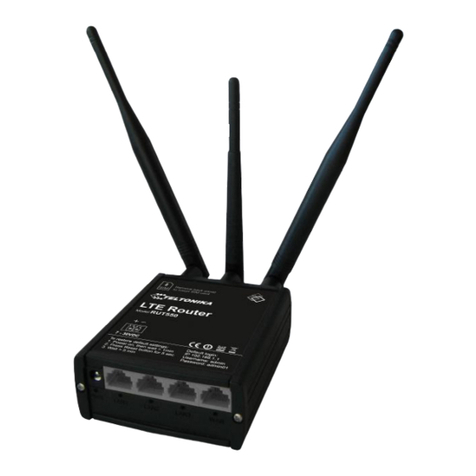
Teltonika RUT550 User manual
Teltonika
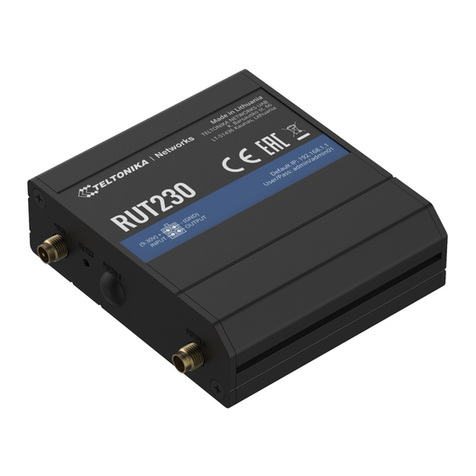
Teltonika RUT230 User manual
Teltonika
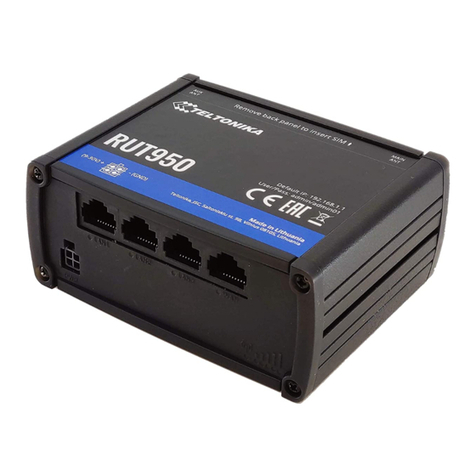
Teltonika RUT950 LTE User manual