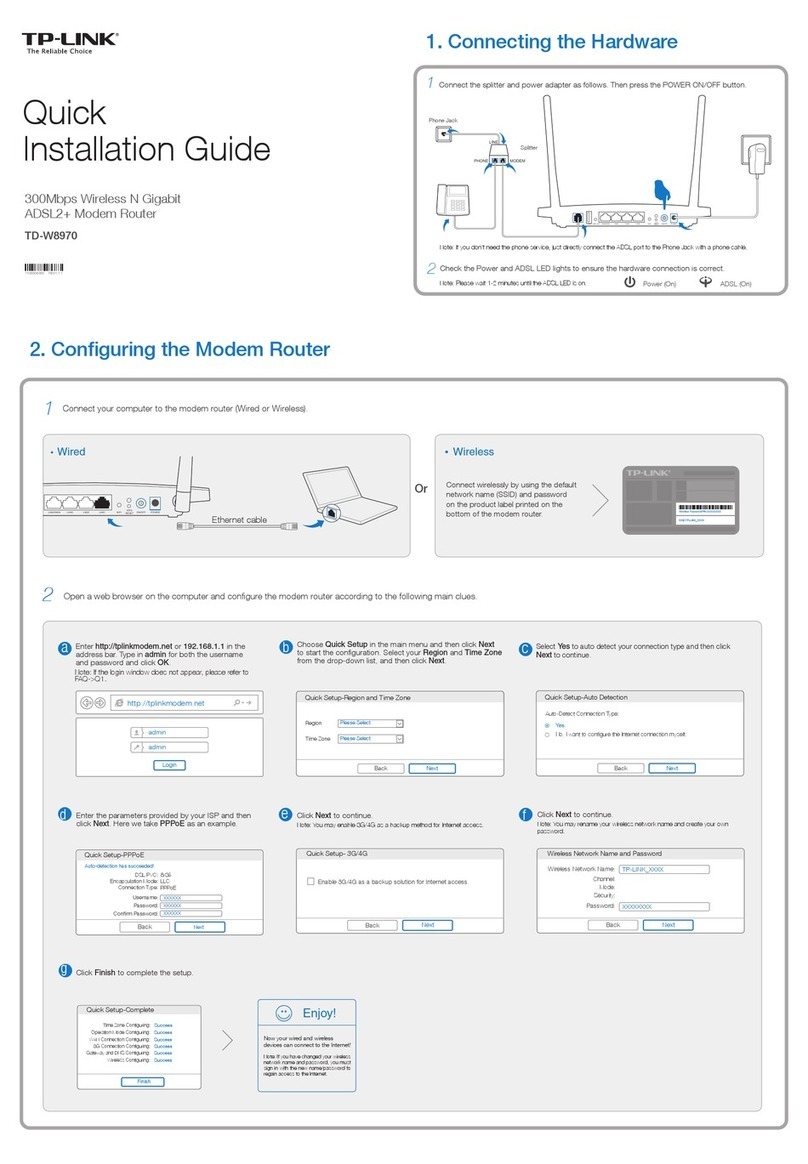
Configuring the Router
Wired
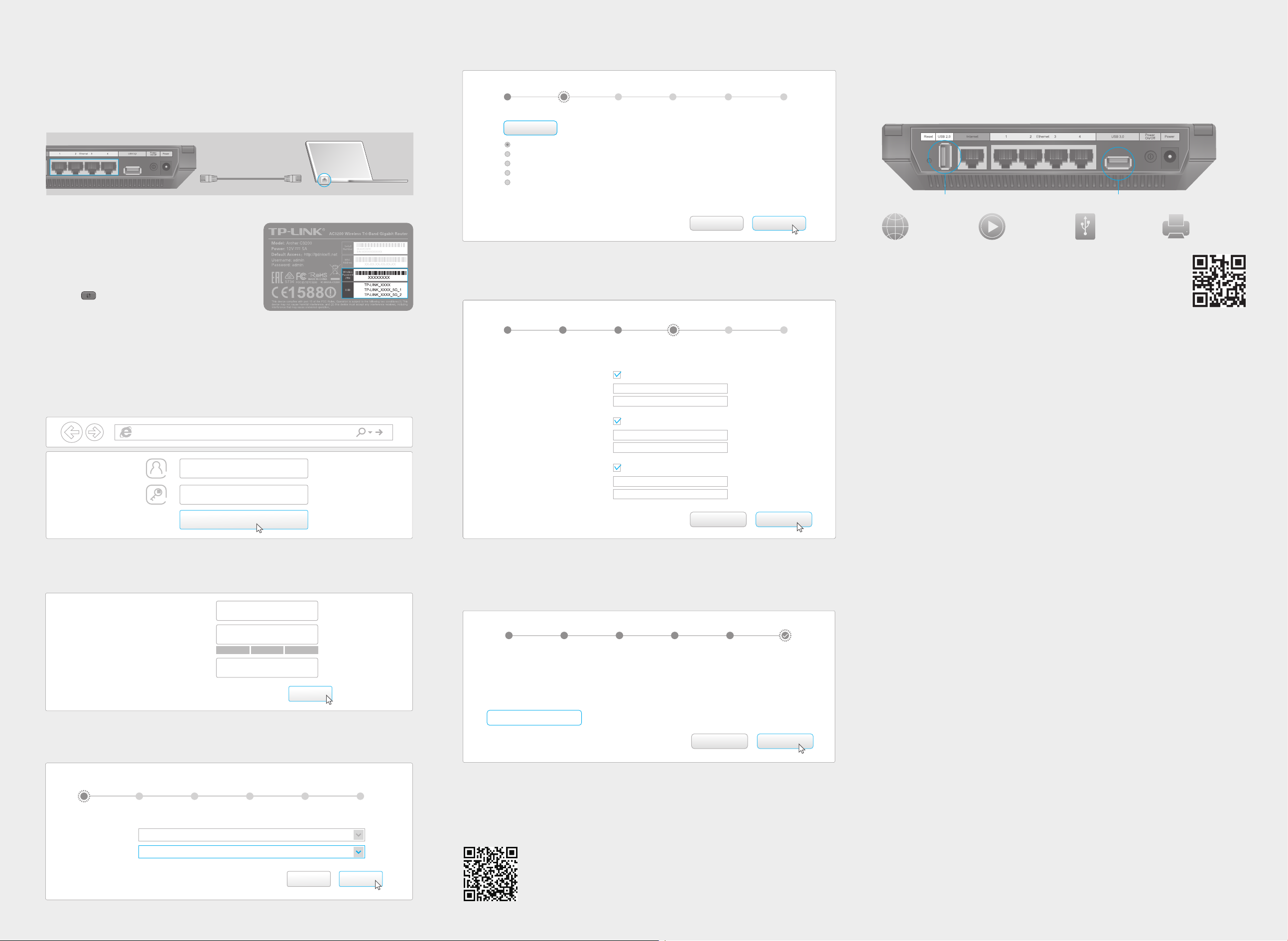
Connect your computer to the router (wired or wireless).
1.
Configure the router via a web browser.
2.
Enter http://tplinkwifi.net or http://192.168.0.1 in the address bar of a web
browser. Use admin for both username and password, and click Login.
Note: If the login page does not appear, please refer to FAQ > Q1.
A
Login
●●●●●
admin
http://tplinkwifi.net
Click Quick Setup, select your region and time zone, and click Next.
C
Internet Connection Type
Region and Time Zone
Wireless Settings
Summary
Connection Test
NextExit
(GMT-08:00) Pacific Time (US & Canada); Tijuana
Region:
Time Zone:
United States
Note: Per FCC regulations, all Wi-Fi products marketed in the U.S. is fixed to the U.S. region.
Create a new username and password, then click Confirm. Re-login using the
new credentials.
B
HighMiddleLow
Confirm
User_123
New Username:
●●●●●●●●
New Password:
●●●●●●●●
Confirm New Password:
FAQ (Frequently Asked Questions)
Q1. What can I do if the login page does not appear?
A1. If the computer is set to a static or fixed IP address, change the setting to obtain an
IP address automatically.
A2. Verify that http://tplinkwifi.net is correctly entered in the web browser.
Alternatively, enter http://192.168.0.1 or http://192.168.1.1 in the web browser
and press Enter.
A3. Use another web browser and try again.
A4. Reboot your router and try again.
A5. Disable then re-enable the network adapter being used.
Q2. What can I do if I cannot access the Internet?
A1. Check if the Internet is working properly by connecting a computer directly to the
modem using an Ethernet cable. If it is not, contact your Internet Service Provider.
A2. Log in to the Web Management page of the router, and go to the Basic > Network
Map page to check whether the Internet IP address is valid or not. If it is, please run
the Quick Setup again; otherwise, recheck the hardware connection.
A3. For cable modem users, log in to the Web Management page of the router. Go to
Advanced > Network > Internet > MAC Clone, click Use Current Computer MAC
Address and click Save, then reboot both the modem and the router.
A4. Reboot your router and try again.
Q3. How do I restore the router to its factory default settings?
A1. While the router is powered on, press and hold the Reset button on the back for
about 7 seconds until all LEDs go off, then release the button.
A2. Log in to the Web Management page of the router. Go to Advanced > System
tools > Backup & Restore, and click Factory Restore. The router will restore and
reboot automatically.
Q4. What can I do if I forgot my web management password?
A. Refer to FAQ > Q3 to reset the router, and then use the default admin (all
lowercase) for both username and password to log in.
Q5. What can I do if I forgot my wireless network password?
A1. The factory default Wireless Password/PIN is printed on the product label of the
router.
A2. Log in to the router’s Web Management page, and go to Basic > Wireless to obtain
or reset your wireless password.
To learn more about the USB features, visit http://tp-link.com/app/usb,
or simply scan the QR code.
USB Features
Use the USB ports for media sharing, storage sharing and printer sharing across your
local network. You can also set up an FTP server to access your files remotely through
the Internet.
Remote Access
via FTP Server Media Sharing Local Storage
Sharing Printer Sharing
USB 2.0 Port USB 3.0 Port
Ethernet cable
Connect wirelessly by using the SSIDs
(network names) and Wireless Password
printed on the product label at the bottom
of the router.
You can also connect by pressing the WPS
button on the front panel of the router.
For more information about WPS, refer to
the User Guide at www.tp-link.com.
Wireless
Turn off the Wi-Fi on your computer and connect the devices as shown below.
©2015 TP-LINK
Confirm your settings, and then click Save.
F
Test your Internet connection, then click Finish to complete the Quick Setup.
G
Internet Connection Type
Region and Time Zone
Wireless Settings
Summary
Connection Test
FinishBack
Congratulations!
You have completed the Quick Setup process.
Click Test Internet Connection below, then click Finish.
Test Internet Connection
Use the default or change the wireless settings, and click Next.
Note: If you change the default SSID and password, please note the new wireless settings.
E
Internet Connection Type
Region and Time Zone
Wireless Settings
Summary
Connection Test
Next
Back
Wireless Network (2.4GHz):
Wireless Network Name(SSID):
Password:
Please set the SSIDs and passwords for 2.4GHz and 5GHz wireless networks.
TP-LINK_7A30
12345670
Enable
Wireless Network (5GHz-1):
Wireless Network Name(SSID):
Password:
TP-LINK_7A30_5G_1
12345670
Enable
Wireless Network (5GHz-2):
Wireless Network Name(SSID):
Password:
TP-LINK_7A30_5G_2
12345670
Enable
Select your Internet Connection Type, or click Auto Detect if you are unsure of
what your connection type is. Click Next and follow the instructions.
D
Next
Auto Detect
Dynamic IP
Static IP
PPPoE
L2TP
PPTP
Note: If you are not sure which Internet Connection Type you have, use Auto Detect or contact
your Internet Service Provider (ISP) for assistance.
Back
Internet Connection Type Wireless Settings Connection Test
Region and Time Zone Summary
To conveniently manage your network, scan the QR code to
download the Tether app on your mobile device.
Tether App