manuals.online logo
Brands
  1. Home
  2. •
  3. Brands
  4. •
  5. TP-Link
  6. •
  7. Switch
  8. •
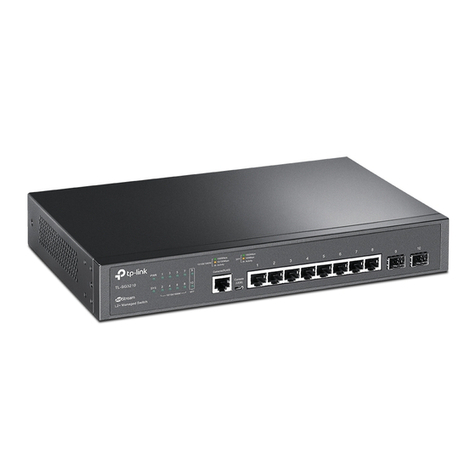
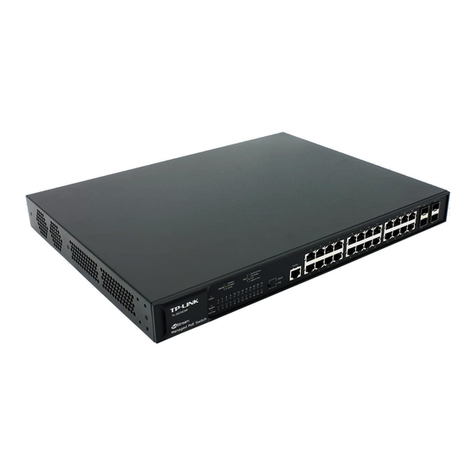
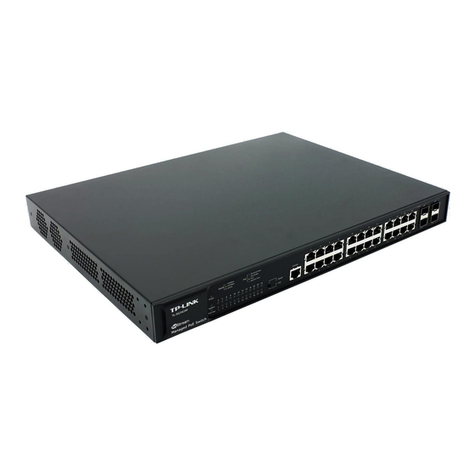
  9. TP-Link JetStream TL-SG3452X User manual

TP-Link JetStream TL-SG3452X User manual

This manual suits for next models

7

Other TP-Link Switch manuals

TP-Link TL-SX1008 V1 User manual

TP-Link

TP-Link TL-SX1008 V1 User manual

TP-Link Tapo H100 User manual

TP-Link

TP-Link Tapo H100 User manual

TP-Link Tapo S200D User manual

TP-Link

TP-Link Tapo S200D User manual

TP-Link TL-SL5428E User manual

TP-Link

TP-Link TL-SL5428E User manual

TP-Link UH720 User manual

TP-Link

TP-Link UH720 User manual

TP-Link TL-SG105 User manual

TP-Link

TP-Link TL-SG105 User manual

TP-Link JetStream TL-SL3428 User manual

TP-Link

TP-Link JetStream TL-SL3428 User manual

TP-Link UH720 User manual

TP-Link

TP-Link UH720 User manual

TP-Link TL-SG108PE User manual

TP-Link

TP-Link TL-SG108PE User manual

TP-Link TL-SG2216 User manual

TP-Link

TP-Link TL-SG2216 User manual

TP-Link TL-SF1016D Installation instructions manual

TP-Link

TP-Link TL-SF1016D Installation instructions manual

TP-Link T3700G-28TQ Instruction Manual

TP-Link

TP-Link T3700G-28TQ Instruction Manual

TP-Link TL-SG3428XPP-M2 User manual

TP-Link

TP-Link TL-SG3428XPP-M2 User manual

TP-Link UC400 User manual

TP-Link

TP-Link UC400 User manual

TP-Link JetStream L2 Lite TL-SG3210 Instruction Manual

TP-Link

TP-Link JetStream L2 Lite TL-SG3210 Instruction Manual

TP-Link TL-SG3210 User manual

TP-Link

TP-Link TL-SG3210 User manual

TP-Link Tapo S500 User manual

TP-Link

TP-Link Tapo S500 User manual

TP-Link T1700G-28TQ User manual

TP-Link

TP-Link T1700G-28TQ User manual

TP-Link TL-SF1008D User manual

TP-Link

TP-Link TL-SF1008D User manual

TP-Link TL-SF1008P User manual

TP-Link

TP-Link TL-SF1008P User manual

TP-Link TL-SG1008P User manual

TP-Link

TP-Link TL-SG1008P User manual

TP-Link TL-SG2216 User manual

TP-Link

TP-Link TL-SG2216 User manual

TP-Link TL-SG1005D User manual

TP-Link

TP-Link TL-SG1005D User manual

TP-Link TL-SF1005D User manual

TP-Link

TP-Link TL-SF1005D User manual

Popular Switch manuals by other brands

SMC Networks SMC6224M Technical specifications

SMC Networks

SMC Networks SMC6224M Technical specifications

Aeotec ZWA003-S operating manual

Aeotec

Aeotec ZWA003-S operating manual

TRENDnet TK-209i Quick installation guide

TRENDnet

TRENDnet TK-209i Quick installation guide

Planet FGSW-2022VHP user manual

Planet

Planet FGSW-2022VHP user manual

Avocent AutoView 2000  AV2000BC AV2000BC Installer/user guide

Avocent

Avocent AutoView 2000 AV2000BC AV2000BC Installer/user guide

Moxa Technologies PT-7728 Series user manual

Moxa Technologies

Moxa Technologies PT-7728 Series user manual

Intos Electronic inLine 35392I operating instructions

Intos Electronic

Intos Electronic inLine 35392I operating instructions

Cisco Catalyst 3560-X-24T Technical specifications

Cisco

Cisco Catalyst 3560-X-24T Technical specifications

Asante IntraCore IC3648 Specifications

Asante

Asante IntraCore IC3648 Specifications

Siemens SIRIUS 3SE7310-1AE Series Original operating instructions

Siemens

Siemens SIRIUS 3SE7310-1AE Series Original operating instructions

Edge-Core DCS520 quick start guide

Edge-Core

Edge-Core DCS520 quick start guide

RGBLE S00203 user manual

RGBLE

RGBLE S00203 user manual

Thrustmaster FLIGHT SIMULATOR X quick guide

Thrustmaster

Thrustmaster FLIGHT SIMULATOR X quick guide

Southwire SURGE GUARD 41390 RVC troubleshooting guide

Southwire

Southwire SURGE GUARD 41390 RVC troubleshooting guide

Buhler Nivotemp NT 61 Brief instructions

Buhler

Buhler Nivotemp NT 61 Brief instructions

Kramer VS-41HDCP user manual

Kramer

Kramer VS-41HDCP user manual

Techly IDATA AU-270 user manual

Techly

Techly IDATA AU-270 user manual

Belkin F1U109 user manual

Belkin

Belkin F1U109 user manual

manuals.online logo
manuals.online logoBrands
  • About & Mission
  • Contact us
  • Privacy Policy
  • Terms and Conditions

Copyright 2025 Manuals.Online. All Rights Reserved.

Business Networking Solution
Installation Guide
JetStream L2/L2+ Managed Switch
About this Installation Guide
This Installation Guide describes the hardware characteristics, installation methods and the
points that should be attended to during the installation. This Installation Guide is structured as
follows:
Chapter 1 Introduction
This chapter describes the external components of the switch.
Chapter 2 Installation
This chapter illustrates how to install the switch.
Chapter 3 Connection
This chapter illustrates how to do the physical connection of the switch.
Chapter 4 Configuration
This chapter illustrates how to configure the switch.
Appendix A Troubleshooting
Appendix B Hardware Specifications
Audience
This Installation Guide is for:
Network Engineer Network Administrator
Conventions
• Some models featured in this guide may be unavailable in your country or region. For local sales
information, visit https://www.tp-link.com.
• The figures in Chapter 2, Chapter 3, and Chapter 4 are for demonstration purposes only. Your
switch may differ in appearance from that depicted.
• PoE budget calculations are based on laboratory testing. Actual PoE power budget is not
guaranteed and will vary as a result of client limitations and environmental factors.
• This guide uses the specific formats to highlight special messages. The following table lists the
notice icons that are used throughout this guide.
Remind to be careful. A caution indicates a potential which may result in device damage.
Remind to take notice. The note contains the helpful information for a better use of the
product.
Related Document
The User Guide and CLI Reference Guide of the product are provided on Download Center. To
obtain the latest product information, visit the official website: https://www.tp-link.com.
Contents
Chapter 1 Introduction ——————————— 01
1.1 Product Overview ...........................................................01
1.2 Appearance.......................................................................01
Chapter 2 Installation ——————————— 11
2.1 Package Contents ..........................................................11
2.2 Safety Precautions .........................................................11
2.3 Installation Tools..............................................................13
2.4 Product Installation ........................................................13
Chapter 3 Connection ——————————— 15
3.1 Ethernet Port ....................................................................15
3.2 SFP/SFP+ Slot ..................................................................15
3.3 Console Port.....................................................................15
3.4 Verify Installation.............................................................16
3.5 Power On............................................................................17
3.6 Initialization........................................................................17
Chapter 4 Conguration —————————— 18
4.1 Conguration Overview................................................18
4.2 Standalone Mode............................................................18
4.3 Controller Mode...............................................................19
Appendix A Troubleshooting ———————— 22
Appendix B Specications ————————— 23
JetStream L2/L2+ Managed Switch
01Introduction
Chapter 1 Introduction
1.1 Product Overview
Designed for workgroups and departments, TP-Link JetStream L2/L2+ Managed Switch provides
wire-speed performance and abundant L2 management features. It provides a variety of service
features and multiple powerful functions with high security.
The EIA-standardized framework and smart configuration capacity can provide flexible solutions
for a variable scale of networks. ACL, 802.1x and Dynamic ARP Inspection provide robust security
strategies. QoS and IGMP snooping/filtering optimize voice and video application. Link aggregation
(LACP) increases aggregated bandwidth, optimizing the transport of business critical data. SNMP,
RMON, WEB and CLI Log-in bring abundant management policies. TP-Link JetStream L2/L2+
Managed Switch integrates multiple functions with excellent performance, and is friendly to manage,
which can fully meet the need of the users demanding higher networking performance.
TL-SX3206HPP/TL-SG3210XHP-M2/TL-SG3428MP/TL-SG3428XMP/TL-SG3452P/TL-SG3452XP
is also a Power Sourcing Equipment (PSE*). All the RJ45 ports on the switch support Power over
Ethernet (PoE*) function, which can automatically detect and supply power to those powered devices
(PDs*) complying with IEEE 802.3af and IEEE 802.3at.
*PSE: a device (switch or hub for instance) that provides power through an Ethernet cable.
*PoE: This technology describes a system to transmit electrical power, along with data, to remote
devices over standard twisted-pair cable in an Ethernet.
*PD: a device powered by a PSE and thus consumes energy. Examples include powering network
cameras, wireless LAN access points, IP telephones, network hubs, embedded computers etc.
1.2 Appearance
■Front Panel
The front panel of TL-SX3206HPP is shown as the following figure.
LED Console Port
(RJ45/USB)
10G RJ45 Port SFP+ Slot
The front panel of TL-SX30 0 8 F is shown as the following figure.
LED Console Port
(RJ45/USB)
SFP+ Slot
JetStream L2/L2+ Managed Switch
02 Introduction
The front panel of TL-SX3016F is shown as the following figure.
LED Console Port
(USB/RJ45)
1G
RJ45 Port
SFP+ Slot
The front panel of TL-SG3210 is shown as the following figure.
1000Mbps
10/100Mbps
Activity
10/100/1000M
1000Mbps
100Mbps
Activity
SFP
2
1
4
3
6
5
8
7
10
9
PWR
SYS
10/100/1000M
TL-SG3210
L2+ Managed Switch
SFP
LED Console Port
(RJ45/USB)
1G RJ45 Port SFP Slot
The front panel of TL-SG3210XHP-M2 is shown as the following figure.
LED Console Port
(RJ45/USB)
2.5G
RJ45 Port
SFP+ Slot
The front panel of TL-SG3428 is shown as the following figure.
LED Console Port
(USB/RJ45)
1G
RJ45 Port
SFP Slot
24-Port Gigabit L2+ Managed Switch
with 4 SFP Slots
The front panel of TL-SG3428MP is shown as the following figure.
LED Console Port
(RJ45/USB)
1G
RJ45 Port
SFP Slot
The front panel of TL-SG3428X is shown as the following figure.
LED Console Port
(USB/RJ45)
1G
RJ45 Port
SFP+ Slot
24-Port Gigabit L2+ Managed Switch
with 4 10GE SFP+ Slots
JetStream L2/L2+ Managed Switch
03Introduction
The front panel of TL-SG3428XMP is shown as the following figure.
LED Console Port
(RJ45/USB)
1G
RJ45 Port
SFP+ Slot
The front panel of TL-SG3452 is shown as the following figure.
F
LED
1G RJ45 Port
SFP Slot
Console Port
(USB/RJ45)
The front panel of TL-SG3452P is shown as the following figure.
F
LED
1G RJ45 Port
SFP Slot
Console Port
(RJ45/USB)
Speed
PWR
SYS
PoEMax
FAN
PoE
Console(USB)Console(RJ45)
TL-SG3452P
ManagedPoE+ Switch
PoE
DeliveringPower OverBudget Fault
Speed
activity1000Mbps 10/100Mbps
The front panel of TL-SG3452X is shown as the following figure.
LED
1G RJ45 Port
SFP+ Slot
Console Port
(RJ45/USB)
ConsoleConsole(USB)
TL-SG3452X
L2+ Managed Switch
1000Mbps
10/100Mbps SFP+
activity
10Gbps 1Gbps
The front panel of TL-SG3452XP is shown as the following figure.
LED
1G RJ45 Port
SFP+ Slot
Console Port
(RJ45/USB)
Speed
PWR
SYS
PoE Max
FAN
PoE
Console(USB)Console(RJ45)
TL-SG3452XP
L2+ Managed PoE+ Switch
PoE
DeliveringPower OverBudget Fault
Speed
activity1000Mbps 10/100Mbps
activity10Gbps 1Gbps
SFP+
JetStream L2/L2+ Managed Switch
04 Introduction
LEDs
For TL-SX3206HPP
LED Indication
PWR
On: The switch is powered on.
Off: The switch is powered off or power supply is abnormal.
Flashing: Power supply is abnormal.
SYS Flashing: The switch works properly.
On or Off: The switch works improperly.
PoE Max
On: The remaining PoE power is ≤ 7 W.
Flashing: The remaining PoE power keeps ≤ 7 W after this LED is on for 2 minutes.
Off: The remaining PoE power is > 7 W.
FAN Green: All the fans work properly.
Yellow: Not all the fans work properly.
Speed
Green On: Running at 10 Gbps, but no activity.
Green Flashing: Running at 10 Gbps and transmitting or receiving data.
Yellow On: Running at 100M/1G/2.5G/5Gbps, but no activity.
Yellow Flashing: Running at 100M/1G/2.5G/5Gbps and transmitting or receiving data.
Off: No device is linked to the corresponding port.

PoE
Green On: The port is supplying power normally.
Green Flashing: The supply power exceeds the correponding port's maximum power.
Yellow On: Overload or short circuit is detected.
Yellow Flashing: Power-on self-test failed.
Off: Not providing PoE power on the port.
SFP+
Green On: Running at 10 Gbps, but no activity.
Green Flashing: Running at 10 Gbps and transmitting or receiving data.
Yellow On: Running at 1 Gbps, but no activity.
Yellow Flashing: Running at 1 Gbps and transmitting or receiving data.
Off: No device is linked to the corresponding port.
JetStream L2/L2+ Managed Switch
05Introduction
For TL-SX3008F
LED Indication
PWR
On: The switch is powered on.
Off: The switch is powered off or power supply is abnormal.
Flashing: Power supply is abnormal.
SYS Flashing: The switch works properly.
On or Off: The switch works improperly.
Port 1–8
Green On: Running at 10 Gbps, but no activity.
Green Flashing: Running at 10 Gbps and transmitting or receiving data.
Yellow On: Running at 1 Gbps, but no activity.
Yellow Flashing: Running at 1 Gbps and transmitting or receiving data.
Off: No device is linked to the corresponding port.
For TL-SX3016F
PWR1* PWR2 Indication
Green On Off The switch is powered by PWR1.
PWR2 is disconnected or it works improperly.
Green On Yellow On** The switch is powered by PWR1.
PWR1 and PWR2 are connected.*
Off Green On The switch is powered by PWR2.
PWR1 is disconnected or it works improperly.
Off Off The switch is powered off or both PWR1 and PWR2 work
improperly.
LED Indication
SYS Flashing: The switch works properly.
On or Off: The switch works improperly.
FAN Green: All the fans work properly.
Yellow: Not all the fans work properly.
Port 1–16
Green On: Running at 10 Gbps, but no activity.
Green Flashing: Running at 10 Gbps and transmitting or receiving data.
Yellow On: Running at 1 Gbps, but no activity.
Yellow Flashing: Running at 1 Gbps and transmitting or receiving data.
Off: No device is linked to the corresponding port.
*PWR1 is the primary power supply and it takes priority over PWR2.
**When both PWR1 and PWR2 work properly and the switch is powerd by PWR1, it takes 10-20 seconds for
the LED PWR2 (yellow) to go out after PWR2 is unplugged.
JetStream L2/L2+ Managed Switch
06 Introduction
For TL-SG3210XHP-M2
LED Indication
PWR
On: The switch is powered on.
Off: The switch is powered off or power supply is abnormal.
Flashing: Power supply is abnormal.
SYS Flashing: The switch works properly.
On or Off: The switch works improperly.
PoE Max
On: The remaining PoE power is ≤ 7 W.
Flashing: The remaining PoE power keeps ≤ 7 W after this LED is on for 2 minutes.
Off: The remaining PoE power is > 7 W.
FAN Green: All the fans work properly.
Yellow: Not all the fans work properly.
Speed
Green On: Running at 2.5 Gbps, but no activity.
Green Flashing: Running at 2.5 Gbps and transmitting or receiving data.
Yellow On: Running at 100/1000 Mbps, but no activity.
Yellow Flashing: Running at 100/1000 Mbps and transmitting or receiving data.
Off: No device is linked to the corresponding port.

PoE
Green On: The port is supplying power normally.
Green Flashing: The supply power exceeds the correponding port's maximum power.
Yellow On: Overload or short circuit is detected.
Yellow Flashing: Power-on self-test failed.
Off: Not providing PoE power on the port.
Port 9–10
Green On: Running at 10 Gbps, but no activity.
Green Flashing: Running at 10 Gbps and transmitting or receiving data.
Yellow On: Running at 1 Gbps, but no activity.
Yellow Flashing: Running at 1 Gbps and transmitting or receiving data.
Off: No device is linked to the corresponding port.
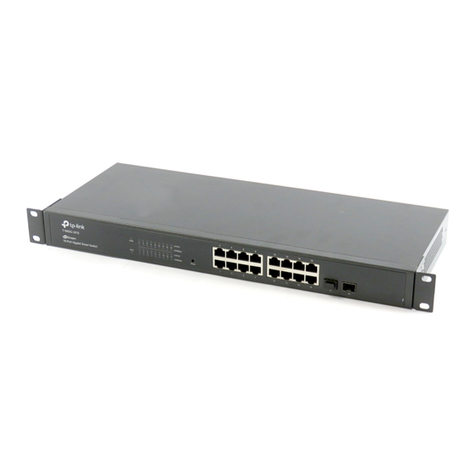
For TL-SG3210, TL-SG3452 and TL-SG3452X
LED Indication
PWR
On: The switch is powered on.

Off: The switch is powered off or power supply is abnormal.
Flashing: Power supply is abnormal.
SYS Flashing: The switch works properly.
On or Off: The switch works improperly.
10/100/1000M
Green On: Running at 1000 Mbps, but no activity.
Green Flashing: Running at 1000 Mbps and transmitting or receiving data.
Yellow On: Running at 10/100 Mbps, but no activity.
Yellow Flashing: Running at 10/100 Mbps and transmitting or receiving data.
Off: No device is linked to the corresponding port.