manuals.online logo
Brands
  1. Home
  2. •
  3. Brands
  4. •
  5. TP-Link
  6. •
  7. Switch
  8. •
  9. TP-Link TL-SF1005P User manual

TP-Link TL-SF1005P User manual

This manual suits for next models

1

Other TP-Link Switch manuals

TP-Link TL-SF1005D User manual

TP-Link

TP-Link TL-SF1005D User manual

TP-Link JetStream TL-SL3428 User manual

TP-Link

TP-Link JetStream TL-SL3428 User manual

TP-Link JetStream TL-SL5428E Instruction Manual

TP-Link

TP-Link JetStream TL-SL5428E Instruction Manual

TP-Link JetStream TL-SG3424 User manual

TP-Link

TP-Link JetStream TL-SG3424 User manual

TP-Link JetStream T2700G-28TQ User manual

TP-Link

TP-Link JetStream T2700G-28TQ User manual

TP-Link TL-SG105 User manual

TP-Link

TP-Link TL-SG105 User manual

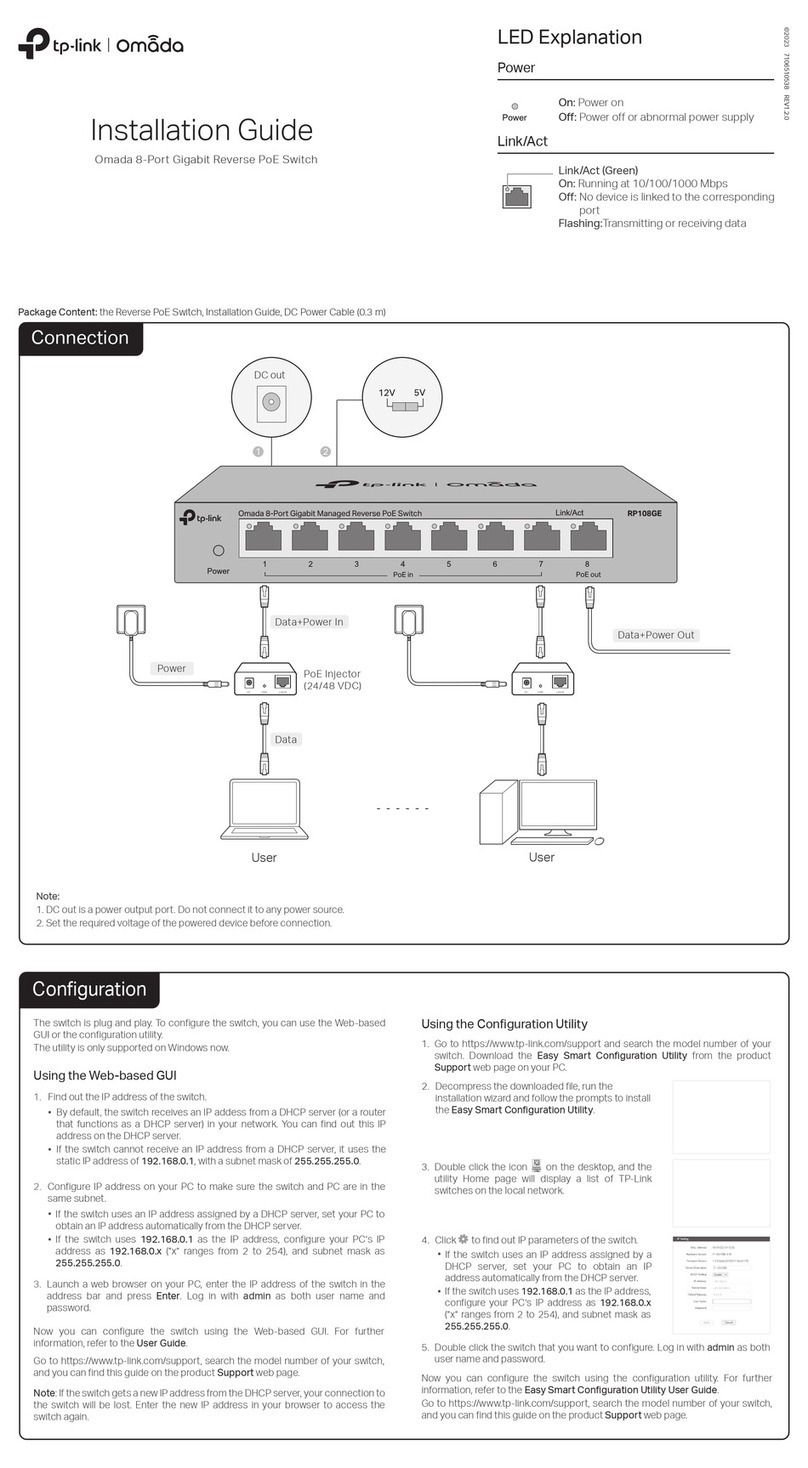
TP-Link Omada RP108GE User manual

TP-Link

TP-Link Omada RP108GE User manual

TP-Link JetStream T1500G-10MPS User manual

TP-Link

TP-Link JetStream T1500G-10MPS User manual

TP-Link Tapo S500 User manual

TP-Link

TP-Link Tapo S500 User manual

TP-Link Tapo H100 User manual

TP-Link

TP-Link Tapo H100 User manual

TP-Link TL.SFI OOSD User manual

TP-Link

TP-Link TL.SFI OOSD User manual

TP-Link JetStream L2+ User manual

TP-Link

TP-Link JetStream L2+ User manual

TP-Link TL-SL2218 User manual

TP-Link

TP-Link TL-SL2218 User manual

TP-Link T3700G-28TQ User manual

TP-Link

TP-Link T3700G-28TQ User manual

TP-Link Jetstream Series User manual

TP-Link

TP-Link Jetstream Series User manual

TP-Link T2500-28TC User manual

TP-Link

TP-Link T2500-28TC User manual

TP-Link Tapo S500D User manual

TP-Link

TP-Link Tapo S500D User manual

TP-Link ES20M User manual

TP-Link

TP-Link ES20M User manual

TP-Link TL-SG1008 User manual

TP-Link

TP-Link TL-SG1008 User manual

TP-Link TL-SG3452XP User manual

TP-Link

TP-Link TL-SG3452XP User manual

TP-Link UH700 User manual

TP-Link

TP-Link UH700 User manual

TP-Link TL-SG1005P User manual

TP-Link

TP-Link TL-SG1005P User manual

TP-Link TL-SF1005D User manual

TP-Link

TP-Link TL-SF1005D User manual

TP-Link JetStream T2600G-28TS User manual

TP-Link

TP-Link JetStream T2600G-28TS User manual

Popular Switch manuals by other brands

SMC Networks SMC6224M Technical specifications

SMC Networks

SMC Networks SMC6224M Technical specifications

Aeotec ZWA003-S operating manual

Aeotec

Aeotec ZWA003-S operating manual

TRENDnet TK-209i Quick installation guide

TRENDnet

TRENDnet TK-209i Quick installation guide

Planet FGSW-2022VHP user manual

Planet

Planet FGSW-2022VHP user manual

Avocent AutoView 2000  AV2000BC AV2000BC Installer/user guide

Avocent

Avocent AutoView 2000 AV2000BC AV2000BC Installer/user guide

Moxa Technologies PT-7728 Series user manual

Moxa Technologies

Moxa Technologies PT-7728 Series user manual

Intos Electronic inLine 35392I operating instructions

Intos Electronic

Intos Electronic inLine 35392I operating instructions

Cisco Catalyst 3560-X-24T Technical specifications

Cisco

Cisco Catalyst 3560-X-24T Technical specifications

Asante IntraCore IC3648 Specifications

Asante

Asante IntraCore IC3648 Specifications

Siemens SIRIUS 3SE7310-1AE Series Original operating instructions

Siemens

Siemens SIRIUS 3SE7310-1AE Series Original operating instructions

Edge-Core DCS520 quick start guide

Edge-Core

Edge-Core DCS520 quick start guide

RGBLE S00203 user manual

RGBLE

RGBLE S00203 user manual

Thrustmaster FLIGHT SIMULATOR X quick guide

Thrustmaster

Thrustmaster FLIGHT SIMULATOR X quick guide

Southwire SURGE GUARD 41390 RVC troubleshooting guide

Southwire

Southwire SURGE GUARD 41390 RVC troubleshooting guide

Buhler Nivotemp NT 61 Brief instructions

Buhler

Buhler Nivotemp NT 61 Brief instructions

Kramer VS-41HDCP user manual

Kramer

Kramer VS-41HDCP user manual

Techly IDATA AU-270 user manual

Techly

Techly IDATA AU-270 user manual

Belkin F1U109 user manual

Belkin

Belkin F1U109 user manual

manuals.online logo
manuals.online logoBrands
  • About & Mission
  • Contact us
  • Privacy Policy
  • Terms and Conditions

Copyright 2025 Manuals.Online. All Rights Reserved.

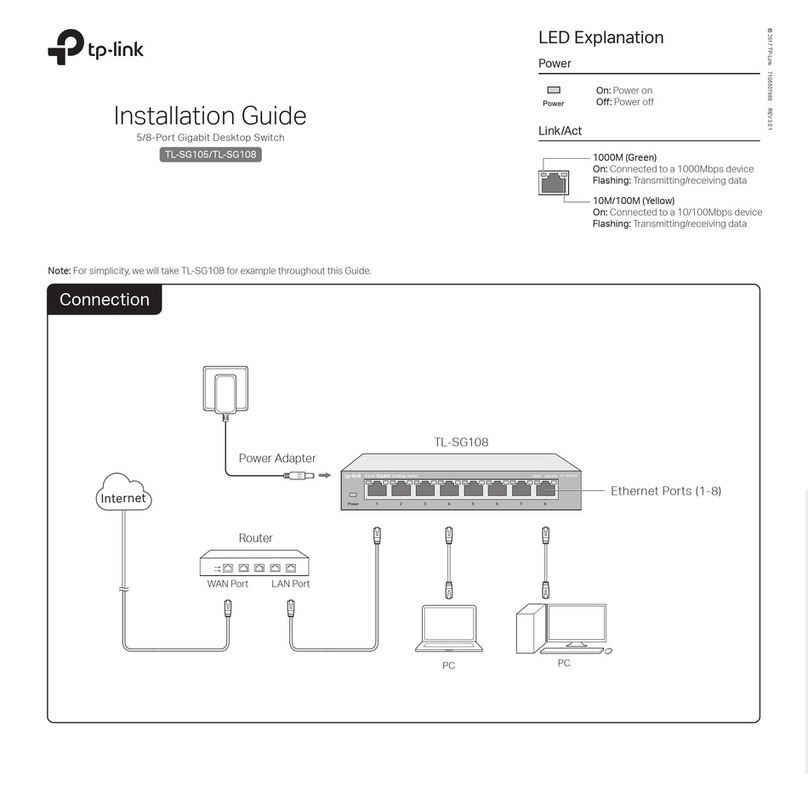
Connection
© 2021 TP-Link 7106509224 REV4.0.0
Installation Guide
5-Port 10/100Mbps Desktop PoE/PoE+ Switch
LED Explanation
Power
On: Power on
O: Power o
Note: 1. PoE ports can also connect to non-PoE devices, but only transmit data.
2. TL-SF1005LP can supply up to 15.4 W for each PoE port and 41 W for all PoE
ports.
3. TL-SF1005P can supply up to 30 W for each PoE port and 67 W for all PoE ports.
Power
PoE MAX
PoE Max
TL-SF1005LP
On: 34 W≤Total power supply < 41 W
Flashing: Total power supply ≥ 41 W
O: Total power supply < 34 W
TL-SF1005P
On: 60 W≤Total power supply < 67 W
Flashing: Total power supply ≥ 67 W
O: Total power supply < 60 W
DC Power Adapter
AC Power Cord
Router
LAN Port WAN Port
Internet
Ethernet Ports (1-5)
PoE Ports (1-4)
IP Camera AP IP Phone
PoE Devices
Link/Act and PoE Status
On: Link present but no
activity
Flashing: Transmitting/
receiving data
O: No link
On: Providing PoE power
Flashing: Current-overload/
Short-circuit
O: Not providing PoE power
Note: For simplicity, we will take TL-SF1005P for example throughout the Guide.
O: Port 1–4 run at 10/100 Mbps and support PoE power supply up to 100 m
away.
On: Port 1–4 run at 10 Mbps and support PoE power supply up to 250 m away.
Extend (Port 1–4)
O: All the ports transmit data in the same priority.
On: Port 1 and 2 transmit data in a higher priority than other ports. When
congestion occurs, packets which are transmitted by the ports with higher
priority occupy the whole bandwidth.
Priority (Port 1–2)
Switch Explanation
Frequently Asked Questions (FAQ)
The Power LED should be lit when the power system is working normally. If the
Power LED is not lit, please try the following:
A1: Make sure the AC power cord is connected to the switch with power source
properly.
A2: Make sure the voltage of the power supply meets the requirements of the
input voltage of the switch.
A3: Make sure the power source is ON.
Q1. Why is the Power LED not lit?
It is recommended that you check the following items:
A1: Make sure that the cable connectors are rmly plugged into the switch and
the device.
A2: Make sure the connected device is turned on and works normally.
A3: The cable must be less than 100 meters long (328 feet). If Extend Mode is
enabled, it should be less than 250 meters (820 feet).
Q2. Why is the Link/Act LED not lit while a device is
connected to the corresponding port?
IEEE 802.3i, IEEE 802.3u, IEEE 802.3x, IEEE 802.3af,
IEEE802.1p
IEEE 802.3at (Only for TL-SF1005P)
CSMA/CD
5 10/100 Mbps RJ45 Ports, Auto-Negotiation MDI/MDIX
PoE Ports: Port 1-Port 4
Total Power Supply:
41 W (for TL-SF1005LP)/67 W (for TL-SF1005P)
10BASE-T: UTP category 3, 4, 5 cable (maximum 100 m);
EIA/TIA-568 100Ω STP (maximum 100 m)
100BASE-TX: UTP category 5, 5e cable (maximum 100 m);
EIA/TIA-568 100Ω STP (maximum 100 m)
1 Gbps
2K
Store-and-Forward
Automatically learning, automatically aging
External Power Adapter
Input:
100-240 VAC, 50/60 Hz
Output:
53.5 VDC /0.81 A (for TL-SF1005LP)
53.5 VDC /1.31 A (for TL-SF1005P)
General Specications
Specications
Q3. Why are PoE ports not supplying power for PoE devices?
When the total power consumption of connected PoE devices exceeds the
maximum, the PoE port with a smaller port number has higher priority. The
system will cut o power to the ports with larger port numbers to ensure
supplying to other ports.
Take TL-SF1005P as an example. If port 1, 2 and 4 are consuming 15.4 W
respectively, and an additional PoE device with 21 W is connected to port 3, the
system will cut o the power of port 4 to compensate for the overload.
Operating Temperature
Storage Temperature
Operating Humidity
Storage Humidity
0˚C to 40˚C (32˚F to 104˚F)
-40˚C to 70˚C (-40˚F to 158˚F)
10% to 90%RH non-condensing
5% to 90%RH non-condensing
Environmental and Physical Specications
Ye s
39 mm
Safety Information
Keep the device away from water, re, humidity or hot environments.
Do not attempt to disassemble, repair, or modify the device. If you need service, please
contact us.
Do not use damaged charger or USB cable to charge the device.
Do not use any other chargers than those recommended.
Adapter shall be installed near the equipment and shall be easily accessible.
Use only power supplies which are provided by manufacturer and in the origin packing of
this product. If you have any questions, please don’t hesitate to contact us.
TP-Link hereby declares that the device is in compliance with the essential requirements and other
relevant provisions of directives 2014/30/EU, 2014/35/EU, 2009/125/EC, 2011/65/EU and
(EU)2015/863.
The original EU declaration of conformity may be found at https://www.tp-link.com/en/support/ce/
EU Declaration of Conformity
PoE Disclaimer
The speed of the ports in extend mode will downgrade to 10 Mbps. The actual transmission
distance may vary due to power consumption of PoE-powered devices or the cable quality and
type.
PoE budget calculations are based on laboratory testing. Actual PoE power budget is not
guaranteed and will vary as a result of client limitations and environmental factors.
For technical support and other information, please visit
https://www.tp-link.com/support, or simply scan the QR code.
If you have any suggestions or needs on the product guides, welcome
to email techwriter@tp-link.com.cn.
To ask questions, find answers, and communicate with TP-Link users or
engineers, please visit https://community.tp-link.com to join TP-Link
Community.
Standard
Protocol
Interface
Wall Mountable
Distance Between
Mounting Holes
Network Media (Cable)
Switching Capacity
Power Supply
MAC Address Learning
Transfer Method
MAC Address Table
UKCA Declaration of Conformity
TP-Link hereby declares that the device is in compliance with the essential requirements and
other relevant provisions of the Electromagnetic Compatibility Regulations 2016 and Electrical
Equipment (Safety) Regulations 2016.
The original UKCA declaration of conformity may be found at
https://www.tp-link.com/support/ukca