manuals.online logo
Brands
  1. Home
  2. •
  3. Brands
  4. •
  5. TRENDnet
  6. •
  7. DVR
  8. •
  9. TRENDnet TV-NVR2216 User manual

TRENDnet TV-NVR2216 User manual

This manual suits for next models

2

Other TRENDnet DVR manuals

TRENDnet TV-DVR104K User manual

TRENDnet

TRENDnet TV-DVR104K User manual

TRENDnet TV-NVR2208 User manual

TRENDnet

TRENDnet TV-NVR2208 User manual

TRENDnet TV-NVR208 User manual

TRENDnet

TRENDnet TV-NVR208 User manual

TRENDnet TV-IWR2208 User manual

TRENDnet

TRENDnet TV-IWR2208 User manual

TRENDnet TV-NVR216 User manual

TRENDnet

TRENDnet TV-NVR216 User manual

TRENDnet TV-NVR208 User manual

TRENDnet

TRENDnet TV-NVR208 User manual

TRENDnet 0710931110555 User manual

TRENDnet

TRENDnet 0710931110555 User manual

Popular DVR manuals by other brands

Pace TDC577X manual

Pace

Pace TDC577X manual

Zavio NQ2040 user manual

Zavio

Zavio NQ2040 user manual

KGuard Security KG-SHA104 user manual

KGuard Security

KGuard Security KG-SHA104 user manual

SanDisk V-Mate Quick manual

SanDisk

SanDisk V-Mate Quick manual

Panasonic WJND200 - NETWORK DISK RECORDER Setup instructions

Panasonic

Panasonic WJND200 - NETWORK DISK RECORDER Setup instructions

Hunt Electronic HVRM-T1600Q Install & user's guide

Hunt Electronic

Hunt Electronic HVRM-T1600Q Install & user's guide

Portwell PIVS-6104 user manual

Portwell

Portwell PIVS-6104 user manual

AVer EXR6004 Mini Quick user guide

AVer

AVer EXR6004 Mini Quick user guide

Security Labs SLD261 owner's manual

Security Labs

Security Labs SLD261 owner's manual

Swann DIGITAL VIDEO RECORDER instruction manual

Swann

Swann DIGITAL VIDEO RECORDER instruction manual

EverFocus ECOR 4 instruction manual

EverFocus

EverFocus ECOR 4 instruction manual

Xoro HRK 7550 user manual

Xoro

Xoro HRK 7550 user manual

FLIR M3100E Series instruction manual

FLIR

FLIR M3100E Series instruction manual

VTRACKPRO FPRO300 user manual

VTRACKPRO

VTRACKPRO FPRO300 user manual

Swann NVR-7085 models instruction manual

Swann

Swann NVR-7085 models instruction manual

RMRC FPV1000 manual

RMRC

RMRC FPV1000 manual

urmet domus 1093/004AHD instructions

urmet domus

urmet domus 1093/004AHD instructions

Toshiba D-VR3SU Service manual

Toshiba

Toshiba D-VR3SU Service manual

manuals.online logo
manuals.online logoBrands
  • About & Mission
  • Contact us
  • Privacy Policy
  • Terms and Conditions

Copyright 2025 Manuals.Online. All Rights Reserved.

TV-NVR2208/TV-NVR2216/TV-NVR2432(V1)
Quick Installation Guide
Table of Content
1 English
1. Before you start
2. Installation
3. App
1
Package Contents
Minimum System Requirements
ŸMonitor/TV with VGA or HDMI connection
ŸHard drive
1. Before You Start
ŸNVR (No HDD installed)
ŸCD-ROM (Utility & User's Guide)
ŸPower Adapter or Power Cord (depending on your model)
ŸNetwork cable (1.8 m / 6 ft.)
ŸHDMI cable (1.8 m / 6 ft.)
ŸOptical Mouse
ŸRemote Control
ŸSATA data cable / power cable
ŸQuick Installation Guide
ŸRack mount hardware
2
2. Installation
Note: Before you install the NVR please ensure that all cameras are configured and available on the network.
2.1 Hard Drive Installation
Note:
ŸStatic Electricity can damage the NVR. Before handling the unit, discharge any static electricity, or use an anti-static wrist strap.
ŸThe NVR supports SATA I and II drives.
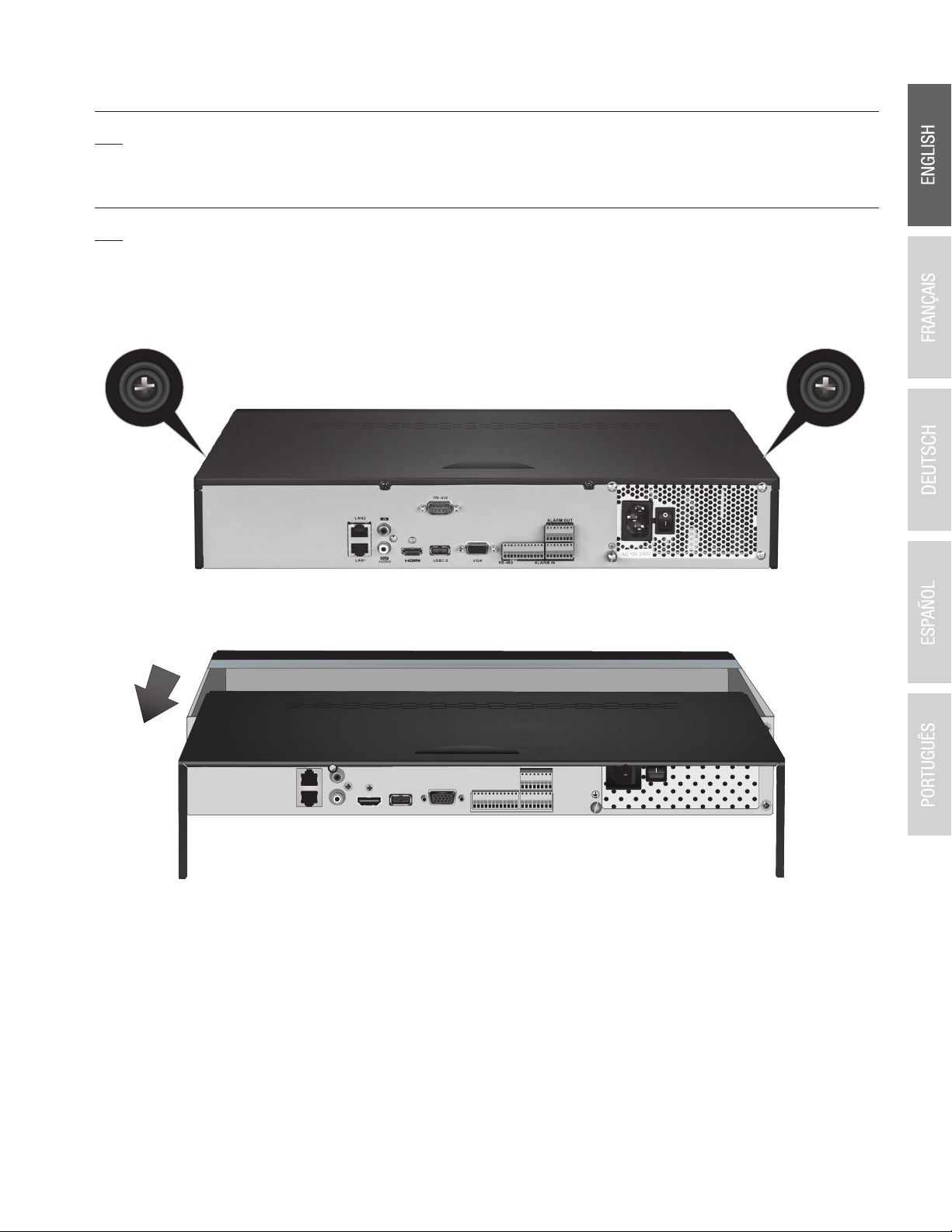
1. Remove the retaining screws from the top panel of the NVR.
2. Slide the cover off the unit by pulling the top cover towards the rear panel.
3
3. Attach the SATA data and power cables to the hard disc drive, then connect the SATA cable and the molex connect or the control
board.
4. Mount the hard drives to the drive bays of the NVR using the mounting screws, screwing from the underside of the NVR into the hard
drive case.
5. Slide the top cover back on the NVR, and reinstall the screws holding the panel in place.
4
2.2 Wiring
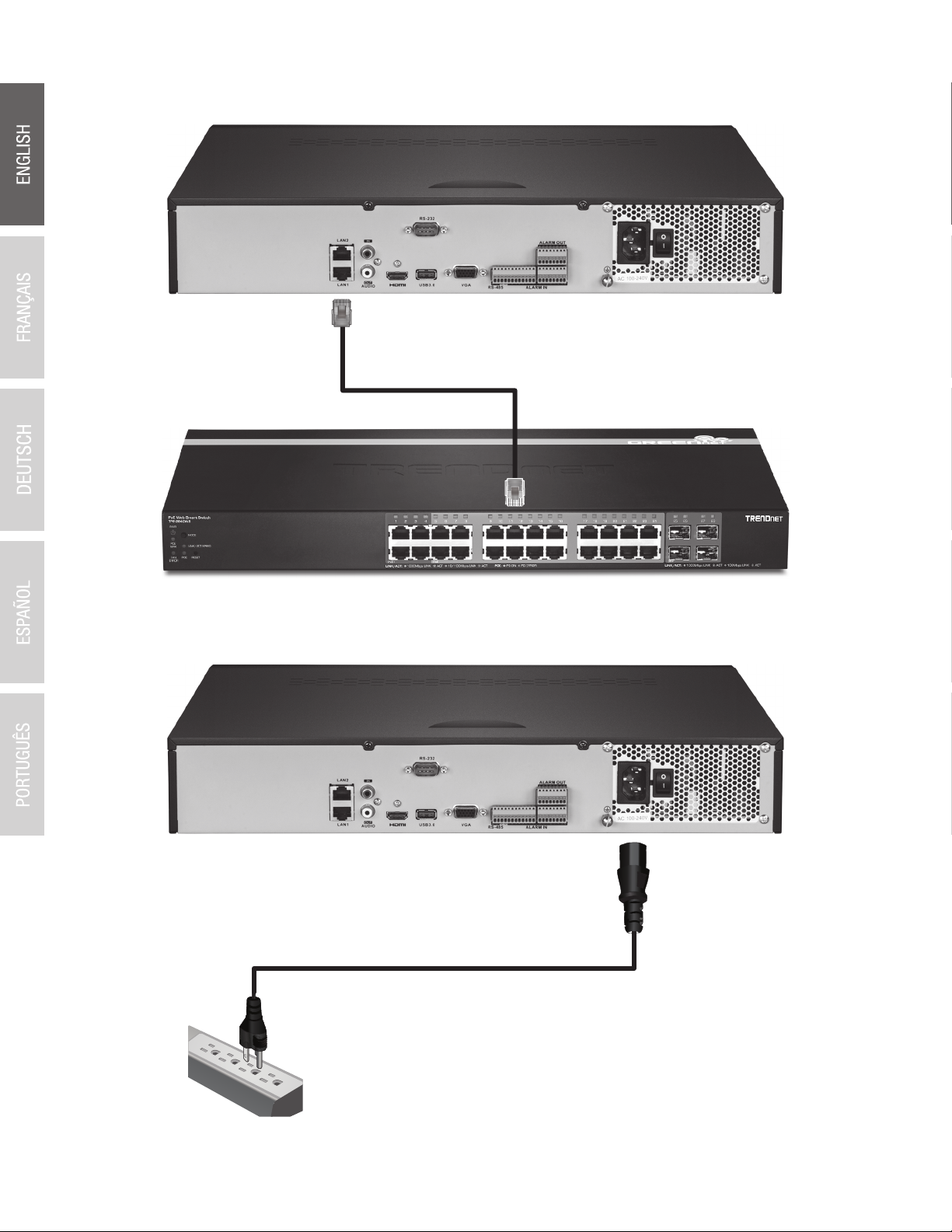
1. Connect an HDMI cable or a VGA cable (not included) from your display to the NVR's HDMI or VGA port on the rear panel.
2. Connect the included mouse to the front or rear USB port on the NVR. For ease of configuration you can also connect a USB keyboard
(not included) to the NVR.
(Not included)
VGA IN
(Not included)
HDMI
Display DisplayVGA cable
not included
Grounding point
or
5
4. Attach the power adapter or power cord (rear panel) and plug the unit into an electrical outlet.
3. Connect network cable to the LAN1 port and connect the other end to your network.
6
2.3 System Setup
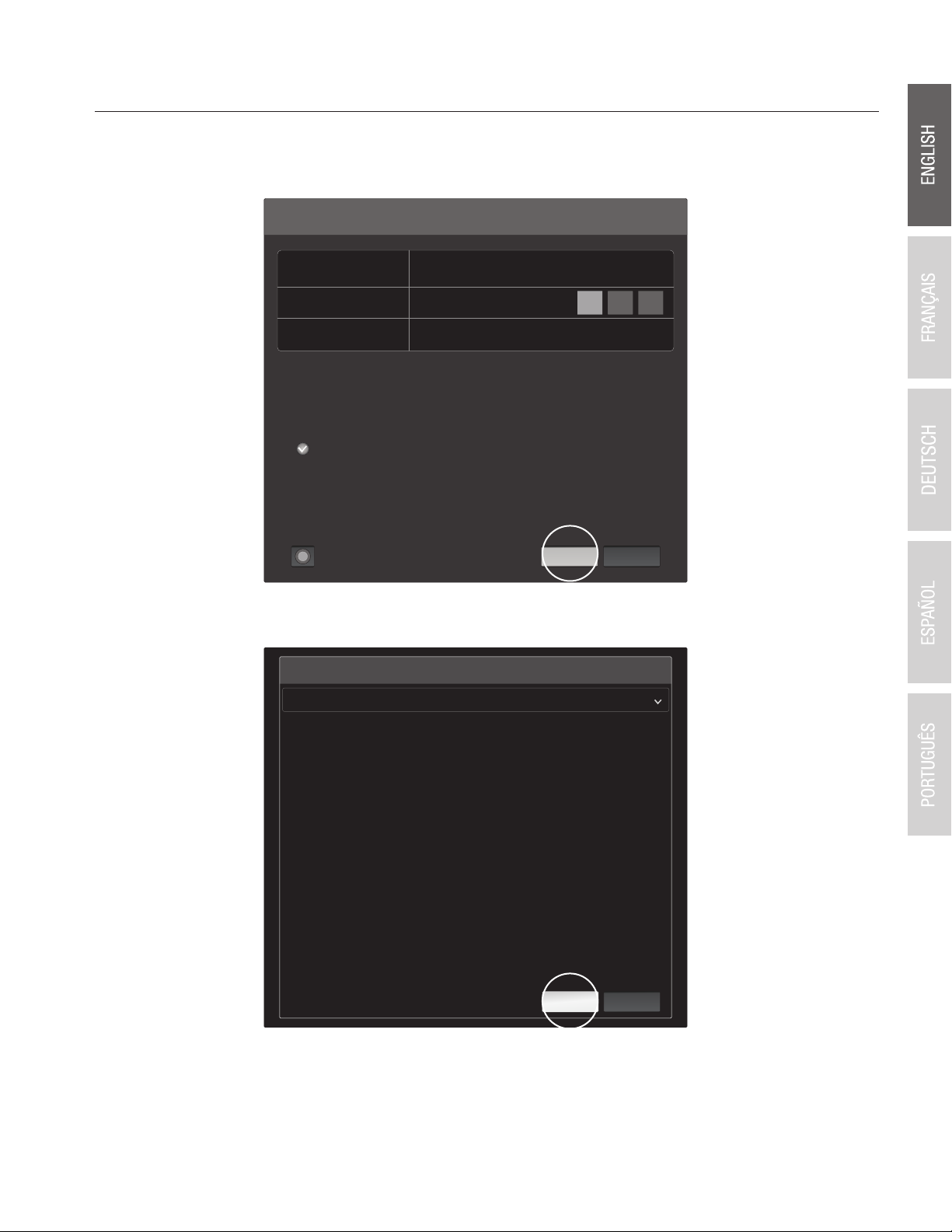
1. Turn the NVR by toggling the power switch to the “on” position. Follow the onscreen wizard to configure the NVR. The first screen
requires you to change the password, for security purposes TRENDnet recommends that you change the default password on the
NVR. Enter a new password, confirm it and then click OK.
2. Select the desired System Language, then click “Apply”.
Enter new password. For your security new password
must be between 8 and 16 characters and contain at
least one: Special character ( !, @, #, $ ) Alphanumeric
(1, 2, 3, etc.) Upper case character.
CancelOK
Username
New Password
Confirm Password...
admin
********
********
Weak
Set Password
Systerm Language
Language
English

Apply Exit
7
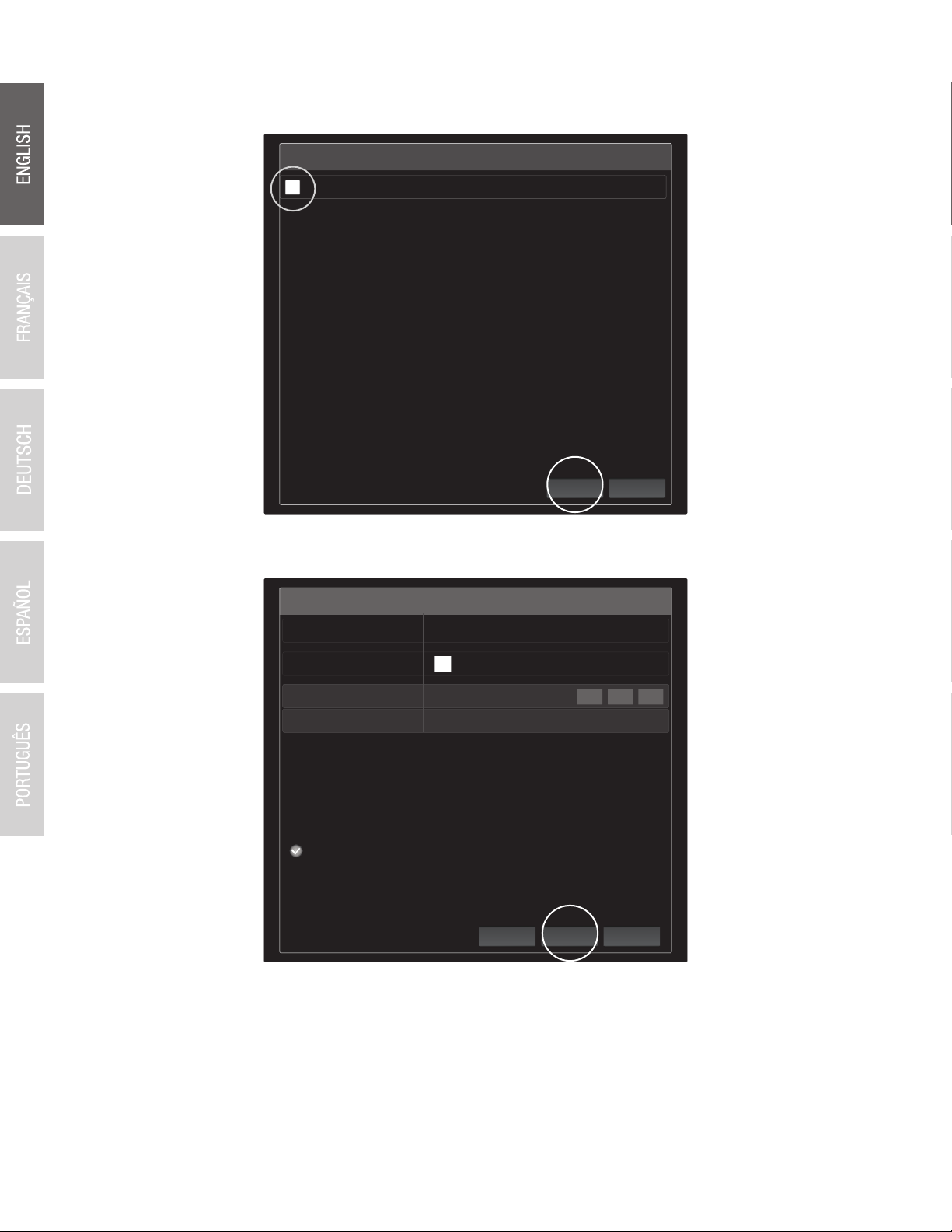
4. Enter the password again then click “Next”.
3. The Setup Wizard will start each time you restart the NVR. You can disable the wizard by unchecking “Start wizard when device
starts?” then click “Next”.
Start wizard when device starts?
Wizard
ExitNext
Wizard
Admin Password
Enter new password. For your security new password must be
between 8 and 16 characters and contain at least one: Special
character ( !, @, #, $ ) Alphanumeric (1, 2, 3, etc.) Upper case
character.
New Admin Password
New Password
Confirm
ExitNextPrevious
8
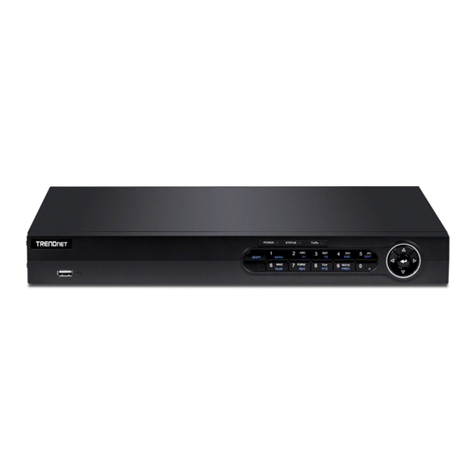
6. Configure the IPv4 address of the NVR, select DHCP to get an IP address from your network, then click “Next”.
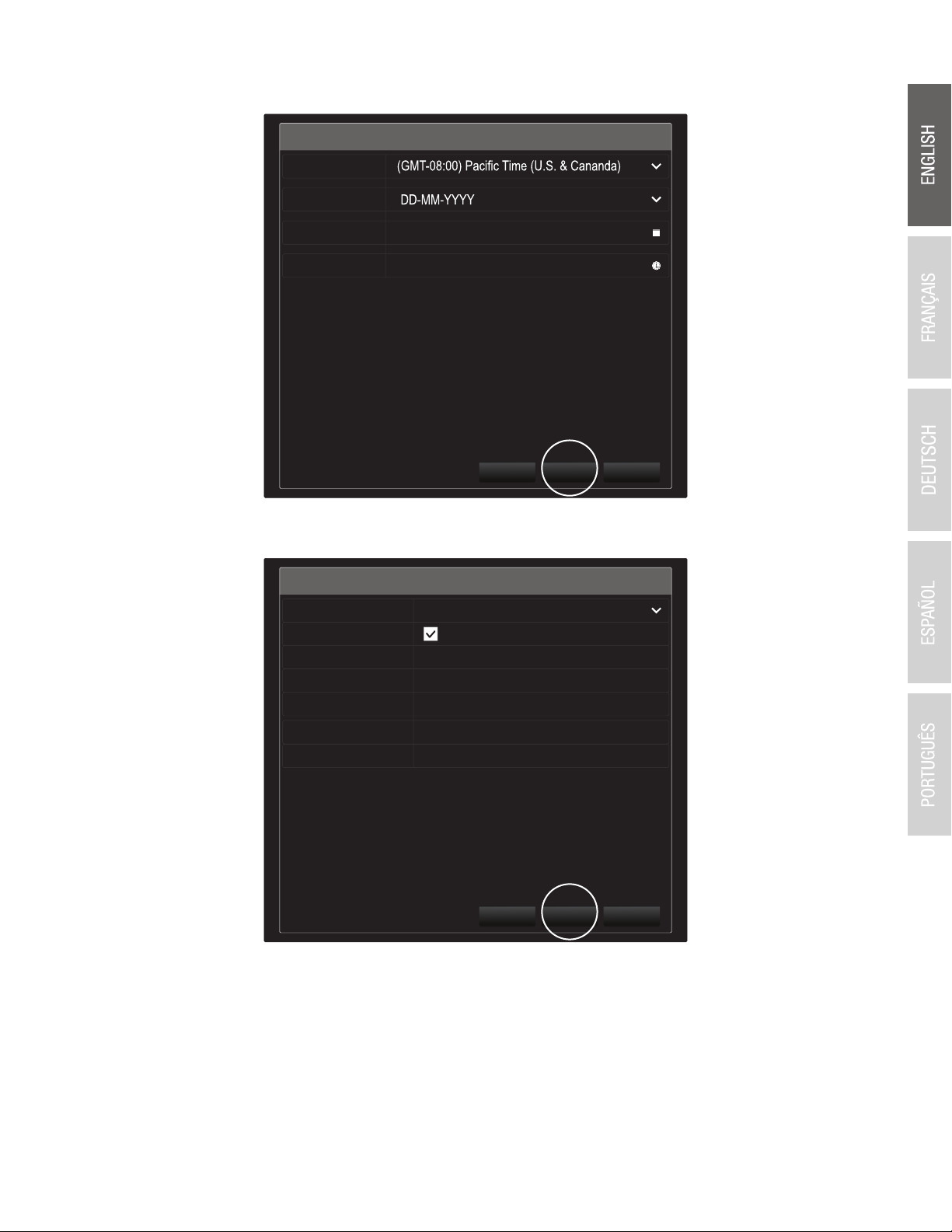
5. Set the time and date on the NVR then click “Next”.
Wizard
Time Zone
Date Format
System Date
System Time
Previous
06: 15: 27
05: 05: 2016
ExitNext
Wizard
Network Type
Enable DHCP Clicent
Ipv4 Address
Ipv4 Subnet Mask 255 .255 .255 .0
192 .168 .10 .60
10/100/1000 Self-adaptive
Ipv4 Default Gateway . . .
Primary Default Server
Secondary DNS Se...
Previous ExitNext