manuals.online logo
Brands
  1. Home
  2. •
  3. Brands
  4. •
  5. US Robotics
  6. •
  7. PCI Card
  8. •
  9. US Robotics USR2410 User manual

US Robotics USR2410 User manual

Other manuals for USR2410

1

This manual suits for next models

1

Other US Robotics PCI Card manuals

US Robotics USR5416 User manual

US Robotics

US Robotics USR5416 User manual

US Robotics USR2210 User manual

US Robotics

US Robotics USR2210 User manual

US Robotics 56K Voice Internal PCI User manual

US Robotics

US Robotics 56K Voice Internal PCI User manual

US Robotics 221 User manual

US Robotics

US Robotics 221 User manual

US Robotics USB 3.0 PCI-E CARD User manual

US Robotics

US Robotics USB 3.0 PCI-E CARD User manual

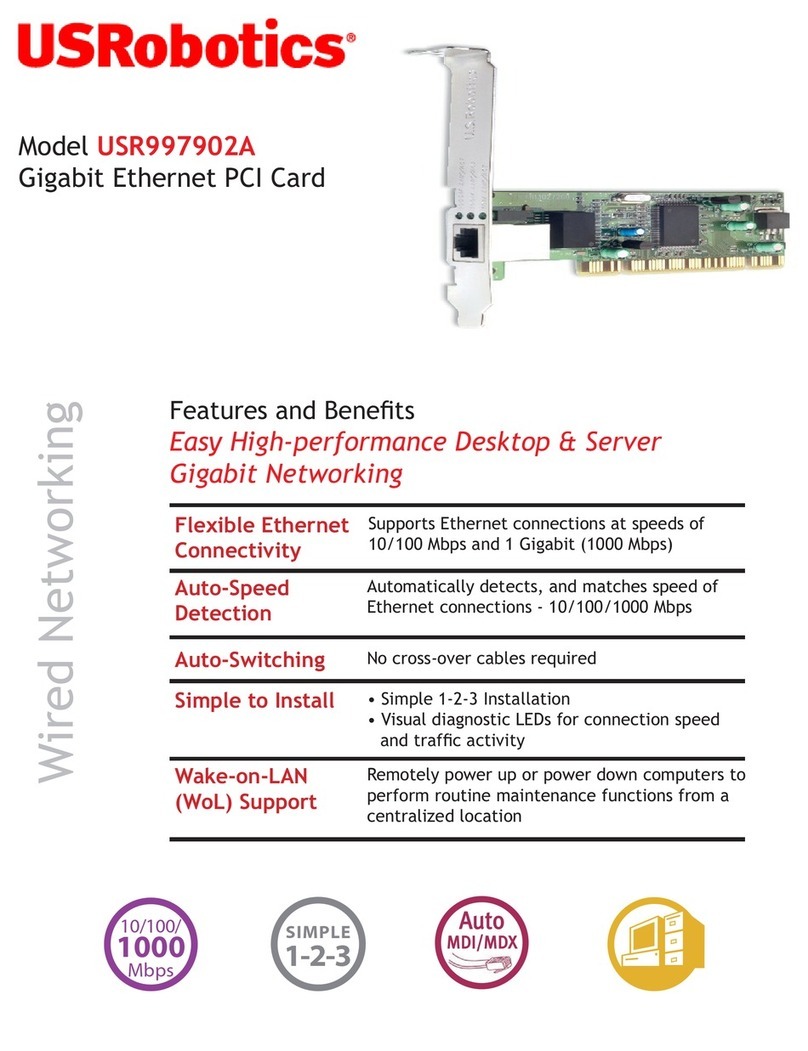
US Robotics USR997902A User manual

US Robotics

US Robotics USR997902A User manual

US Robotics USB 3.0 PCI-E CARD User manual

US Robotics

US Robotics USB 3.0 PCI-E CARD User manual

US Robotics USR5699C User manual

US Robotics

US Robotics USR5699C User manual

US Robotics USR5417 User manual

US Robotics

US Robotics USR5417 User manual

US Robotics 5415 User manual

US Robotics

US Robotics 5415 User manual

US Robotics USR2216 User manual

US Robotics

US Robotics USR2216 User manual

Popular PCI Card manuals by other brands

Avermedia ER330 Quick installation guide

Avermedia

Avermedia ER330 Quick installation guide

ERMA SSI 1417 instruction manual

ERMA

ERMA SSI 1417 instruction manual

SIIG CyberSerial Dual PCI Software installation

SIIG

SIIG CyberSerial Dual PCI Software installation

Airlink101 AWLH3028 user manual

Airlink101

Airlink101 AWLH3028 user manual

Dolphin MXH932 user guide

Dolphin

Dolphin MXH932 user guide

I-Bus IBC2602 user guide

I-Bus

I-Bus IBC2602 user guide

ICP DAS USA PCI-1002H user manual

ICP DAS USA

ICP DAS USA PCI-1002H user manual

Exsys EX-60102 manual

Exsys

Exsys EX-60102 manual

Chelsio Communications T5 Series Installation and user guide

Chelsio Communications

Chelsio Communications T5 Series Installation and user guide

Conrad Electronic 97 46 71 operating instructions

Conrad Electronic

Conrad Electronic 97 46 71 operating instructions

Micro Innovations USB650A Quick installation guide

Micro Innovations

Micro Innovations USB650A Quick installation guide

KTI Networks KF-310 user guide

KTI Networks

KTI Networks KF-310 user guide

Intellinet 500517 user manual

Intellinet

Intellinet 500517 user manual

Asus SpaceLink WL230 user manual

Asus

Asus SpaceLink WL230 user manual

SIIG SC2475 Quick installation guide

SIIG

SIIG SC2475 Quick installation guide

TRENDnet TEW-703PI Quick installation guide

TRENDnet

TRENDnet TEW-703PI Quick installation guide

Pericom PI7C7100 manual

Pericom

Pericom PI7C7100 manual

ADLINK Technology cPCI-3548 user manual

ADLINK Technology

ADLINK Technology cPCI-3548 user manual

manuals.online logo
manuals.online logoBrands
  • About & Mission
  • Contact us
  • Privacy Policy
  • Terms and Conditions

Copyright 2025 Manuals.Online. All Rights Reserved.

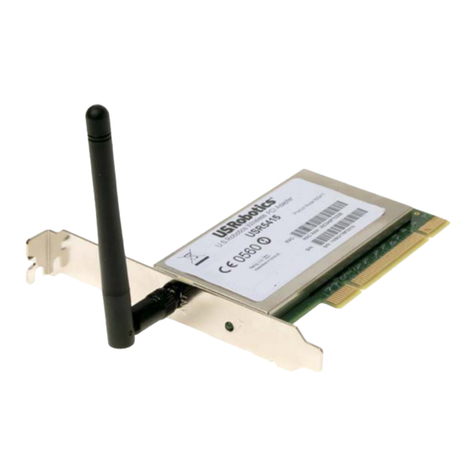
Wireless Access PCI Adapter
Note: For the most updated information, visit: http://www.usr.com/support. You can also refer to the Companion
Reference Guide and to the User Guide on the U.S. Robotics Installation CD for more information.
Wireless Access PCI Adapter Installation
Prepare for software installation
Turn on your desktop computer. Type your password if you are prompted to do so.
Note: It is very important that you have your serial number written down before you install the
PCI adapter. If you ever need to call our Technical Support department, you will need this
number to receive assistance.
Serial Number
Note: Be sure to find out what letter your CD-ROM drive uses before you begin installing your
new product. You will need to know this to properly install your software.
Install your software
Note: You will need to install this software on all the PCs or laptops you plan to wirelessly
network together.
Insert your U.S. Robotics Installation CD-ROM into your CD-ROM drive. In the Choose
Setup Language window, select your preferred language and click OK.
Note: If your CD-ROM does not automatically launch, click Windows Start,Run, and type
D:\setup (or the appropriate letter of your CD-ROM drive) and click OK.
Some files will be copied to your system, and then you will be asked to read the license
agreement. Read the agreement and click Yes.
The Installation CD Graphic User Interface (GUI) will appear on your screen. Click Software.
Click the icon for the U.S. Robotics Wireless Configuration Utility. Click Wireless PC Card or
PCI Adapter. Follow the on-screen instructions and wait for some files to be copied to your
hard drive. A window will appear showing you the files that have loaded onto your system.
Close this window. The program window with the Configuration Utility icons will appear.
Close this window.
Your software setup is complete. Click OK, and prepare to install your hardware.
Do not remove the U.S. Robotics Installation CD from your CD-ROM drive. Shut down
your computer.
Prepare for hardware installation Install your drivers*
Unplug your computer and remove the
computer’s cover.
Connect the Wireless Access PCI Adapter to
your computer
Locate an available PCI slot and insert the
Wireless Access PCI adapter. PCI slots are
typically white plastic lined with metal
and are 3.5 inches long. Use the slot cover
screw to secure the PCI adapter.
Note: It can be tricky getting the Wireless
Access PCI Adapter into the PCI slot. Use
firm pressure to seat the Wireless Access PCI
Adapter properly.
Some computers require you to remove the PC Card
from the Wireless Access PCI Adapter before you
insert the PCI Adapter into the PCI slot. If necessary,
pull the PC Card out of theWireless Access PCI
Adapter and set it aside. Insert the Wireless Access
PCI Adapter into the PCI slot, pressing firmly to seat it
properly. Then slide the PC Card through the slot and
into the Wireless Access PCI Adapter. Inserting the
PC Card into theWireless Access PCI Adapter in this
manner can be awkward, so take your time.
Note: If you experience any problems installing the
Wireless Access PCI Adapter, try installing it in a
different PCI slot.
Replace your computer’s cover and turn on your desktop computer. You may get a window
saying the Configuration Agent couldn’t connect to the Network Agent. If you do, click OK.
When Windows detects the new hardware, click Next. If Windows does not automatically
begin searching for the correct drivers, select Search for the best driver for your device
(Recommended) and click Next. Select Specify a location. Type D:\drivers (or the appro-
priate letter of your CD-ROM drive instead of "D") and click Next. Click Next again.
Note: If you are prompted at any time for your Windows Operating System CD-ROM, remove the
U.S. Robotics Installation CD-ROM and insert your Windows CD-ROM into the CD-ROM drive.
When all of the files are copied, remove the Windows CD-ROM, and reinsert the U.S. Robotics
Installation CD-ROM.
When you see the U.S. Robotics Wireless Access PCI Adapter windo w, click OK. This will
install the default settings. Wait for the files to be copied.
If you do not receive any prompts to insert your Windows CD-ROM, simply click Finish.
Congratulations! You have finished installing your
hardware and your drivers! Reboot your machine and
you will now see a small icon for the Configuration
Utility in the system tray by your clock.
The Configuration Utility is used to change or verify
the configuration information that relates to your Wireless Access PC Card or PCI Adapter.
The Configuration Utility icon will be colored to indicate the status of your wireless net-
work: red for disconnected, yellow for connected with poor quality, and green for connect-
ed with good quality.
You must now configure each computer that has a Wireless Access PC Card or PCI Adapter
in order to share Internet connectivity, files, and a printer. Refer to the User Guide on the
U.S. Robotics Installation CD for this information.
802.11b Ad Hoc mode is used for peer-to-peer network configurations. Infrastructure
mode is used to add a Wireless Access Point to the wireless network configuration. Each
Wireless Access PC Card or PCI Adapter in the wireless network must have the correct
mode selected within the Configuration Utility. The Wireless Access PC Cards and PCI
Adapters are set to 802.11b Ad Hoc by default.
For troubleshooting and support information, refer to the Companion Reference Guide or
to the User Guide on the U.S. Robotics Installation CD-ROM.
*A Digital Signature Not Found window may appear. Click Yes. Windows Me and 2000 will verify that your network
device is properly installed.

Wireless Access PCI Adapter Installation
Wireless Access PC Card
Note: For the most updated information, visit: http://www.usr.com/support. You can also refer to the Installation
Companion and to the User Guide on the U.S. Robotics Installation CD for more detailed information.
Wireless Access PC Card Installation
Insert the Wireless Access PC Card
into your computer Install your drivers*
Prepare for software installation
Turn on your laptop computer. Type your password if you are prompted to do so.
Note: It is very important that you have your serial number written down before you install the
PC Card. If you ever need to call our Technical Support department, you will need this number to
receive assistance.
Serial Number
Note: Be sure to find out what letter your CD-ROM drives uses before you begin installing your
new product. You will need to know this to properly install your software.
Install your software
Note: You will need to install this software on all the PCs or laptops you plan to wirelessly
network together.
Insert your U.S. Robotics Installation CD-ROM into your CD-ROM drive. In the Choose
Setup Language window, select your preferred language and click OK.
Note: If your CD-ROM does not automatically launch, click Windows Start,Run, and type
D:\setup (or the appropriate letter of your CD-ROM drive) and click OK.
Some files will be copied to your system, and then you will be asked to read the license
agreement. Read the agreement and click Yes.
The Installation CD Graphic User Interface (G UI) will appear on your screen. Click Software.
Click the icon for the U.S. Robotics Wireless Configuration Utility. Click Wireless PC Card or
PCI Adapter. Follow the on-screen instructions and wait for some files to be copied to your
hard drive. A window will appear showing you the files that have loaded onto your system.
Close this window. The program window with the Configuration Utility icons will appear.
Close this window.
Your software setup is complete. Click OK, and prepare to install your hardware. Do not
remove the U.S. Robotics Installation CD from your CD-ROM drive.
Locate an available PCMCIA slot and fully insert the PC Card. PCMCIA slots are typically on the
side of laptops. You should hear a beep when the PC Card is fully inserted. When Windows detects the new hardware, click Next. If Windows does not automatically
begin searching for the correct drivers, select Search for the best driver for your device
(Recommended) and click Next. Select Specify a location. Type D:\drivers (or the
appropriate letter of your CD-ROM drive instead of "D") and click Next. Click Next again.
Note: If you are prompted at any time for your Windows Operating System CD-ROM, remove
the U.S. Robotics Installation CD-ROM and insert your Windows CD-ROM into the CD-ROM drive.
When all of the files are copied, remove the Windows CD-ROM, and reinsert the U.S. Robotics
Installation CD-ROM.
When you see the U.S. Robotics Wireless Access PC Card window, click OK. This will
install the default settings. Wait for the files to be copied.
If you do not receive any prompts to insert your Windows CD-ROM, simply click Finish.
Congratulations! You have finished installing your
hardware and your drivers! Reboot your machine and
you will now see a small icon for the Configuration
Utility in the system tray by your clock.
The Configuration Utility is used to change or verify the configuration information that
relates to your Wireless Access PC Card or PCI Adapter. The Configuration utility icon will
be colored to indicate the status of your wireless network: red for disconnected, yellow for
connected with poor quality, and green for connected with good quality.
You must now configure each computer that has a Wireless Access PC Card or PCI Adapter
in order to share Internet connectivity, files, and a printer. Refer to the User Guide on the
Installation CD for this information.
802.11b AdHoc mode is used for peer-to-peer network configurations. Infrastructure
mode is used to add a Wireless Access Point to the wireless network configuration for
extended range and increased number of computers that can join the network. Each
Wireless Access PC Card or PCI Adapter in the wireless network must have the correct
mode selected within the Configuration Utility. The Wireless Access Cards and PCI
Adapters are set to 802.11b AdHoc by default.
For troubleshooting and support information, refer to the Companion Reference Guide or
to the User Guide on the U.S. Robotics Installation CD-ROM.
*A "Digital Signature Not Found" screen may appear. Click Yes. Windows Me and 2000 will verify that your network
device is properly installed.
Wireless Access PC Card Installation
R24.0259.00
Printed in Taiwan