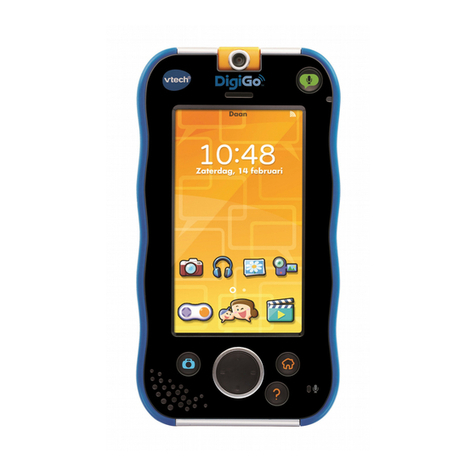
ON-LINE REGISTRATION FOR KIDIGO®
To activate all functions on your KidiGo®, you must register the product
online by following these steps:
(1) Connect KidiGo®to a computer using the USB cable.
(2) Click the ‘Download Website’ link in the KidiGo®drive that appears
on your computer. Or visit this link directly:
www.vtechuk.com/download
(3) Download and install the Learning Lodge software.
(4) Run the software to complete the registration and access a fantastic
selection of video and music downloads for your KidiGo®!
Note: For details about downloading content from the VTech Learning
Lodge, please refer to the online help section.
The registration process may fail if either of the following situations
occur:
• Internet disconnected
• Connection of KidiGo®with the computer interrupted
In the event of registration process failure, KidiGo®may be unable to
connect to the VTech Learning Lodge unless the unit is reset. To do
this, enter Settings in the main menu of KidiGo®, then press the Left
or Right cursor buttons to select Memory in Settings. Press the
Up or Down cursor buttons to select “Factory Reset” and then
press the Play/Pause (OK) button to conrm. Follow the on-screen
instructions to complete the factory reset process. After that, your
KidiGo®will be restored to factory settings so that you may connect to
the VTech Learning Lodge and register it again.
Minimum System Requirements
PC Hardware Requirements:
CPU: Pentium® 4, 1 GHz or above
Memory: 256 MB
Video Adaptor: Graphic card with 1024 x 768 at 16 or 32 bit colour
Monitor Resolution: 1024 x 768
USB 1.1 or higher
300 MB Hard disk space
Windows®compatible sound card and speakers
PC Software Requirements:
Microsoft®Windows®XP, Windows Vista®, Windows®7 or Windows®8
Operating System
On-line Registration for KidiGo®