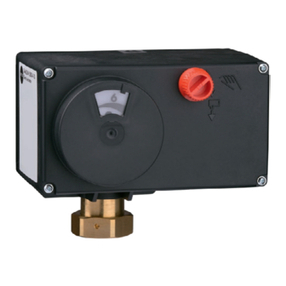
Verasys VEC100 User manual

VEC100 Generic RTU Controller, Staged Heating
and Modulated Cooling Quick Start Guide
About this guide
This quick start guide provides the basic information you
need to configure and install the Verasys® Equipment
Controller (VEC), LC-VEC100-0, using the Verasys generic
rooftop unit (RTU) staged heating and modulated cooling
controller application. The application controls a third-
party changeover bypass (COBP) system or a third-party
variable air volume (VAV) unit.
For further information, refer to the Verasys Equipment
Controller (VEC) Installation Guide (24-10143-1272) and
the VEC100 Generic RTU Controller, Staged Heating and
Modulated Cooling Application Note (12013485).
Table 1: Application features
Options available Possible values
Number of Heating
Stages Installed
0 to 2
Cooling Valve • State 0: not installed
• State 1: water coil
Economizer
Installed
• State 0: the economizer is not
available.
• State 1: the economizer is available.
Air Proving Switch
Setup
• State 0: fan status device
• State 1: duct static pressure sensor
• State 2: none
Rooftop Controller
Type
• State 0: changeover bypass
• State 1: VAV
Cancel ASCD Timers • State 0: false
• State 1: true
Demand Ventilation
Feature
• State 0: demand ventilation is off.
• State 1: demand ventilation is on.
Mounting the controller
To mount the controller, complete the following steps:
1. Mount a 20 cm (8 in.) section of 35 mm (1.3 in.) DIN
rail horizontally.
Note: Mount the controller in the horizontal
position.
2. On the back of the controller, extend the two
mounting clips.
Figure 1: Pull down lower mounting clips
3. Place the controller on the DIN rail.
4. Push the bottom mounting clips inward (up) to
secure the controller on the DIN rail.
Figure 2: Push up lower mounting clips
Wiring the controller
Zone bus terminal block
The zone bus terminal block is a grey, removable, 4-
terminal plug that fits into a board-mounted jack. Wire the
removable zone bus terminal block plugs on the controller
on the top row of the stacked connector, and other field
controllers in a daisy-chain configuration using 3-wire
twisted, shielded cable as shown in the following figure.
LIT-12013487
2021-07-14
LC-VEC100-0, LC-IOM3711-0

Figure 3: Zone bus terminal block wiring
Table 2: Zone bus daisy chaining configuration
1Terminating device on the zone bus
2Zone bus terminal block plugs
3Daisy-chained device on a zone bus segment
4Connects to the next device on the zone bus.
Note: The zone bus shield (SHD) terminal is isolated
and can be used to connect (daisy chain) the shields
for zone bus wiring.
Sensor bus terminal block
The sensor bus terminal block is a brown, removable, 4-
terminal plug that fits into a board-mounted jack.
Wire the removable sensor bus terminal block plugs
on the lower port of the dual stacked connector to the
controller, and other sensor bus devices in a daisy-chain
configuration using a 4-wire twisted, shielded cable as
shown in the following figure.
Figure 4: Sensor bus terminal block wiring
Table 3: Sensor bus daisy chaining configuration
1Terminating device on the sensor bus
2Sensor bus terminal block plug on the terminating
device
3Daisy-chained device on a sensor bus segment
4Sensor bus terminal block plug on the daisy-chained
device
5Cable shield connection
6Connects to the next device on the sensor bus.
Note: The PWR terminal supplies 15 VDC. The PWR
terminal can be used to connect (daisy chain) the 15
VDC power leads on the sensor bus.
Supply power terminal block
The 24 VAC supply power terminal block is a gray,
removable, 3-terminal plug that fits into a board-mounted
jack on the top right of the controller.
Wire the 24 VAC supply power wires from the transformer
to the HOT and COM terminals on the terminal plug, as
shown in the following figure. The middle terminal on the
supply power terminal block is not used.
Figure 5: 24 VAC Supply Power Terminal Block
Note: The supply power wire colors may be different
on transformers from other manufacturers. Refer to
the transformer manufacturer’s instructions and the
project installation drawings for wiring details.
Setting the VEC address using the
local display
To set the VEC address using the local display, complete
the following steps:
1. To access the menu, press the ENT (Enter) button.
2. Navigate to the Controller menu with the up and
down arrows, and press the ENT button.
3. In the Controller menu, navigate to Network and
press the ENT button.
4. In the Network Parameters section, navigate to
Address and press the ENT button.
The display shows the default address value.
5. Press the ENT button.
The address blinks.
6. Use the up or down arrow to increase or decrease
the address to the value you want. Press the ENT
button.
The address stops blinking and the display shows
the old address.
7. Press either the up or down arrow. The screen
refreshes to the new address.
VEC100 Generic RTU Controller, Staged Heating and Modulated Cooling Quick Start Guide2

8. Press ESC (Escape) repeatedly, until you return
to the main screen. Ensure that the main screen
shows that the system is operational.
Configuring sensors
To configure the installed sensors, complete the following
steps:
1. Navigate to the Details menu.
2. Navigate to the Service menu and select the Inputs
section.
3. Select the installed sensors using the drop-down
menus for each parameter.
Updating the VEC
To update the VEC with the staged heating and modulated
cooling application, complete the following steps:
1. Go to verasyscontrols.com, and log in with your
credentials.
2. Navigate to Product Information & Support >
Device Updates.
3. Download the package file for the application to
the root folder of a USB 2.0 drive. The package
file name is the following: VEC100-StgHTG-
ModCLG_xxxx.pkg
Note: Ensure that the USB drive is formatted as
FAT or FAT32.
4. Insert the USB drive into the USB port on the VEC.
5. If the download does not start immediately, then in
the controller’s local display, select the Update and
Load Firmware option, then choose the package
file on the USB drive, and press Enter.
6. When the application update finishes, use the
Verasys Smart Building Hub (SBH) or the local
display to configure the controller.
VEC100 Generic RTU Controller, Staged Heating and Modulated Cooling Quick Start Guide 3

COBP wiring diagram
Figure 6: Changeover bypass wiring diagram - VEC100
VEC100 Generic RTU Controller, Staged Heating and Modulated Cooling Quick Start Guide4

Figure 7: Changeover bypass wiring diagram - IOM3711
Table 4: Changeover bypass wiring diagram
Number Description Object name (if
given)
1 Economizer Damper Output (optional) MAD-O
2 Supply fan output (to fan VFD) SF-O
3 Cooling valve output CLG-O
4 Supply fan command (to fan VFD) SF-C
5 Heating stage 1 command HTG1-C
6 Heating stage 2 command HTG2-C
7 24 V HOT to damper motor
8 24 V COM to damper motor n/a
9 24 V COM n/a
10 24 V HOT n/a
11 From last device n/a
12 To next device n/a
13 Zone humidity sensor - monitor only (optional) ZN-H
14 Return air CO2
Range: 0 ppm to 2,000 ppm, 0 VDC to 10 VDC RA-CO2
15 Return air temperature sensor RA-T
Table 4: Changeover bypass wiring diagram
Number Description Object name (if
given)
16 Outside air temperature sensor
Note: This is a required sensor if the VEC100
controls the economizer. Position the sensor
in a shaded area on the north side of the
building.
OA-T
17 Discharge air static pressure sensor
Range: 0 in. W.C. to 5 in. W.C., 0 VDC to 5 VDC DA-P
18 Discharge air temperature sensor DA-T
19 Supply fan status (air proving switch, optional) SF-S
20 Purge input (optional) PURGE-S
21 Filter status (optional) FILTER-S
22 From last SA device n/a
23 Mixed air temperature sensor
Note: You must have a mixed air sensor if the
VEC100 controls the economizer for low limit
control.
MA-T
VEC100 Generic RTU Controller, Staged Heating and Modulated Cooling Quick Start Guide 5

VAV wiring diagram
Figure 8: VAV wiring diagram - VEC100
VEC100 Generic RTU Controller, Staged Heating and Modulated Cooling Quick Start Guide6

Figure 9: VAV wiring diagram - IOM3711
Table 5: VAV wiring diagram
Number Description Object name (if
given)
1 Economizer Damper Output (optional) MAD-O
2 Supply fan output (to fan VFD) SF-O
3 Cooling valve output CLG-O
4 Supply fan command (to fan VFD) SF-C
5 Heating stage 1 command HTG1-C
6 Heating stage 2 command HTG2-C
7 24 V HOT to damper motor n/a
8 24 V COM to damper motor n/a
9 24 V COM n/a
10 24 V HOT n/a
11 From last device n/a
12 To next device n/a
13 Zone humidity sensor - monitor only (optional) ZN-H
14 Return air CO2
Range: 0 ppm to 2,000 ppm, 0 VDC to 10 VDC RA-CO2
15 Return air temperature sensor RA-T
Table 5: VAV wiring diagram
Number Description Object name (if
given)
16 Outside air temperature sensor
Note: This is a required sensor if the VEC100
controls the economizer. Position the sensor
in a shaded area on the north side of the
building.
OA-T
17 Discharge air static pressure sensor
Range: 0 in. W.C. to 5 in. W.C., 0 VDC to 5 VDC DA-P
18 Discharge air temperature sensor DA-T
19 Supply fan status (air proving switch, optional) SF-S
20 Purge input (optional) PURGE-S
21 Filter status (optional) FILTER-S
22 From last SA device n/a
23 Mixed air temperature sensor
Note: You must have a mixed air sensor if the
VEC100 controls the economizer for low limit
control.
MA-T
Commissioning the system
To activate the outputs and verify system operation, navigate to the Commissioning menu, change Start
Commissioning to Trigger, and adjust outputs individually.
The following table describes the Details > Service > Factory menu options.
VEC100 Generic RTU Controller, Staged Heating and Modulated Cooling Quick Start Guide 7

Table 6: Details : Service : Factory
Object or parameter Description Adjustable Defaults Enum set or range
Cooling Valve Sets the installation of the cooling valve. Adjustable Not Installed 0 = Not Installed
1 = Water Coil
Number of Heating
Stages Installed
Sets the number of heating stages installed. Adjustable 2 0 to 2
Economizer Installed Sets whether the economizer is installed. Adjustable No 0 = No
1 = Yes
Air Proving Switch Setup Selects the type of setup for airflow proof. Adjustable None 0 = Fan Status Device
1 = Duct Static Pressure Sensor
2 = None
OAT Cooling Lockout
Temperature
Sets the temperature at which outside cooling lockout occurs. Adjustable 50°F (10°C) 0°F to 100°F (-18°C to 38°C)
Economizer Minimum
Position Setpoint
Sets the minimum outside air damper position. Adjustable 20% 0% to 100%
Rooftop Controller Type Sets the controller type to changeover bypass or VAV. Adjustable Changeover Bypass 0 = Changeover Bypass
1 = VAV
Variable Speed Drive Sets whether the VEC100 controls a VFD fan instead of a bypass
damper when the rooftop controller type is set to changeover
bypass.
Adjustable False 0 = False
1 = True
Supply Air Temperature
Alarm Offset
If SAT is not in this value range, the SAT alarm delay starts.
Examples: If the supply air setpoint is 55°F and this is set to 5°F,
then the supply air must be under 60°F, or the delay timer starts. If
the supply air setpoint is 110°F and this is set to 5°F then the supply
air must be above 105°F, or the delay timer starts.
Adjustable 5 delta °F (2.78 delta °C) 0 delta °F to 25 delta °F (0 delta °C to 14
delta °C)
Supply Air Temperature
Alarm Delay
Sets the amount of time that must pass before the SAT alarm
occurs.
Adjustable 20 min 0 min to 120 min
Cancel ASCD Timers Resets the minimum on and off timers. Adjustable False 0 = False
1 = True
Demand Ventilation
Feature
Enables or disables the demand ventilation feature. Adjustable Off 0 = Off
1 = On
Product warranty
This product is covered by a limited warranty, details
of which can be found at www.johnsoncontrols.com/
buildingswarranty.
Software terms
Use of the software that is in (or constitutes)
this product, or access to the cloud, or hosted
services applicable to this product, if any, is
subject to applicable end-user license, open-source
software information, and other terms set forth at
www.johnsoncontrols.com/techterms. Your use of this
product constitutes an agreement to such terms.
Single point of contact
APAC Europe NA/SA
JOHNSON CONTROLS
C/O CONTROLS PRODUCT
MANAGEMENT
NO. 32 CHANGJIJANG RD NEW
DISTRICT
WUXI JIANGSU PROVINCE 214028
CHINA
JOHNSON CONTROLS
WESTENDHOF 3
45143 ESSEN
GERMANY
JOHNSON CONTROLS
507 E MICHIGAN ST
MILWAUKEE WI 53202
USA
Contact information
Contact your local branch office:
www.johnsoncontrols.com/locations
Contact Johnson Controls: www.johnsoncontrols.com/
contact-us
© 2021 Johnson Controls. All rights reserved. All specifications and other information shown were current as of document revision and
are subject to change without notice.
www.johnsoncontrols.com
Table of contents
Other Verasys Controllers manuals


Popular Controllers manuals by other brands

Digiplex
Digiplex DGP-848 Programming guide

YASKAWA
YASKAWA SGM series user manual

Sinope
Sinope Calypso RM3500ZB installation guide

Isimet
Isimet DLA Series Style 2 Installation, Operations, Start-up and Maintenance Instructions

LSIS
LSIS sv-ip5a user manual
Rockwell Automation
Rockwell Automation 1769-L31 installation instructions