manuals.online logo
Brands
  1. Home
  2. •
  3. Brands
  4. •
  5. VIA Technologies
  6. •
  7. Automobile Electronic
  8. •
  9. VIA Technologies Mobile360 D700 User manual

VIA Technologies Mobile360 D700 User manual

Other manuals for Mobile360 D700

4

Popular Automobile Electronic manuals by other brands

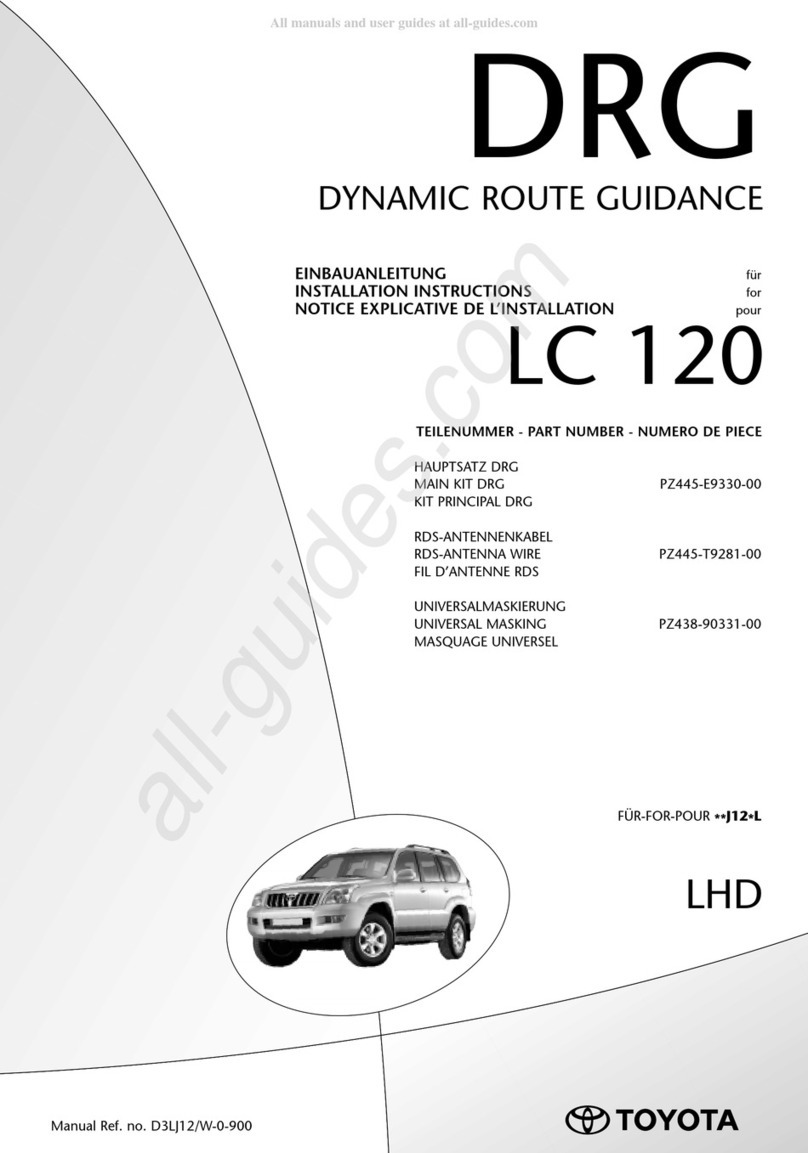
DRG LC 120 installation instructions

DRG

DRG LC 120 installation instructions

Blue Ox BX8848 installation instructions

Blue Ox

Blue Ox BX8848 installation instructions

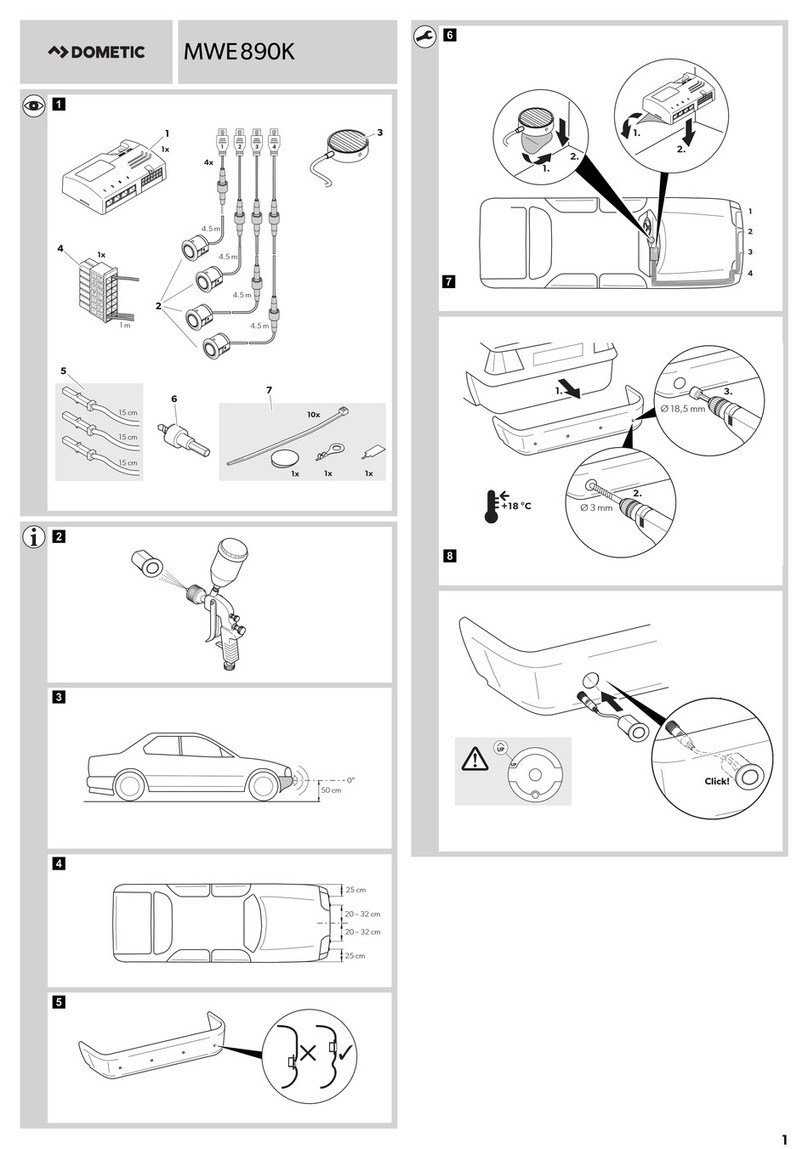
Dometic MAGICWATCH MWE890K Installation and operating manual

Dometic

Dometic MAGICWATCH MWE890K Installation and operating manual

Honeywell Thor VM3A user guide

Honeywell

Honeywell Thor VM3A user guide

Waeco MagicWatch MWE250 Installation and operating manual

Waeco

Waeco MagicWatch MWE250 Installation and operating manual

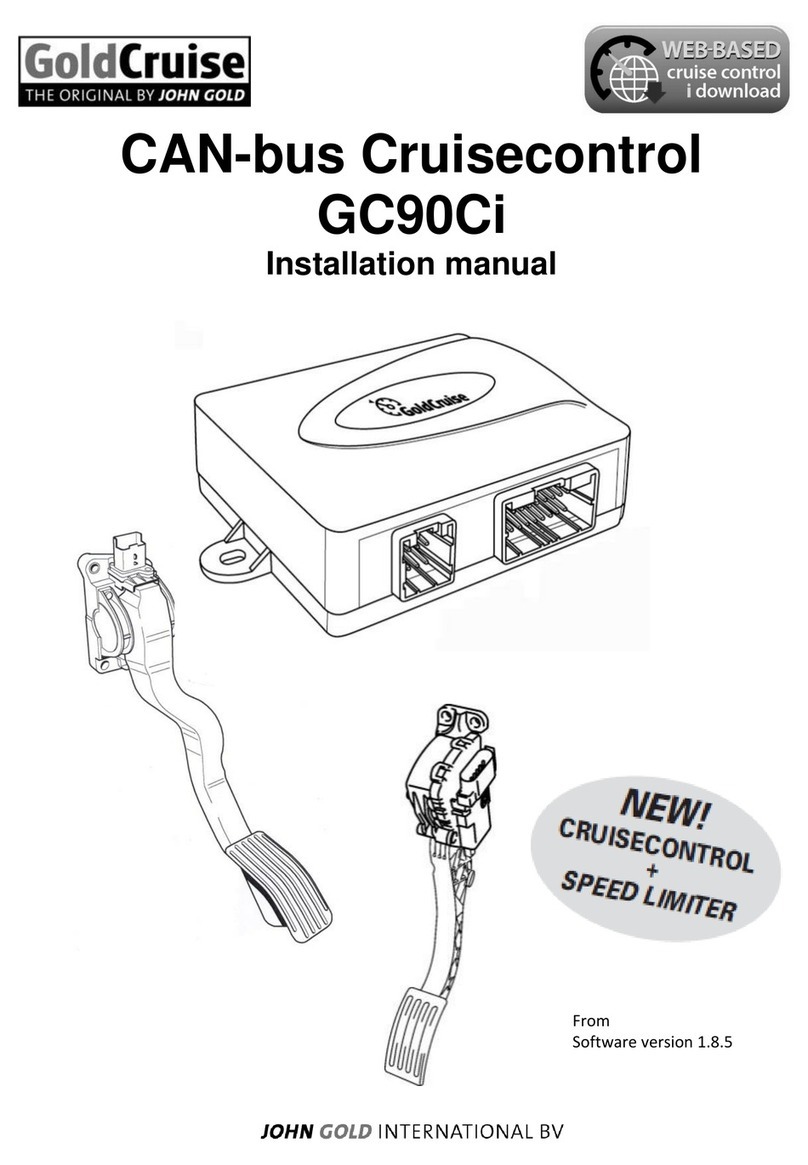
GoldCruise GC90Ci installation manual

GoldCruise

GoldCruise GC90Ci installation manual

Rydeen BKM091 user manual

Rydeen

Rydeen BKM091 user manual

Skoda 5E0 054 630 Fitting instructions

Skoda

Skoda 5E0 054 630 Fitting instructions

VDO SENDER UNIT 2159-0 datasheet

VDO

VDO SENDER UNIT 2159-0 datasheet

iDataLink maestro Rr install guide

iDataLink

iDataLink maestro Rr install guide

Audiovox PRO-PDA15 installation guide

Audiovox

Audiovox PRO-PDA15 installation guide

Movon MDAS-3LFFHD user manual

Movon

Movon MDAS-3LFFHD user manual

Pioneer Comfort adapter CA-D-PI.150 quick start guide

Pioneer

Pioneer Comfort adapter CA-D-PI.150 quick start guide

Dietz 1110 instruction manual

Dietz

Dietz 1110 instruction manual

Perfect Power SMT8-T5 Technical manual

Perfect Power

Perfect Power SMT8-T5 Technical manual

Crux RVCFD-79 manual

Crux

Crux RVCFD-79 manual

Nonda ZUS user manual

Nonda

Nonda ZUS user manual

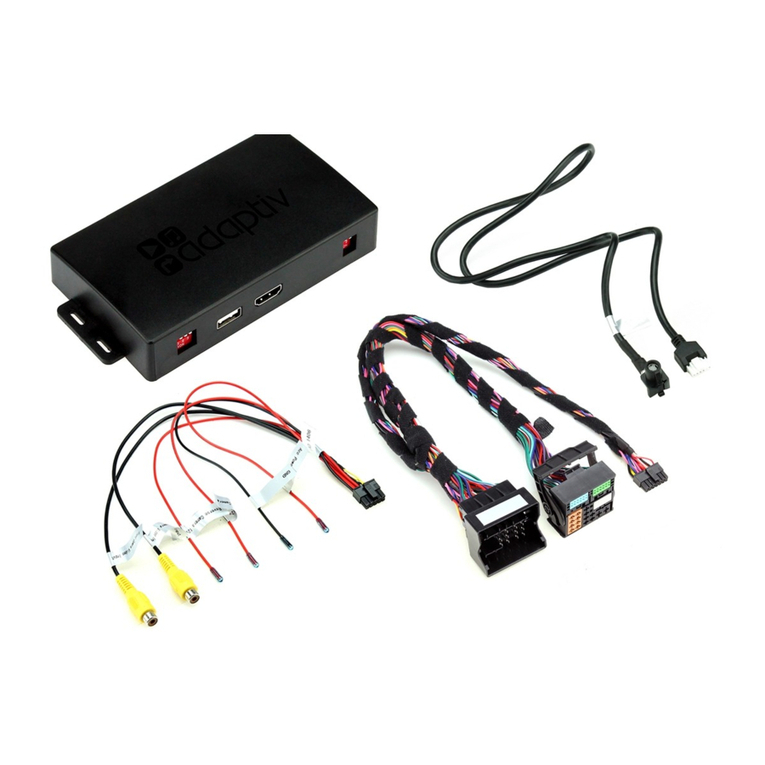
Adaptiv Mini installation guide

Adaptiv

Adaptiv Mini installation guide

manuals.online logo
manuals.online logoBrands
  • About & Mission
  • Contact us
  • Privacy Policy
  • Terms and Conditions

Copyright 2025 Manuals.Online. All Rights Reserved.

VIA Mobile360 D700
User Manual
2
1. Overview
*Note: The lens can be rotated within a certain
range, but it should not be rotated violently,
otherwise it will cause the rotating mechanism
to fail.
Front Lens
Ambient Light Sensor
Yellow LED
Green LED
Red LED
4 x IR LED
Rear Lens
Short Record/
Voice Key Button
3
Speaker
Micro USB connector
Micro SD Card Slot
Power Connector
Micro SIM Card Slot
4
Mic
Pedestal
5
1.1 Specifications
Item Description
Processor
800MHz ARM Cortex-A53 Dual-core
System Memory
512MB DDR3L DRAM
Internal Storage
128MB SPI Flash
Wireless AMPAK AP6255
(802.11 a/b/g/n/ac +BT4.2)
Ublox GPS receiver
4G/3G Quectel EC25-AF
FDD: B2/B4//B5/B12/B13/B14/B66
WCDMA: B2/B4/B5
Field of View FOV: D=116°, H=100°, V=56°
Sensor Sony IMX307
Image Resolution 1920x1080p @ 29 FPS
IO
1x Micro SD Card(200GB max)
1x Micro SIM card slot
1x Micro USB connector(for debug
only)
Power Supply 9-36V DC
Dimensions 124.5mm x 41.25mm x 95.6mm
6
2. Getting Started with your Recorder
VIA Mobile360 D700 supports Android phones
and iPhone connections. The driving recorder
supports automatic video recording to SD card
after startup, and can be played back in mobile
App. To use this feature, you need to insert a
SD card into the driving recorder. The recorder
needs to communicate with the cloud through
4G network to support remote wake-up, and
two way audio communication. To use this
function, you need to insert a SIM card into the
recorder.
Insert SD Card or SIM Card: When inserting a
SD card or SIM card, use your fingernail to
press the card into the driving recorder. When
it is fully inserted, the card will snap into the
slot. To remove the card, use your fingernail to
gently press the card into the driving recorder
and it will pop up, allowing you to remove it.
*Note: It supports up to 200G SD card and
must be formatted into FAT32 file system.
Please confirm The SIM can connect to
internet. The SIM card does not support hot
plug.

7
2.1 Power On, Off and LED States
Manual startup and shutdown: When using DC
power adapter and 12-pin power connector (with
Power On/Off switch) to connect the recorder;
please press the switch manually to switch on and
off the recorder.
Automatic startup and shutdown: When using the
12-pin power connector to 12V/5A Car plug power
adaptor or 12-pin power connector to OBD II
Connector and ACC to bullet plug cable connect the
recorder, the recorder will start automatically when
the car starts (ACC is on).
LED States: LED indicator states as shown below:
8
2.2 Connect with CAN bus
The recorder supports connecting the CAN bus
of the car, and can read the driving speed and
fuel consumption from the CAN bus. When
using the app connects the recorder, you can
view information such as driving speed and
fuel consumption of the journey. You can
connect the CAN bus in the following ways.
Connect the CAN bus through the OBD II
line: use the OBD II connection line in the
accessories to connect the vehicle's OBD and
the recorder's wiring port.
Connect via OBD II Bluetooth: TBD.
9
2.3 Using Your Recorder with a phone
The driving recorder supports connecting with
Android phone and iPhone. In order to use your
recorder, installation of the official VIA Mobile360
App is required. You can scan the QR code below
to download and install the VIA Mobile360 App. App
for Android is also supplied on Google Play Store.
*Note: Android 5.0 or iOS 9.0 above is required.
10
Connect Driving Recorder: Once the VIA
Mobile360 App has been installed on your
phone, open the app and follow the prompts to
connect the recorder's Wi-Fi named by “VIA
Mobile360_XXX” in the phone's WLAN setting.
The default password is 12345678.