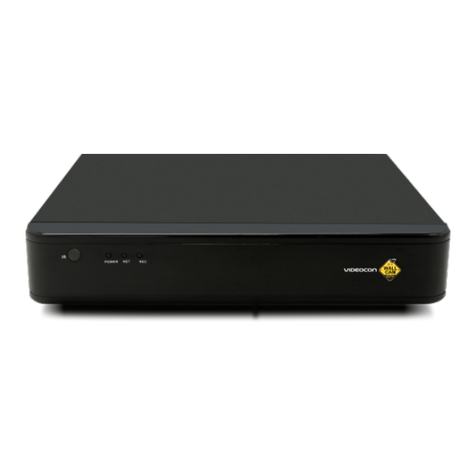
Videocon WallCam User manual

WallCam NVR
Quick Setup Guide
V-Con Intelligent Security Pvt. Ltd.
B-71 Phase VII, Industrial Area, Mohali -160055, Punjab (India)
Toll Free No. 1800 137 0030 I Email : customercare.[email protected]
www.videoconwallcam.com

Important Safeguards and Warnings
Do not place any heavy objects on the NVR.
Do not spill liquid onto the NVR
Please brush the printed circuit boards, connectors, fans, machine box and so on regularly.
Before cleaning the equipment, please switch off the power supply and unplug it.
Do not disassemble or repair the NVR by yourself. Do not replace the electronic components by yourself.
1. Production Introduction .............................................................................................................................................3
1.1 Product Overview..................................................................................................................................................3
1.2 Main Functions .....................................................................................................................................................3
2. Open-package check, products understanding and cable connections .....................................................................4
2.1 Open-package check ...........................................................................................................................................4
2.2 Understanding of the front panel ..........................................................................................................................4
2.3 Understanding of the rear panel ...........................................................................................................................6
2.4 Installation connections sketch map ..................................................................................................................... 6
3. Basic Operation .........................................................................................................................................................7
3.1 Login .....................................................................................................................................................................7
3.2 Preview .................................................................................................................................................................7
3.3 Desktop Shortcut Menu ........................................................................................................................................7
3.3.1 Guide ................................................................................................................................. .............................8
3.3.2 PlayBack ............................................................................................................................ ............................9
3.3.3 Record Mode ................................................................................................................................................10
3.3.4 PTZ Control ..................................................................................................................... ............................ 10
3.3.5 Highspeed PTZ .............................................................................................................................................11
3.3.6 Output Adjust ............................................................................................................................................... 11
3.3.7 Digital Channel ............................................................................................................................................ 12
3.3.8 Version Info ..................................................................................................................................................12
3.3.8.1 Version ...................................................................................................................... .............................12
3.3.8.2 HDD Info ................................................................................................................................................12
3.3.8.3 BPS ........................................................................................................................... .............................13
3.3.8.4 LOG ........................................................................................................................................................13
3.3.8.5 Online User ............................................................................................................................................14
3.3.9 Logout ..........................................................................................................................................................14
4. Main Menu .......................................................................................................................................... ....................15
4.1 General .............................................................................................................................................................15
4.2 Record...............................................................................................................................................................16
4.3 Network .............................................................................................................................................................18
4.3.1 Net Service ..................................................................................................................... ...........................18
4.4 Alarm ........................................................................................................................................ .........................20
4.4.1 Motion Detect .................................................................................................................. ............................21
4.4.2 Video Blind ...................................................................................................................... ............................22
1
Contents
4.4.3 Video Loss .................................................................................................................................................. 22
4.4.4 Alarm input ....................................................................................................................... ..........................23
4.4.5 Alarm output .................................................................................................................... ...........................23
4.4.6 Abnormality ................................................................................................................................................. 23
4.5 Switch .......................................................................................................................................... ....................24
4.5.1 Channel Type .................................................................................................................. ..........................24
4.5.2 Remote Device ............................................................................................................... ..........................25
4.5.3 Channel Status ........................................................................................................................................... 27
4.6 System Management ................................................................................................................... ....................27
4.6.1 HDD Manage .............................................................................................................................................. 28
4.6.2 PTZ configuration ......................................................................................................... .............................29
4.6.3 GUI Display.................................................................................................................................................. 29
4.6.4 Backup ......................................................................................................................... ............................30
4.6.5 Account .......................................................................................................................... ............................31
4.6.7 Restore .......................................................................................................................... ............................33
4.6.8 Auto Maintain .............................................................................................................................................. 33
5. Network access settings and cloud technology introduced ............................................................... ................. 34
5.1 LAN access settings .................................................................................................................... ................... 34
5.2 Cloud technology functions and using introduction .................................................................... .....................36
5.3 Client CMS software operation .................................................................................................... ...................36
5.4 Mobile Phone monitoring ................................................................................................................................. 37
Appendix 1. Remote controller operation ................................................................................................. ................37
2

1. Production Introduction
3
1.1 Product overview
The NVR series which is an outstanding digital surveillance product has been designed
especially for security and defense sector.
It introduces embedded LINUX operating system which is more stable and robust and
also brings H.264/H.265 video compressed format and G.711A audio compressed format
which promises high quality images, low error coding ratio and single frame playing. To
achieve strong network communication and telecommunication ability it introduces the
TCP/IP network technology that runs seamlessly.
The NVR can be used individually or online connected as a part of a safety surveillance
network. With the professional network video surveillance software it achieves the strong
network communication and telecommunication ability
1.2 Main functions
Real-time surveillance
·VGA interface and HDMI interface surveillance functions through
monitor or display.
Storage
·NVR constantly writes massive data to storage so a new, healthy, and high-performance
disk is recommended.
·Special storage format which ensures the data safety.
Compression
· Real-time compression by individual hard disk which ensures the stable synchronization
of audio and video signals.
Backup
·Through SATA interface and USB interface such as USB equipment, removable hard
disk and so on.
·Download files through internet in the hard drive or USB.
Playback
·Individual real-time video recording as well as searching, playback, network surveillance,
recording check, downloading and so on.
·Multi-channel playback mode.
·Zoom at arbitrary region.
Internet operation
·Real time remote viewing, accessing Settings remotely, video downloading and backup
options.
·Remotely access PTZ.
·Remotely access the recording and real-time playback.
Alarm linkage
·Only one channel relays alarm output which is convenient for the alarm linkage and light
control at the spot. (Optional).
· protecting circuits at the alarm input and output interface which protects the main machine
from damage.
Communication interface
4
·Rs-485 interface which fulfills the alarm input and PTZ control.
·Standard Ethernet network interface which fulfills the telecommuting function.
·IPC signal input function.
·With USB interface, 3G and WIFI network connection
·Bluetooth Mouse.
·Fast copy and paste operating for the same setting.
·Support cloud access technology which makes network monitoring more easily
2. Open-package check, Products understanding and cable connection
2.1 Open-package check
When you receive the NVR, please inspect it thoroughly
First, please check whether there is any visible damage to the package appearance.
Then, please open the machine crust and check the data wire in the front panel, power
adapter, the connection between the fan power and the main board.
Note:
Labels which are affixed on the products are very important. Please keep them protected
You will need to provide serial number of the product which is mentioned on the NVR in
case of contacting our customer service executives.
2.2 Understanding of the front panel
Front panel button operation function table
Note: This manual is a generic manual. Please ask the retailer for a detailed description about the product
NVR Front Panel

5
2. Cancel button ESC
Back to the previous menu or cancel operation in the
operation menu
Back to the real-time surveillance during the playback state
3. Play preview file button
I
Play previous video during the playback state
4. Play next file button
5. Show play
6. Fast play
7. Playback/pause button
8. play/pause button
9. Network connection
indicator light
I
II
II
Play next video during the playback state
Play in the multi-low or regular speed video during the
playback state
Play in the multi-fast or regular speed video during the
playback state
Playback the video or pause during the playback state
Play the video or pause during the playback state
Network connects normally if lighted
10. Alarm indicator light Trigger alarm if lighted
11. Power indicator light Trigger alarm if lighted
12. Recording indiacator light Trigger alarm if lighted
LINK
Table 2.1 Front panel button operation function table
No. Button name Mark Function
1. Direction button
>
<
Surveillance pictures, into the single channel or
multi-channel image surveillance.
Change the setting in the menu
Add or decrease number during the user edit state
Remove the cursor
< >
Remove the cursor when the main menu or sub menu is
popped up
Remove the cursor during the playback mode
Enter former or after channel surveillance during single
surveillance image
Enter
Main menu / function
Confirm
Enter main menu or next grade menu
2.3 Understanding of the rear panel
Note: Below are rear panels of some of our representative models. Please take the real object as final, these
are Just for reference
(1) Network interface (2) Audio input/ audio output (3) VGA output (4) HDMI interface
(5) USB3.0 interface (6) USB2.0interface (7) RS-485 interface video (8)Power jack
Note: Some models have front panel USB interface, this interface with the top of the rear panel USB port are
mutually exclusive, only one interface is effective at the same time. USB at the bottom of rear panel is
independent and effective.
2.4 Installation connections sketch map
6

3. Basic operation
7
3.1 Login
When the NVR boots up, the user must login and the system provides the corresponding
functions with the user right. There are 3 user settings: Admin, Guest and Default. The
default password for Admin user settings is ‘null’ and the user can create guest user
account as per requirement. Admin user is master user having all the rights. Guest and
default users can be allotted the rights as per requirements.
Password protection: The account will be blocked if you enter wrong password
continuously five times and after half an hour the same will be unblocked
automatically. If you enter wrong password for consecutively seven times then
the alarm will start. You can modify the username and password after first login.
3.2 Preview
You can right click mouse to choose the switch between the windows.
The system date, time and channel name are shown in each viewing window. The
surveillance video and the alarm status are also shown in each window.
3.3 Desktop shortcut menu
On the right click of mouse, you will get the desktop shortcut menu as explained in
picture 3.2. The menu includes: Main Menu, Guide, Playback, Record Mode, PTZ control,
High-speed PTZ, Color Setting, Output Adjust, Info, Logout, View 1, View 4, View 8,
View 9, View 16 and Hide.
Picture 3.2 Desktop shortcut menu
Picture 3.1 SYSTEM LOGIN
1.
2.
3.
4.
Recording status
Motion detect
Video loss
Camera lock
?
3.3.1 Guide
This function can guide user to open ”Cloud service” → “QR code” → “Network config.”
→ “Remote device” and so on.
Picture 3.3 QR code
In“Network config.”, setting IP Address, Network Testing, Subnet Mask, Gateway, Primary
DNS, Secondary DNS, TCP Port, MTU Port, HTTP Port, HS Download, Transfer Policy
and so on. As picture 3.4:
In Network testing, test whether NVR is connected with router or other network device
properly.
Step: Input IP address directly and click PING. Picture 3.5.
Picture 3.5 Network Testing
8

9
3.3.2 Playback
Play the video files in the hard disk.
Select " desktop shortcut menu "→ "playback"→ "search"→"play" option will appear.
Note: The hard disk that saves the video files must be set as read-write or read-only
state.
1. HDD switch
2. recording search calendar
3. recording search
4. playback channel selection
5. playback page switch
6. playback time selection
7. Playback time period, click progress bar then can playback
8. playback file type
9. playback control keys
Synchronization: Mode: to realize multi-channel playback synchronously.
【Playbackcontrol】Refer to the following sheet for more information.
Form 3.2 Playback control key list
Picture 3.6 Playback
Button Function Button Function
/
Play/P ause Backward
Stop/Close Fast ba ck play
II
Special Functions:
Local zoom: When the system is in single-window full-screen playback mode, you can
drag your mouse in the screen to select a section and then left click mouse to select local
zoom. Press right click of the mouse to exit.
3.3.3 Record Mode (take 16CH NVR for example)
Please check current channel status: “●” means it is in recording status.
Picture 3.7 record mode
Schedule: It records according to the set parameters in “main menu” “record” “record plan”.
Manual: You can either select all channels or any particular channels for recording as
per your requirements.
Stop: To stop recording, you can select all channels or specific channels.
3.3.4 PTZ Control
The Functions include PTZ direction control, step, zoom, focus, IRIS, setup operation,
patrol between spots, trail patrol, boundary scan, assistant switch, light switch, level
rotation and so on.
The operational interface is as follows:
10
Full screen Fast play
Previous frame Next fram e
Previous file Next file
Circulation Cut (some models without)
II
I
I
X
Form 3.2 Playback control key list

11
3.3.5 High Speed PTZ
Speed: Set the PTZ rotation range. Default range: 1 ~ 8.
Zoom: Click - / + button to adjust the zoom.
Focus: Click - / + button to adjust the focus of the camera
Iris: Click - / + button to adjust the iris of the camera.
Direction control: Control the PTZ rotation. Supports 8 directions controls .
PTZ Trace: Full-screen shows channel image. Press left click of the mouse to control
PTZ rotation orientation.
Set: Enter the function operation menu.
Page Switch: Switch between different windows
Picture 3.9 Output
Picture 3.6 Playback
After choosing, it displays the chosen channel in full screen mode. Click left button of
mouse to control the PTZ to fast move and orientation. can adjust camera’s magnification
function by moving mouse roller
3.3.6 Output adjust
Adjust output area parameters
3.3.7 Digital Channel
12
System Information menu items include:onekeyadd, Channel Management,
ChannelStatus.
3.3.8 Version Info
System Information menu include: Version, HDD Info, BPS, LOG, Online Users.
3.3.8.1 Version
Displays the basic information such as hardware information, software version,
MAC,issue date and Serial No and so on.
Note 1: The Serial No is needed when using cloud technology, please enter the
Serial No correctly for remote access otherwise you can’t login.
Note 2: MAC is the MAC address of the device, also is the device mark when login by
device with ARSP service; please enter the MAC address correctly while using ARSP
service to access device remotely otherwise you can’t login.
(SomemodelwithoutARSPfunction)。
Picture 3.10 Version information
3.3.8.2 HDD Info
Display the hard disk state: hard disk type, overall capability, residual capability,the
recording time and so on.

13
3.3.8.3 BPS
Picture 3.12 Code stream statistics
Picture 3.11 hard disk information
Displays the code stream Kb/S and hard disk capability MB/H in real time.
3.3.8.4 LOG
Look up system log according to the set mode.
Log information includes: system operation, configuration operation, data management,
alarm affair, recording operation, user management, and file management and so on. Set
the time section to look up and click the look up button. The log information will display as
a list. You can press delete button to clear all the log information.
14
Picture 3.13 log information
3.3.8.5 Online User
Look up the network user information in the local NVR. You can lock the user by selecting
the user and then pressing disconnect button. The user will be locked until next boot-strap.
Picture 3.14 online user.
3.3.9 Logout
Logout, shutdown the system or reboot up.
Logout: Logout from the device.
Shutdown: The device will shut down
Reboot: The device will restart

15
4. Main menu
Picture 4.1 Main menu
After login in, on the right click of mouse, the shortcut menu will appear at the bottom of
the screen. To enter the main menu interface, left click the mouse.
General information configuration.( as shown in Picture 4.1 Main menu)
Language: choose related operating language
Video standard: Set Device’s video system (PAL or NTSC are optional)
Resolution: Set output resolution
System time: Set Device’s current date &time and date & time format
HDD full: Stop: the hard drive is full, stop recording.
Select overwrite: when the hard drive is full, overwrite the earliest recorded files.
NVR No: using under the situation one remote controller controls many NVRs. Only
click “ADD” on remote control and enter local number, the related NVR can respond.
Re: when “Local No “is “0”
Transparency: Adjust the transparency or operating menu
Tour: set screen tour display shows tour was opened. Single screen, four screens, eight
screens, nine screens, sixteen screens etc. separate mode and mixed mode tour are
optional. (As16CHforexampleasbelow)
4.1 General
Picture 4.2Tour setting
16
4.2 Record
Set recording parameter (main stream) and network parameter (extra stream) of video and
audio signal.
Set the Device’s recording plan.
Note: There is at least one read-write hard disk.
Picture 4.3 Record config
Channel: Choose the corresponding channel number to set the channel. Select all the
options to set all the channels
Set: Recording parameter (main stream) and network parameters (extra stream) illustrate
Video/Audio: Set whether to record video and audio simultaneously.
Resolution: Set recording resolution. The Higher resolution, the better recording quality
and occupies more HDD capacity. Conversely, the lower resolution, the worse recording
quality
occupies less HDD capacity.
Frame Rate (FPS): set recording FPS; if the FPS is higher then it will provide better
recording quality and occupy more HDD space. If the FPS is low then it will occupy less
HDD space hence, low video quality.
Bit Rate Type: Set whether recording stream changes automatically according to image
changes. There are six grades to choose from as per your requirements
Quality: Adjust the video quality.
Bit Rate (Kb/S): set recording stream statics under fixed stream state; if the Higher Stream
statics is selected then recording quality will be better and occupies more HDD capacity.
Conversely, the lower Stream statics will result in the low recording stream statics quality
and occupies less HDD capacity.
,
Note: when NVR cannot identify the IP camera, the above recording parameter can
be set manually. The device will record according to selected setting.

17
Picture 4.4 Recording Plan
Channel: Choose the corresponding channel number to set the channel. Choose all the
options to set all channels.
Redundancy: Choose the redundancy function option to implement the double backup file
function. Double backup is writing the video files in two hard disks. When you do the
double backup, make sure that there are two hard disks installed. One is read-write disk
and the other is redundant disk.
Length: Set the time length of each video file. 60minutes is default duration (A maximum
of 120 minutes can be selected).
Pre Record: Record 1-30 seconds before the action. (Time length is decided by the code
stream)
Mode: Set video state: configuration, all or stop.
Schedule: You can select recording type i.e. Regular, Alarm (Detect) and time based
recording.
Manual: after choosing manual button, the related channel will carry common recording
irrespective of the current state of the channel.
Stop:Click the stop button to stop recording of the channel.
Week: You can set any particular day or even full week for recording. It will record
according to selected days.
Period: Set the time section of common recording, the recording will start only in the set
range.
Recording type: Set recording type: regular, detection or alarm.
Regular: Perform the regular recording in the set time section.
Detect:The alarm will be triggered and recording will be turned on in case camera
signals video loss or covered with mask.
Alarm Trigger the external alarm signal in the set time section. When above alarm is
set as opening recording, the “detection recording” state is on.
.
18
4.3 Network
Picture 4.5 network setup
Net Link Mod: Select automatically or enter IP address manually.
IP address: Set the IP address.
Subnet Mask: Set the subnet mask code.
Gateway: Set the default gateway.
Primary DNS: Set Preferred DNS
Secondary DNS: Set spare DNS
Media port: Set port for recording network transmission
HTTP port: Set HTTP Port
Net Service: set all network services. Pls refer 4.3.1 network service to have detailed
setting description.
Advanced network functions on the configuration, double-click the Net Service button to
enter the Picture 4.6 interface, first select the Network Services entry and click the
Settings button, or double-click the service parameter configuration items.
4.3 1.Net Service
Picture 4.6 network service
Other manuals for WallCam
1
Table of contents
Other Videocon DVR manuals