Operation Of Player In “Manual Mode”
If you have a disc that won’t auto play or you want to use the remote for other
functions, you need to put the player in “Manual Mode”. To do this, simply hold
the Power button on the front of the player for about 5 seconds. The light should
turn orange. Once in “Manual Mode”, you can use the remote to preform other
functions.
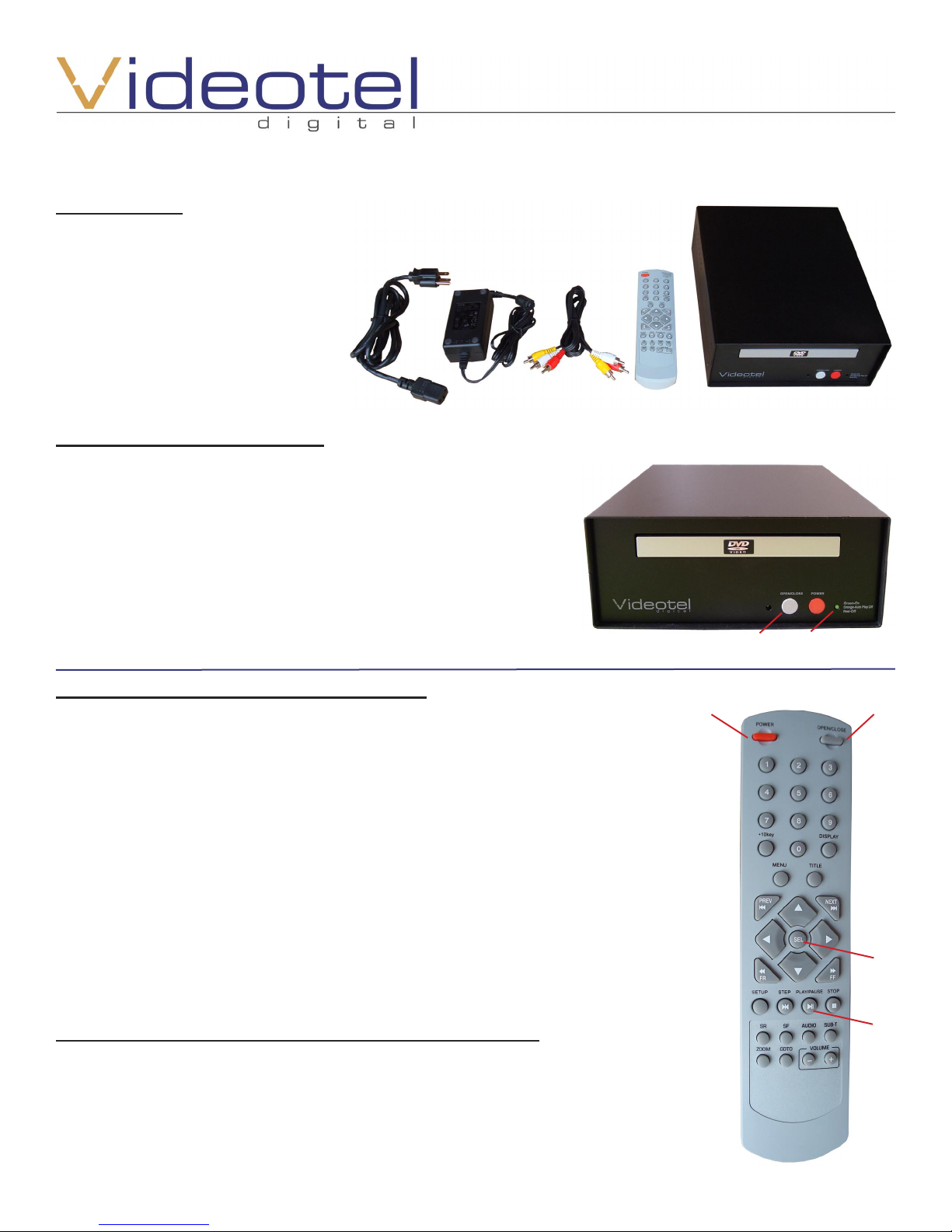
(23) “Prev” allows you to skip backwards (by chapter) through the DVD.
(24) “Next” allows you to skip forwards (by chapter) through the DVD.
(25) “FR” allows you to rewind the DVD*.
(26) “FF” allows you to fast forward the DVD*.
*each time you press the button, the speed will change (2x,4x,8x,16x,32x,64x)
(27) “Volume +” adjusts the volume output higher.
(28) “Volume -” adjusts the volume output lower.
(29) Arrows keys work normally and are typically only used if you need to
navigate through a menu on a DVD.
(30) “ZOOM” enlarges the picture 1.5 times, 2 times and 3 times its size.
(31) “SR” rewinds the movie slowly in 1/2, 1/4 and 1/8 speeds.
(32) “FR” fast forwards the movie slowly in 1/2, 1/4 and 1/8 speeds.
(33) “MENU” controls the menu of your DVD.
(34) “DISPLAY” shows the current chapter, current title, time played and time
remaining.
(35) “STOP” Pressing this once will stop the movie and allow you to press play
at a later time and resume your spot in the movie. If you press it twice and
then press play, the movie will start from the beginning.
(36) “PLAY/PAUSE” toggles between play and pause.
(37) “SUB-T” rotates through all the available subtitle languages on the DVD
(the subtile option may need to activated on the DVD’s menu).
(38) “GOTO” allows you to select a specific chapter in your movie. Press the
“GOTO” button, then press the “+10key” (42) & any number button (43) to
select your desired chapter, then press “SEL”.
(39) “AUDIO” rotates through the different audio options on your dvd.
(40) “SETUP” brings up the on screen display for the DVD player. This allows you
to change audio settings, video outputs and set a parental security code.
(41) “STEP” pauses the movie and each time you press the button, the movie
advances by 1 frame.
(23) (24)
(25) (26)
(28) (27)
(29)
(30)
(32)
(31)
(33)
(34)
(41)
(37)
(38)
(39)
(36)
(35)
(40)
(42)
(43)
Switching your player to resume play after powering off
The 4400 has the option to start the disc over once you turn power back on or to
resume play wherever the movie was playing last. To disable and re-enable this
option you need to first remove the DVD. Close the tray and make sure the light
on the front is orange, if its green, press and hold the Power button on the player
for 5 seconds. Now press the “ZOOM” button. An on screen display will show “RE-
SUME ON” (which will continue play) or “RESUME OFF” (which will start the movie
over from the beginning).
Switching your player to not auto repeat
The 4022 has the option to disable the “Auto Repeat” feature (when a disc is at its
end, it will start over and automatically loop). To toggle between these 2 settings
you need to first remove the DVD. Close the tray and make sure the light on the
front is orange, if its green, press and hold the power button on the player for 5
seconds. Now press the “TITLE” button. An on screen display will show “REPEAT
ON” (which will loop the disc continuously) or “REPEAT OFF” (which will play the
movie only once and then return to the disc menu).