IR Remote Optimization & Control
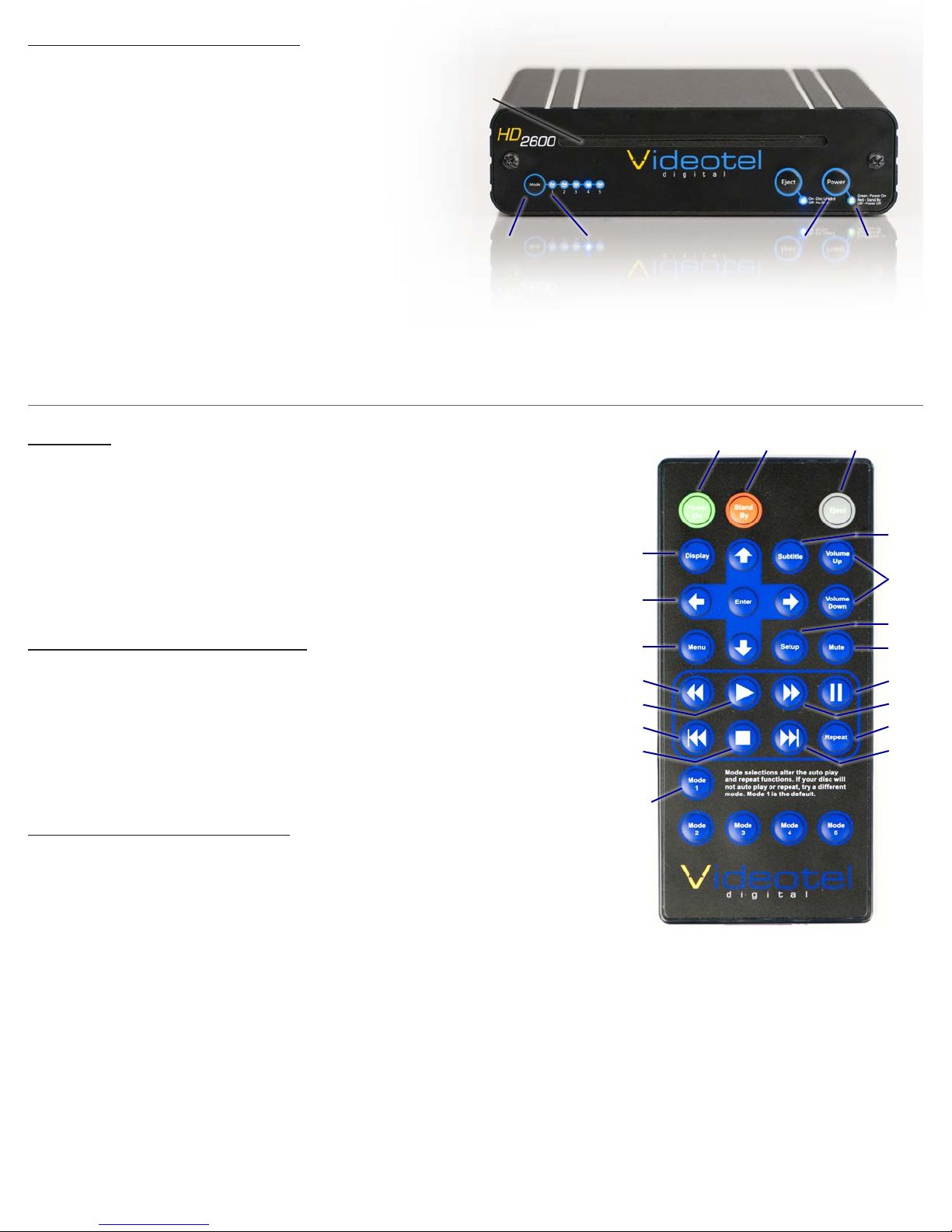
(22) Display - Rotate 5 modes of current run time of title and chapter (title elapsed/
title remaining/chapter elapsed/chapter remain/O )
(23) Arrows / Enter - Control HD2600 setup menu options and DVD/disc menu op-
tions
(24) Menu - Launch root menu. Note: In “Mode 1” or “Mode 2” the player auto
selects the “enter” function on a regular basis. It is recommended to utilize
“Mode 3” if menu navigation is required.
(25) Rewind - Each button press increases the rewind speed as follows 2x / 4x / 8x
/ 16x / 32x / then back to play.
(26) Play - Plays DVD/disc if stopped or paused.
(27) Chapter Back - Advance backwards through chapters (current title only) at last
chapter, play will stop or start again at chapter 1, (depending on disc format)
(28) Stop - Stops DVD/disc and launches default splash screen
(29) Subtitle - Press to scroll through available subtitle languages (if applicable)
(30) Volume Up/Down - Adjusts output volume of the player. Note: Ejecting DVD/
disc sets player back into stand by mode. Volume defaults to maximum.
(31) Setup - Access HD2600 menu options and operation. To customize the splash
screen, modify screen output, audio out and others- SEE PAGE 2
(22)
(23)
(24)
(25)
(26)
(27)
(28)
(30)
(33)
(34)
(35)
(36)
(29)
(32)
(31)
(7)
(6)(8) (10)(13)
IR Remote
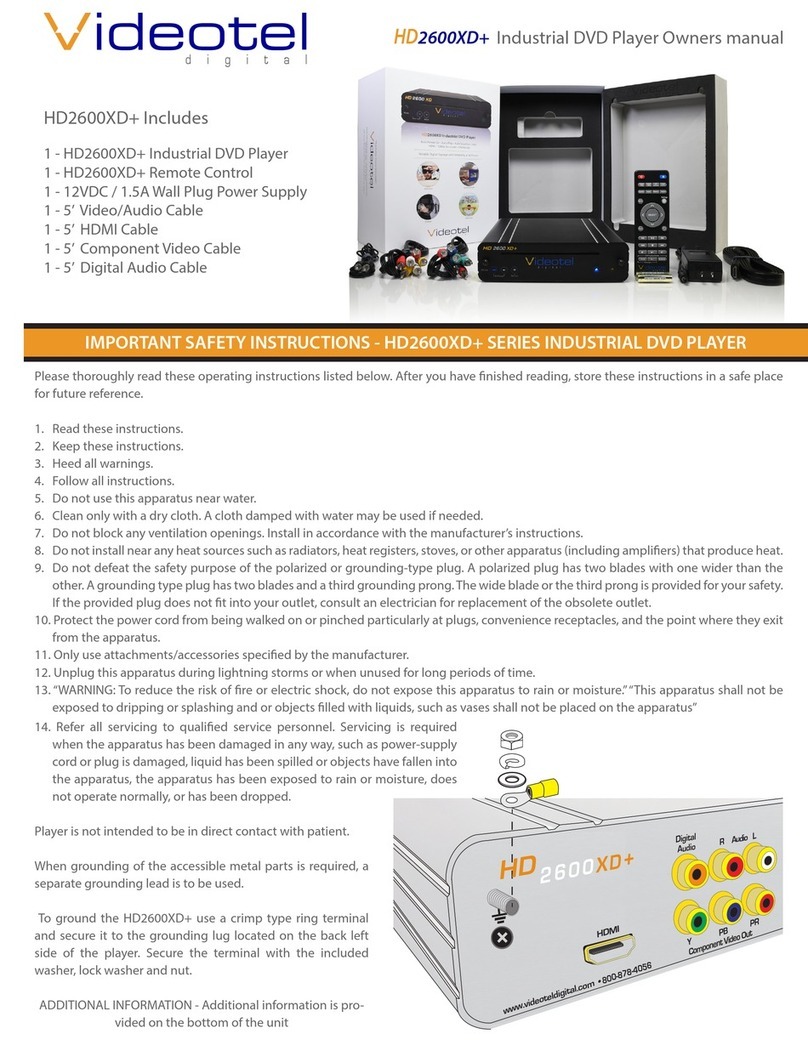
The HD2600 IR Remote is rarely required. It is utilized for initial set up and basic
operation.
The HD2600 is ideal for environments that require multiple HD2600 units installed
within a related space or close proximity and that may require global on/o and
global ejection of the DVD/disc. Simply use any HD2600 IR remote and press
“Stand By” (9), “Power On” (11) or “Eject” (12) repeatedly until ultimately all units
have responded accordingly.
Power and DVD/disc indicator lights
By pressing“Stand by”(9) on the HD2600 IR remote, the HD2600 will power o and
illuminate a solid red light (10). Pressing “Power On” (11) on the HD2600 IR Remote
will power up the HD2600 and illuminate a solid green light (10).
Using the power button (13) on the front of the HD2600 will toggle the status from
“ON”(green light) (10) to “OFF” (no lights) (10).
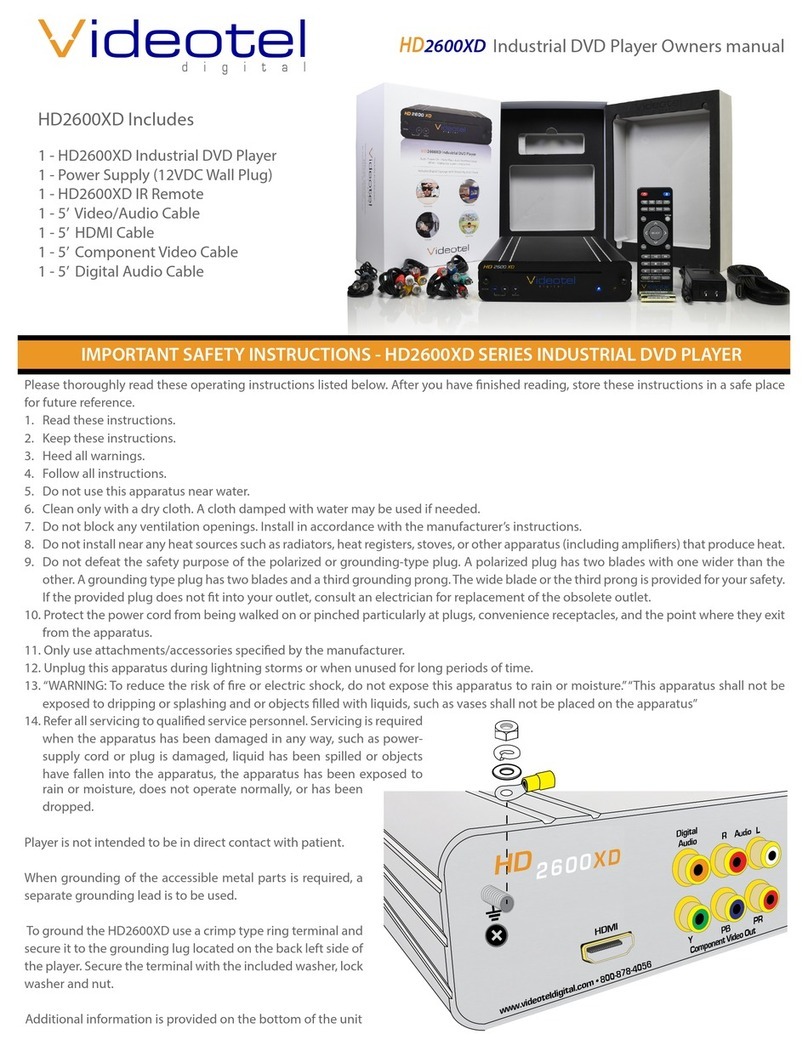
Quick Guide: Plug & Play Operation
The
HD
2600 connects to any screen/TV monitor and is pre-pro-
grammed to operate for rugged continuous play. Mode one (6)
provides the functionality to auto start, auto play, and auto repeat
the DVD’s largest title. Simply load DVD/disc in front drive slot (7).
Once the DVD/Disc is loaded in the slot drive, allow just 15 sec-
onds to load, play and display DVD/content. The HD2600 is im-
mediately operable for continuous 24/7/365 play and auto repeat.
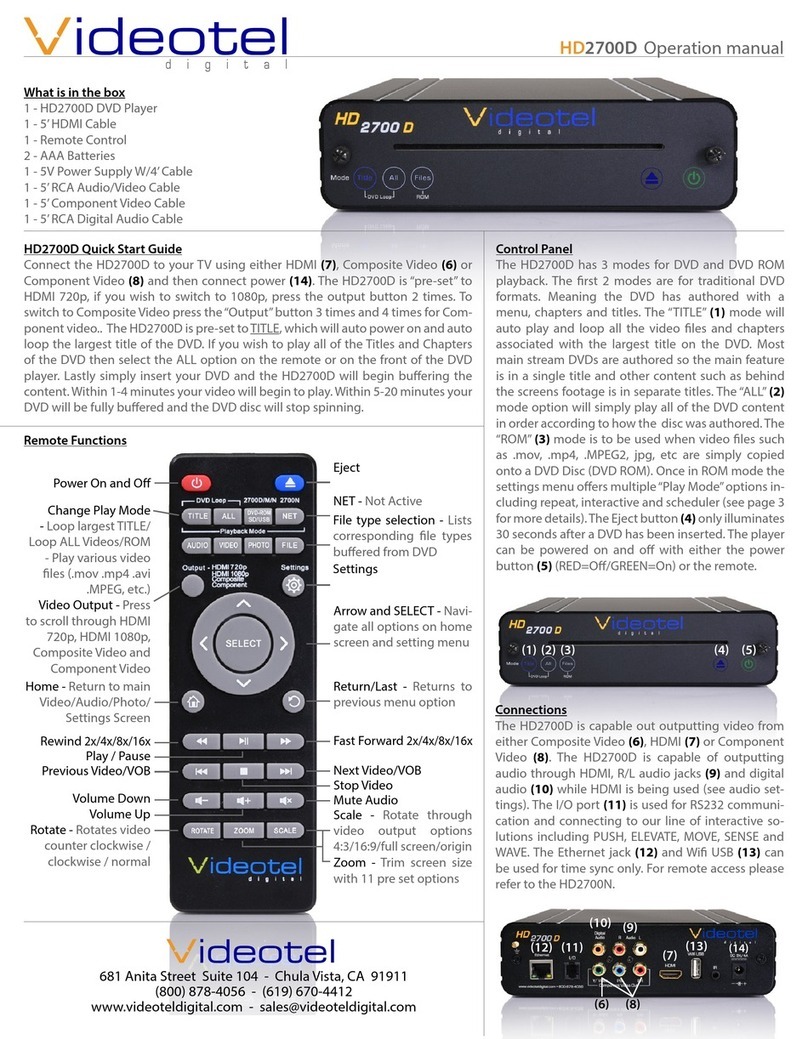
The HD2600 oers 5 individual modes. Select mode by pressing
the Mode button on either the front side of player (8) or from
the HD2600 IR remote buttons labeled as mode 1-2-3-4-5. (14). If
mode button is pressed from the front of the player it will simply
reboot within 5 seconds to the selected mode.
• Mode 1 - Auto start, Auto Play, Auto repeats largest title of the DVD/disc
• Mode 2 - Auto play, Auto repeat all titles in numerical order
• Mode 3 - Standard (Manual DVD o the shelf operation)
• Mode 4 & 5 - Plays DVD/Discs which may not be supported in either modes 1 or 2
(9)
(11) (12)
(14)
(32) Mute - Mutes all the audio from the HD2600
(33) Pause - Pause current playing DVD/disc. Press
again to play or press“Play” button (26).
(34) Fast Forward - Each button press increases fast
forward speed as follows 2x / 4x / 8x / 16x / 32x
/ and then back to play.
(35) Repeat - Allows for various types of repeat op-
tions. Each button press scrolls through either
Chapter repeat / Title repeat / All (entire disc
repeat) / O
(36) Chapter Forward - Advances forward through
chapters (current DVD/disc title only). At last
chapter play will stop or start at 1 again (depen-
dent on DVD/disc format)