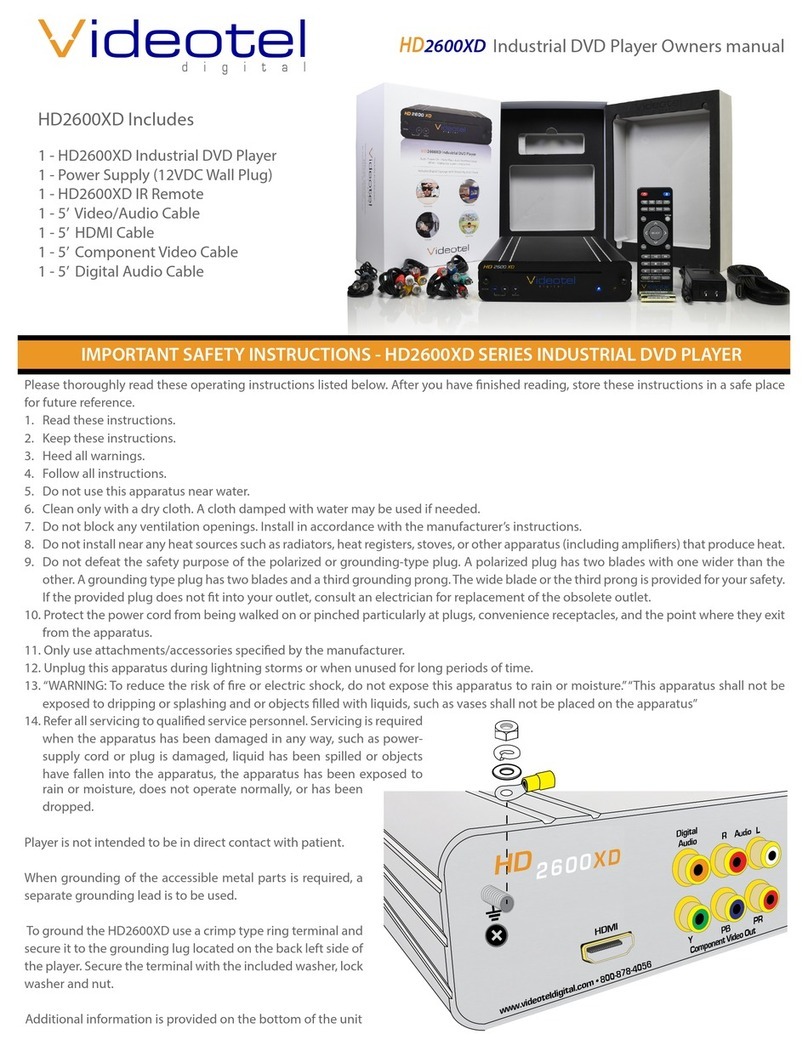
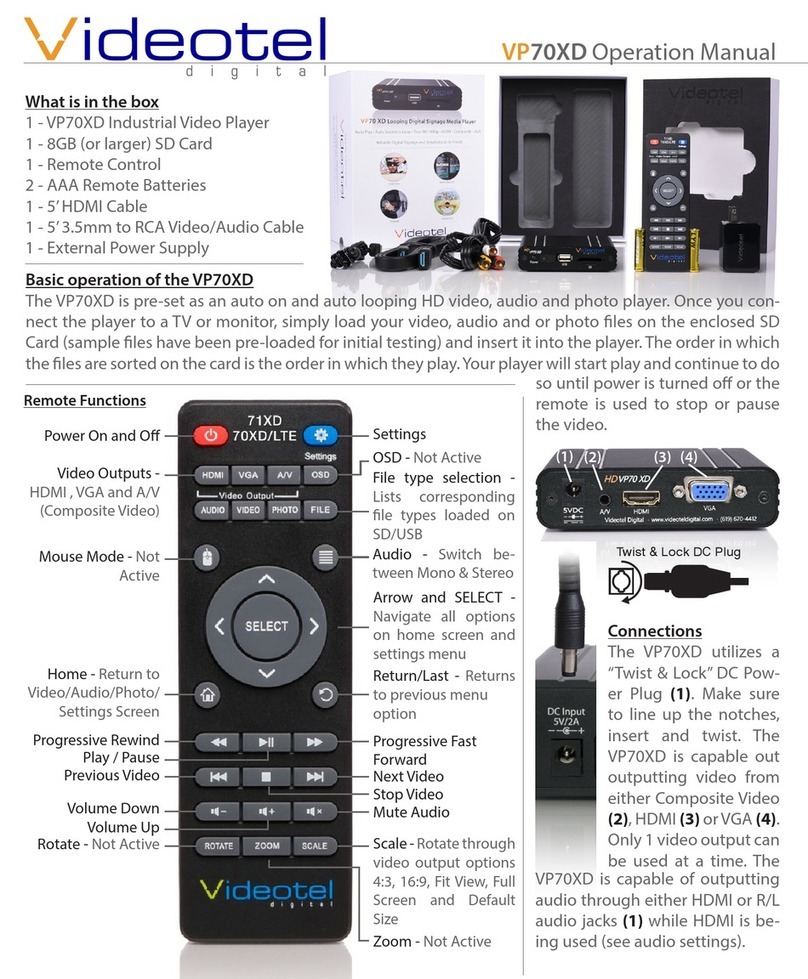
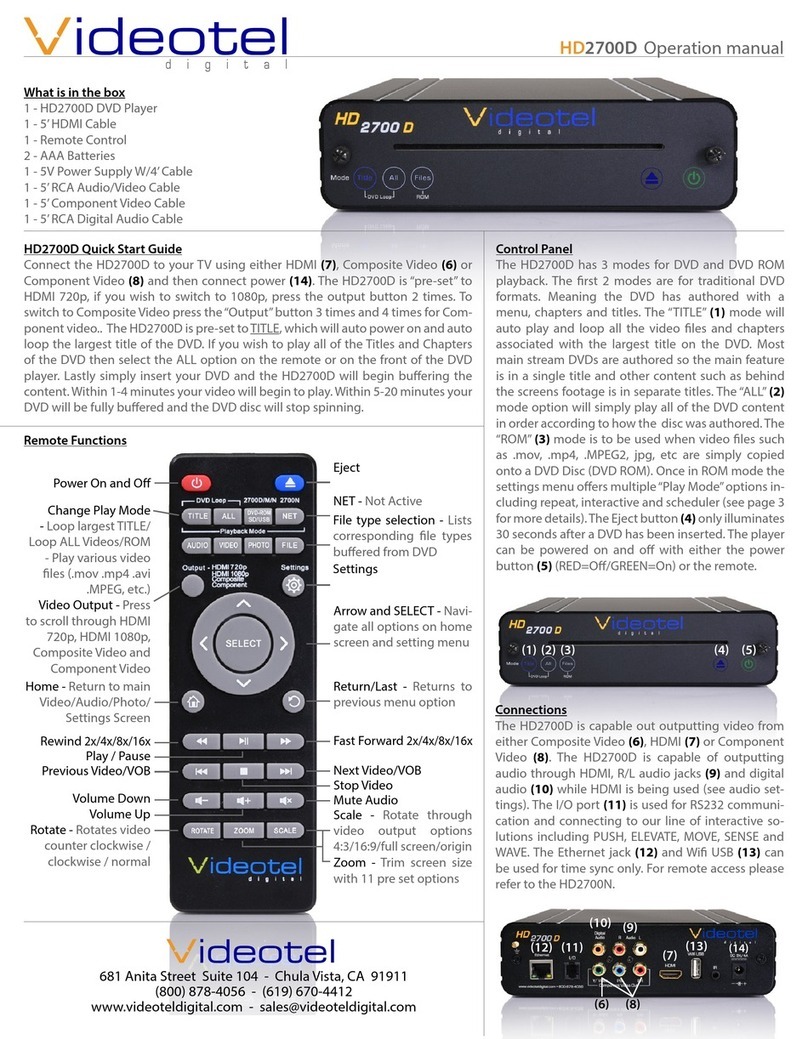
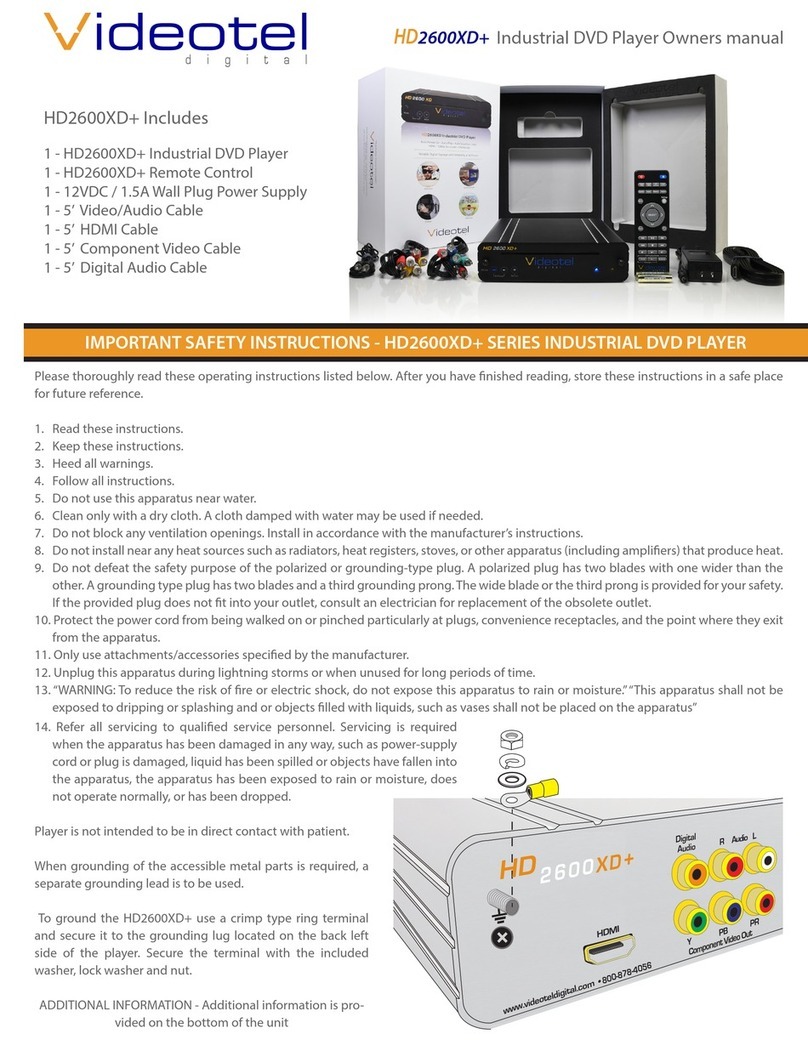
(14)
In Order: (36) All the content loaded either on an SD or USB will be played in alpha numeric order. In the
example below (37) the rst le to be played would be“Adams.mpeg”, then“Break Dancer.mov” and lastly,
“Costa Rica.mov”. Once the last le has played, the VP72 4K will automatically begin playing the rst le
and continue looping all loaded les endlessly.
Random: (38) This mode functions the same as “In Order” except all the les loaded on the SD or USB will
loop randomly.
Note: Both of these modes can be used with any combination of videos, photos and/or audio les. If you
desire to mix photos with videos and use transitions, the transitions only work on photos. Also, make
(36) (38) (40) (41)(39)
(37)
Playback Modes
(Interactive -
Instant & Delayed)
These modes would
be used if you have
an application that
requires interac-
tive video trig-
gering using one
of our solutions
(45) (PUSH, MOVE,
WAVE, SENSE, RFID,
RF PUSH and ELE-
VATE). For example:
Lets say your appli-
Push Move Wave Elevate Sense
(45)
(46)
(47)
cation requires a looping video and 3 mechanical buttons that each play a specic video (photo or au-
dio) le when pressed. First you would load 4 videos on your SD/USB (46). These les would need to be
labeled 000.mov (mov, mp4, jpg, mp3, etc..), 001.mov, 002.mov and 003.mov (47). The video le 000.mov
ging in a mouse) and moving the
cursor to the upper right corner.
Note: If the “Settings Guidelines”
(14) is checked an animated on
screen display will show settings ac-
cess instructions each time the set-
tings are saved.
Play Content From USB/SD
The VP72 4K is pre-set to play from USB or SD, which will auto power on and auto loop any video, audio
and/or photos loaded on the SD or USB drive. Once you connect the player to a TV or monitor, simply
load your video, audio and/or photo les onto any SD Card or USB drive and insert it into the player. The
order in which the les are sorted on the card (alphanumeric) is the order in which they play. Your player
will start play and continue to auto loop until power is turned o. Once power is restored the VP72 4K will
auto start and auto play without any manual interaction.
Playback Modes (In Order, Random, Schedule and Interactive)
Below is a brief description of what each File Playback Mode does. All 5 modes can be used when playing
from USB or SD.
This player has pre-loaded sample videos and is ready to test right out of the box
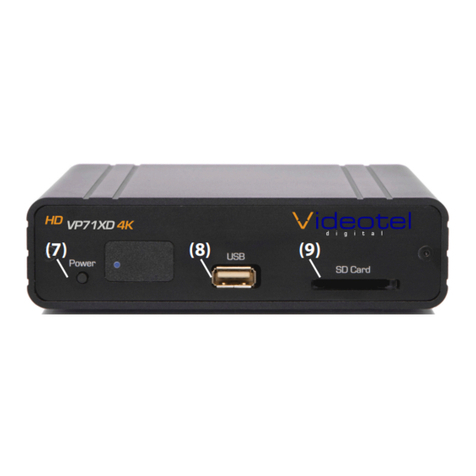
If you ordered one of our interactive solutions the SD (9) will be loaded with a looping 000.mov le and
multiple trigger les (001.mp4, 002.mov, etc.). The player will also be set to interactive mode. Simply con-
nect the VP72 4K to a TV, connect the interactive device (45) and power on the player.
System and Play Mode Settings
To access the various content playback options (in order, random, schedule or interactive) or photo play-
back options, simply remove SD/USB and when on the home screen, press the “SELECT” button. You can
also access this setting screen when videos or photos are playing buy using “mouse mode” (or by plug-
sure ONLY your desired
les are loaded on the SD/
USB. The VP72 4K will play
all content, regardless if
there are les in folders.
(48)
(50)
(51)
(52)
represents the video that will loop endlessly until either button 1
(001.mov will play), 2 (002.mov will play) or 3 (003.mov will play)
is pressed.
• Instant mode (40) will trigger a dierent video even if the
rst video has not nished playing. For example: If 3 but-
tons are available and button 2 is pressed, video 002.mov
will begin playing. If button 3 is pressed, then video 002.
mov will stop and video 003.mov will instantly play.
• Delayed mode (41) will ignore any additional button or
sensor triggers until the 1st video is nished playing. For
example: If 3 buttons are available and button 2 is pressed,
video 002.mov will begin playing, play once and then loop
the 000.mov video again. If button 3 is pressed during vid-
eo 002.mov, the VP72 4K will ignore all requests for a new
video until the 1st selected video is done playing.
Note: The le names MUST start with 3 numbers but you can
add additional verbiage after the rst 3. For example:
000 - Main Looping Video.mp4
001 - Learn More About Our Museum.mov
002.mpeg
003 - The Music Of The Wascanegi People.mp3
Playback Modes (Scheduling) (39)
This mode would be used if you wish to play specic videos at
dierent times of the day and/or week. The VP72 4K will read a
text le (48) that is loaded on your USB/SD that you create and
can edit at any time. The text le must be placed on the same