manuals.online logo
Brands
  1. Home
  2. •
  3. Brands
  4. •
  5. Wacom
  6. •
  7. Monitor
  8. •
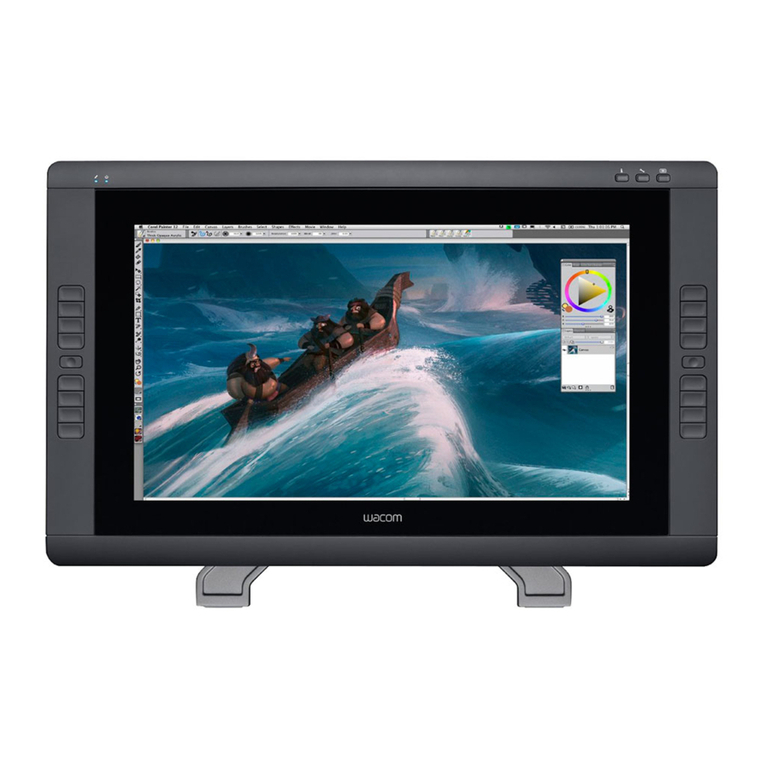
  9. Wacom DTU-1031X User manual

Wacom DTU-1031X User manual

Other manuals for DTU-1031X

1

This manual suits for next models

1

Other Wacom Monitor manuals

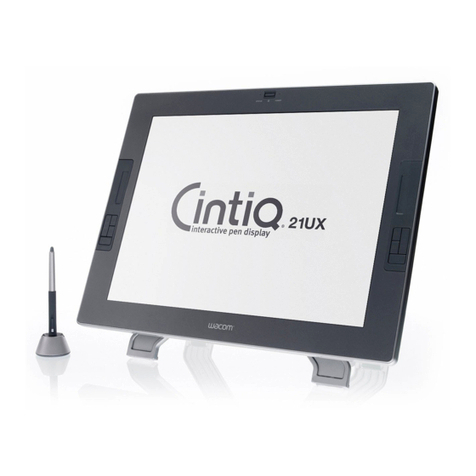
Wacom CLINIQ 21UX DTZ-2100 User manual

Wacom

Wacom CLINIQ 21UX DTZ-2100 User manual

Wacom DTI-520 User manual

Wacom

Wacom DTI-520 User manual

Wacom DTU-710 Installation instructions

Wacom

Wacom DTU-710 Installation instructions

Wacom Cintiq Pro DTH-3220 User manual

Wacom

Wacom Cintiq Pro DTH-3220 User manual

Wacom Cintiq 22HD User manual

Wacom

Wacom Cintiq 22HD User manual

Wacom DTF-510 Installation instructions

Wacom

Wacom DTF-510 Installation instructions

Wacom Cintiq 22HD User manual

Wacom

Wacom Cintiq 22HD User manual

Wacom PL Series User manual

Wacom

Wacom PL Series User manual

Wacom Cintiq 24HD User manual

Wacom

Wacom Cintiq 24HD User manual

Wacom DTF-521 series User manual

Wacom

Wacom DTF-521 series User manual

Wacom DTI-520UB User manual

Wacom

Wacom DTI-520UB User manual

Wacom Cintiq 22HD User manual

Wacom

Wacom Cintiq 22HD User manual

Wacom DTZ-2100D User manual

Wacom

Wacom DTZ-2100D User manual

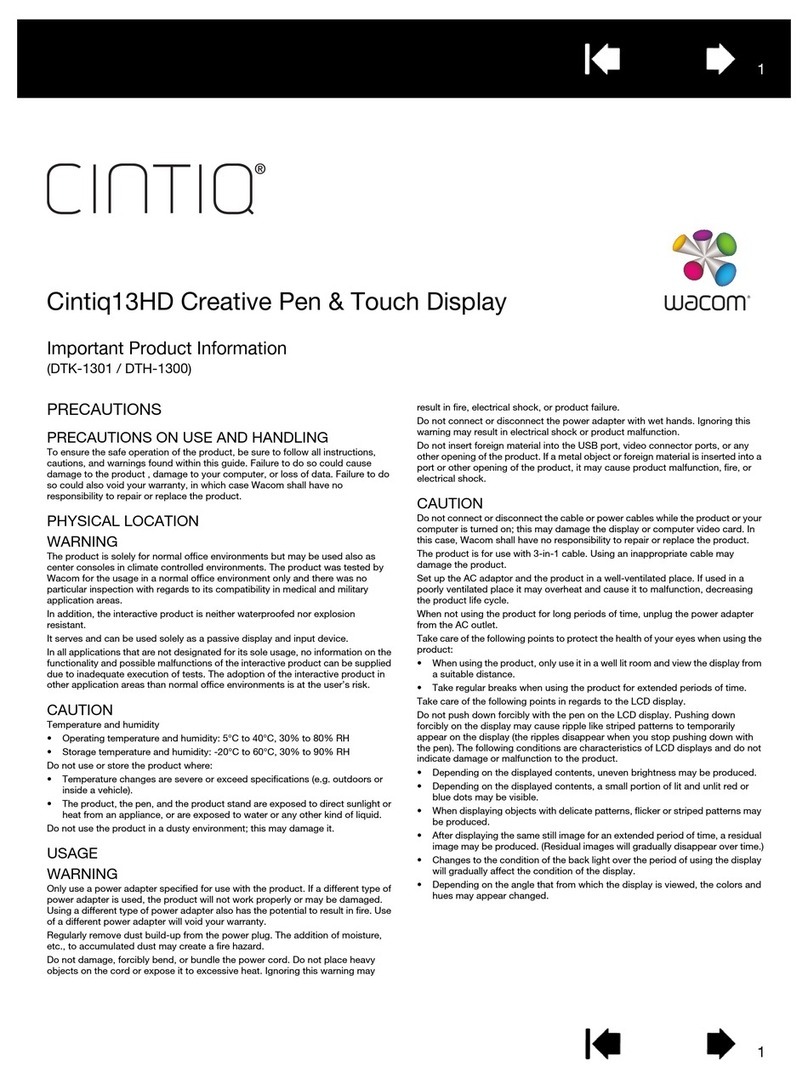
Wacom CINTIQ Cintiq13HD User manual

Wacom

Wacom CINTIQ Cintiq13HD User manual

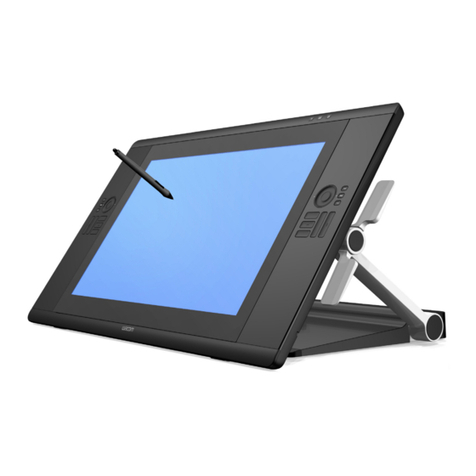
Wacom DTK-2400 User manual

Wacom

Wacom DTK-2400 User manual

Popular Monitor manuals by other brands

Samsung ME32C user manual

Samsung

Samsung ME32C user manual

ViewSonic VA926-LED user guide

ViewSonic

ViewSonic VA926-LED user guide

Furuno Mu 120c Operator's manual

Furuno

Furuno Mu 120c Operator's manual

Asus VB171D - 17" LCD Monitor Service manual

Asus

Asus VB171D - 17" LCD Monitor Service manual

AOC 9GLR Technical specifications

AOC

AOC 9GLR Technical specifications

DMG RAFFAELLO manual

DMG

DMG RAFFAELLO manual

AOC LM720 - 17" Technical specifications

AOC

AOC LM720 - 17" Technical specifications

Sony Trinitron GDM-F500 Service manual

Sony

Sony Trinitron GDM-F500 Service manual

Memorex MT1701 user guide

Memorex

Memorex MT1701 user guide

ViewSonic VE510s-4 Service manual

ViewSonic

ViewSonic VE510s-4 Service manual

Farenheit T-1503CM instruction manual

Farenheit

Farenheit T-1503CM instruction manual

Ditel DINOS DN129/AT Quick installation guide

Ditel

Ditel DINOS DN129/AT Quick installation guide

Sony SDM-S51 Specifications

Sony

Sony SDM-S51 Specifications

Kenwood DMX1025BT quick start guide

Kenwood

Kenwood DMX1025BT quick start guide

Dell S2409WFP user guide

Dell

Dell S2409WFP user guide

EverFocus EN-7517E instruction manual

EverFocus

EverFocus EN-7517E instruction manual

Dell P3222QE user guide

Dell

Dell P3222QE user guide

Panasonic TH152UX1 - 152" PLASMA TV Service manual

Panasonic

Panasonic TH152UX1 - 152" PLASMA TV Service manual

manuals.online logo
manuals.online logoBrands
  • About & Mission
  • Contact us
  • Privacy Policy
  • Terms and Conditions

Copyright 2025 Manuals.Online. All Rights Reserved.

USER’S MANUAL
Interactive Pen Display
Model:
DTU-1031and DTU-1031X Interactive Pen Display
1
IndexContents
1
IndexContents
Installation
Using the pen
Using and customizing the Radial Menu
Customizing the ExpressKeys
Application-specific settings
Troubleshooting
Technical support options
2
IndexContents
2
IndexContents
Interactive pen display
User’s Manual
Version 2.0, H1914
Copyright © Wacom Co., Ltd., 2014
All rights reserved. No part of this manual may be reproduced except for your express personal use.
Wacom reserves the right to revise this publication without obligation to provide notification of such changes.
Wacom does its best to provide current and accurate information in this manual. However, Wacom reserves the right
to change any specifications and product configurations at its discretion, without prior notice and without obligation
to include such changes in this manual.
The above year indicates when this manual was prepared. However, the date of release to the users of the manual is
simultaneous with the introduction into the market of the applicable Wacom product.
Wacom is a registered trademark of Wacom Co., Ltd.
Adobe and Reader are either registered trademarks or trademarks of Adobe Systems Incorporated in the United
States and/or other countries. Microsoft, Windows, and Vista are either registered trademarks or trademarks of
Microsoft Corporation in the United States and/or other countries. Apple, the Apple logo, and Macintosh are
trademarks of Apple Computer, Inc., registered in the U.S. and other countries.
Any additional company and product names mentioned in this documentation may be trademarked and/or registered
as trademarks. Mention of third-party products is for informational purposes only and constitutes neither an
endorsement nor a recommendation. Wacom assumes no responsibility with regard to the performance or use of
these products.
3
IndexContents
3
IndexContents
Interactive pen display
CONTENTS
About the manual 4
Navigating the manual 5
YOUR INTERACTIVE PEN DISPLAY 6
Pen display features 7
Front view 7
Rear view 8
Pen display incline options 9
Pen features 10
Pen Tether 10
INSTALLATION 11
System requirements 11
Step 1: Pen display installation 12
Step 2: Pen tablet installation 13
USB cable installation 13
Adding other display devices 14
WORKING WITH THE INTERACTIVE PEN DISPLAY 15
Ergonomics 15
Pen display orientation 15
Using the pen 16
Holding the pen 16
Positioning 16
Clicking 17
Dragging 17
Using the pen switch 18
Working with pressure sensitivity 18
Working with multiple monitors 18
Using the ExpressKeys 19
CUSTOMIZING 20
Opening the control panel 20
Control panel overview 21
Calibrating and adjusting the pen display 23
Customizing the pen 24
Adjusting tip feel and double-click 24
Advanced tip pressure settings 25
Customizing Pen mode and options 26
Customizing the ExpressKeys 27
Function settings 28
Using and customizing the Radial Menu 32
Working with Display Toggle 33
Application-specific settings 34
Creating an application-specific setting 35
Changing application-specific settings 36
Removing application-specific settings 36
TROUBLESHOOTING 37
Testing the interactive pen display 38
Testing your pen 39
Display troubleshooting 40
General display problems 40
Pen tablet troubleshooting 41
General problems 41
Windows-specific problems 44
Macintosh-specific problems 45
Technical support options 47
Obtaining driver downloads 48
APPENDIX 49
Caring for the interactive pen display 49
Replacing the pen tip 50
Using an alternate mount or stand 51
Uninstalling the interactive pen display 52
Managing preferences 53
Installing multiple tablets 54
Pen and digital ink capabilities in Windows 55
About the Windows Tablet PC Input Panel 56
Product information 57
Ordering parts and accessories 57
Warranty Service in the U.S.A. and Canada 58
Warranty Service Outside of the U.S.A.
and Canada 58
GLOSSARY 59

4
IndexContents
4
IndexContents
Interactive pen display
ABOUT THE MANUAL
This document provides quick access to information about your interactive pen display. Click on a
navigation button or highlighted word to move through the document. The information is common to
Windows and Macintosh computers. Windows screen captures are shown, unless otherwise noted.
If you are new to electronic documentation, read navigating the manual.
• Go directly to Contents or Index topics by clicking on them.
•S
MALL CAPITAL LETTERS identify the names of keyboard keys, dialog boxes, and Control Panel options.
• You can use your viewer zoom-in tool to increase the size of the page on your display screen.
• The following information is not included with this product: information about your specific computer
hardware or operating system, or information about your application software. Your best source for this
information is the set of manuals and discs that came with your hardware, operating system, or
application.
• Many applications have built-in support for pen display features (such as pressure sensitivity).
Visit Wacom’s web site to find a listing of applications that support these features (see product
information).
• For information on how best to use pen display features within a specific application, see the
instructions in that application’s manuals.
Wacom’s philosophy is to continually improve all of its products. As a result, engineering changes and
improvements are made from time to time. Therefore, some changes, modifications, and improvements
may not be covered in this document.
5
IndexContents
5
IndexContents
Interactive pen display
NAVIGATING THE MANUAL
Use the navigation controls to move through the manual:
Go to front page.
Go to table of contents.
Go to index.
Go back to previous view.
Page back, or page forward.
Adobe®Reader®provides additional tools for using and printing the manual. See the Adobe Reader help
for more information.
Contents
Index
6
6
IndexContents
IndexContents
Interactive pen display
YOUR INTERACTIVE PEN DISPLAY
This manual describes the installation and use of interactive pen display DTU-1031 or DTU-1031X.
The Wacom Control Panel enables you to customize your pen and pen display settings. To learn more, see
customizing.
Pen display features
Pen display incline options
Pen features
The following information is not included with this product: information about your specific computer
hardware or operating system, or information about your application software. Your best source for this
information is the set of manuals and discs that came with your hardware, operating system, or application.
Note: Not all product models are available in all regions.
For illustrations of the items included with your pen display, see the Quick Start Guide included in the
product box.
7
IndexContents
7
IndexContents
Interactive pen display
PEN DISPLAY FEATURES
Familiarize yourself with the features and components of your product.
FRONT VIEW
123
4
Pen Display Features
1 - Status LED
2 - Pen storage compartment
3 - Pen stand
4 - ExpressKeys
DTU-1031 ExpressKeys are shown as
1 through 4, from top to bottom
(standard Landscape mode)
The features of the DTU-1031 pen display are illustrated below and listed in the Pen Display Features box.
See Using the ExpressKeys for descriptions and a table of default ExpressKey functions.
Note: The DTU-1031X does not have ExpressKeys.
Place the pen into the storage compartment by inserting the nib end of the pen into the left side of the
compartment with the side switch up. Gently press the pen into the compartment. Take care not to damage
the pen nib.
Note: The DTU-1031 pen has a side switch, and the DTU-1031X pen does not. The DTU-1031 pen can be
used with the DTU-1031X. To obtain a DTU-1031 pen, please contact your Wacom representative.
To place the cover on the pen compartment, position the cover with the pen nib outline facing to the left.
Align the cover with the top of the pen compartment and press the cover into place.
Remove the pen by pressing on the pen tip side near the top notch to eject the opposite end from the
compartment, being careful not to damage the pen nib. Grasp the pen and remove.
The pen can also be placed upright in the pen stand, or secured to the pen display with the pen tether
provided (see Pen Tether).
1
2
3
4
Pen Display Orientation Options
• Landscape (shown) - ExpressKeys left
• Landscape Flip - ExpressKeys right
• Portrait - ExpressKeys top
• Portrait Flip - ExpressKeys bottom
8
IndexContents
8
IndexContents
Interactive pen display
REAR VIEW
The features of your pen display are illustrated below and listed in the Pen Display Features box.
You can connect a security cable to the Security slot to prevent theft.
The pen can be secured to the pen display through the pen tether holes with the pen tether provided (see
Pen Tether).
The USB port is used to connect the pen display to your computer. See Step 2: Pen tablet installation.
The leg stands can be used to incline the pen display. See Pen display incline options.
The pen display can be mounted to articulated arms or other third-party stands meeting the VESA
specification for display stands. For details, see Using an alternate mount or stand.
Pen Display Features
5 - Security lock slot
6 - Pen tether holes
7 - USB port
8 - Rubber foot
9 - Short leg stand, 15 degrees
(DTU-1031)
10 - Long leg stand, 20 degrees
(DTU-1031)
11 - VESA mount holes
Note: The DTU-1031X has one leg
stand, 18 degrees
9
IndexContents
9
IndexContents
Interactive pen display
PEN DISPLAY INCLINE OPTIONS
15° 20°
You may want to place the pen display flat on your desk while you work. However, stand legs
recessed into the back allow you to adjust your pen display to two different angles for working and
viewing. The diagram shows the location of the stand legs for the DTU-1031.
DTU-1031:
• To set the pen display to a 15-degree angle, pull out the two shorter legs.
• To set the pen display to a 20-degree angle, pull out the two longer legs.
DTU-1031X: Pull out the stand legs to set the pen display to an 18-degree angle.
10
IndexContents
10
IndexContents
Interactive pen display
PEN FEATURES
Notes:
When not in use, place the pen in the pen storage compartment or the pen stand, or lay it flat on
your desk. To maintain the sensitivity of your pen, do not store it in a position where it will rest on its
tip.
Place the pen into the storage compartment by inserting the nib end of the pen into the left side of
the compartment with the side switch up. Gently press the pen into the compartment. Take care not
to damage the pen nib.
Important: Use only a pen specified for use with your pen display. Other pens may not function properly.
Also, the pen tip is specifically designed for use with the pen display. If your pen display has a
coated surface, the tips on other pens could damage the pen display screen.
PEN TETHER
A pen tether to secure the pen to the pen display is provided. The pen is secured by threading the tether
through the hole at the end of the pen and one of the tether holes at the top of the pen display. The
attachment holes for the tether are shown in the Rear view.
Pen switch): Be sure the pen’s programmable switch is in a
convenient location where you can toggle it with your thumb
or forefinger but not accidentally press it while using the pen.
You can use the switch whenever the pen tip is within
proximity of the display screen surface; you do not need to
touch the pen tip to the display surface.
Note: The DTU-1031 pen has a side switch, and the DTU-
1031X pen does not. The DTU-1031 pen can be used with the
DTU-1031X. To obtain a DTU-1031 pen, please contact your
Wacom representative.
Pen tip (replaceable nib): The pen is activated as soon as it is
brought within proximity (5 mm/.2 inch) of the pen display
screen. This allows you to position the screen cursor without
touching the pen tip to the display screen.
When pressure is applied to the pen tip, the pen simulates a
primary mouse button click. Tip click pressure can be adjusted
in the Wacom Control Panel.