Weight Watchers PointsPlus User manual

PointsPlusTM Pedometer
USER GUIDE

HEADER GOES HERE
YOUR PointsPlusTM PEDOMETER AND ITS FEATURES ..................................................... 4
GETTING TO KNOW YOUR PointsPlus PEDOMETER ..................................................... 5
ACTIVATING YOUR PointsPlus PEDOMETER .................................................................. 6
ENTERING YOUR PERSONAL INFORMATION ................................................................. 7
HOW TO WEAR AND USE YOUR PointsPlus PEDOMETER ............................................ 9
REVIEWING PAST DAILY TOTALS .................................................................................. 14
OPERATING THE STOP WATCH ..................................................................................... 16
CHANGING YOUR PERSONAL INFORMATION ............................................................ 16
CHANGING TIME & DATE ............................................................................................... 18
BATTERY INFORMATION ................................................................................................ 19
CARING FOR YOUR PointsPlus PEDOMETER ............................................................... 21
QUICK TIPS ....................................................................................................................... 22
FCC COMPLIANCE............................................................................................................. 23
TABLE OF CONTENTS Congratulations! By purchasing this PointsPlus Pedometer, you’ve taken the first step towards
increasing your activity level and reaching your weight-loss goal.
This pedometer is designed specifically for you – here are some key features of your PointsPlus
Pedometer:
• Your personal information is programmed and stored.
• It’s the only pedometer that can show total distance, your steps taken, AND activity
PointsPlus values earned!
• Stores daily totals for up to 7 days.
• There are two different modes to earn activity PointsPlus values: ACTIVE and ALL DAY mode.
• Shows date and time.
• Includes a stop watch and alarm feature.
• Powered with a digital motion sensor which can more accurately measure your body
movement and step filter technology so that certain body movements are filtered out and
not recorded as steps.
Please consult your physician before beginning any exercise or fitness program. 3
5
4
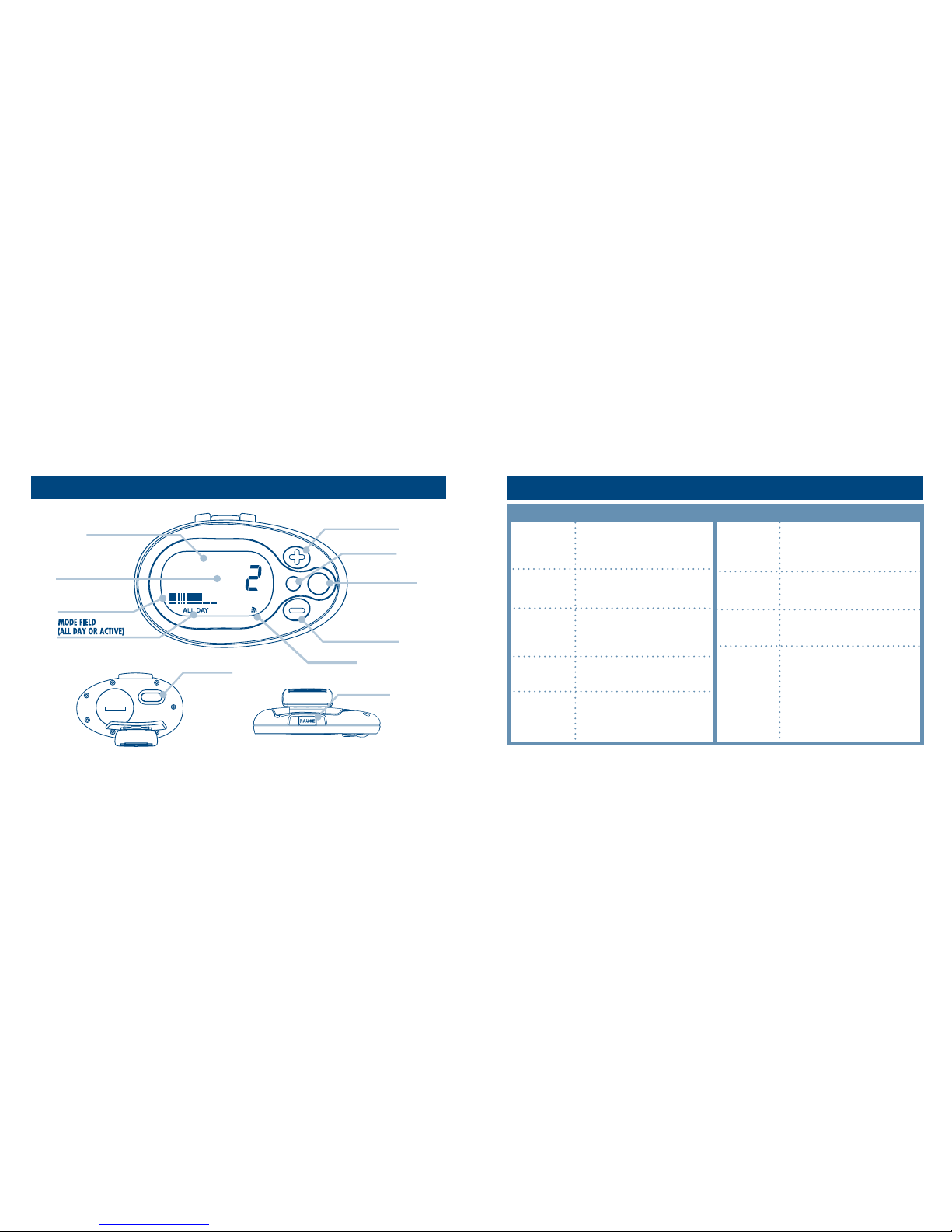
YOUR PointsPlusTM PEDOMETER AND ITS FEATURES
UPDATE BUTTON
FUNCTION FIELD
TOTALS FIELD
PROGRESS BAR
DATA BUTTON
– (DECREASE) BUTTON
+ (INCREASE) BUTTON
TOP VIEW PAUSE BUTTON
BACK VIEW
RESET
PointsPlus
RESET BUTTON ALARM ICON
GETTING TO KNOW YOUR PointsPlus PEDOMETER
BUTTONS FUNCTIONS FIELDS WHAT IT TELLS YOU
DATA
UPDATE
+ (INCREASE)
– (DECREASE)
PAUSE (ON TOP)
RESET (ON BACK)
Allows you to scroll through STEPS,
PointsPlus values, DISTANCE, STOP
WATCH, TIME and DATE screens
• Change/update personal profile
• Confirms information entered
during set-up
• Increases/decreases values during
data entry
• Scrolls through daily totals in memory
• Pauses the pedometer
• Resumes tracking
• Resets daily information (STEPS,
activity PointsPlus values, DISTANCE)
• Allows you to adjust the time/date
FUNCTION
TOTALS
PROGRESS
BAR
MODE
The information currently on
screen (STEPS, PointsPlus values,
DISTANCE, etc.)
Daily total (STEPS, PointsPlus values,
DISTANCE), stop watch, time or date
Shows your progress towards earning
an activity PointsPlus value
• Shows if you are in ACTIVE or
ALL DAY mode
• Displays alarm icon (if alarm is
activated)
• Also displays timing icon when
stop watch is running

7
6
HERE’S HOW TO DO IT:
1. First, you need to remove the battery insulator tab inside
the battery compartment. To do this, lift up the back clip
and unscrew the battery compartment door with a coin or
flat head screwdriver.
2. Remove the tab. Be sure that the battery is in the correct
position with the positive (+) side of the battery visible,
facing upwards.
3. Place the battery compartment door back into place and
tighten with a coin or flat head screwdriver.
ACTIVATING YOUR PointsPlusTM PEDOMETER ENTERING YOUR PERSONAL INFORMATION
You will need to set your personal information (height, weight, gender) to your pedometer so it
can accurately track your progress.
AFTER YOU ACTIVATE YOUR PEDOMETER, FOLLOW THESE EASY STEPS:
1. Select language (English or French) by pressing the + or
– button. Set language by pressing the UPDATE button.
2. Select units of measure (Imperial or Metric; see below for
clarification) by pressing the + or – button. Press UPDATE to
set measurement.
3. Select gender (male or female) by pressing the + or – button.
Press UPDATE to set your gender.
SET: UPDATE
Press UPDATE to set
UNITS OF MEASUREMENT:
IMPERIAL: inches, yards, miles, lbs. METRIC: centimetres, metres, kilometres, kilograms.

SET: UPDATE
10
9
8
7
6
5
4
3
2 0
1
RESET
4. Next, change the default height shown by pressing the + or
– button. Press UPDATE to set.
5. Then adjust weight by pressing the + or – button. Press UPDATE
to set your current weight.
6. Your pedometer will then ask your stride length. The pedometer will
automatically display an average length for your stride based on the
information you just entered. We suggest you select the provided stride length; to do so, press the
UPDATE button. If you would like to measure and enter your stride length, here’s how to do it:
– Walk/run 10 steps
– Measure the distance traveled, and divide by 10
– That number is your average walking/running stride length
Adjust (if necessary) by pressing the + or – button. Press UPDATE to set your stride length.
NEXT, YOU WILL NEED TO SET THE TIME AND DATE:
Adjust time format (12- or 24-hour) by pressing the + or – button. Press UPDATE to set. 9
8
• Adjust hour by pressing the + or – button, press UPDATE.
• Adjust minute by pressing the + or – button, press UPDATE.
Finally, enter the date by month, day, year. For each, press the +
or – button and press UPDATE.
Be sure that you accurately select AM or PM when you set the time and date. Because the pedom-
eter resets every night at midnight (so you can begin each day with a fresh start towards your
daily steps target), it is important AM or PM is correct so your pedometer does not reset midday.
By wearing your pedometer correctly, you will achieve more accurate results.
• The loop on the security strap simply loops around the belt clip,
which opens when you push down on its stringed end.
• Attach the pedometer securely to your belt or at your waist
level using the clip on the back of the unit.
SET: UPDATE
10
9
8
7
6
5
4
3
2 0
1
ADJUST: + or -
+ or – to adjust
UPDATE to set Adjust: + or –
HOW TO WEAR YOUR PointsPlusTM PEDOMETER

• So your pedometer is more secure, you may also use the
pedometer security strap to attach to your clothing, belt loop
or waist band. To open the clip on the end of the strap: push
the tab upward. Close the clip by pushing the tab down.
Your PointsPlusTM Pedometer is ready to use. Start walking!
Your pedometer can keep track of your activity PointsPlus values earned through walking. You can
earn activity PointsPlus values in two different ways by using ALL DAY mode and ACTIVE mode. Here is
more information on which mode to choose and when.
ALL DAY MODE
The ALL DAY mode is designed to track your regular steps that you don’t usually think of as exercise.
You’ll use ALL DAY mode in your daily life, walking the kids to the bus or down the hall to the fax
machine, for instance. You will need to take a qualifying number of steps in order to begin earning an
activity PointsPlus values. These qualifying steps are ones considered part of everyday life and
11
10
counted as part of your daily PointsPlus Target.
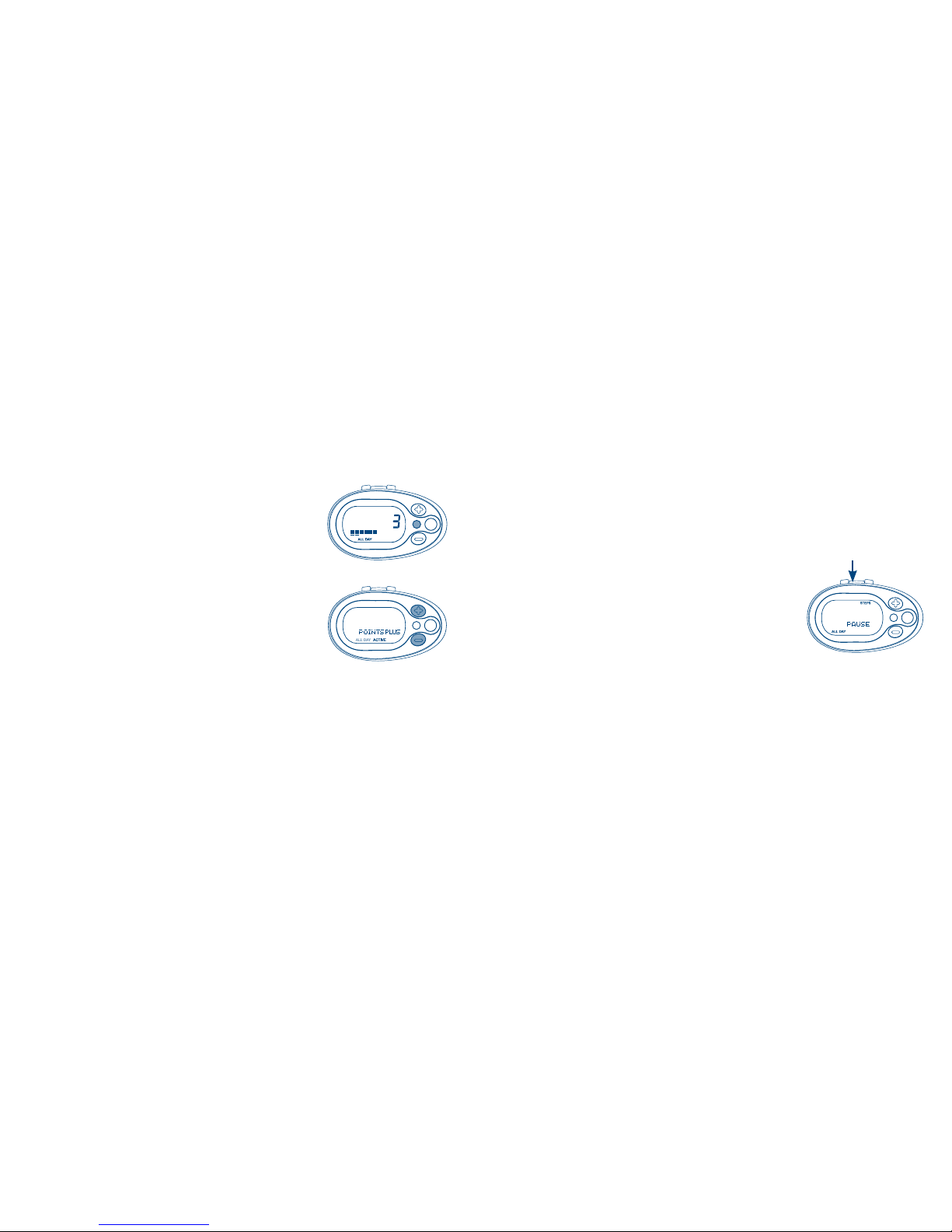
The Progress Bar at the bottom of the display will show the qualifying steps
you have taken in increments of 10% until one full activity PointsPlus
value is complete.
Once the qualifying steps have been taken, the Progress Bar will display your progress toward
earning an activity PointsPlus value! The large squares represent 10% of an activity PointsPlus
value earned and the smaller dashes below represent 1% of an activity PointsPlus value earned.
ACTIVE MODE
The ACTIVE mode is designed for those who do not want to track steps during the entire day but
just want to track the steps taken during exercise. ACTIVE mode bypasses the number of qualifying
steps required to earn an activity PointsPlus value in ALL DAY mode because in ACTIVE mode the
pedometer assumes you are already taking those qualifying steps as part of your daily life and
are using the pedometer to track only the steps/activity PointsPlus values earned for that fitness
walk. Therefore, when the pedometer is set to ACTIVE mode, you will see the Progress Bar start to
fill up indicating earned activity PointsPlus values for your fitness walk.
USING YOUR PointsPlus PEDOMETER
RESET
PROGRESS BAR
POINTS earned in
ACTIVE mode
PointsPlus
PointsPlus
Progress Bar
13
12
SWITCHING BETWEEN ACTIVE OR ALL DAY MODE:
ALL DAY mode is the default setting on the PointsPlusTM Pedometer
so you can track your steps throughout the day. To switch between
ALL DAY and ACTIVE mode:
1. Press the DATA button to get you to the activity PointsPlus value
display screen; press the UPDATE button.
2. Press + or – to choose between ACTIVE or ALL DAY. Press the
UPDATE button to select mode.
When you switch modes in the middle of the day, your accumulated
steps or PointsPlus values will be applied as follows:
• Going from ALL DAY to ACTIVE: You are awarded PointsPlus
values credit for your qualifying steps and activity PointsPlus values earned for the day.
• Going from ACTIVE to ALL DAY: PointsPlus values earned are converted to steps and
applied toward qualifying steps and PointsPlus values (if daily target has been met).
NOTE: For the most accurate results, it is recommended that you select ALL DAY or ACTIVE mode
for the entire day rather than switch between them.
PAUSING THE PEDOMETER
You may pause the unit at any time by pressing and holding the
PAUSE button on the top of the pedometer case for 2 seconds.
(PAUSE will appear in the center display field). To resume tracking,
simply press the PAUSE button again.
NOTE: Because your pedometer counts steps by detecting vibrations through the digital sensor
when your body moves, it may not be able to tell the difference when there is body movement
other than walking, such as when you are in a transportation vehicle. For this reason, it is
important to always PAUSE the pedometer when riding in any type of vehicle so that body
movement does not register any false steps.
ADJUST: + or -
PRESS UPDATE
PointsPlus
PointsPlus
Press UPDATE
Adjust: + or –
PAUSE BUTTON
PAUSE Button

15
14
The pedometer stores the steps, activity PointsPlusTM values, and distance totals from the previous
days (up to seven days, including the current day). To review past days:
• Press the DATA button to scroll to the information you would like to review
(STEPS, PointsPlus values or DISTANCE).
• When you get to the information you would like to review, press the + or – button to
review previous day totals. The day of the week (Sunday, Monday, etc.) will be displayed
in the centre display field. Since only seven days of data are stored at once, the oldest day’s
data will automatically be deleted.
• Press the DATA button to resume pedometer tracking.
NOTE: The pedometer automatically resets to a new day at 12:00 midnight and data totals will
then be available in the memory.
REVIEWING PAST DAILY TOTALS RESETTING THE CURRENT DAY’S TOTALS
Occasionally, you may want to delete your current day’s STEPS, PointsPlus values and DISTANCE totals.
In order to reset the current day’s information, follow these easy steps:
1. Scroll to either STEPS, PointsPlus values, or DISTANCE display by pressing the DATA button.
2. On the back of the pedometer, flip open the clip to view the battery compartment and reset
button. Press and hold the RESET button on the back of the pedometer.
3. The pedometer will ask you to confirm resetting, so press the
+ or – button to choose YES or NO. Then press the UPDATE button
to confirm (or not confirm) the reset. Your tracking will now start
over or continue.
NOTE: If you confirm reset, ALL TOTALS (STEPS, PointsPlus values
and DISTANCE) will be erased for that day. Any previous day’s totals
will not be affected.
SELECT YES or NO: + or -
UPDATE TO SET
Select YES or NO: + or –
UPDATE to set
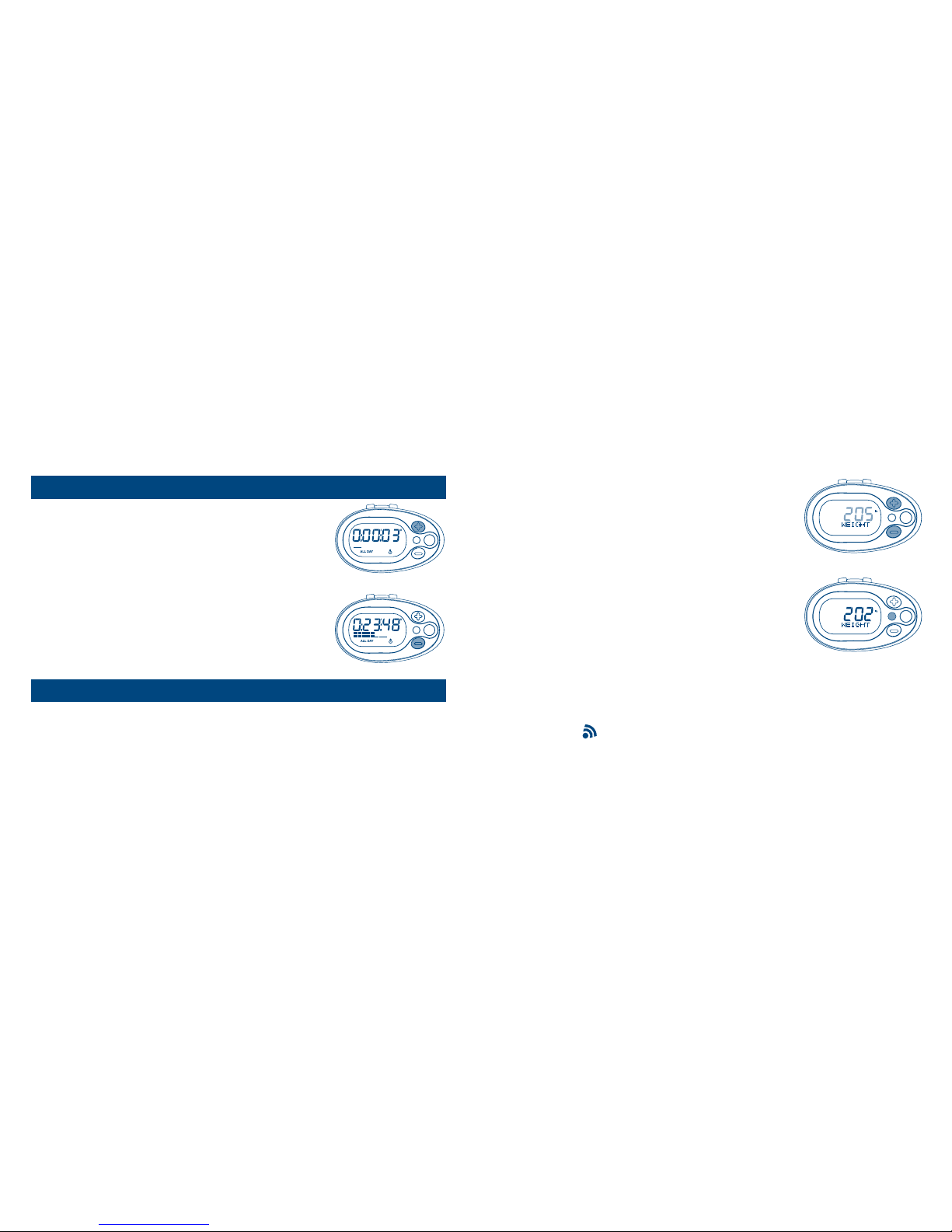
Your pedometer also features a 10-hour stop watch with
1/100-second resolution.
To use the stop watch:
1. Scroll to stop watch display by pressing the DATA button.
2. To start timing, press the + button.
3. To stop timing, press the – button.
4. To reset stop watch, press and hold the UPDATE button for
2 seconds.
As you lose weight over time, you will need to adjust your information accordingly. We also advise
that you occasionally check your stride length (see page 8) to ensure accuracy.
17
16
UPDATING YOUR INFORMATION IS EASY:
1. Press the DATA button to scroll to either STEP, PointsPlusTM
values or DISTANCE. Press UPDATE.
2. You will then need to select the mode (ACTIVE or ALL DAY) by
pressing the + or – button; press UPDATE to confirm the mode.
3. To change WEIGHT press the + or – button. Press UPDATE to
confirm or set your current weight.
4. Then, if you would like to adjust STRIDE, press UPDATE, then
press the + or – button to your new stride length. Press UPDATE
to confirm or set.
5. Finally, you can turn the ALARM ON or OFF by pressing the + or
– button. Press UPDATE to set it for ON or OFF. The ALARM is an audible signal that beeps
when you have completed all of the required steps in ALL DAY mode. The ALARM also beeps
whenever you earn a PointsPlus value in ALL DAY mode. When the ALARM is activated, the
ALARM icon ( ) will display.
NOTE: If no button is pressed for 5 seconds, the pedometer will resume operating mode.
OPERATING THE STOP WATCH
STOP TIMING: -
Press + to start timing
Press – to stop timing
CHANGING YOUR PERSONAL INFORMATION
ADJUST: + or -
SET: UPDATE
ADJUST: + or -
SET: UPDATE
Press UPDATE to set
Adjust: + or –

This device is powered by a CR 2032 3V lithium battery. Battery replacement will be required from
time to time, and should occur when:
• The display fades in part or completely.
• Your pedometer does not respond to button presses
or is not operating properly.
TO INSTALL OR REPLACE THE BATTERY:
1. Using a coin or flat head screwdriver, turn the battery door on
the back of the unit counterclockwise until the door comes free.
2. Be careful not to damage the O-ring seal for the battery
compartment and carefully remove the old battery.
3. Place the new battery in the battery compartment with the
positive (+) side facing upward toward the battery door.
CHANGING THE TIME:
1. Scroll to the TIME display by pressing the DATA button.
2. Flip open the back clip to expose the reset button. Press RESET
to change the time on your pedometer.
3. If you want to adjust the time format (12- or 24-hour), press
the + or – button to change. To keep format, press UPDATE.
4. You can then adjust the hour by using the + or – button.
Press UPDATE to change hour. Then, you can update the
minute by pressing + or –. Press UPDATE to reset to new time.
CHANGING THE DATE:
1. Scroll to the DATE display by pressing the DATA button.
2. Press the reset button on back of the pedometer.
3. Adjust month by pressing the + or – button. Set by pressing UPDATE.
4. Adjust day by pressing the + or – button. Press UPDATE to change the date.
19
18
ADJUST: + or -
UPDATE TO SET
BATTERY INFORMATIONCHANGING TIME & DATE
UPDATE to set
Adjust: + or –
Other manuals for PointsPlus
8
Table of contents
Other Weight Watchers Pedometer manuals