manuals.online logo
Brands
  1. Home
  2. •
  3. Brands
  4. •
  5. Weldex
  6. •
  7. Security Camera
  8. •
  9. Weldex WDP-17S05MF User manual

Weldex WDP-17S05MF User manual

Other Weldex Security Camera manuals

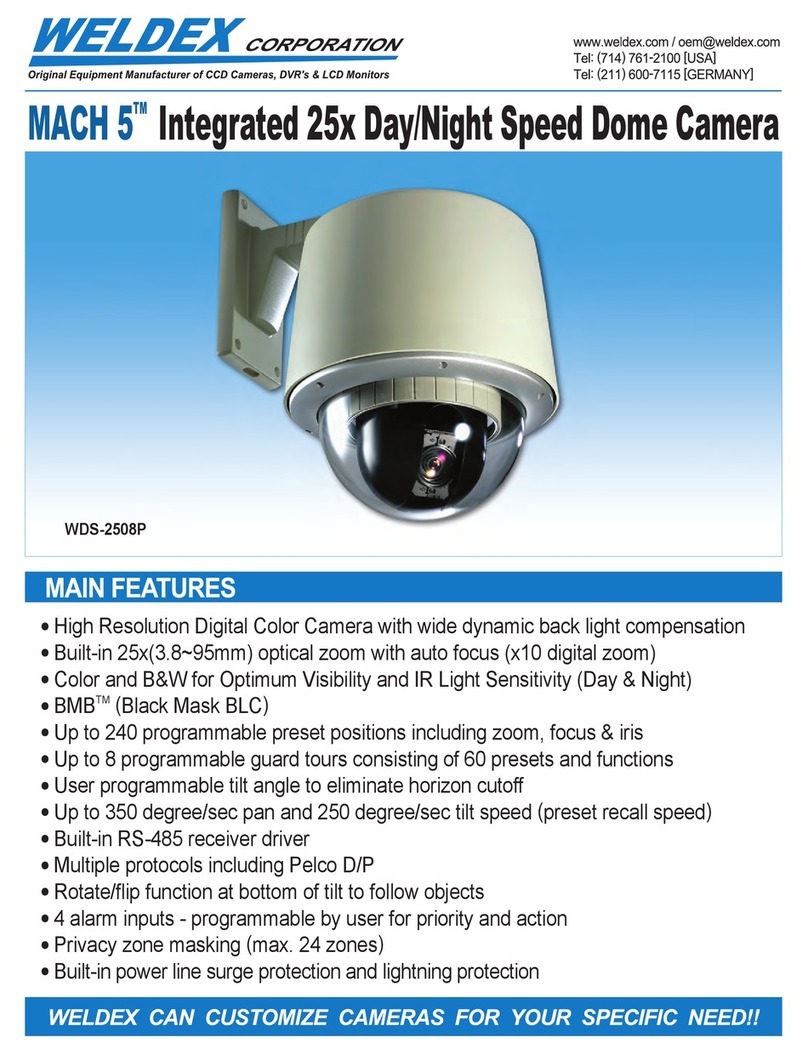
Weldex WDS-2508P User manual

Weldex

Weldex WDS-2508P User manual

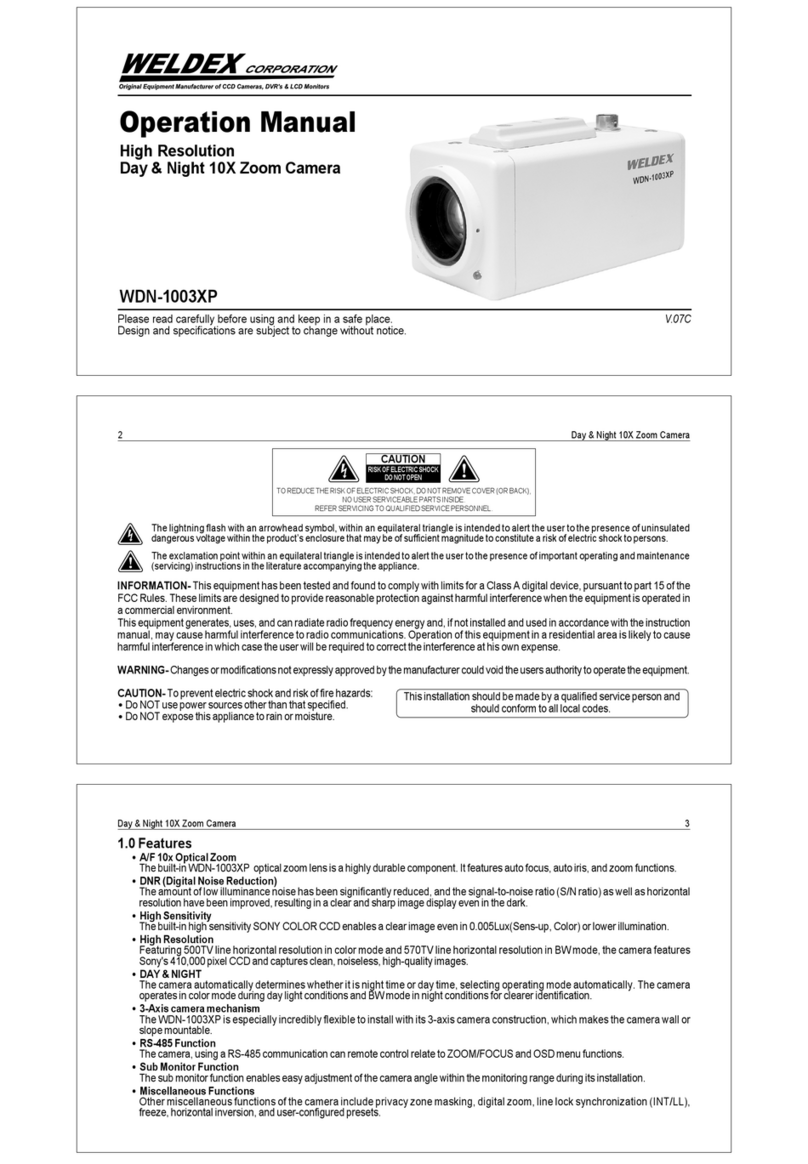
Weldex WDN-1003XP User manual

Weldex

Weldex WDN-1003XP User manual

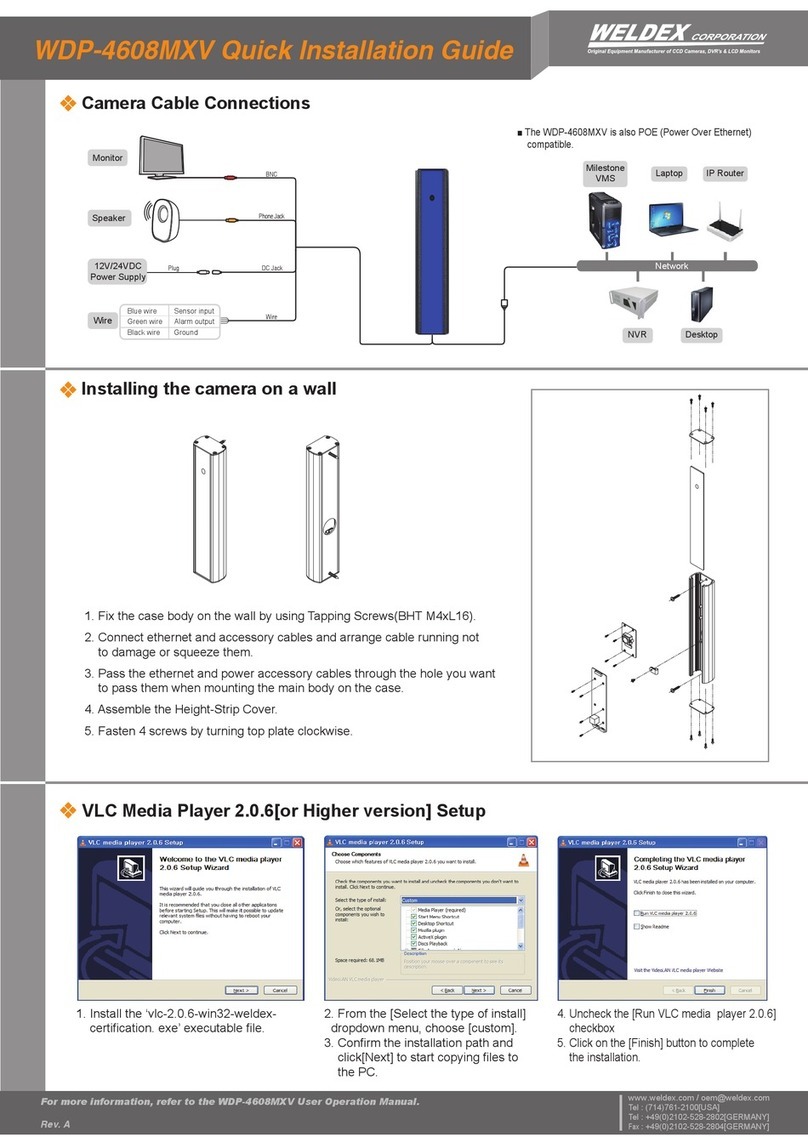
Weldex WDP-4608MXV User manual

Weldex

Weldex WDP-4608MXV User manual

Weldex WDS-3712P User manual

Weldex

Weldex WDS-3712P User manual

Weldex WDDS-1200S User manual

Weldex

Weldex WDDS-1200S User manual

Weldex WDN-5777C User manual

Weldex

Weldex WDN-5777C User manual

Weldex WDS-1010P User manual

Weldex

Weldex WDS-1010P User manual

Weldex WDN-2508X User manual

Weldex

Weldex WDN-2508X User manual

Weldex WDB-3490DN User manual

Weldex

Weldex WDB-3490DN User manual

Weldex WDD-2977C User manual

Weldex

Weldex WDD-2977C User manual

Weldex WDB-5655VDN User manual

Weldex

Weldex WDB-5655VDN User manual

Weldex WDAC-2308X Series User manual

Weldex

Weldex WDAC-2308X Series User manual

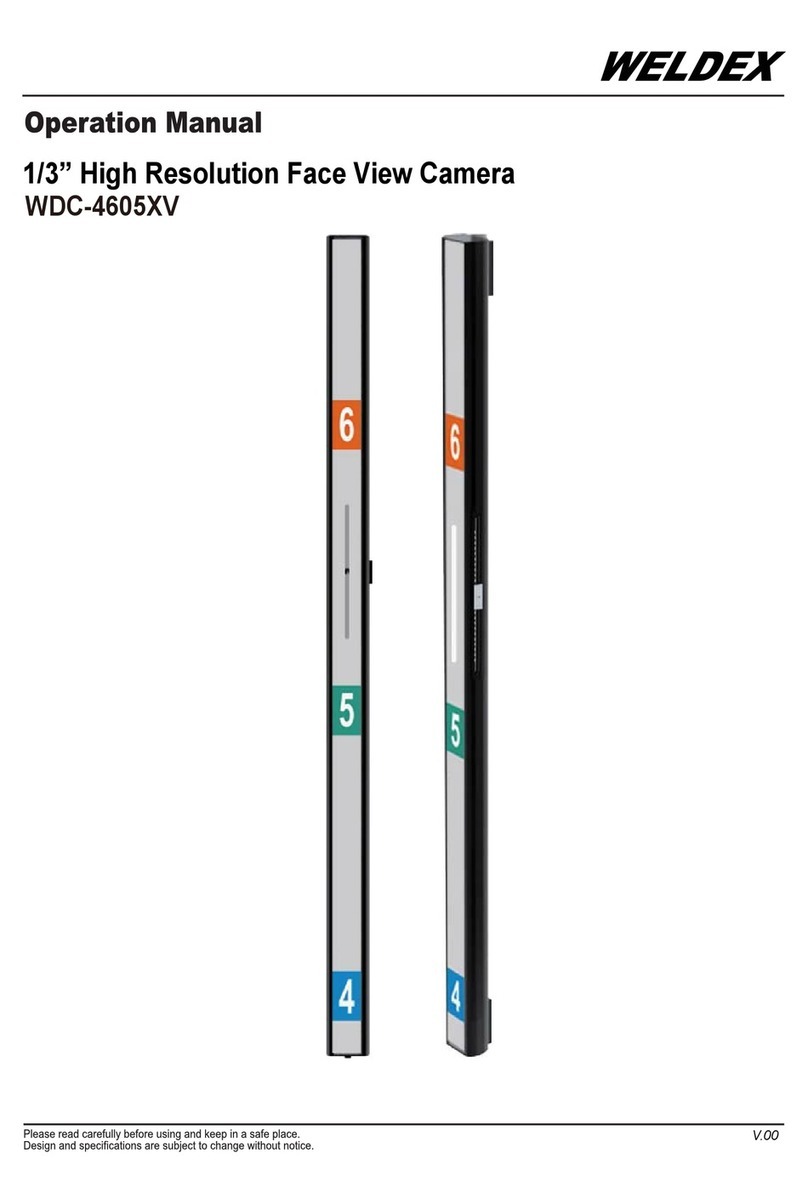
Weldex WDC-4605XV User manual

Weldex

Weldex WDC-4605XV User manual

Popular Security Camera manuals by other brands

ADEMCO RapidDome Owners Operating & Installation Guide

ADEMCO

ADEMCO RapidDome Owners Operating & Installation Guide

EverFocus EBA2880 user manual

EverFocus

EverFocus EBA2880 user manual

Honeywell OptiCAM-IR Installation and setup guide

Honeywell

Honeywell OptiCAM-IR Installation and setup guide

Uniq UC-600 user manual

Uniq

Uniq UC-600 user manual

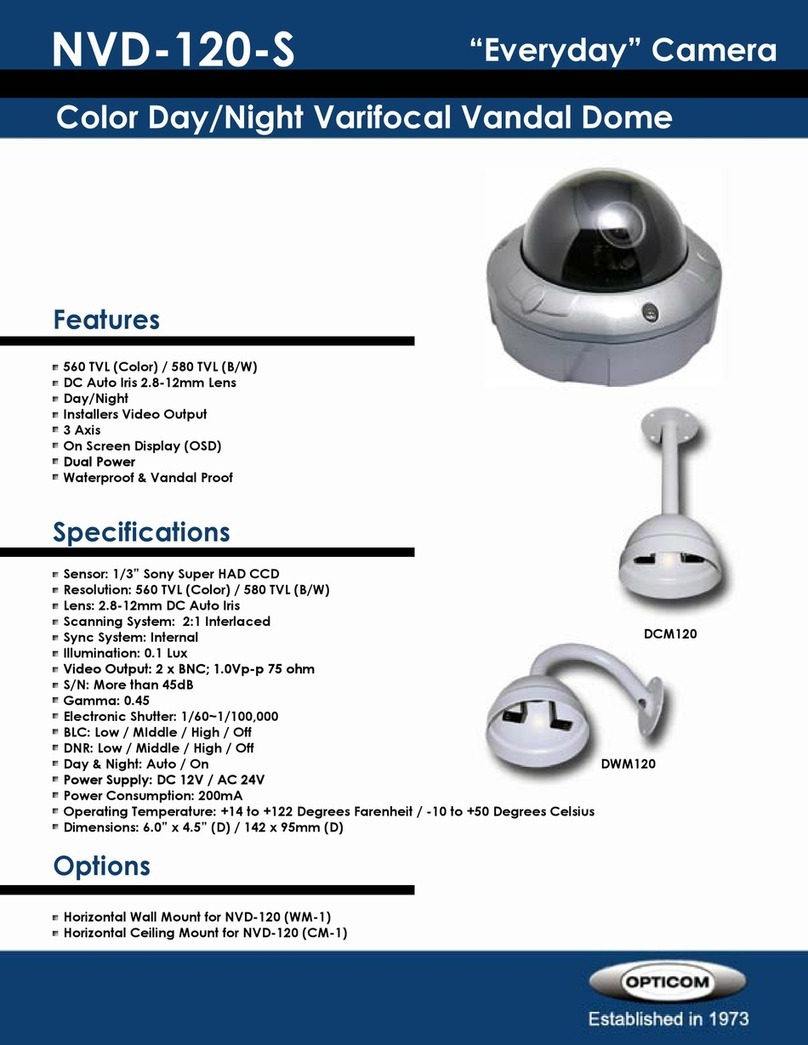
OPTICOM NVD-120-S datasheet

OPTICOM

OPTICOM NVD-120-S datasheet

Steren CCTV-221 instruction manual

Steren

Steren CCTV-221 instruction manual

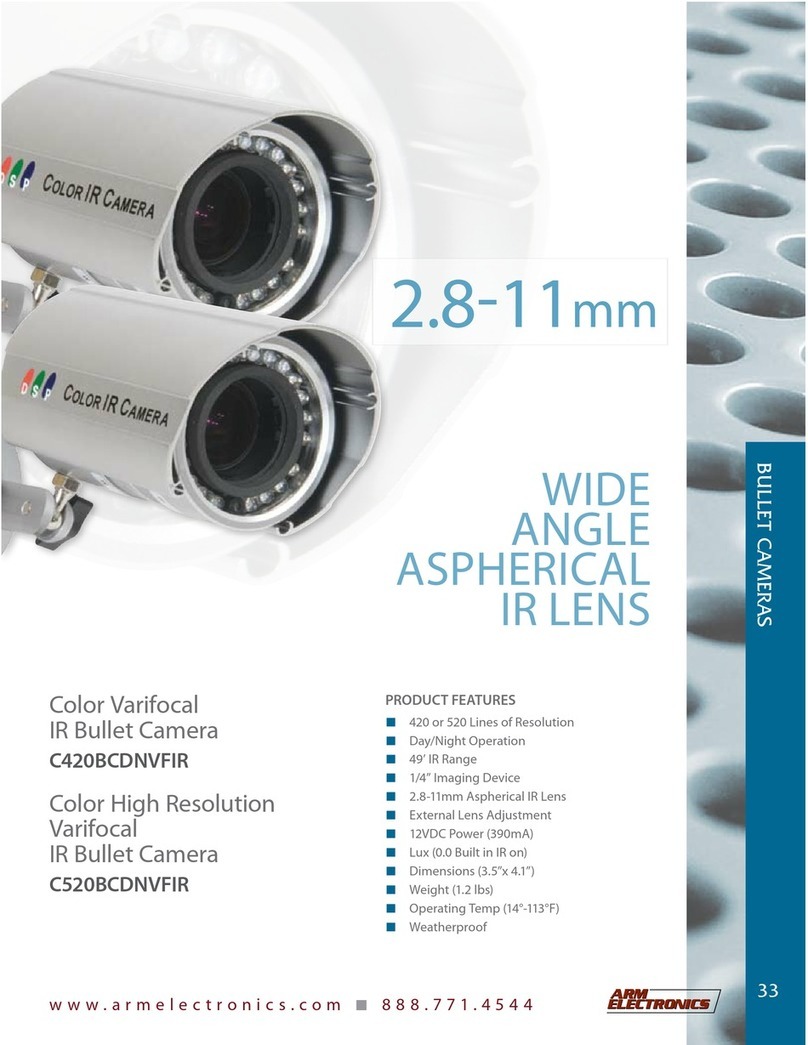
Arm Electronics C420BCDNVFIR Features

Arm Electronics

Arm Electronics C420BCDNVFIR Features

Eneo PLD-2036PTZ installation guide

Eneo

Eneo PLD-2036PTZ installation guide

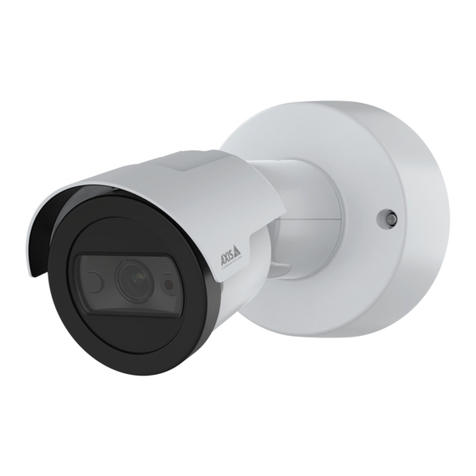
Axis AXIS M20 Series installation guide

Axis

Axis AXIS M20 Series installation guide

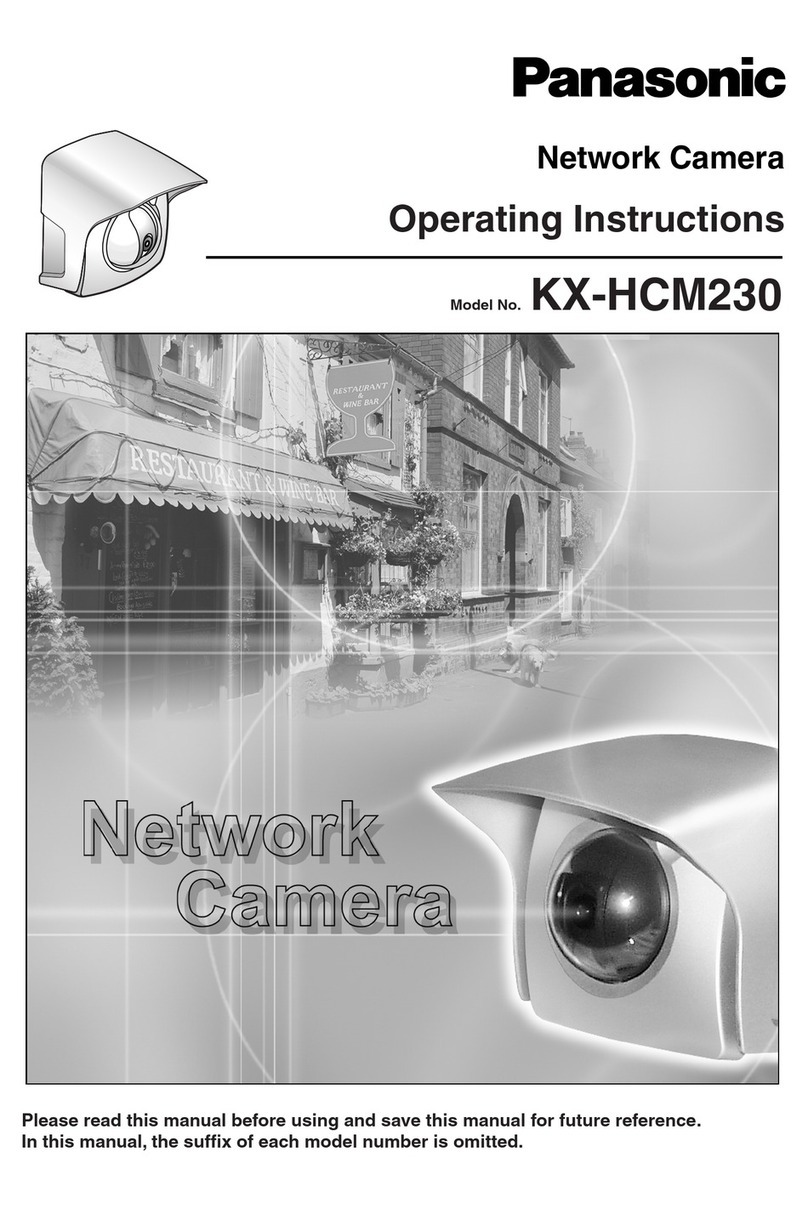
Panasonic KX-HCM230 operating instructions

Panasonic

Panasonic KX-HCM230 operating instructions

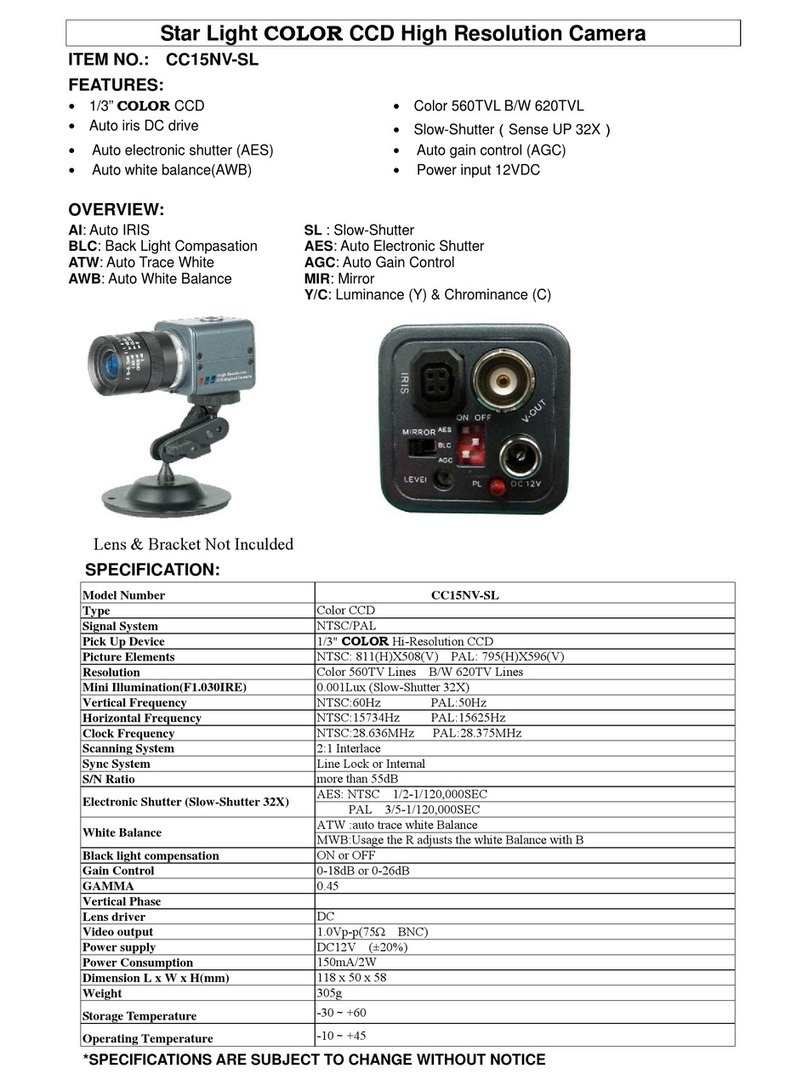
COP-USA CC15NV-SL Specifications

COP-USA

COP-USA CC15NV-SL Specifications

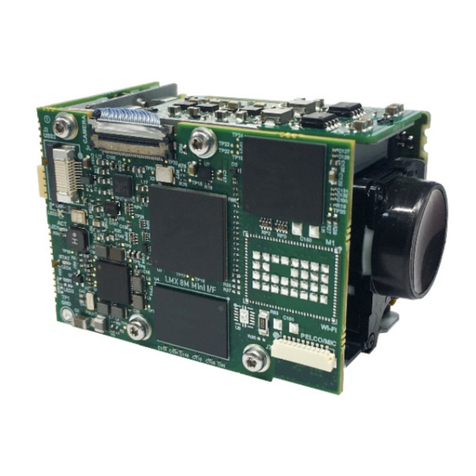
Active Silicon HARRIER H.264 quick start guide

Active Silicon

Active Silicon HARRIER H.264 quick start guide

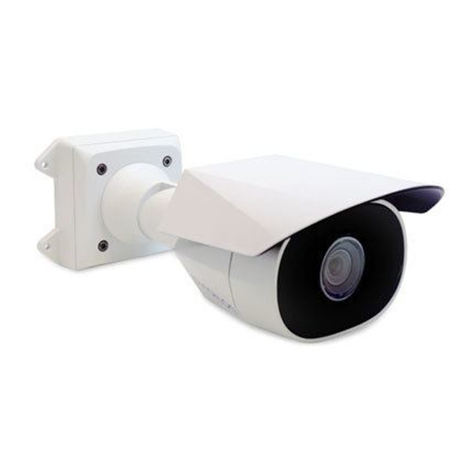
Motorola Avigilon 1.3C-H5SL-BO1-IR installation guide

Motorola

Motorola Avigilon 1.3C-H5SL-BO1-IR installation guide

INSTEON 2864-232 user manual

INSTEON

INSTEON 2864-232 user manual

Wisenet XNB-6002 quick start guide

Wisenet

Wisenet XNB-6002 quick start guide

Axis M5525-E user manual

Axis

Axis M5525-E user manual

Vitek VTC-IR62NZ922 user guide

Vitek

Vitek VTC-IR62NZ922 user guide

Panasonic WV-SF342 Specifications

Panasonic

Panasonic WV-SF342 Specifications

manuals.online logo
manuals.online logoBrands
  • About & Mission
  • Contact us
  • Privacy Policy
  • Terms and Conditions

Copyright 2025 Manuals.Online. All Rights Reserved.

Camera Cable Connections
Alarm output
12V/24VDC
Power Supply
Phone Jack
Wire
Plug DC Jack
Milestone
VMS
■The WDP-17S05MF is also POE(Power Over Ethemet)
compatible.
Laptop
Speaker
Wire
IP Router
③Click Search on the IPScan window.
④Click the row of the device you wish to configure.
⑤Click the IP Setup icon.
⑥Enter the admin’s password. default password is [admin]
NVR Desktop
1. Install the ‘vlc-2.0.6-win32-weldex-certification.
exe’ executable file.
4. Uncheck the [Run VLC media player 2.0.6] checkbox
5. Click on the [Finish] button to complete the installation.
2. From the [Select the type of install] dropdown
menu, choose [custom].
3. Confirm the installation path and
click[Next] to start copying files to the PC.
For more information, refer to the WDP-17S05MF User Operation Manual.
Rev. A
VLC Media Player 2.0.6[or Higher version] Setup
①Install the latest ‘IPScan software’ executable file.
IP Scan Software Setup
Network
WDP-17S05MF Quick Installation Guide
②Run the IP Scan shortcut icon on main screen.
Change the Camera’s Network settings
www.weldex.com / [email protected]
Tel : (714)761-2100[USA]
Tel : +49(0)2102-528-2802[GERMANY]
Fax
: +49(0)2102-528-2804[GERMANY]
Ground
⑦If you want to change IP address, enter a valid IP address, Subnet mask, and Gateway.
⑧You can select the IP service type such as DHCP, Static IP.
⑨Click Apply icon and wait for 30 seconds.
⑩Click Web Browser icon.
⑤ ⑩
⑥⑧
⑨
Blue wire
Green wire
Black wire
Sensor input
③
⑪You will be prompted to enter an username and password.
default username is [admin] and default password is [admin].
⑫After a successful login, the WEB Viewer screen will be displayed
in your web browser.
▪Default Resolution : 1280x720
640x480, 800x480, 800x600, 1024x768, 1280x720, 1280x1024, 1920x1080
▪Frame rate : 1 ~ 30
▪Bit Rate Control : CBR / VBR
▪Bit Rate : 2Mbps ~ 10Mbps
Default 4Mbps
▪GOP : 1 ~ 90 default 30
▪Default Resolution : 1280x720
640x480, 800x480, 800x600, 1024x768, 1280x720, 1280x1024, 1920x1080
▪Frame rate : 1 ~ 30
▪MJPEG Quality : 5 ~ 95
Default : 75
H.264, MJPEG Video Stream values can be configured
independently of each other.
Access the IP Camera Setup page on Web Viewer
Maintenance Setup
Video Profile Setup
Use this page to perform firmware upgrade, import/export settings, restore factory
default and reboot the device.
For software download, refer to below website address.
https://downloads.weldex.com
▪ Import Setup
Click on the [
BROWSE
] button and select
the configuration file [sysenv.cfg] from the
connected PC.
Click [IMPORT] to apply the configuration
file settings.
after a few seconds, the device will reboot.
▪ Upgrade Setup
Click [
BROWSE
] icon and select the firmware
file as above picture.
Click [UPGRADE] icon to start the upgrade
process.
The upgrade progress bar will display the
status of the upgrade.
after a few minutes, the device will reboot.
After a successful upgrade, [Complete]
message window will pop-up.
Software Download
WDP-17S05MF Quick Installation Guide
Web Viewer Login
For more information, refer to the WDP-17S05MF User Operation Manual.
Rev. A
www.weldex.com / [email protected]
Tel : (714)761-2100[USA]
Tel : +49(0)2102-528-2802[GERMANY]
Fax
: +49(0)2102-528-2804[GERMANY]
H.264, MJPEG Video Stream values can be configured independently of each other.
⑪