manuals.online logo
Brands
  1. Home
  2. •
  3. Brands
  4. •
  5. XAC
  6. •
  7. Touch Terminal
  8. •
  9. XAC FD-400TiC User manual

XAC FD-400TiC User manual

Other XAC Touch Terminal manuals

XAC 170R User manual

XAC

XAC 170R User manual

XAC FD400GTSL User manual

XAC

XAC FD400GTSL User manual

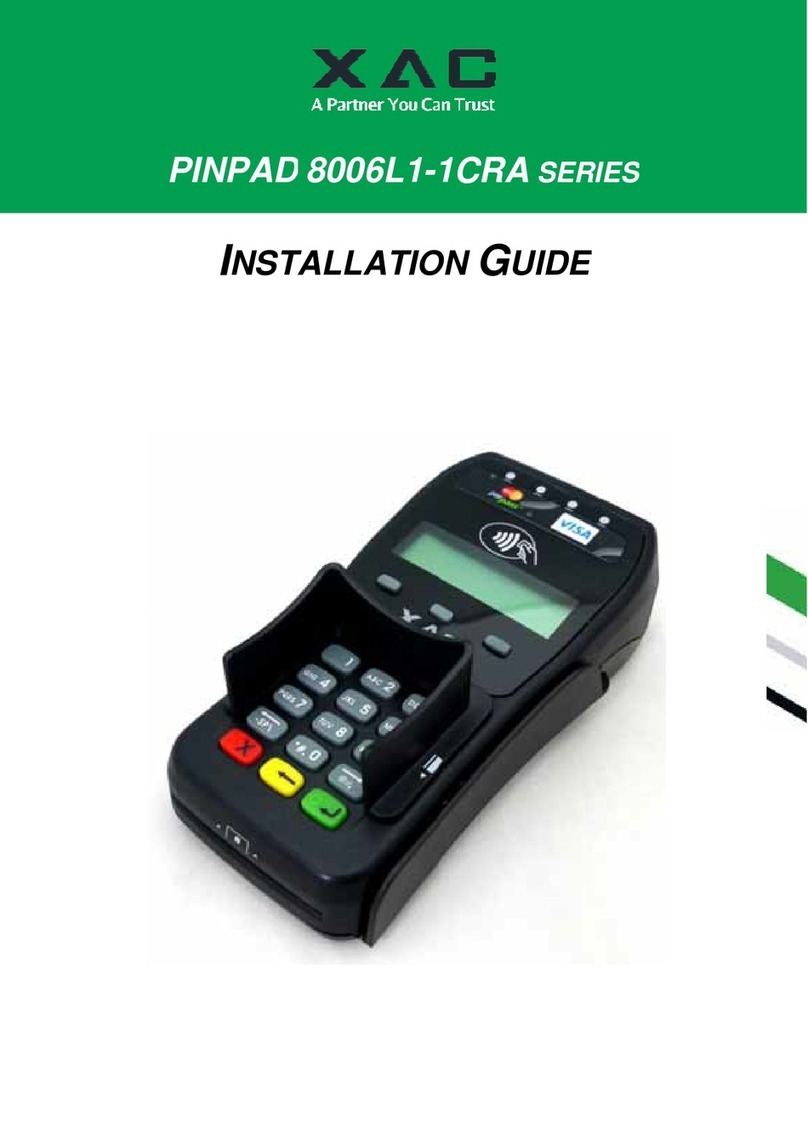
XAC PINPAD 8006L1-1CRA Series User manual

XAC

XAC PINPAD 8006L1-1CRA Series User manual

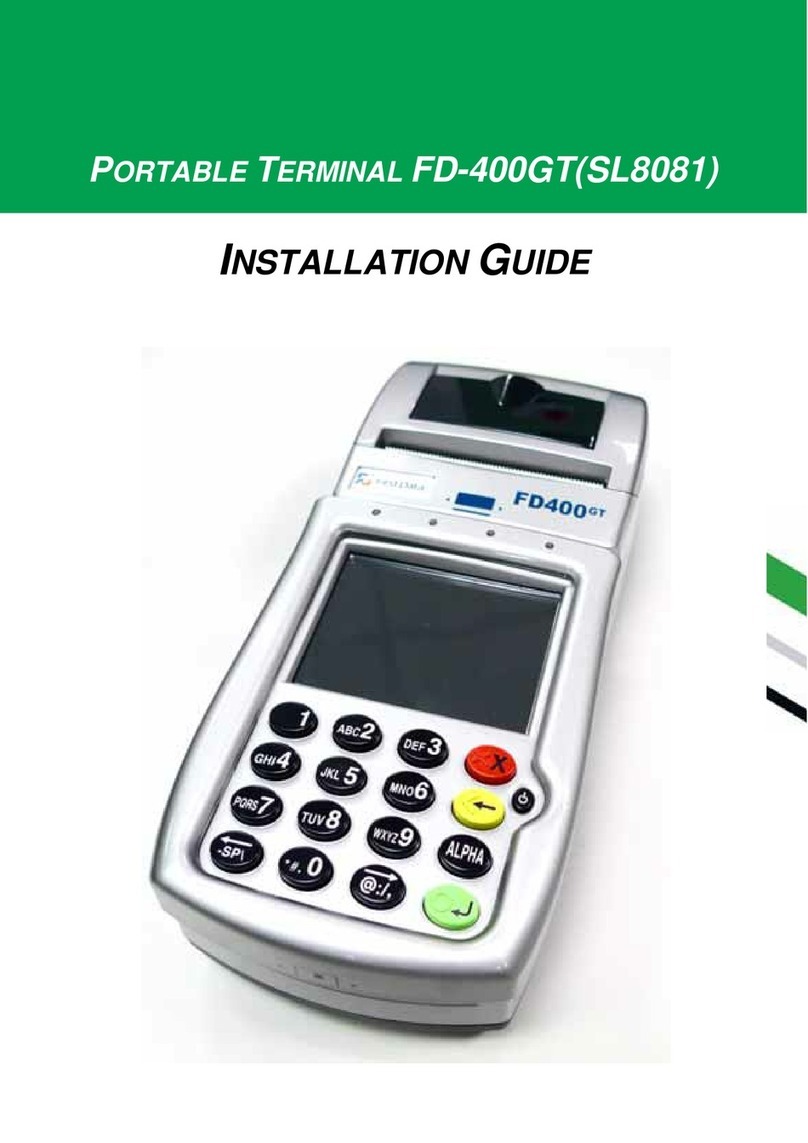
XAC FD-400GT User manual

XAC

XAC FD-400GT User manual

XAC xCE_E200I-15YXF User manual

XAC

XAC xCE_E200I-15YXF User manual

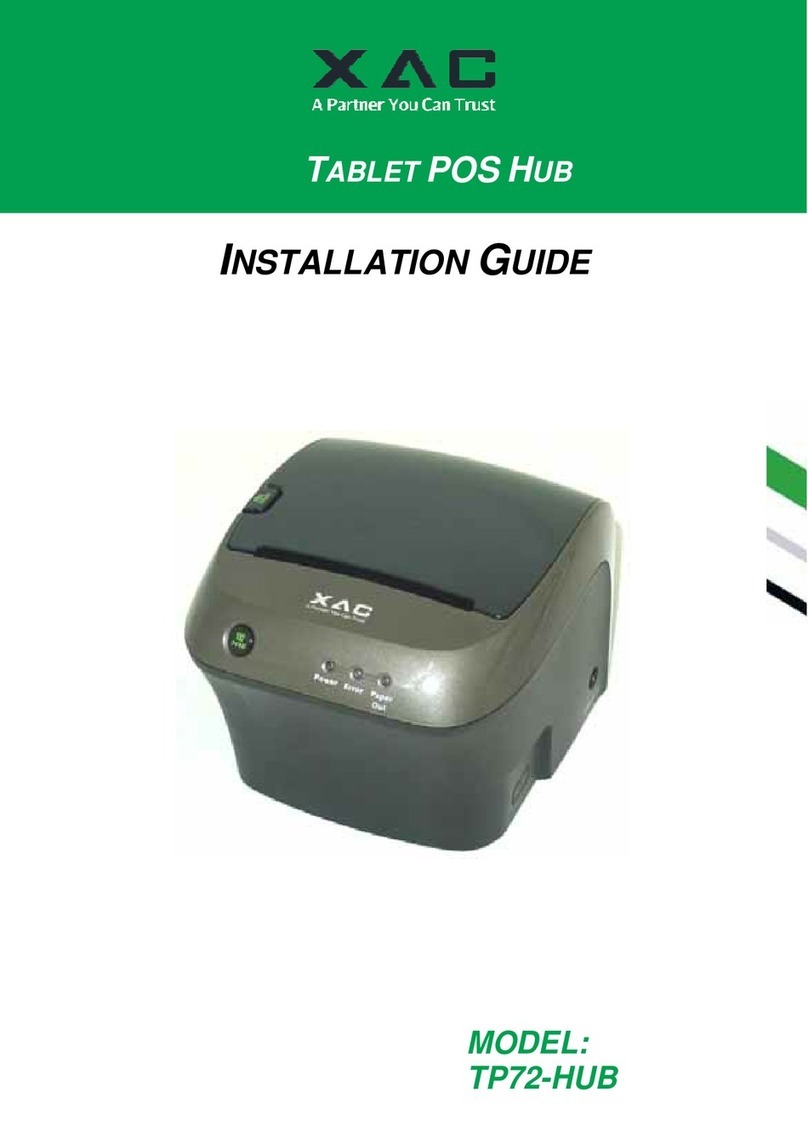
XAC TP72-HUB User manual

XAC

XAC TP72-HUB User manual

XAC XCL AT-100 SERIES User manual

XAC

XAC XCL AT-100 SERIES User manual

XAC xCE-200WU-UH User manual

XAC

XAC xCE-200WU-UH User manual

XAC xCE-200T.3GxCE-E200T.3G User manual

XAC

XAC xCE-200T.3GxCE-E200T.3G User manual

Popular Touch Terminal manuals by other brands

Omron NT11S Operation manual

Omron

Omron NT11S Operation manual

Partner SP-820 user manual

Partner

Partner SP-820 user manual

BBPOS WisePad 2 instruction manual

BBPOS

BBPOS WisePad 2 instruction manual

Anywire ASLINKAMP L-A1AW Series Product guide

Anywire

Anywire ASLINKAMP L-A1AW Series Product guide

Festo VIFB4 Series Brief description

Festo

Festo VIFB4 Series Brief description

Linksz CMDA FWT-8828 user manual

Linksz

Linksz CMDA FWT-8828 user manual

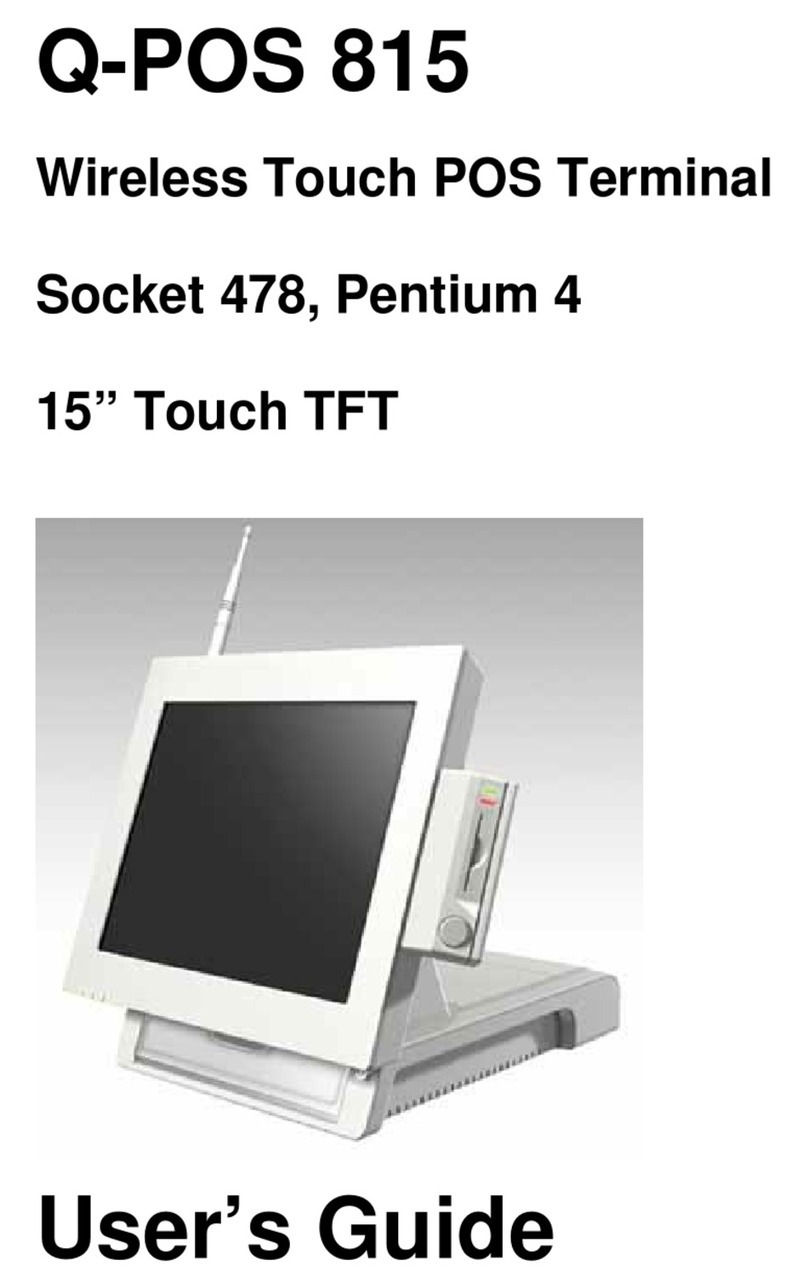
Heisei Electronics Q-POS 815 user guide

Heisei Electronics

Heisei Electronics Q-POS 815 user guide

ANUBIS POS50 Series quick guide

ANUBIS

ANUBIS POS50 Series quick guide

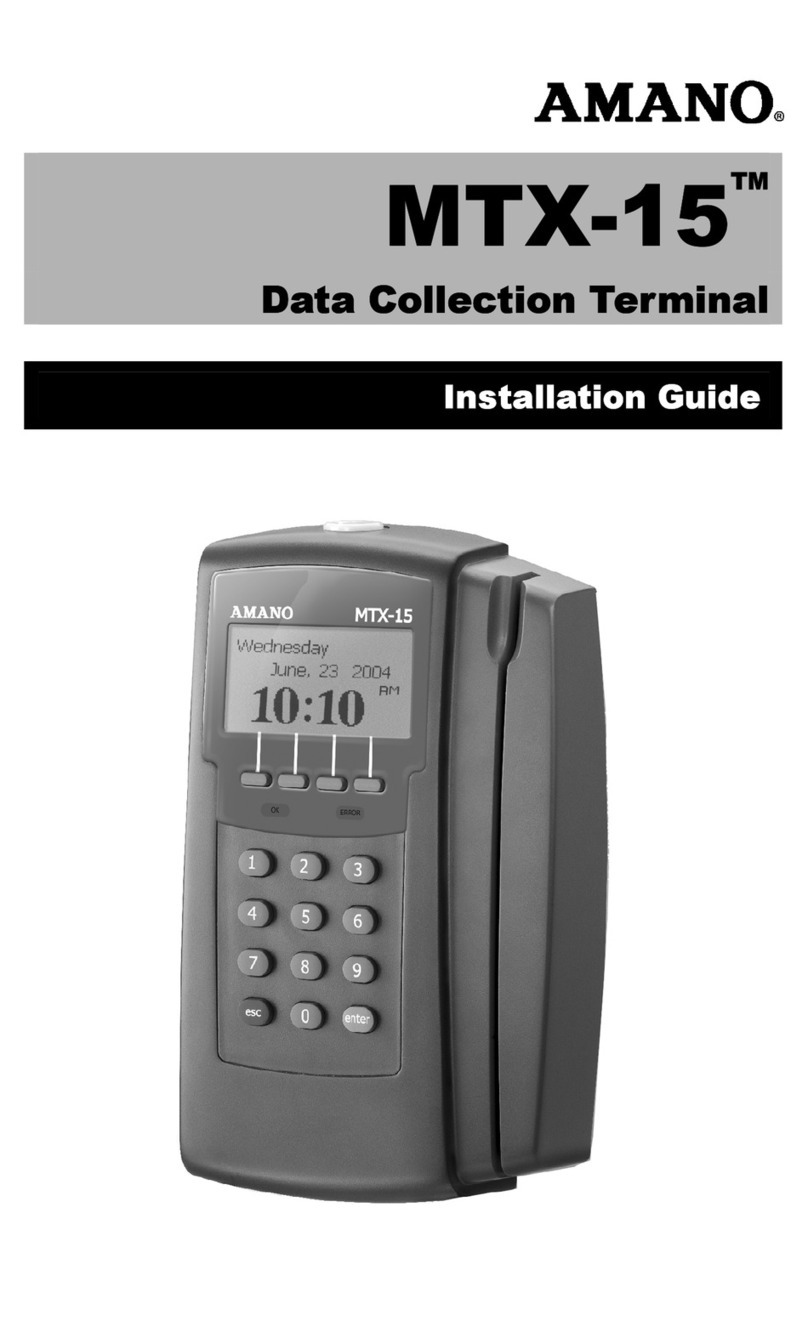
Amano MTX-15 installation guide

Amano

Amano MTX-15 installation guide

FLOWBIRD CWT Compact Touch manual

FLOWBIRD

FLOWBIRD CWT Compact Touch manual

Demco SP7 installation guide

Demco

Demco SP7 installation guide

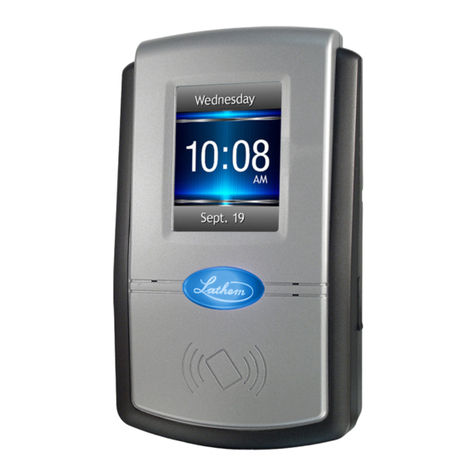
Lathem PC600 Series user guide

Lathem

Lathem PC600 Series user guide

Partner MF-2352 user manual

Partner

Partner MF-2352 user manual

NCR RealPOS 7460-2 supplementary guide

NCR

NCR RealPOS 7460-2 supplementary guide

Simrad MS50 Manual guide

Simrad

Simrad MS50 Manual guide

Unitech MR350 MKII Software guide

Unitech

Unitech MR350 MKII Software guide

Jungheinrich WMT 210 Service manual

Jungheinrich

Jungheinrich WMT 210 Service manual

Motorola MTP850 user guide

Motorola

Motorola MTP850 user guide

manuals.online logo
manuals.online logoBrands
  • About & Mission
  • Contact us
  • Privacy Policy
  • Terms and Conditions

Copyright 2025 Manuals.Online. All Rights Reserved.

XAC Automation Corporation
886-3-577-2738
www.xac.com.tw
The above information is the exclusive intellectual property of XAC Automation Corporation
and shall not be disclosed, distributed or reproduced without permission of XAC Automation
Corporation.
XAC AUTOMATION CORP. shall not be held liable for technical and editorial omissions or
errors made herein; nor for incidental or consequential damages resulting from the furnishing,
performance or use of his material.
This document contains proprietary information protected by copyright. All rights are reserve.
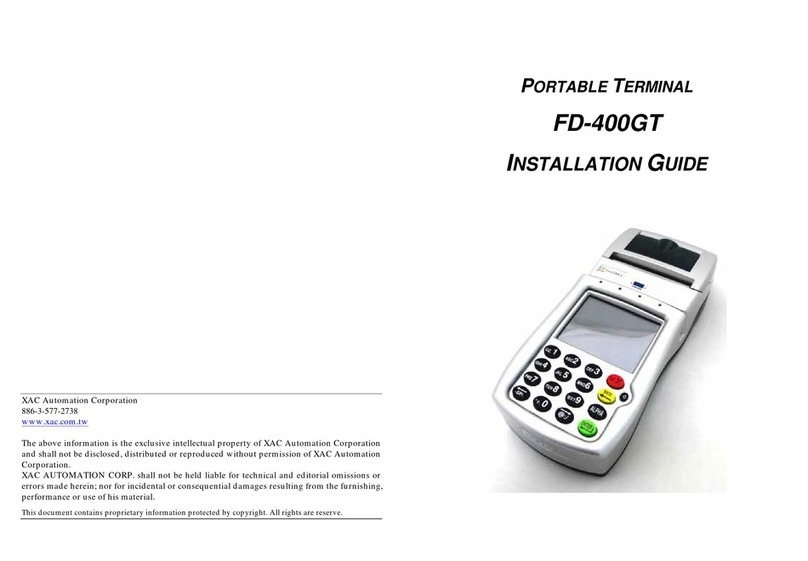
PORTABLE TERMINAL
FD-400TiC
INSTALLATION GUIDE

Warning: If the device, FD400TiC, is used without the detachable privacy shield, the
following criteria needs to be met by the Installed Environment of the PED for
complying with the PCI privacy screen design requirement:
A. Positioning of the PED on the check-standin such way as to make visual
observation of the PIN-entry process infeasible.
Visual shields designed into the check-stand.
Position the PED so that it is angled in such a way to make PIN spying
difficult.
B. Pop-up (temporary) privacy shield attached to the PED mounting stand.
Consumer (through education & prompting) or merchant would put the shield
in place during PIN entry.
C. Installing PED on an adjustable stand that allows consumers to swivel the
terminal sideways and/or tilt it forwards/backwards to a position that makes
visual observation of the PIN-entry process difficult.
D. Positioning of in-store security camerassuch that the PIN-entry keypad is not
visible.
E. Instructing the cardholder regarding safe PIN-entry, done with a combination of:
Signage on the PED.
Prompts on the display, possiblywith a "click-through" screen.
Potentially literature at the point ofsale.
A logo for safe PIN-entry process.
Table A1: Matrix of Observation Corridors and PIN Protection Method
Observation Corridors
Method Cashier
Customers
in Queue Customers
Elsewhere On-Site
Cameras Remote
Cameras
PED Stand A M H L L L
PED Stand B H H H L M
Check-Stand A L M M L H
Check-Stand B H H M H H
Customer Instruction H* H* H* H* H*
zCustomer Instruction methods are less repeatable and therefore should be used in
combination with other methods. L= low, M= medium, H= high.
1. BEFORE STARTING
There are two holes under a plastic cover on the left side of
terminal (Figure 1). One is a power jack; the other is an USB
programmable port (Figure 2). Rechargeable battery is on the
back side of terminal (Figure 3).
Adapter spec:
DELTA_ADP-36JH B
Input: 100-240Vac, 50/60Hz 1A Output: 12Vdc, 3A
Operating Temperature: 0oC to 40oC
Battery pack: CHENG UEI / FD400 7.4V, 2.3Ah
RTC battery spec: 3V, CR2032
Caution: The cover (Figure 3) shall be provided with a means
to keep it closed during normal operation.
Caution: Risk of explosion if the battery is replaced by an
incorrect type. Please dispose of used battery according to the
instructions.
Warning: A shielded-type power cord is required in order to
meet FCC emission limits and also to prevent interference to
the nearby radio and television reception. It is essential that
only the supplied power cord be used.
2. POWER ON THE TERMINAL
Install the battery, or plug the power cord into the power jack
and plug the power adapter into a 120-volt electrical outlet or
into a surge suppressor (recommended) after the power cord is
connected to the power adapter. Press the power button at the
front of device (Figure 4) until the system is booted up.
3. LOADING THE PAPER
Gently pop the printer cover’s latch to open the cover (Figure
5); then lift the cover.
Load a roll of thermal paper (Appleton 1012 recommended)
into the printer (Figure 6). Load it so that the print-side of the
paper will feed out facing the operator.
Close the cover by pressing down evenly on both side tabs, or
by pressing on the center of the printer cover.
Use the serrated bar to tear off any excess paper.
4. INSTALLING THE SIM CARD
SIM slots are located above the battery charger. Before insert
the SIM card, please turn off the device and remove the cover
by loosen the two screws (Figure 7).
Push one SIM gate leftward (Figure 8), open it and insert the
SIM card in the slot. Make sure that the card is located
correctly (Figure 9). Close the SIM gate and pull rightward to
lock it. Finally, Screw the cover back.
Figure 1
Figure 2
Figure 3
Figure 4
Figure 5
Figure 6
Figure 7
Figure 8
Figure 9
5. USING THE MAGNETIC CARD READER
Find the reader slot in the middle of surface. Swipe card through slot
from left to right or the opposite direction with stripe lies down and
facing the display (Figure 10).
6. USING THE CONTACTLESS CARD READER
Contactless reader antenna is around the display and PIN pad. It will
light up with blue color signal when FD400TiC is powered on and that
means reader is working normally.
Put contactless card to approach the antennaof card reader (Figure 11)
for reading the card data during transaction.
7. USING THE KEY PAD
To enter numbers or letters, simply press the appropriate key. For
example, to type the letter A: Press [ALPHA], then [A] (theVoid key)
(Figure 12).
Caution: Use only shielded signal cables to connect I/O devices to this equipment.
You are cautioned that changes or modifications not expressly approved by the
party responsible for compliance could void your authority to operate the equipment.
This device complies with Part 15 of the FCC Rules. Operation is subject to the
following two conditions: (1) This device may not cause harmful interference, and (2)
this device must accept any interference received, including interference that may
cause undesired operation.
Federal Communication Commission Interference Statement
This equipment has been tested and found to comply with the limits for a Class A
digital device, pursuant to Part 15 of the FCC Rules. These limits are designed to
provide reasonable protection against harmful interference in a residential
installation. This equipmentgenerates, uses and can radiate radio frequency energy
and, if not installed and used in accordance with the instructions, may cause harmful
interference to radio communications. However, there is no guarantee that
interference will not occur in a particular installation. If this equipment does cause
harmful interference to radio or television reception, which can be determined by
turning the equipment off and on, the user is encouraged to try to correct the
interference by one of the following measures:
- Reorient or relocate the receiving antenna.
- Increase the separation between the equipment and receiver.
- Connect the equipment into an outlet on a circuit different from that to which the
receiver is connected.
- Consult the dealer or an experienced radio/TV technician for help.
Figure 10
Figure 11
Figure 12
FCC Caution: Any changes or modifications not expressly approved by the party responsible for
compliance could void the user's authority to operate this equipment.
IMPORTANT NOTE:
FCC Radiation Exposure Statement:
This equipment complies with FCC radiation exposure limits set forth for an uncontrolled environment.
This equipment should be installed and operated with minimum distance 20cm betweenthe radiator &
your body. This transmitter must not be co-located or operating in conjunction with any other antenna
or transmitter.
Industry Canada Statement
This device complies with RSS-210 of the Industry Canada Rules. Operation is subject to the following
two conditions:
(1) this device may not cause interference and
(2) this device must accept any interference, including interference that may cause undesired operation
of the device
Ce dispositif est conforme à la norme CNR-210 d'Industrie Canada applicable aux appareils radio
exempts de licence. Son fonctionnement est sujet aux deux conditions suivantes:
(1) le dispositif ne doit pas produire de brouillage préjudiciable, et
(2) ce dispositif doit accepter tout brouillage reçu, y compris un brouillage susceptible de provoquer un
fonctionnement indésirable.
IMPORTANT NOTE: IC Radiation Exposure Statement:
This equipment complies with IC radiation exposure limits set forth for an uncontrolled environment.
This equipment should be installed and operated with minimum distance 20cm betweenthe radiator &
your body.
NOTE IMPORTANTE: (Pour l'utilisation de dispositifs mobiles)
Déclaration d'exposition aux radiations:
Cet équipement est conforme aux limites d'exposition aux rayonnements IC établies pour un
environnement non contrôlé. Cet équipement doit être installé et utilisé avec un minimum de 20 cm de
distance entre la source de rayonnement et votre corps.
Warning: This is a Class A product. In a domestic environment this product may cause radio
interference in which case the user may be required to take adequate measures.