zilink Cobell User manual

Cobell
Installation Guide
Wi-Fi Doorbell
V1.0

Contents
1.Preface..............................................................................................................................3
1.1Diagram...................................................................................................................3
1.2 Package..................................................................................................................4
2.Installation.........................................................................................................................4
2.1 Install the Bracket...................................................................................................4
2.2 Install the Doorbell..................................................................................................5
2.3 Power Line Connection..........................................................................................5
2.4 Power On................................................................................................................6
3.Wi-Fi Connection Quick Guide.........................................................................................7
3.1 Install the APP ........................................................................................................7
3.2 Enter Setting Mode.................................................................................................7
3.3 Set the Wi-Fi Connection .......................................................................................7
3.3.1 Connect to the AP Host of Doorbell.............................................................7
3.3.2 Add the Doorbell on APP .............................................................................7
3.3.3 Set the Doorbell Connect to the Wi-Fi Router.............................................7
4.APP User Manual for Android...........................................................................................7
5.APP User Manual for iOS...............................................................................................12
6.RF Bell Setting................................................................................................................17
7.Color Box........................................................................................................................17
8.Technical Support...........................................................................................................18

1.Preface
Thank you for using the Wi-Fi Doorbell.....Cobell. This is the new smart home wireless doorbell. It
supports two way audio, motion detection, snapshots, recording and more. lease take a minute
to carefully review these instructions.
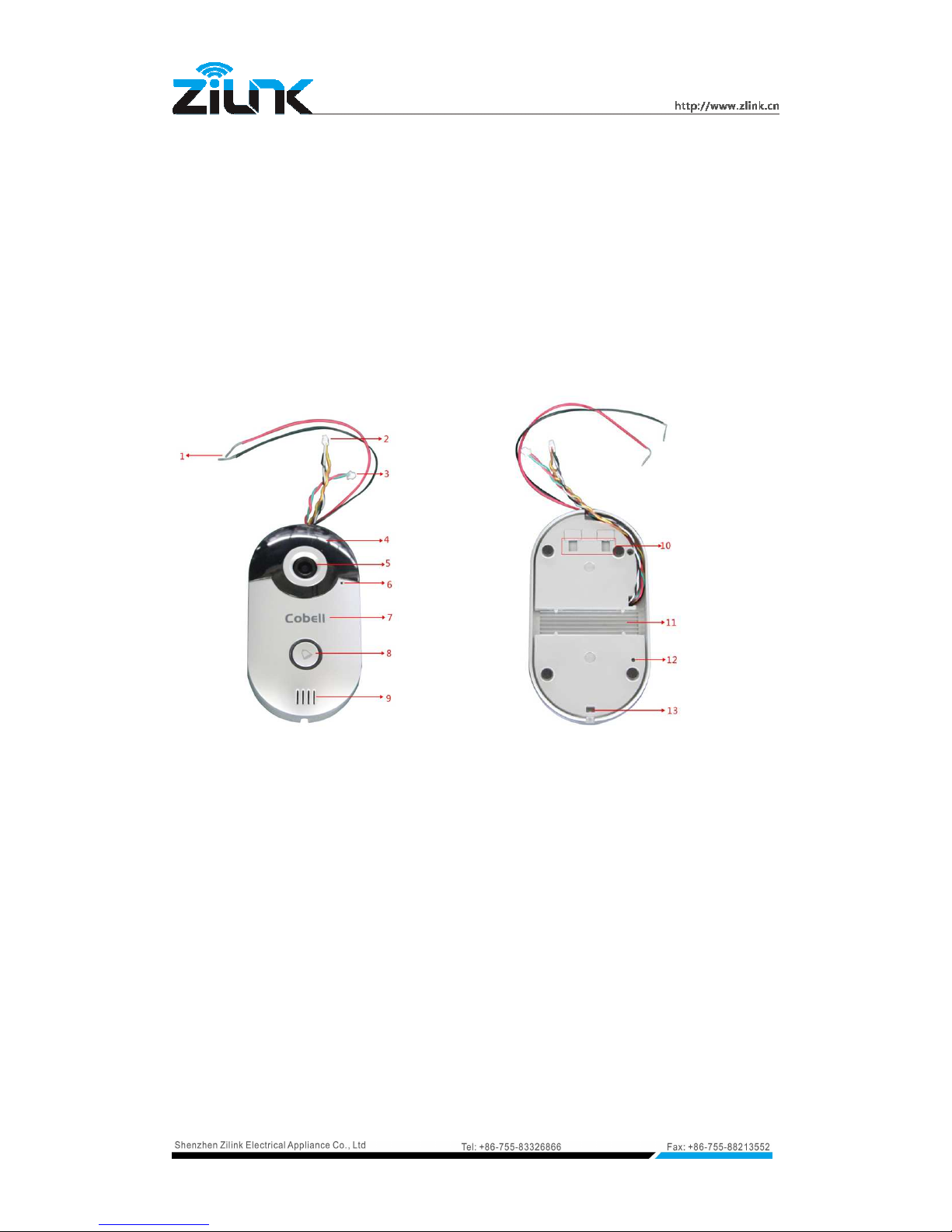
1.1 Diagram
Front Back
1. ower line, Support 12~24VAC or 12VDC / 0.5A
2. RJ45 interface connection cable(4 lines with pin)
3. Lock Relay connection cable(2 lines with pin)
4. 4 pcs IR LED inside
5. 2.5mm Lens
6. Microphone
7. Logo
8. Doorbell Button
9. Speaker
10. Bracket Hole
11. Cooling Aluminum Sheet
12. Reset Button
13. Bottom Screw Hole

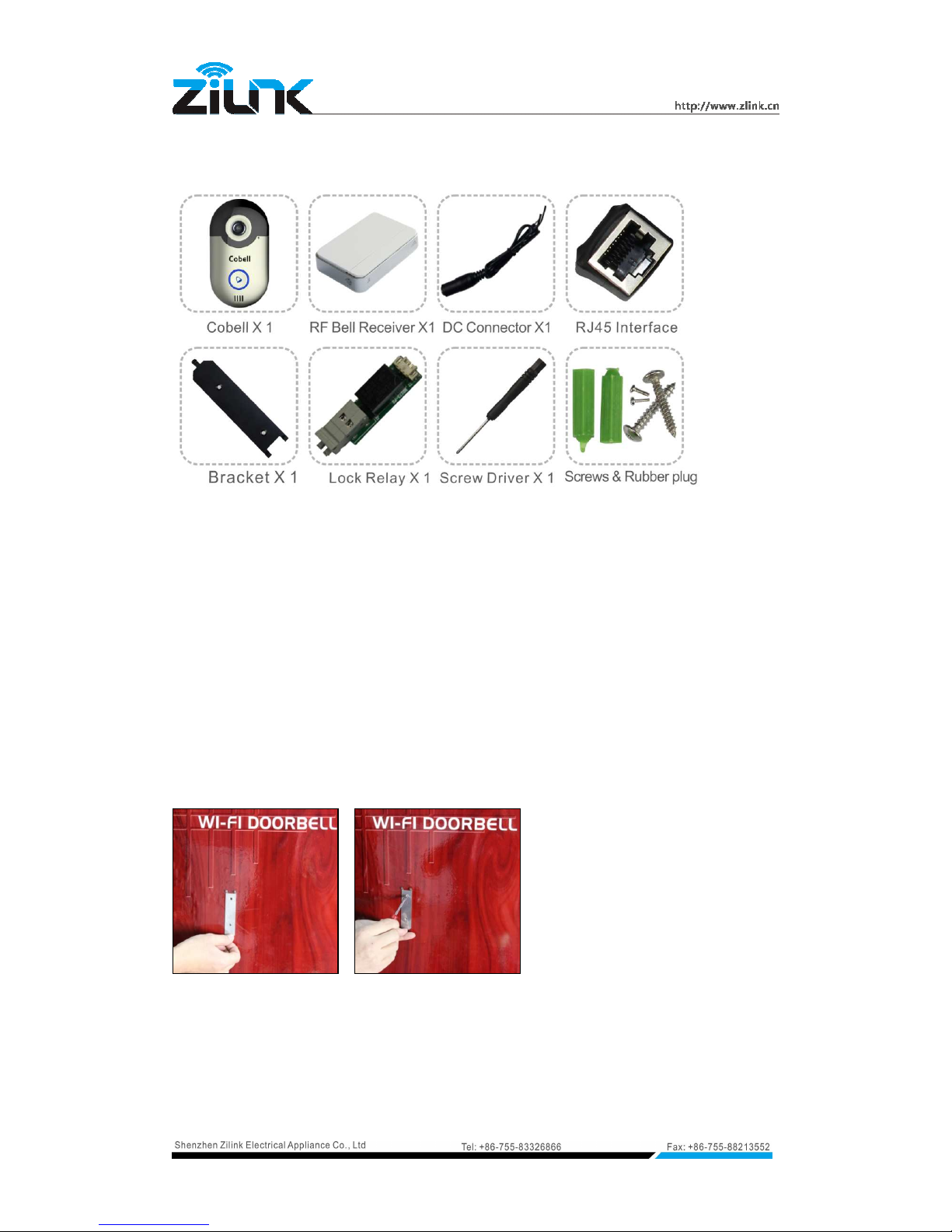
1.2 Package
2. Installation
Tools you may need: liers, ower Drill or Screw Driver, Wire Strippers, Insulation Tape.
Statement: Drill two screw holes on the position that the doorbell will be installed, and put the
rubber plug inside, punch a small hole for threading all the cables in advance.
Note: The sample installation is on the wooden door, just FYI.
2.1 Install the Bracket.
1 2

3 4
Find the bracket in the package and mount it with the screws, please make sure it vertical.
2.2 Install the Doorbell
1 2
3 4
After the bracket is installed, put all the cables through the small hole, and install the doorbell on
the bracket. Then install the screw at the bottom, please make sure it’s tight.
2.3
Power Line Connection

Attention:
1. There is no positive or negative for the power line of the doorbell.
2. The Doorbell can only connect to low voltage power from 12~24VAC or 12VDC / 0.5A.
3. lease use insulation tape to keep the power line safely connected.
4. Connect the Power Line:
1. If you are using a doorbell chime with power supply via low voltage transformer, you can use
the current cables of the transformer to connect the power line directly to the cables. It
supports 12~24VAC.
2. If you are not using a doorbell chime, you can use the DC connector which is in the package
and a 12VDC ower adapter (not included) to provide power. Refer to the picture below.
Note: You have to buy the 12VDC adapter separately, normally amperage greater than 0.5A is ok.
2.4 Power On
After the power line is connected, the device will power on. The doorbell button ring will turn on
blue and the IR LED will light on if the environment is dark.

3.Wi-Fi Connection Quic Guide
3.1 Install the APP
lease download and install the A from Apple Store or Google lay to your smart phone or
tablet first. The A name is “Cobell”.
3.2 Enter Setting Mode
After the doorbell power on, press the doorbell button for at least 3 seconds, it will change to
the setting mode, the button will turn on blue and blink, voice prompt will be heard
(Network Configuration Mode, lease Set it Done in 5 Minutes).
Then we can start to set the Wi-Fi connection.
3.3 Set the Wi-Fi Connection
3.3.1 Connect to the AP Host of Doorbell
Open the WLAN settings of your smart phone or tablet, refresh it, find out the Wi-Fi SSID
of the doorbell, connect it.
Note: This doorbell supports Wi-Fi A host, default SSID is “Bell+ 6 digits”, password is
blank.
3.3.2 Add the Doorbell on APP
Run the A on your smart phone or tablet, click to add a doorbell, the default username is
admin, no password. lease follow the instruction(Details see Chapter 4 and 5).
3.3.3 Set the Doorbell Connect to the Wi-Fi Router
1.Click and select the “WiFi Settings” menu.
2.Select your Wi-Fi router SSID and enter the password.
3.If the setting is correct,the doorbell will restart and connect to the Wi-Fi router.
Note: If the Wi-Fi connection settings failed, please make sure the Wi-Fi SSID and password
is correct and try it again.
4. APP User Manual for Android
1. Search ”Cobell” from Google lay and install the A .
2. Click the “Cobell” icon and run the A .

3. The A main interface, click to show A settings.
Doorbell: Doorbell List
Record: Show Visitor Call Information
Picture: Show SnapShot
Video: Show Record Video File
Bell Ring: Set Bell Ring Tone
Alarm Ring: Set Alarm Ring Tone
About: About the A information
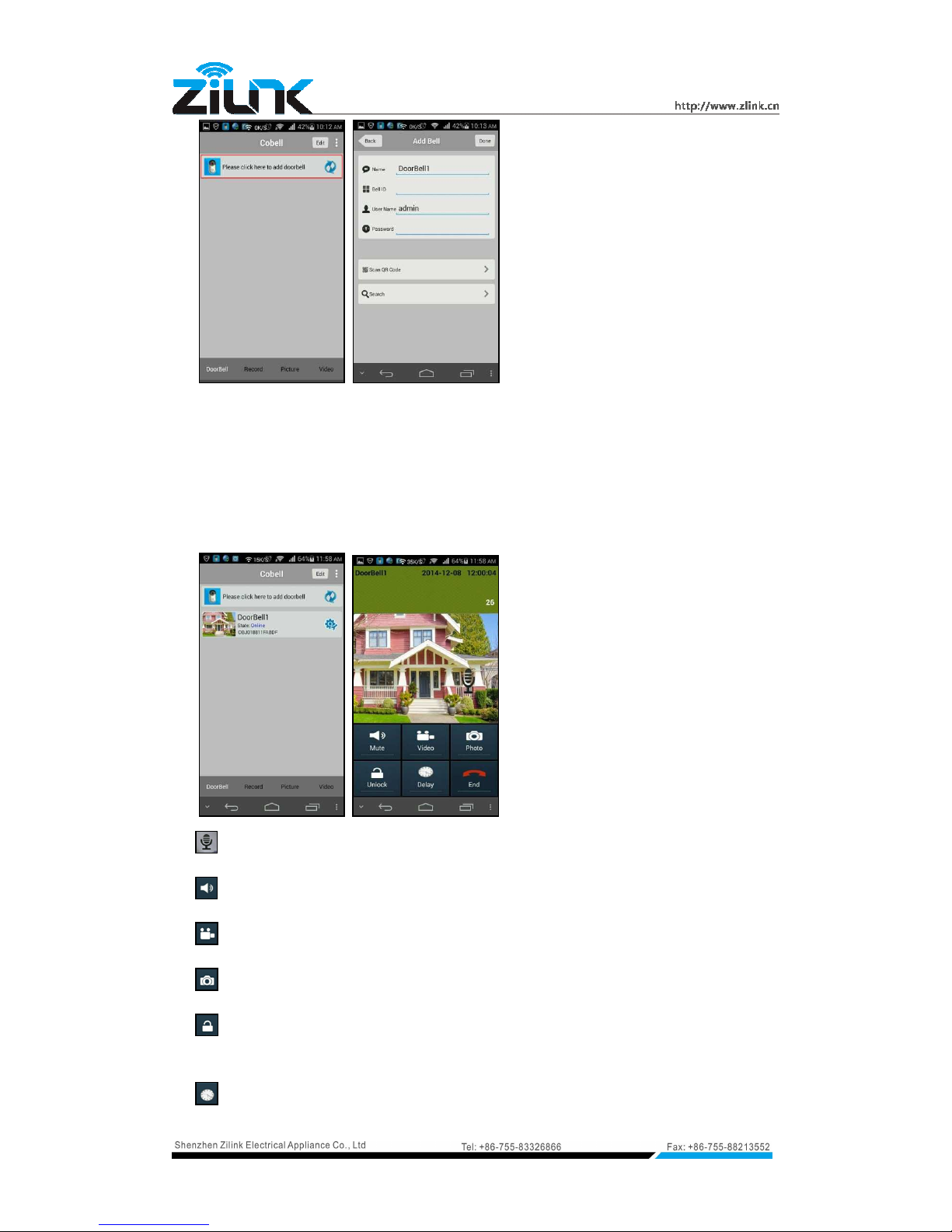
4. Add a Wi-Fi Doorbell.

It supports three types to add a doorbell
1. Type in the Bell ID manually
2. Scan QR Code on the doorbell or package
3. Search in the LAN
Then input the doorbell default username admin, no password.
5. Access the Doorbell.
:Hold the microphone icon to speak
: To listen the sound or mute
:Take Video
:Take Snapshot
:Unlock. In the course of development, can’t ensure this function work normally with all
electronic locks
: rolong the monitor time

6. lease click to change the advanced settings.
Voice Prompts: If off, you won’t hear the voice prompts of doorbell
Configuration mode: If off, you can’t enter the doorbell setting mode
Monitor max time: 10~300 seconds
Conversation max time: 10~300 seconds
Call wait max time: 10~60 seconds
This will allow 5 users to connect to the doorbell at the same time. The same user can’t login
to the doorbell on different Smart hones or Tablets and only the administrator can modify,
add or delete User2 thru User5.
Table of contents
Other zilink Accessories manuals