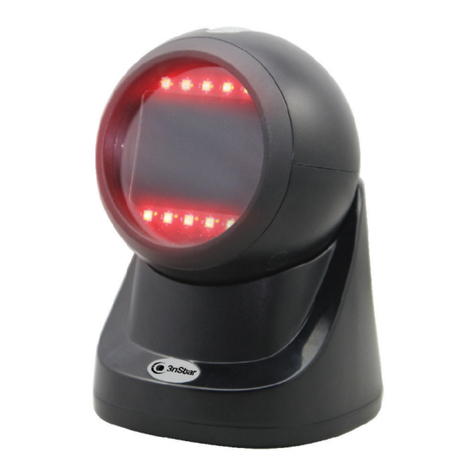
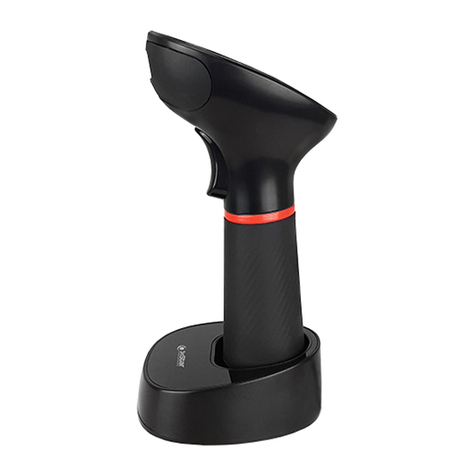
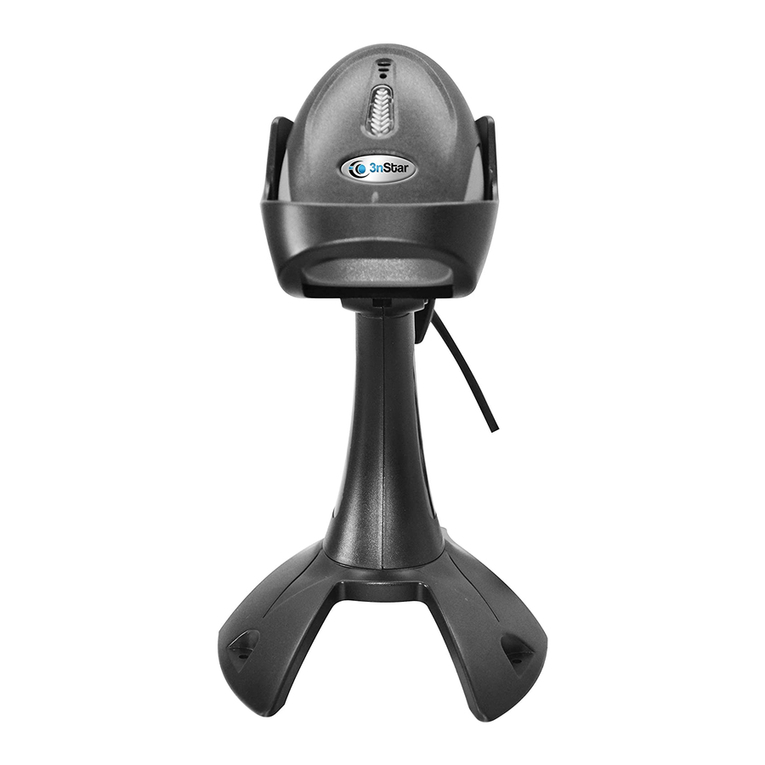
3nStar SC430 User guide

2D Wireless Barcode Scanner
2.4GHz. & BT SETUP MANUAL
SC430

Table of Content
Version No. Description ................................................................................................ 2
1. Basic Function ........................................................................................................... 4
2. Indicator Description ................................................................................................. 4
2.1 LED Details ...................................................................................................... 4
2.2 Buzzer Details................................................................................................... 4
2.3 Voice Setting..................................................................................................... 5
2.4 Voice Frequency ............................................................................................... 5
2.5 Battery Function ............................................................................................... 5
3. Wireless Transfer Description ................................................................................... 6
3.1 Output Method.................................................................................................. 6
3.2 Data Transfer Mode .......................................................................................... 6
3.3 Communication Mode ...................................................................................... 7
3.4 USB Interface Type .......................................................................................... 7
3.5 Type of USB-HID Data .................................................................................... 8
4. Sleeping Time Setting................................................................................................ 8
5. Conversion................................................................................................................. 9
5.1 GS Characters Conversion................................................................................ 9
5.2 Letter Case Conversion .................................................................................... 9
6. Language Setting ....................................................................................................... 9
7. 2.4G Setting..............................................................................................................11
7.1 Pairing..............................................................................................................11
7.2 Extended Cache Setting...................................................................................11
8. Bluetooth Setting ..................................................................................................... 12
8.1 Bluetooth HID Mode ...................................................................................... 12
8.2 Bluetooth HID Pairing.................................................................................... 12
8.3 Long press 8s to enter Bluetooth HID pairing setting .................................... 13
8.4 Show & Hide the HID Virtual Keyboard in IOS............................................ 13
8.5 Bluetooth HID Transfer Rate Setting ............................................................. 13
8.6 Bluetooth HID RSSI Setting........................................................................... 14
8.7 Bluetooth BLE Mode...................................................................................... 14
8.8 Bluetooth Name Setting.................................................................................. 14
8.8.1 Bluetooth Name Bar-code Definition................................................... 14
8.8.2 Bluetooth Name ASCII Definition ....................................................... 14
8.8.3 Bluetooth Name Default....................................................................... 15
8.9 Bluetooth Name&Address Setting ................................................................. 15
8.9.1 Get Bluetooth Name ............................................................................. 15
8.9.2 Get Bluetooth Address.......................................................................... 15
9. Software Update ...................................................................................................... 15
10. Hide Character Function Settings.......................................................................... 16
10.1 Hide the First Character................................................................................ 16
10.2 Hide the last Character ................................................................................. 17
11. Data Code Table..................................................................................................... 18
12. ASCII Code Table.................................................................................................. 18
13. Long Press Button Description.............................................................................. 24
V4.3 Version


Version No. Description
Remarks: Please refer to the corresponding manual version for the detailed version function.
* Manual Version V4.3: Support software version above 01.44
Function Upgrade: function key add Ctrl, Alt, Shift & GUI.
* Manual Version V4.2: Support software version above 01.40
Function Upgrade: Japanese language setting.
* Manual Version V4.0: Support software version above 01.40
(Requires hardware circuit support, the old version does not support)
Function Upgrade: 2.4G extended cache setting.
* Manual Version V3.9: Support software version above 01.32
Function Upgrade:
1. Add enable & disable long press button to enter Bluetooth HID pairing function setting.
2. Add enable & disable long press button 16S to enter 2.4G pairing function setting.
* Manual Version V3.8: Support software version above 01.25
Function Upgrade:
1. Add “USB Priority Output” and “Simultaneous Output” mode.
2. Fixed the problem that Bluetooth switch is successful, but still alarm.
3. Add “GS-hex-0x1D conversion” function.
4. Add function code to get Bluetooth name and address.
5. Buzzer frequency setting.
6. Amend UTF8 Chinese output.

1. Basic Function
Factory Default Software Version
2. Indicator Description
2.1 LED Details
Green light --> charging
(1) Steady flash means charging.
(2) Will goes out when the battery is fully charged.
Blue light --> Status
(1) One quick flash for one successful scanning.
(2) Flash will goes out if USB/2.4G/ Bluetooth HID are not connected.
(3) Flash always on when USB or 2.4G or Bluetooth is connected.
(4) Quick&continuous flash: entering 2.4G&Bluetooth HID pairing.
*Remarks:
Flash slowly when entering Bluetooth SPP/BLE pairing.
2.2 Buzzer Details
A long beep--> Status:
(1) Power on;
(2) Bluetooth data transmission failed;
A short beep-->Status:
(1) Bar-code read &upload successfully;
(2) USB connect successfully;
(3) 2.4G/Bluetooth connected or paired;
High&low short beep-->Status:
(1) Setting code obtained successfully;
(2) Data stored successfully;
(3) Data upload completely;
(4) Enter the off state;
Three short beeps--> Status:

(1) USB/2.4G/Bluetooth is disconnected;
(2) Data upload unsuccessfully or the storage Flash is full;
(3) Setting code failed;
Three short tones with high and low rhythm --> Status:
Insufficient power, ready to enter off state;
2.3 Voice Setting
Sound Volume
Off High(*)
Medium Low
Sound Type
MCU(*) Scan Head
2.4 Voice Frequency
2048HZ 2700HZ
2.5 Battery Function
Battery Indicator

3. Wireless Transfer Description
3.1 Output Method
USB Priority Output(*) Simultaneous Output
(USB, 2.4G& Bluetooth)
“USB Priority Output(*)” :
When using USB cable, data transfer wire USB cable only.
“Simultaneous Output”:
USB and 2.4G or Bluetooth output simultaneously. (Determined by communication mode).
If output is unsuccessful, will alarm.
3.2 Data Transfer Mode
Normal Mode(*) Inventory Mode
Automatic Storage Mode
“Normal Mode”:
Data will be uploaded immediately, if data cannot save successfully, scanner will alarm.
“Automatic Storage Mode”:
Data will be saved automatically when the distance is exceeded.
Scan the "Upload All Data" bar-code to upload the data when the data need to check.
“Inventory Mode”:
Data will be saved automatically.
Scan the "Upload Statistical Data" bar-code when the statistical data need to be viewed or uploaded.
*Remarks:
Scan the “Upload All Data” to upload the data, then scan the “Clear All Data ” to clear the data first, otherwise the bar
code read last time will be output again.

Clear All Data Upload Statistical Data
(Amount of data)
Upload All Data
*Remarks
“Clear All Data” is only effected under inventory mode.
3.3 Communication Mode
Receiver Mode(*) Bluetooth HID Mode
Bluetooth BLE Mode Bluetooth SPP Mode
◆When switched to HID mode. The Bluetooth matched previously will be connected automatically.
◆“Bluetooth BLE Transparent Transmission Mode”
Bluetooth devices (i.e. mobile phones/iPad and other Bluetooth devices) need to download or develop low-power
Bluetooth BLE Transparent Transmission Software.
◆“Bluetooth SPP Transparent Transmission Mode”
Bluetooth devices (i.e. mobile phones/iPad) need to download or develop Classic Bluetooth SPP Transparent
Transmission Software.
*Remarks
When there is a problem with Bluetooth communication, will alarm and indicate that the Bluetooth access is failed.
3.4 USB Interface Type
USB-HID(*) USB-COM

3.5 Type of USB-HID Data
Keyboard function key (*) Send Chinese Characters
Send ASCII
4. Sleeping Time Setting
No Sleep Enter Sleep
10S 30S
1min(*) 2min
5min 10min
30min

5. Conversion
5.1 GS Characters Conversion
None(*) GS Converts To <GS>
GS Converts To | GS converts to ]
GS Converts To ^]
5.2 Letter Case Conversion
Normal Letter Case(*) All Uppercase
All Lowercase Case Inversion
6. Language Setting

USA(*) German
France Italy
Canadian Spanish (Spain)
Portuguese (Brazil)Sweden
Portuguese (Portugal)Belgium
Turkey-F Turkey-Q
Italian14 Netherlands
Poland Finland
Spanish (Latin America)Serbia
Hungary Denmark
Other manuals for SC430
1
Table of contents
Other 3nStar Barcode Reader manuals

3nStar
3nStar SC505 User manual

3nStar
3nStar SC455 Owner's manual

3nStar
3nStar SC430 User manual

3nStar
3nStar SC440 User guide

3nStar
3nStar SC050 User manual

3nStar
3nStar SC365 User manual

3nStar
3nStar SC400 Owner's manual

3nStar
3nStar SC550 User manual

3nStar
3nStar SC050 Owner's manual

3nStar
3nStar 2054K Series User manual