manuals.online logo
Brands
  1. Home
  2. •
  3. Brands
  4. •
  5. Advent
  6. •
  7. Car Video System
  8. •
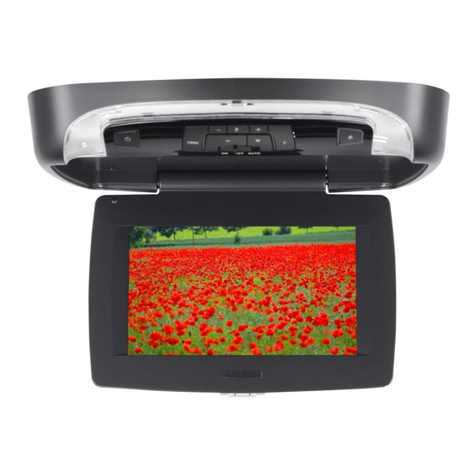
  9. Advent ADV25 User manual

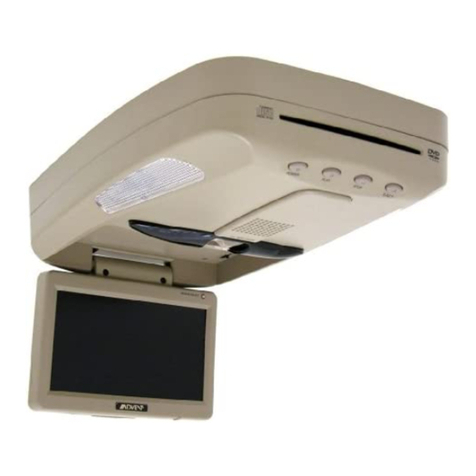
Advent ADV25 User manual

Other manuals for ADV25

1

Other Advent Car Video System manuals

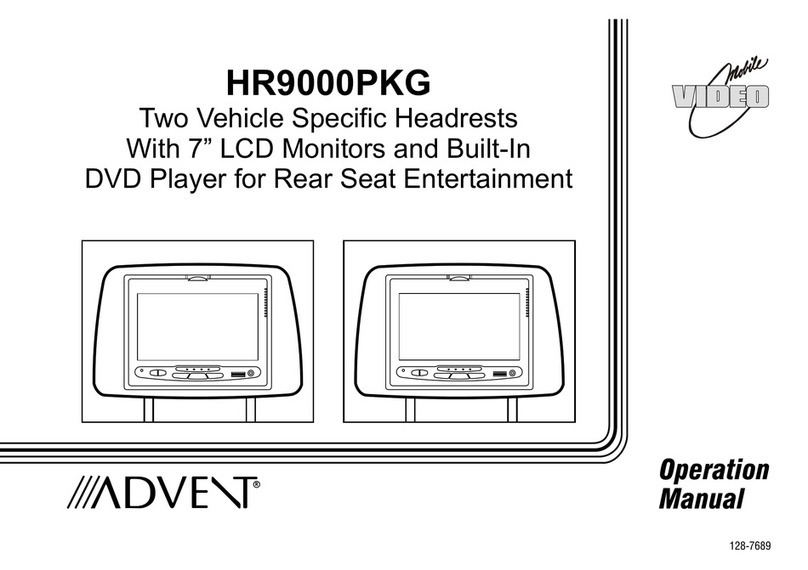
Advent HR9000PKG User manual

Advent

Advent HR9000PKG User manual

Advent ADV10PS2 User manual

Advent

Advent ADV10PS2 User manual

Advent DODGE 2011 User manual

Advent

Advent DODGE 2011 User manual

Advent ADV35 User manual

Advent

Advent ADV35 User manual

Advent ADV35 User manual

Advent

Advent ADV35 User manual

Advent 128-8567 User manual

Advent

Advent 128-8567 User manual

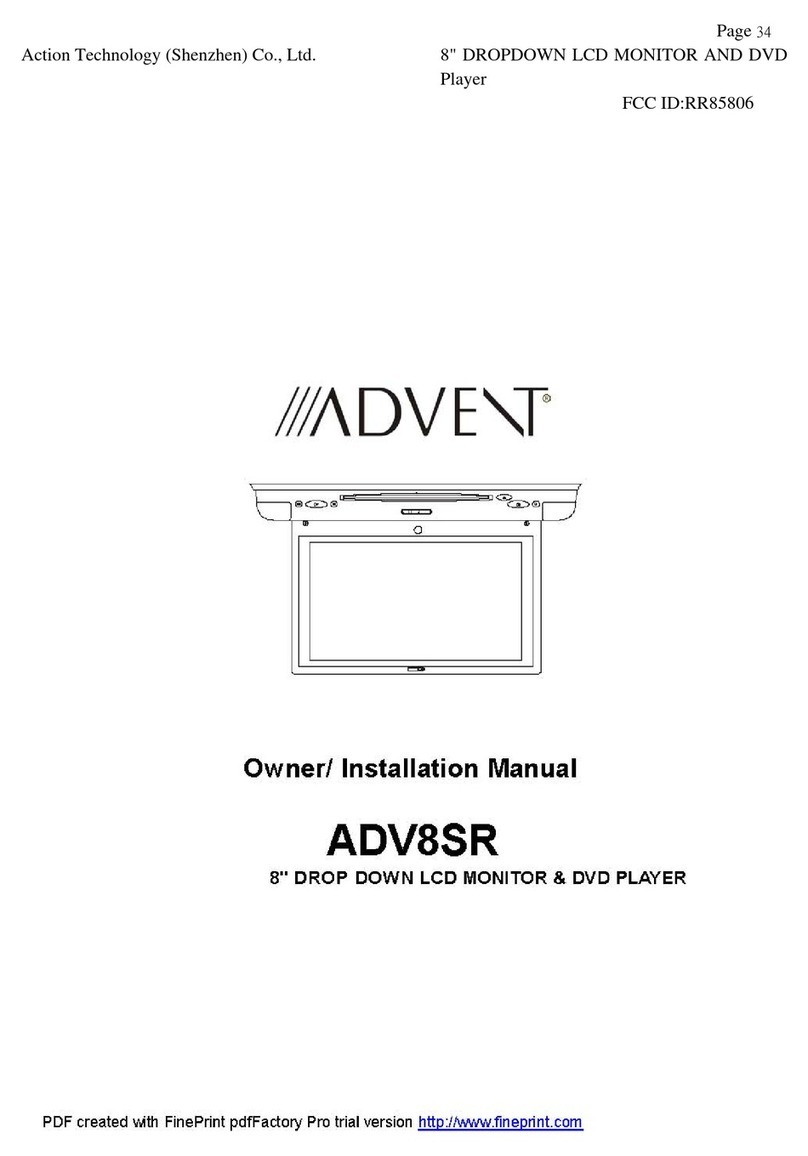
Advent ADV8SR Quick start guide

Advent

Advent ADV8SR Quick start guide

Advent ADVUNI300 User manual

Advent

Advent ADVUNI300 User manual

Advent ADV8SR Service manual

Advent

Advent ADV8SR Service manual

Advent ADV48 User manual

Advent

Advent ADV48 User manual

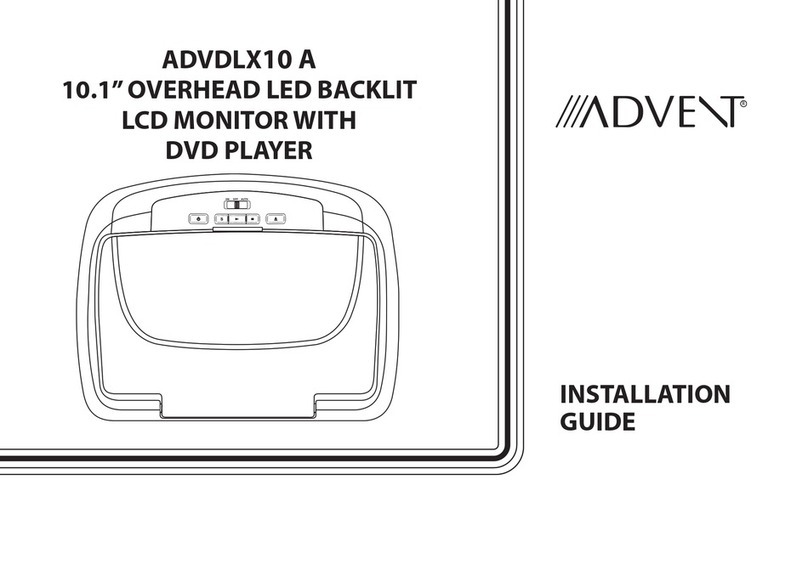
Advent ADVDLX10A User manual

Advent

Advent ADVDLX10A User manual

Advent TOCLS-OE100 Manual

Advent

Advent TOCLS-OE100 Manual

Advent OVERHEAD LED BACKLIT LCD MONITOR User manual

Advent

Advent OVERHEAD LED BACKLIT LCD MONITOR User manual

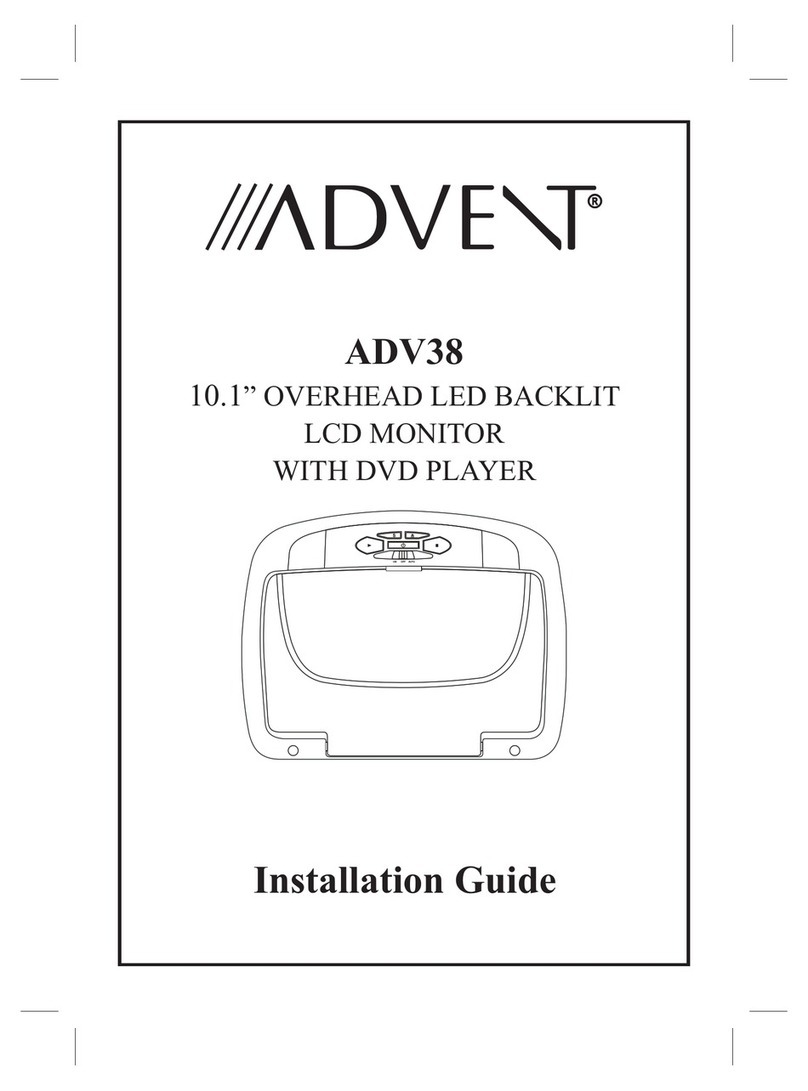
Advent ADV38 User manual

Advent

Advent ADV38 User manual

Advent ADV38 User manual

Advent

Advent ADV38 User manual

Advent AMM12N User manual

Advent

Advent AMM12N User manual

Advent ADV10A User manual

Advent

Advent ADV10A User manual

Advent LCDM40 User manual

Advent

Advent LCDM40 User manual

Advent ADV850S/P User manual

Advent

Advent ADV850S/P User manual

Advent TOCMR-OE100 Manual

Advent

Advent TOCMR-OE100 Manual

Advent ADV10A User manual

Advent

Advent ADV10A User manual

Advent LCD4WM User manual

Advent

Advent LCD4WM User manual

Advent ADV38 User manual

Advent

Advent ADV38 User manual

Advent ADVEXL10 User manual

Advent

Advent ADVEXL10 User manual

Popular Car Video System manuals by other brands

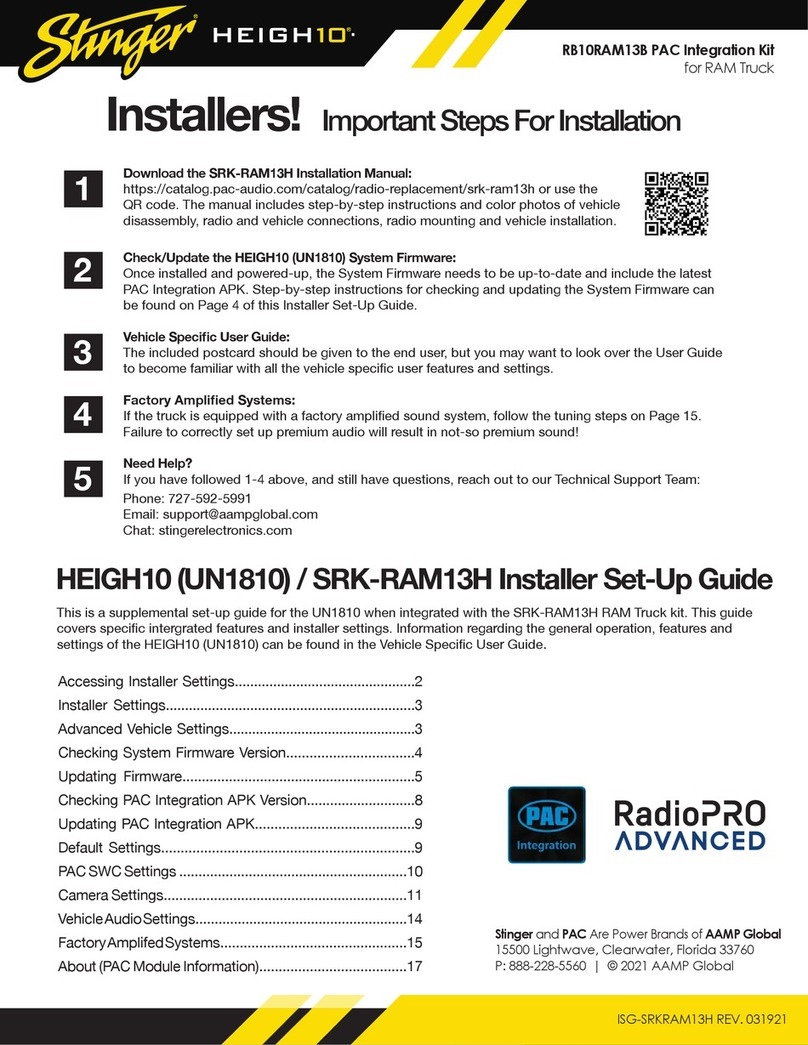
Stinger HEIGH10 RB10RAM13B installation manual

Stinger

Stinger HEIGH10 RB10RAM13B installation manual

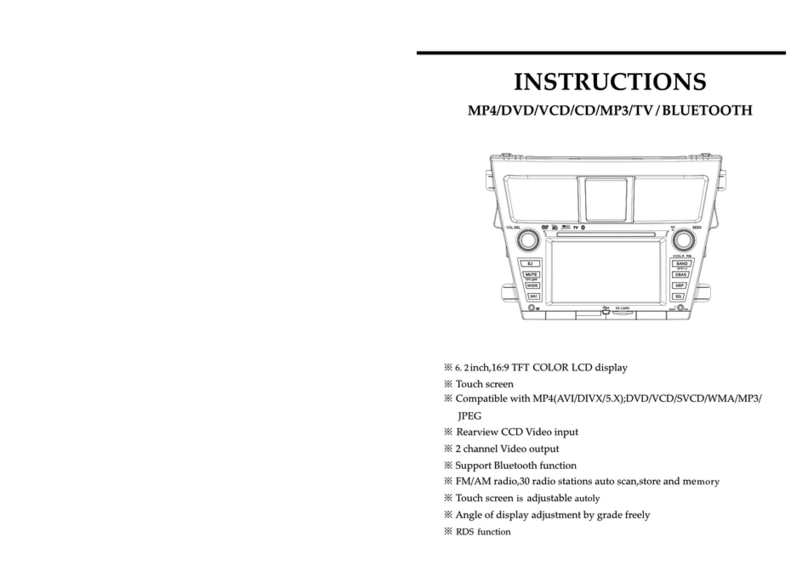
Eonon E1057 instructions

Eonon

Eonon E1057 instructions

Milion D2223 user manual

Milion

Milion D2223 user manual

Metra Electronics 99-8153 installation instructions

Metra Electronics

Metra Electronics 99-8153 installation instructions

Voxx Electronics HR8MA1 owner's manual

Voxx Electronics

Voxx Electronics HR8MA1 owner's manual

Axxera AV604Bi quick start guide

Axxera

Axxera AV604Bi quick start guide

Clarion NX706E owner's manual

Clarion

Clarion NX706E owner's manual

Pyle view PLDN74BTi owner's manual

Pyle view

Pyle view PLDN74BTi owner's manual

Clarion NX602 quick start guide

Clarion

Clarion NX602 quick start guide

RCA DRC6296 - Twin 9" Mobile DVD System Manual Del Usuario

RCA

RCA DRC6296 - Twin 9" Mobile DVD System Manual Del Usuario

Kia MTXM100YPPE user manual

Kia

Kia MTXM100YPPE user manual

Lanzar SVDVD5 owner's manual

Lanzar

Lanzar SVDVD5 owner's manual

Eonon E1060 instructions

Eonon

Eonon E1060 instructions

Macrom M-AN900 user manual

Macrom

Macrom M-AN900 user manual

Hyundai BAPE-L3000N user manual

Hyundai

Hyundai BAPE-L3000N user manual

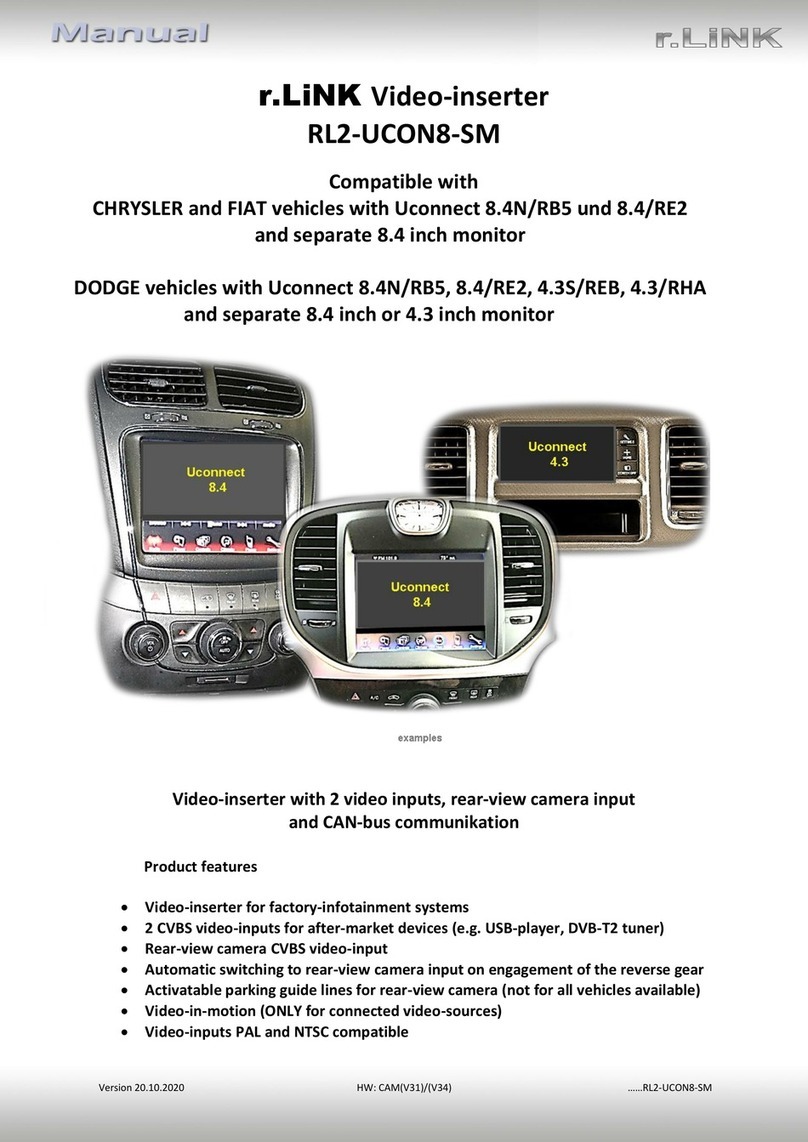
r.LiNK RL2-UCON8-SM manual

r.LiNK

r.LiNK RL2-UCON8-SM manual

Blaupunkt DVP 01C operating instructions

Blaupunkt

Blaupunkt DVP 01C operating instructions

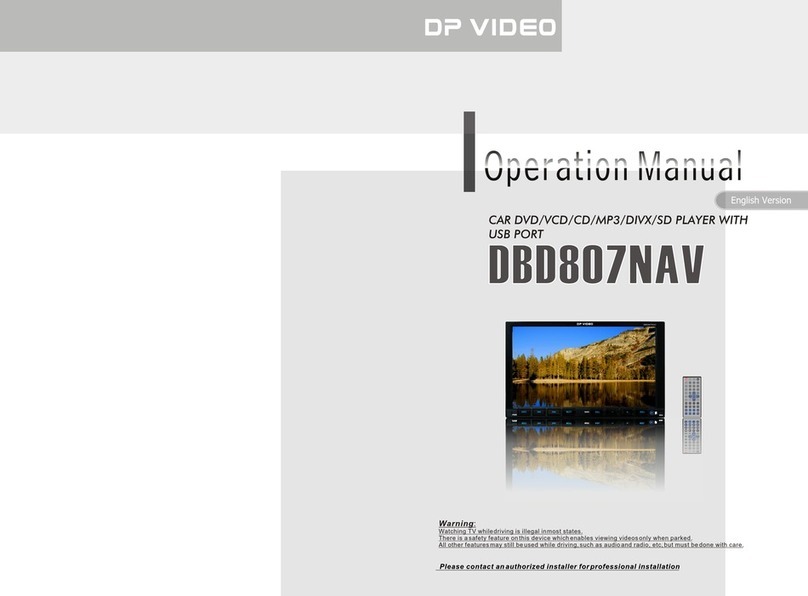
DP Audio Video dbd807nav Operation manual

DP Audio Video

DP Audio Video dbd807nav Operation manual

manuals.online logo
manuals.online logoBrands
  • About & Mission
  • Contact us
  • Privacy Policy
  • Terms and Conditions

Copyright 2025 Manuals.Online. All Rights Reserved.

Installation Guide
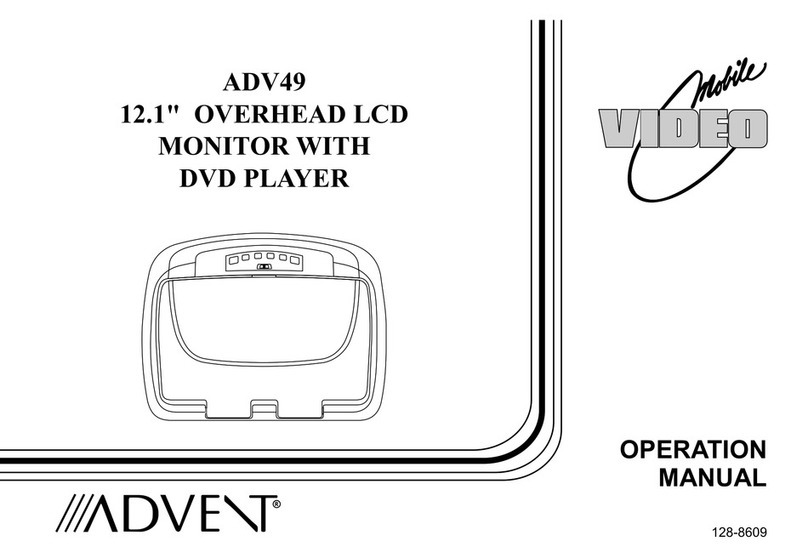
ADV25
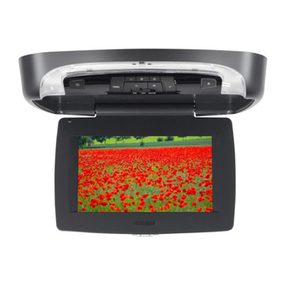
8.5" OVERHEAD LCD MONITOR
WITH DVD PLAYER
RR
An LCD panel and / or video monitor may be installed in a motor vehicle and
visible to the driver if the LCD panel or video monitor is used for vehicle
information, system control, rear or side observation or navigation.
If the LCD panel or video monitor is used for television reception, video or
DVD play, the LCD panel or video monitor must be installed so that these
features will only function when the vehicle is in “park” or when the vehicle’s
parking brake is applied.
An LCD panel or video monitor used for television reception, video or DVD
play that operates when the vehicle is in gear or when the parking brake is
not applied must be installed to the rear of the driver’s seat where it will not
be visible, directly or indirectly, to the operator of the motor vehicle.
Important Notice
Important Note
The ADV25 incorporates three new features:
1) A wireless FM Modulator
2) Capability to add an optional plug-in TV tuner
(Audiovox P/N PODTVT2)
3) Snap on Covers with matching Trim Rings (Shale and Pewter).
Select the color that matches the interior trim.
Please be advised that the wireless FM modulator will perform well in
most applications. However, in certain applications the quality of the wireless
signal may be less than optimal, resulting in static or strong local station
bleed thru. If this is the case, an optional relay box is available. The
Audiovox part number is SIRSWB and it plugs into the 1/8" jack located
next to the FM antenna on the side of the chassis. This relay box is
installed between the vehicle antenna and the car radio to provide the
best possible FM reception of the DVD player audio. When the SIRSWB is
installed it is recommended that the wireless FM antenna that is plugged
into the printed circuit board next to the 3.5mm jack be unplugged.
1
MATERIALS INCLUDED IN THIS PACKAGE:
1) ADV25 TV / Video Monitor with DVD – (1pc)
2) 12 Pin Power / Signal harness (P/N 112-3483) – (1pc)
3) 2 Pin Power Wire Harness with choke (P/N 112B3143) – (1pc)
4) 9 Pin ~ 3 RCA Jack Pigtail (P/N 112-3682) – (1pc)
5) Hardware Package
#4 x 5/16 Self Tapping Screws – (1pc)
#4 x 7/16 Self Tapping Screws – (3pcs)
Screws ISO 3 x 8mm Long – (5pcs)
#8 x 3/8" Self Drilling Screws – (4pcs)
M5 Screws (4pcs)
6) Trim Ring (Shale) – (1pc), Pewter – (1pc)
7) Remote Control (P/N 136-4196) – (1pc)
8) Wireless Game Controller (P/N 136-4197) (1pc)
9) Mounting Bracket (P/N 108-3921) – (1pc)
10) Pry Tool – (1pc)
11) Snap On Cover (Shroud) ~ Shale – (1pc), Pewter – (1pc)
12) Snap On Cover (Screen Back Cab) ~ Shale – (1pc), Pewter – (1pc)
13) Wireless Headphone (P/N MVIRHS) – (2pcs)
Optional Accessories
14) PODTVT2 TV Tuner – (1pc) (Optional)
15) SIRSWB Relay Box (P/N 112C3159) (1pc) (Optional) – See important note on previous page
TOOLS REQUIRED:
#2 Phillips Screwdriver
#1 Phillips Screwdriver
Utility or Razor Knife or Shears
Wire Strippers
Upholstery hook tool (for removal of panels as necessary)
Electrical Tape
Masking Tape
Multimeter (to verify 12 volt DC and continuity: Do not use a test light or logic probe)
Marker pen – to mark headliner
Scribe (to mark trim ring if used)
Misc. electrical connectors (to connect to vehicle power source). Requirements will vary from vehicle to vehicle)
DVD Movie (to verify system operation after installation)
15
4
(Optional)
15
2
3
6
8
9
7
10
11
12
(Optional)
14
13
2
Housing
catch catch
Installing The Snap On Covers
Begin by hooking area “A” (above) over the dome light and slide the cover over the pod. The cover will snap in place.
Place the pod on a soft surface to avoid damaging the plastic.
Open the screen and hook the two tabs “B” on the bottom edge of the screen. Snap the opposite side over the hinge.
1. 3.2. 4.
Snap On Cover
(Shroud)
1 Pewter, 1 Shale
Snap On Cover
(Screen Back Cab)
1 Pewter, 1 Shale
Pry Tool
Installing The Shroud
(B) (B)
(A)
Installing The Screen Cover
3
1 2 3
6
54
Work on a soft surface to avoid damaging the plastic.
Insert the supplied pry tool between the Housing and Snap On Cover (Shroud), then press the pry tool to release the
Snap On Cover (Shroud).
Removing The Snap On Cover (Shroud) From The Housing
Insert the supplied pry tool between the Housing and Snap On Cover (Screen Back), then press the pry tool to
release the Snap On Cover (Screen Back).
Removing The Snap On Cover (Screen Back) From LCD The Housing
7
4
VEHICLE PREPARATION:
1) Locate an accessory power source (+12v when key is in the ACC. and run positions, and 0v when key is
off), and also a good ground generally, these wires can be found at the ignition switch or fuse-box.
2) The mounting method and location will vary from vehicle to vehicle, so this manual will only focus on the
installation of the ADV25 and related console accessories.
3) Generally, the best location for the video monitor is where the vehicle's factory dome light is installed. The
monitor should be located in such a manner that it can be comfortably viewed by rear seat passengers.
NEVER INSTALL THE MONITOR IN A PLACE WITHIN THE DRIVER'S VIEW. THIS IS NOT ONLY
DANGEROUS, BUT IT IS ALSO ILLEGAL IN MANY STATES.
4) Once the mounting location of the monitor has been determined, there may be additional preparation work
necessary, depending on the vehicle structure and installation method. Some of the steps that may be
required are:
A) Removal of the vehicle's dome light
B) If the trim ring will be used, it may have to be trimmed to fit the contour of the vehicle's headliner.
Refer to the "Trim Ring Installation" section in this manual.
GENERAL INSTALLATION APPROACH:
1) Decide upon system configuration and options that will be installed (i.e.: what components, VCP, Video
Game, external amp, wireless headphones, VCP, etc.).
2) Review all manuals to become familiar with electrical requirements and hook ups.
3) Decide upon mounting locations of all components and method of mounting.
4) Prep the vehicle by removing any interior trim necessary to gain access to vehicle's wiring as well as all
areas where interconnecting wire harnesses will need to be located. If any access holes need to be cut into
the vehicle (headliner, other trim components etc.), this should be done now as well.
5) Route the wiring harnesses throughout the vehicle as necessary. (Refer to the Wiring Diagrams on
this manual as well as the wiring instructions for the individual components and accessory options
being installed). Be sure that all wiring is protected from sharp edges and is routed in such a manner that
pinched when all components and interior trim are fully installed. Be sure to leave enough slack in the wiring
at each component to allow working room.
6) Remove all A/V system components from their packaging and place them loosely in the vehicle at their
respective locations.
7) Connect all components together (electrically) and verify proper operation of all system functions.
Note: This is best done BEFORE, components have been permanently mounted.
8) After verifying proper operation of the system, proceed to mount of each component.
9) When all components are mounted, recheck function of entire system again to ensure that no wiring was
pinched or connected improperly during final installation.

5
GENERAL SYSTEM CONFIGURATIONS:
The following is intended to provide some of the system configurations that are possible with the ADV25
Drop Down Video Systems:
The ADV25 has an option that allows the user to select from two IR transmit and receive codes (M1 or M2).
This feature can be used when using two ADV25s in the same installation or if the vehicle has an RSA
(Rear Seat Audio) that uses an “A” channel headset. The ADV25 comes factory set to M1. When in the M1
mode the unit will respond to remote commands when M1 is selected on the remote and will transmit audio
on the A channel. When in the M2 mode the unit will respond to remote commands when M2 is selected on
the remote and will transmit audio on the B channel.
Note: OSD will appear on the screen for 4~5 seconds
Selecting a Monitor Code (M1 or M2)
1. Press and hold the SOURCE and FMM buttons on the unit for 3 seconds and the unit will switch from M1 to
M2 or M2 to M1.
2. The selected mode (M1 or M2) will be retained in memory until changed by the user.
Notes:
There are a few options that can be added as follows:
a) Wired relay box for wireless FM Modulator (P/N SIRSWB).
b) Pod TVT2 TV Tuner.
The ADV25 video system is only intended for an overhead, drop down installation. It is not intended for
Seatback or any other type of mounting. The hinging mechanism is designed for horizontal, drop down
use only.
The two pods can be connected together using the 8010730 accessory cable plugged into the AV1 Din
connector on one pod and plugging the RCA connectors into the AV out RCA connectors on the other
pod. Two 8010730 cable can be used to allow the video program on each pod to be viewed on the other.
FMM OFF
M2
DVD
IRT OFF
FMM 88.3MHz
M1
AUX/GAME
IRT ON
6
Tape marker to screwdriver.
Starting at your mark for the
lowest point, trace the contour of the roof
Lowest point mark
Cut line
Headliner
TRIM RING INSTALLATION:
Note: This page only covers special installation considerations for thick trim ring installation. If the video
monitor is to be installed in a vehicle with the thick trim ring, it may need to be trimmed to fit the contour of
the vehicle Headliner.
Note: The trim rings supplied with this unit are not designed to be trimmed.
1) In this installation, the video monitor is mounted directly to the overhead cross-member in the roof using
the mounting screw bosses. These screw bosses should contact the cross-member directly (i.e.: no gap
between the screw boss and the roof structure). Also, be sure that the screws do not pierce the outer roof
skin when fully fastened to the cross-member. The trim ring is attached to the video monitor using the
perimeter screw bosses. It is important that the screws used in this installation are not over tightened,
and that the video monitor and trim ring are mounted in such a way that the assembly does not distort
(or bend) when the mounting screws are tightened. An alternate method is to use the mounting bracket.
First secure the mounting bracket to the cross-member, then screw the monitor into the mounting bracket.
See the drawing in this manual.
2) It is best to mount the video monitor to the roof structure without the trim ring first. There should be a
gap between the headliner and the outer flange of the video monitor. The trim ring should be cut to fill
this gap. Apply masking tape to the outer surface of the trim ring in the areas where the cut will be made.
3) Mark the cut to follow the necessary contour of the roof. The suggested method of marking is as follows:
A) First mark the narrowest point of the trim ring on the masking tape. Be careful to consider not
only vertical location, but fore-aft location.
B) Using the handle of a screwdriver, make a “transfer marking tool”. See diagram below. Place the tool

against the roof and the marker against the masking tape on the trim ring. Trace the cut to be made
around the entire perimeter of the trim ring.
C) Cut the trim ring using a sharp utility knife or shears. Make the cut in several passes over the marked
line, each time cutting a little deeper. It is not necessary to cut completely through the plastic, the
cut only need be over 50% of the wall thickness of the plastic. By bending the cut back and forth
several times, the plastic will break cleanly at the cut.
D) Check the fit of the trimmed console and make any minor adjustments necessary.
4) The trim ring can be painted or covered with a material that matches the headliner before assembling the
trim ring to video monitor.
5) The finished trim ring should be attached to the video monitor, then attach the assembly to the roof.
7
TRIM RING INSTALLATION:
Supplied screws as below use for install Trim Ring to unit. Please refer illustration below.
A) #4 x 5/16 Self Tapping Screws (1pc)
B) #4 x 7/16 Self Tapping Screws (3pcs)
C) Screws ISO 3 x 8mm Long (5pcs)
A
B
BB
C
C
C
C C
8
MOUNTING THE TRIM RING
Roof
Roof Support
Headliner
Mounting Bracket
Self-drilling Screws
Trim Ring
Video Unit
M5 Screw