manuals.online logo
Brands
  1. Home
  2. •
  3. Brands
  4. •
  5. AES
  6. •
  7. Intercom System
  8. •
  9. AES StylusAB Instruction Manual

AES StylusAB Instruction Manual

This manual suits for next models

2

Other AES Intercom System manuals

AES GSM-3AB User manual

AES

AES GSM-3AB User manual

AES CellCOM Plus AB Instruction Manual

AES

AES CellCOM Plus AB Instruction Manual

AES WiFi Predator User manual

AES

AES WiFi Predator User manual

AES Prime 6 Series User manual

AES

AES Prime 6 Series User manual

AES SnapCOM Prime 4G User manual

AES

AES SnapCOM Prime 4G User manual

AES AB Instruction Manual

AES

AES AB Instruction Manual

AES WiFi Predator User manual

AES

AES WiFi Predator User manual

AES MultiCom 100 User manual

AES

AES MultiCom 100 User manual

AES MultiCom 500 User manual

AES

AES MultiCom 500 User manual
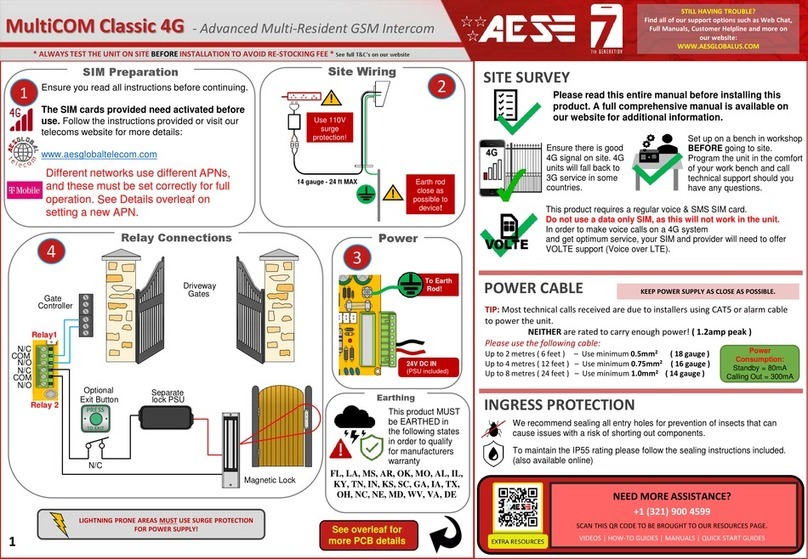
AES 605A User manual

AES

AES 605A User manual

AES 603 DECT User manual

AES

AES 603 DECT User manual

AES 705 Instruction Manual

AES

AES 705 Instruction Manual

AES 603AB Instruction Manual

AES

AES 603AB Instruction Manual
AES 602AB User manual

AES

AES 602AB User manual

AES Cellcom Prime6 User manual

AES

AES Cellcom Prime6 User manual

AES CellCOM Lite 4G User manual

AES

AES CellCOM Lite 4G User manual

AES GSM-5AS/3GE Instruction Manual

AES

AES GSM-5AS/3GE Instruction Manual

AES GSM-3AB User manual

AES

AES GSM-3AB User manual

AES GSM-800/AB User manual

AES

AES GSM-800/AB User manual

AES 605 Instruction Manual

AES

AES 605 Instruction Manual

AES 603AB User manual

AES

AES 603AB User manual

AES 601V User manual

AES

AES 601V User manual

AES 603 SPARTAN User manual

AES

AES 603 SPARTAN User manual
AES MultiCom 500 User manual

AES

AES MultiCom 500 User manual
Popular Intercom System manuals by other brands

Videx VRDK1 (25H) Technical manual

Videx

Videx VRDK1 (25H) Technical manual

Auta COMPACT VISUALTECH manual

Auta

Auta COMPACT VISUALTECH manual

Aiphone LC-10S instructions

Aiphone

Aiphone LC-10S instructions

Aiphone PD-1 instructions

Aiphone

Aiphone PD-1 instructions

Aiphone JF-DVF-HID-I instructions

Aiphone

Aiphone JF-DVF-HID-I instructions

Comelit 4893M Technical manual

Comelit

Comelit 4893M Technical manual

MGL Avionics V16 manual

MGL Avionics

MGL Avionics V16 manual

SSS Siedle BVI 750-0 Installation & programming

SSS Siedle

SSS Siedle BVI 750-0 Installation & programming

urmet domus AIKO 1716/1 quick start guide

urmet domus

urmet domus AIKO 1716/1 quick start guide

urmet domus IPerVoice 1039 Installation

urmet domus

urmet domus IPerVoice 1039 Installation

Alpha Communications STR QwikBus TT33-2 Installation, programming, and  user's manual

Alpha Communications

Alpha Communications STR QwikBus TT33-2 Installation, programming, and user's manual

Monacor ICM-20H instruction manual

Monacor

Monacor ICM-20H instruction manual

Logenex A202CR Installation & programming

Logenex

Logenex A202CR Installation & programming

Quantum QR5 Installation and programming manual

Quantum

Quantum QR5 Installation and programming manual

EVGA XR1 quick guide

EVGA

EVGA XR1 quick guide

CyberData 011211 series Installation quick reference

CyberData

CyberData 011211 series Installation quick reference

Vidos duo M1021 user manual

Vidos

Vidos duo M1021 user manual

Savant DOR-SMS-00 Deployment guide

Savant

Savant DOR-SMS-00 Deployment guide

manuals.online logo
manuals.online logoBrands
  • About & Mission
  • Contact us
  • Privacy Policy
  • Terms and Conditions

Copyright 2025 Manuals.Online. All Rights Reserved.

P a g e | 1
Installation & User Manual
For
Styluscom
Wired Video Intercom System
Models StylusAB, StylusABK, StylusAS
Manual Version 1
P a g e | 2
Contents
Overview of system
…………….Pg 3
Site Survey
…………….Pg 3
SIM card
…………….Pg 3
Power
…………….Pg 3
Installation
…………….Pg 4
Architectural panels
…………….Pg 4
Hooded Panels
…………….Pg 4
Flush Panels
…………….Pg 4
Installing the SIM card
…………….Pg 5
Connections on GSM controller
…………….Pg 5
Codelock Keypad connections
…………….Pg 6
Wiring Tips
…………….Pg 6
Output connections example
…………….Pg 7
Alternative Keypad Wiring
…………….Pg 7
Powering up
…………….Pg 8
Programming
…………….Pg 8
Complete list of Parameters
…………….Pg 11
Keypad Overview
…………….Pg 12
Basic Keypad Programming
…………….Pg 13
Full Keypad Programming
…………….Pg 13
Using the Keypad
…………….Pg 15
Using the Intercom
…………….Pg 15
Control by SMS
…………….Pg 15
Check if Door/Gate Opened/Closed
…………….Pg 16
Using the Optional App
…………….Pg 16
Maintenance of Intercom
…………….Pg 17
Troubleshooting Guide
…………….Pg 17
P a g e | 3
Overview of System
Please read this entire manual before attempting to install this system.
This system should only be installed by a professional automatic gate installer or access control
specialist dealer.
It is recommended that the system be set up, configured, commissioned and tested on a
workshop bench before taken to site for installation.
Site Survey
If cable has been pre-installed, make sure that the cable type and length is within the guidelines
shown below….
Signal quality will be better with shielded CAT5, and when routed away from power cables.
Power
TIP: Most technical calls received are due to installers using CAT5 or alarm cable to power
the unit. Neither are rated to carry enough power over longer distances. Please use
following cable…
Up to 2 metres (6 feet) –Use minimum 0.5mm2(18 gauge)
Up to 4 metres (12 feet) –Use minimum 0.75mm2(16 gauge)
Up to 8 metres (24 feet) –Use minimum 1.0mm2(14 gauge)
Using insufficient power cable thickness will cause excessive stress on electronic components,
and therefore void the manufacturer’s warranty.
15v Power
adaptor
15v
Power
adaptor
To avoid such problems, it is recommended (and is good practice) to locate power supplies as
close to the devices as possible.
P a g e | 4
Monitor Mounting
Door Station Mounting
Mount the intercom at the desired height for pedestrian or car users. The camera angle
is wide at 110 degrees to cover most scenarios.
Loosen top 2 screws only
Hingefrontdoor
SideView
Tip: Do not drill holes in the wall with the intercom in positon, otherwise dust may get
around the camera window and impair the camera view.
2. Plug monitor into ribbon cable only
once all wiring is complete.
1. Mount monitor mounting
assembly to wall.
P a g e | 5
Door Station & Monitor Wiring
P a g e | 6
Wiring Tips for Locks and Gates
Note: The manufacturer can only support the use, operation and functionality of the
intercom and keypad themselves. Professional wiring to door release or automatic gate
systems is the responsibility of the installer. Please consult a security integrator for
further support.
Basic Keypad Programming
For most installs, it is sufficient to simply enter a single user code as follows..
0 0 0 0 * *
Quick start guide
1) Enter programming mode (amber LED should be ON)
1 0 2 0 0 ? ?? ? #0
2) Enter a new user code...
* *
3) Exit programming mode
4) Enter the new user code to check the relay clicks.
Tip: The engineer code must be the same length as user codes. So if using a 6 digit
engineer code, then user codes must also be 6 digits long etc.
P a g e | 7
Full Keypad Programming
Enter programming mode..
0 0 0 0 * *
Exit programming mode..
* *
Enter a new ENGINEERS code…
Go into programming mode firstly then enter the following sequence…
Location
0 1 ?? ? ?
4-8 digit code Validate
#
Enter or delete new user codes
There are 3 groups of user codes. Group 10 for relay 1, group 20 for relay 2, and group 30 for
relay 3. The programming sequence is shown below…
Memory locations
000-999 for relay 1
001-100 for relay 2
001-100 for relay 3
1 0 2 0 0
10= relay 1 codes
(1000 available)
20= relay 2 codes
(100 available)
30= relay 3 codes
(100 available)
? ?? ? #0
2= add code
5= delete code Pin code 4-8 digits Validate
Example: Add user 31 to have access code 5555 operating relay 2….
2 0 2 0 3 5 55 5 #1
Group 2 Add code Location 31 Pin code 5555 Validate
Programming relay output times and modes…
? ? 01 -
0 = start / stop toggle mode (latching)
1-99999 = seconds momentary operation
99999
or #
51=relay1
52=relay2
53=relay3
Validate
Delete a user code even if you don’t know the code…
? ? 5 ? ?? #
10=relay1
20=relay2
30=relay3 Delete code ID location to be deleted Validate
The unit is now in programming mode. Amber LED on the
keypad should remain permanently on. 0000 is the default
programming passcode.
The unit should exit programming mode and the amber LED
should start flashing again.
Replace ???? with your new ENGINEERS
code.
P a g e | 8
Delete an entire group of codes
? ? 0 9 99 #
10=relay1 group
20=relay2 group
30=relay3 group Super delete code Validate
Programming super user codes…
A super user code can activate any of the 3 relays
Location
0 2 ?? ? ?
4-8 digit code Validate
#
Restoring defaults
When in programming mode, you can enter the following sequence…
9 9 99 #
When the master code is forgotten….
1) Wire a push button (or replicate with wire link) across the Egress terminal and (-)GND.
2) Switch off power for 1 minute.
3) Switch ON power.
4) During the first 60 seconds, press the EG button once to enable the function.
5) Enter the following code..
8 0 08 * *
The keypad should now be in programming mode, ready to accept new data.
Using the keypad
Using the standard codes…
Once you have exited out of programming mode, simply enter the user code.
Using super user codes
?? ? ? # 1 Activate output 1
?? ? ? # 2 Activate output 2
?? ? ? # 3 Activate output 3
P a g e | 9
Sound and Volumes
With intercoms operating as a loud speaker and the monitor also acting as a loud speaker, it is
important to set up the speech volumes carefully.
1. Reduce the mic and speaker volumes to minimum levels on the door station and set the indoor
monitor volume at approximately 25%.
2. Keeping the microphone volume at minimum, slowly increase the speaker volume on the door
station to a level which is acceptable. Do not increase the speaker volume more than is
necessary, otherwise feedback or clipping will occur.
3. Adjust the monitor speaker volume as necessary, again keeping it as low as possible.
TIP: Adjusting the microphone sensitivity on the door station is not recommended. For most
installs it is best to keep it at the absolute minimum level.
Monitor Power Scheme
Tip: Check distance between monitors before installing wiring. For pre-installed wires, check that
the cable type and distance complies with one of the two wiring plans below…
MICROPHONE
Keep at complete
minimum if possible.
SPEAKER
Increase if necessary
(keep as low as possible)
DOOR STATION
+
-
P a g e | 10
Additional Monitor Wiring
Tip: Up to 4 monitors in total (1 master + 3 slaves) can be used together, depending on cable
used and distance between monitors and distance to the door/gate station.
Tip: See next page on how to set MASTER and SLAVE monitor modes.