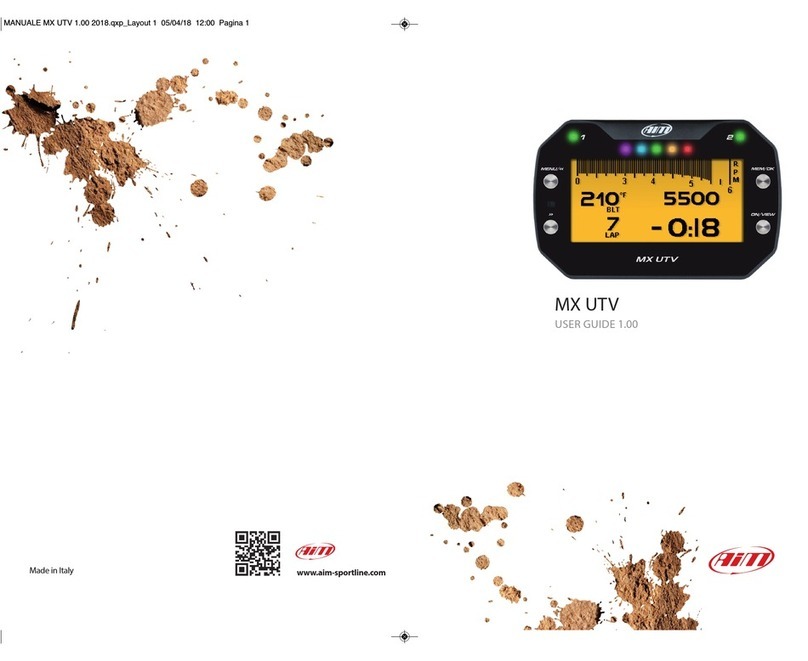
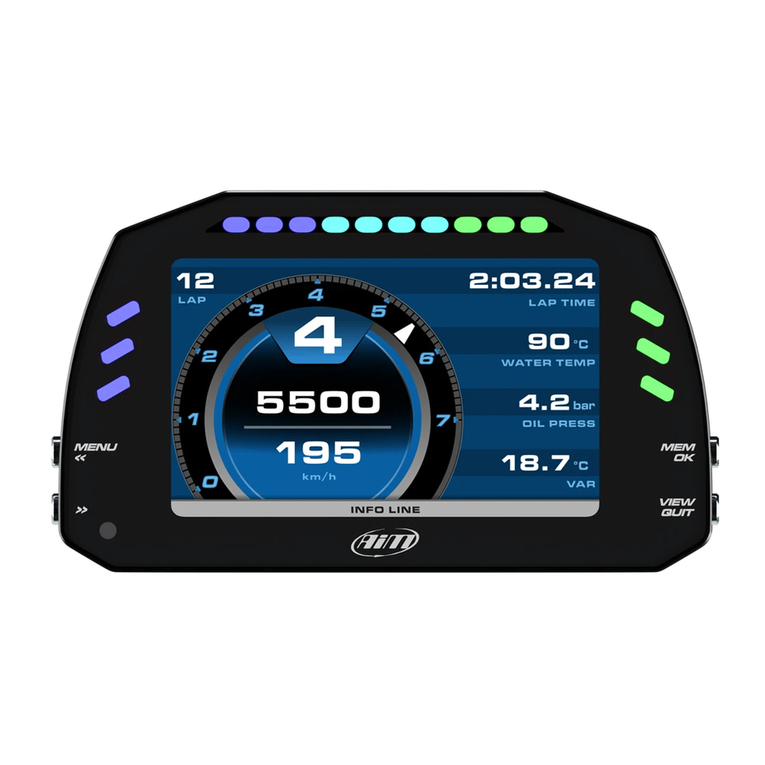
Aim MXm User manual

Made in Italy
MXm
USER GUIDE 1.00
www.aim-sportline.com
MANUALE MXm 1.00 2018.qxp_Layo t 1 01/08/18 15:08 Pagina 1

MXm
1 MXm in a few words
2 What is in the kit?
3 Installation, powering and accessories
4 At power on
5 What you can do via keyboard
5.1 acklight
5.2 Unit of measure
5.3 WiFi
5.4 Tracks Management
5.4.1 Creating a track with MXm
5.5 Counters
5.6 Date and Time
5.7 Language
5.8 System Info
6 MXm and the PC
6.1 Connection to the PC
6.1.1 WiFi configuration
6.1.2 Configuring MXm as an access point AP
6.1.3 Adding MXm to an existing network
6.1.4 WiFi network settings
6.1.5 The Internet connectivity
6.1.6 Connection issues
6.1.7 Working on MacTM with virtualized WindowsTM
6.1.8 Connected device visualization issues
6.2 Configuration of MXm
04
06
10
11
12
13
14
14
15
16
16
17
18
18
19
19
21
22
25
28
30
30
31
34
34
6.2.1 Channels configuration
6.2.2 ECU Connection and configuration
6.2.3 LCUOne CAN setting
6.2.4 Math channels
6.2.5 Status variables setting
6.2.6 Parameters settings
6.2.7 Shift Lights and Alarms
6.2.8 Power Outputs setting
6.2.9 Display settings
6.2.10 SmartyCam stream setting
6.3 Managing a track on MXm with Race Studio 3
6.4 ECU Driver builder
6.5 The device window
7 On the track
7.1 Track page
7.2 Other pages
8 Data recall
9 Data download
10 Data Analysis
11 New firmware upgrade
12 RPM 69
12.1 RPM from ECU
12.2 RPM via a 550V square wave or coil 150400V
13 Connection with SmartyCam and LCUOne
14 Technical specifications and drawings
35
37
38
39
40
42
43
49
51
53
54
60
61
62
62
62
63
65
66
68
69
69
69
72
74
MANUALE MXm 1.00 2018.qxp_Layo t 1 01/08/18 15:08 Pagina 3

1. MXm in a few words
04 05
n What is MXm?
MXm is the new AiM mini logger that
combines small dimensions, usability
and logging capability.
Why MXm?
ecause it features:
n ECU connection
n 2 speed inputs
n 4 analog inputs
n 2 digital high side output
n up to 8 configurable display pages
n integrated GPS + Glonass receiver
n a huge tracks database to automati-
cally select the track you are racing on
n a powerful and comfortable Wi-Fi
connection
n 10 RG LEDs that clearly show if you
are improving or not
n a huge amount of internal memory
(four gigabytes) capable of recording a
lot of tests
What about ECU connection?
MXm manages all the hardware ECU
connections as well as all the commu-
nication lines: CAN, K-Line, RS232. Its
huge database includes more than
1500 protocols you can load in your
MXm.
CHAPTE 1 MXm
If the vehicle does not have an ECU?
In case your vehicle does not have an
ECU, you can anyway connect MXm to
an RPM wave to synchronize RPM to
the position on the track thanks to the
cable labelled RPM of 37 pins connec-
tor harness you find in the kit.
Is MXm an expandable logger?
Yes. MXm can be connected to AiM
LCU-One CAN to maximize your engine
performances and AiM SmartyCam to
see your track performances on your
PC with all the values you need in over-
lay.
Anything else?
Of course yes.
An app for iPhone is coming! In a few
weeks you will be able to analyse es-
sential data on your iPhone; further-
more, you will be able to see in real
time all the values MXm samples, up-
grade its firmware, create new tracks as
well as update your database and mo-
dify Wi-Fi settings.
MANUALE MXm 1.00 2018.qxp_Layo t 1 01/08/18 15:08 Pagina 5

CHAPTE 2
06 07
MXm
MXm kit includes:
MXm
37 pin connector harness
4 pins connector kit
CD for software installation
2. What is in the kit?
1
2
1
2
3
4
4
3
MANUALE MXm 1.00 2018.qxp_Layo t 1 01/08/18 15:08 Pagina 7

CHAPTE 2
08 09
MXm
MXm
37 pins connector 4 pins connector
Nylon body
Integrated GPSGB Shiftlights Alarm Led 2Alarm Led 1
PushbuttonsWide Graphical display Light sensor
MANUALE MXm 1.00 2018.qxp_Layo t 1 01/08/18 15:08 Pagina 9

3. Installation, powering and accessories
MXm is powered connecting the 37 pins connection harness you find in the kit to the
vehicle master switch. This way MXm will switch on/off with the vehicle engine.
37 pins connection harness wires to be used are labelled “9-15 VDC” and “GND”.
A said before, AiM MXm features two digital outputs you can turn ON/OFF according
to pre-defined conditions you can set using Race Studio 3 software.
They need the connection of the 4 pins connector included in the kit. Please refer to
MXm pinout you find at the end of this user manual for further information.
CHAPTE 3 CHAPTE 4
10 11
MXm
4. At power on
When switched on MXm shows satellite page.
Here you can see the number of connected satellite (SATS 12 in the image above) as
well as the quality of the signal.
If you are on a track not included in MXm database the system shows the message
“NO NEAR Y TRACKS and “Track learning” enables automatically. You can disable it
pressing the related button, that switches to “ENA LE” and you only need to press it
again to enable track learning mode. In this second case the system asks for confir-
mation.
Please refer to “Tracks Management” chapter for further information.
MANUALE MXm 1.00 2018.qxp_Layo t 1 01/08/18 15:08 Pagina 11

CHAPTE 5
12 13
MXm
5.1 Backlight
You can set MXm backlight as “AUTO”(Default setting), “ON” or “OFF”.
Thanks to the light sensor, placed left front of MXm, “AUTO” setting switches the
backlight on/off according to the ambient light conditions.
MXm back light can be: white, purple, red, green, yellow blue, magenta and cyan.
5. What you can do via keyboard
MXm is mainly configurable using Race Studio 3 software but some functions are
settable via keyboard as explained here below. Press “MENU” and this page shows
up.
The icons are to manage:
acklight
Wi-Fi Date Time
Language
System info
Unit of measure
Counters
Tracks
MANUALE MXm 1.00 2018.qxp_Layo t 1 01/08/18 15:08 Pagina 13

CHAPTE 5
14 15
MXm
5.4 Tracks Management
MXm built in GPS receiver is used for:
n Lap time calculation
n Speed calculation
n Predictive lap time calculation
n Position on the track in analysis
To calculate these data the system needs to know the start/finish line coordinates.
MXm comes with a long list of the world main tracks. The list is constantly updated
by our technicians and it updates on your PC when you run Race Studio 3 software
and a connection to the internet is available. Available track selection modes are: au-
tomatic and manual
5.3 Wi-Fi
Here you can manage Wi-Fi as well as reset its configuration. Wi-Fi modes are:
n ON
n Auto: switches Wi-Fi on when the vehicle is stopped and automatically switches
it off when MXm starts recording, according to the setting you performed in
“Parameters” page of Race Studio 3 software (see paragraph 6.2.6 for further
information)
n OFF
“Wi-Fi reset CFG” allows you to reset Wi-Fi configuration and is very useful if you do
not remember Wi-Fi password.
5.2 Unit of measure
Here you can manage speed, temperature and pressure unit of measure. Use:
n “PREV”/”NEXT” buttons to scroll the measure to set
n “CHANGE” button to change the measure unit
oth track modes provide three track list type:
n nearest: shows only tracks in a 10 km distance with max 50 tracks shown
n all tracks: shows all tracks stored in the system in alphabetical order
n custom: shows only the tracks you have previously created (learning mode)
Automatic:
the system automatically recognizes
the track you are running on, loads
start/finish line and calculates lap
times.
This is the best mode in most cases.
Manual:
allows you to manually select the track
from the internal database.
This mode is to be preferred when mul-
tiple track configurations are available
nearby. In this case MXm would any-
way recognize the track but would
need at least one complete track lap.
To be ready from the first lap manual
mode would be helpful.
MANUALE MXm 1.00 2018.qxp_Layo t 1 01/08/18 15:08 Pagina 15

CHAPTE 5
16 17
MXm
n scroll to Status and press “CHANGE” to switch from “Active” to “Stop” and vice-versa
n scroll to clear and press “CHANGE” to reset an odometer (left image below)
n pressing “EXIT” you come back to odometer page and the odometer you
stopped/reset will not show the asterisk and will show “0” km (in the example
below both operations have been performed on odometer 1 (right image below).
5.4.1 Creating a track with MXm
5.5 Counters 5.6 Date and Time
If you are running in a track NOT included in MXm database the device switches to
“learning” mode and behave this way:
n it starts sampling all track points
n when detects that it is crossing the same points for the second time it realizes that
the track is closed and sets a temporary start/finish line showing lap time each
time it crosses that point;
n at the end of the session the system shows the track map with start/finish line:
you can move start/finish line using MXm side buttons;
n you can add this new map to MXm database, modify start/finish line coordinates,
name the track and transmit it to the PC at first PC-MXm connection
You find a deeper explanation of track management with Race Studio 3 in the related
chapter and a “Track manager” user manual is available in documentation area, fir-
mware/ software of www.aim-sportline.com.
This page manages the 4 resettable
odometers of MXm.
The system odometer is not resettable.
All odometers are shown on Race Stu-
dio 3 too (see chapter about MXm and
the PC).
Each odometer can be activated/deac-
tivated and/or reset. To select the odo-
meter you want to manage press
“CHANGE”.
Here you can set the time zone of your
MXm as well as enable/disable Day-
light Saving Time” option. Time zone is
always set manually. Date and time can
be shown in different format.
Time is automatically synchronized as
MXm receives the GPS signal.
MANUALE MXm 1.00 2018.qxp_Layo t 1 01/08/18 15:08 Pagina 17

CHAPTE 6 MXm
You can set MXm language. Default setting is English. Press “CHANGE” to set the
language you prefer. At present available languages are (in this order):
n English
n Italian
n German
n Spanish
n French
n Dutch
n Danish
n Portuguese
n Japanese
n Czech
This page shows serial number as well
as firmware and boot version of your
MXm.
n check that MXm is set on “AUTO”
or on “ON”
n read your MXm name – mid of MXm
home page bottom line – or look for
it in system information page
Using AiM Race Studio 3 software you can configure MXm, manage its tracks data-
base as well as check other device functions using the device window.
MXm can be connected to the PC via Wi-Fi or via US .
To connect MXm to the PC via USB use the US cable you find in the kit: plug it in
the cable labelled “US ” of MXm 37 pins connector harness and in the PC US port.
To connect MXm to the PC via Wi-Fi
18 19
CHAPTE 5
5.7 Language 6 MXm and the PC
5.8 System Info 6.1 Connection to the PC
MANUALE MXm 1.00 2018.qxp_Layo t 1 01/08/18 15:08 Pagina 19
Table of contents
Other Aim Other manuals