manuals.online logo
Brands
  1. Home
  2. •
  3. Brands
  4. •
  5. ALcom
  6. •
  7. Telephone
  8. •
  9. ALcom AT8130 User manual

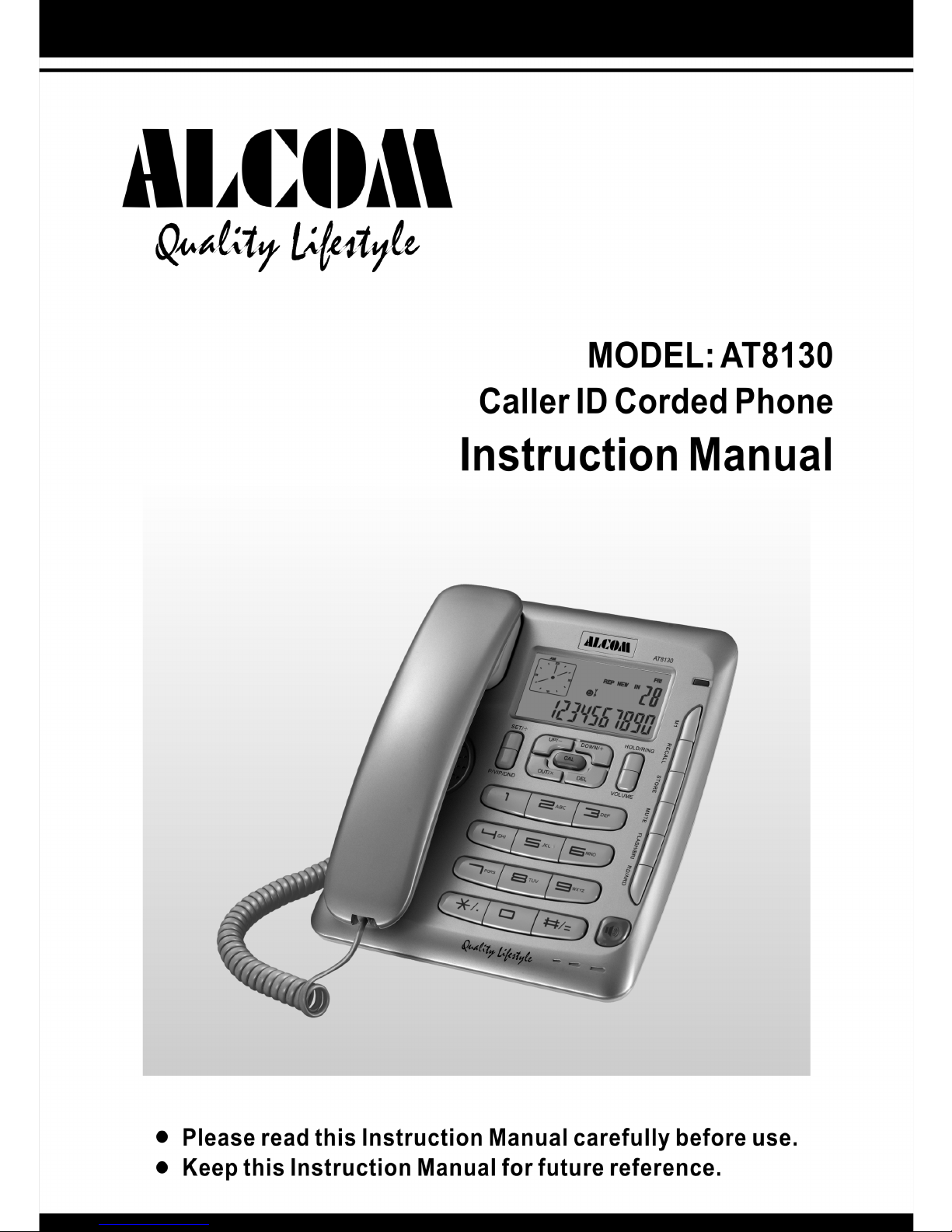
ALcom AT8130 User manual

Other ALcom Telephone manuals

ALcom AT2322 User manual

ALcom

ALcom AT2322 User manual

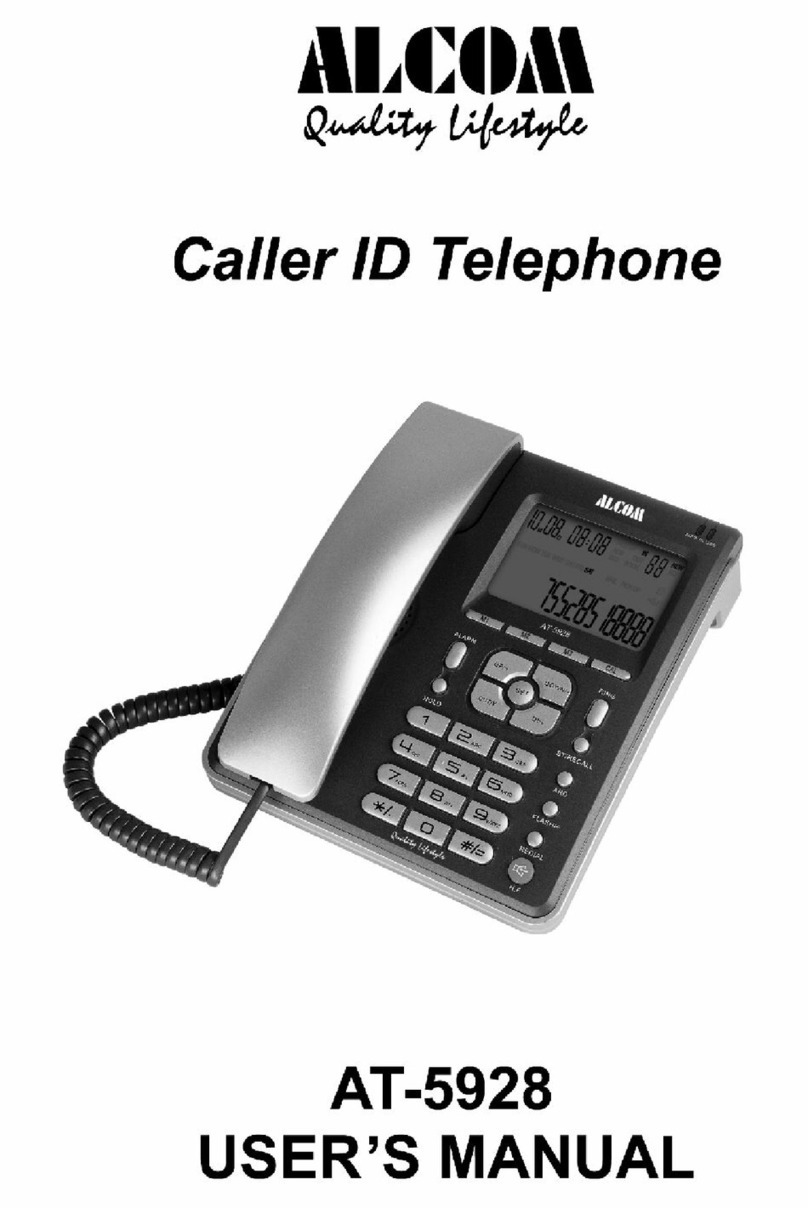
ALcom AT-5928 User manual

ALcom

ALcom AT-5928 User manual

ALcom Concept Combo 2300 User manual

ALcom

ALcom Concept Combo 2300 User manual

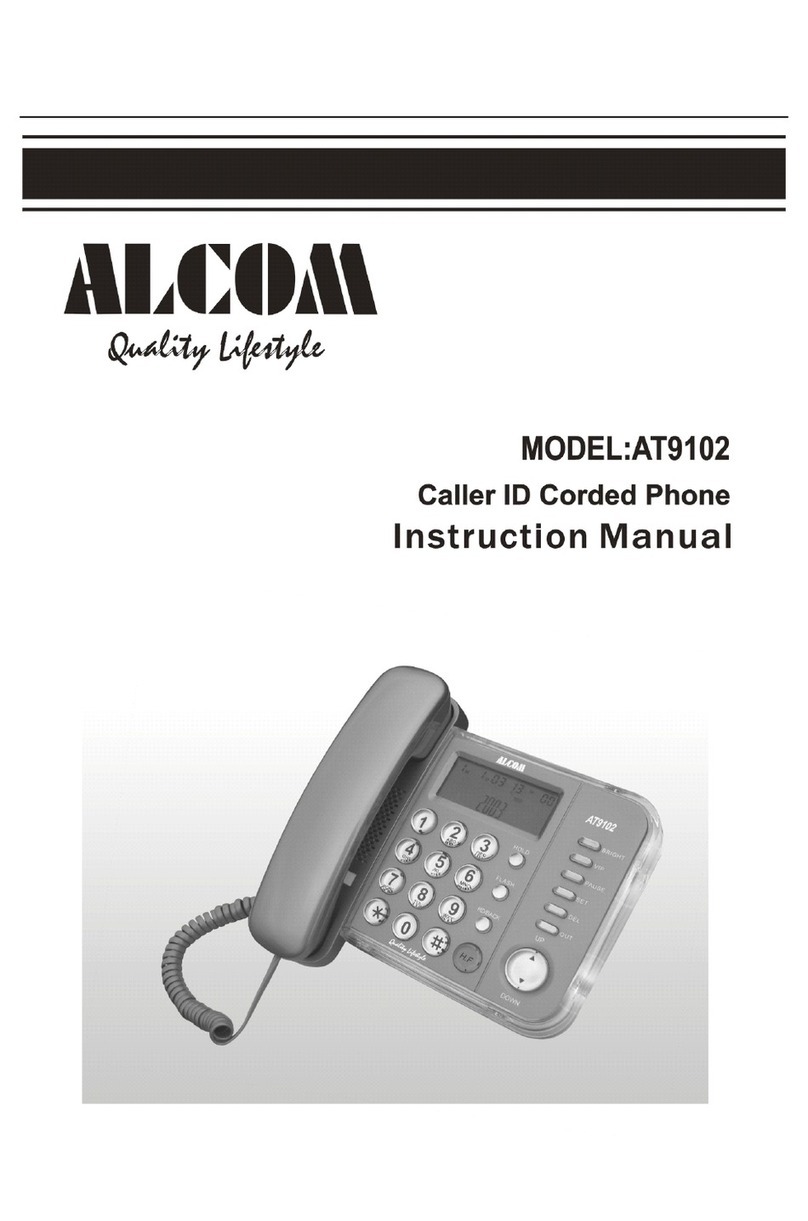
ALcom AT9102 User manual

ALcom

ALcom AT9102 User manual

ALcom AT5933 User manual

ALcom

ALcom AT5933 User manual

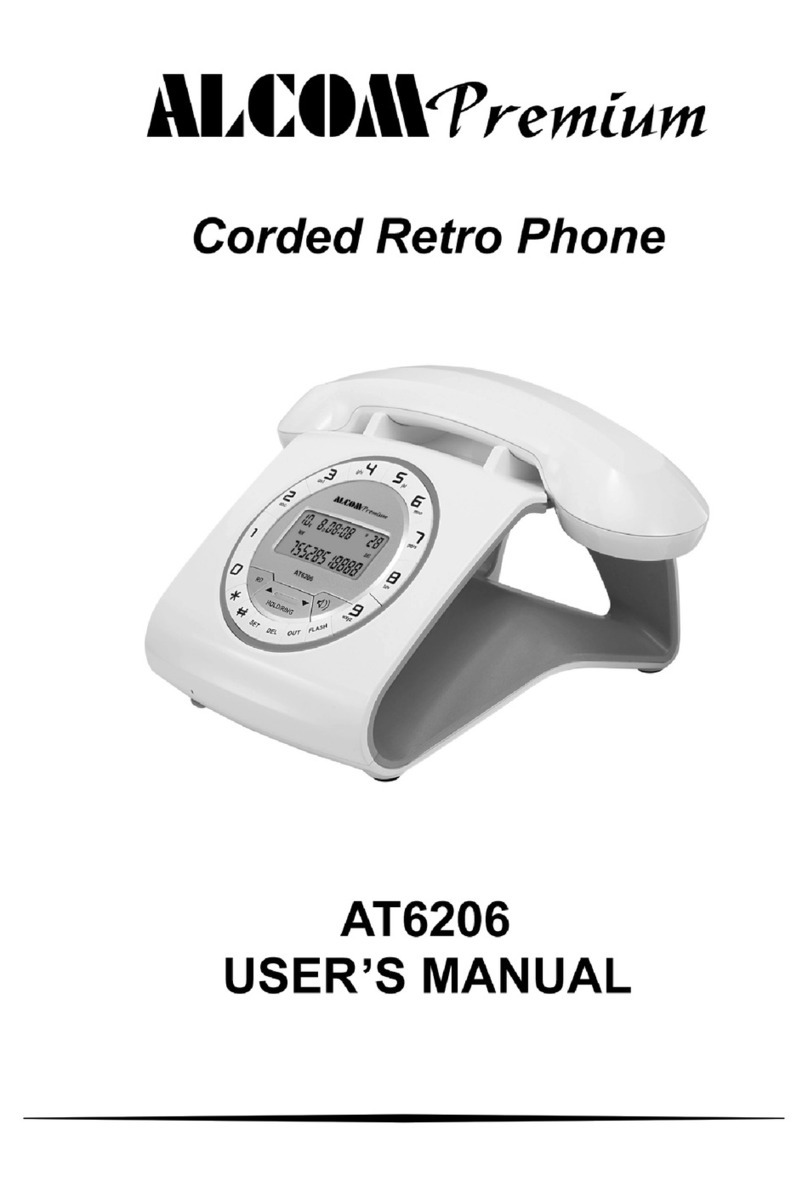
ALcom Premium AT6206 User manual

ALcom

ALcom Premium AT6206 User manual

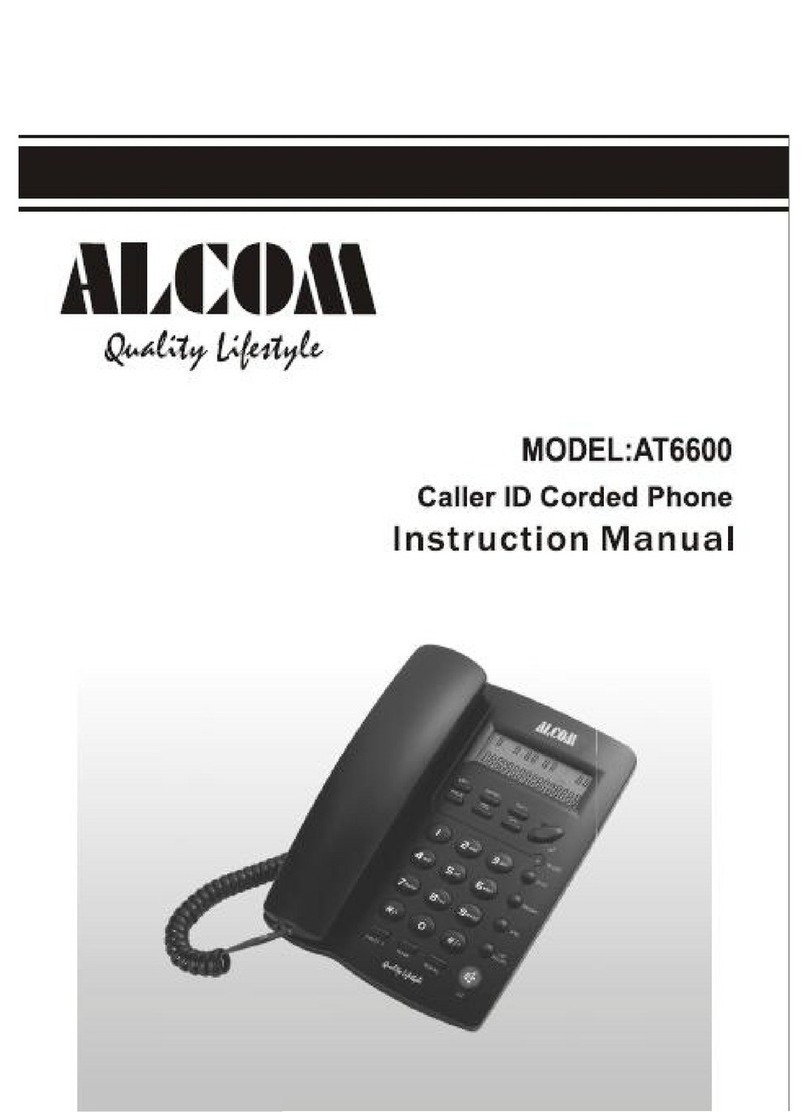
ALcom AT6600 User manual

ALcom

ALcom AT6600 User manual

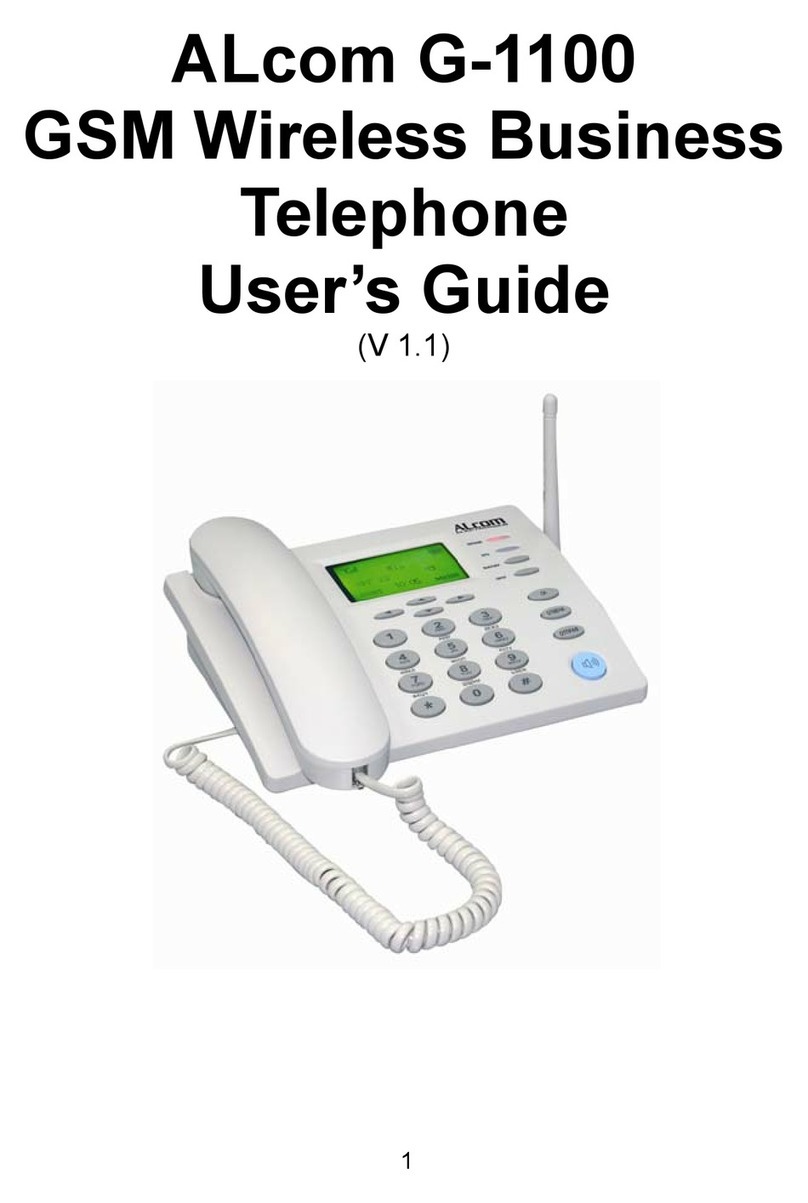
ALcom G-1100 User manual

ALcom

ALcom G-1100 User manual

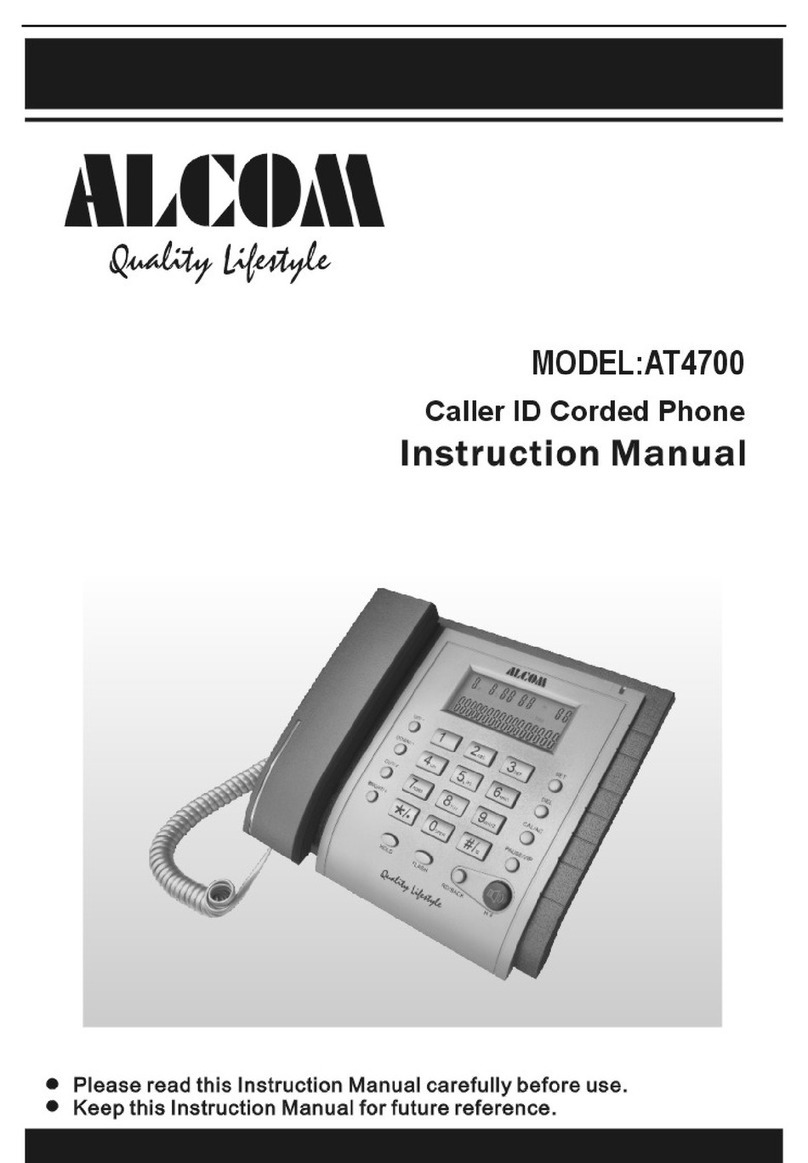
ALcom AT4700 User manual

ALcom

ALcom AT4700 User manual

Popular Telephone manuals by other brands

Philips BaseLine Pro manual

Philips

Philips BaseLine Pro manual

V-tech i6772 user guide

V-tech

V-tech i6772 user guide

BT FREELANCE XD 5100 quick start guide

BT

BT FREELANCE XD 5100 quick start guide

Uniden 1360 user guide

Uniden

Uniden 1360 user guide

Fanvil D800 user manual

Fanvil

Fanvil D800 user manual

Avaya IP500 user guide

Avaya

Avaya IP500 user guide

NEC Univerge SV9100 installation manual

NEC

NEC Univerge SV9100 installation manual

Amanda MiniSOHO Installation and programming manual

Amanda

Amanda MiniSOHO Installation and programming manual

Hitachi SelecSet 900 Series user guide

Hitachi

Hitachi SelecSet 900 Series user guide

mPTech HAMMER BS21 quick start guide

mPTech

mPTech HAMMER BS21 quick start guide

NEC 2000IVX user guide

NEC

NEC 2000IVX user guide

ooma Phone Genie quick start guide

ooma

ooma Phone Genie quick start guide

Siemens Gigaset S450 user guide

Siemens

Siemens Gigaset S450 user guide

Clarity RC100 operating instructions

Clarity

Clarity RC100 operating instructions

GE 2-9480 user guide

GE

GE 2-9480 user guide

Geemarc PHOTOPHONE 155 user guide

Geemarc

Geemarc PHOTOPHONE 155 user guide

Interquartz Gemini IQ333 operating instructions

Interquartz

Interquartz Gemini IQ333 operating instructions

SSS Siedle HT 840-0 operating instructions

SSS Siedle

SSS Siedle HT 840-0 operating instructions

manuals.online logo
manuals.online logoBrands
  • About & Mission
  • Contact us
  • Privacy Policy
  • Terms and Conditions

Copyright 2025 Manuals.Online. All Rights Reserved.

0
1
Important
Important
Important
Important Safety
Safety
Safety
Safety Precautions
Precautions
Precautions
Precautions
Thank
Thank
Thank
Thank you
you
you
you for
for
for
for purchasing
purchasing
purchasing
purchasing this
this
this
this ALCOM
ALCOM
ALCOM
ALCOM Telephone.
Telephone.
Telephone.
Telephone.
We
We
We
We recommend
recommend
recommend
recommend you
you
you
you to
to
to
to read
read
read
read this
this
this
this manual
manual
manual
manual and
and
and
and
familiarize
familiarize
familiarize
familiarize the
the
the
the functions
functions
functions
functions of
of
of
of this
this
this
this unit
unit
unit
unit before
before
before
before use
use
use
use .
.
.
.
1. The phone should be placed in cool, dry, ventilated and
non-toxic places, etc.
2. Keep your phone away from moisture, dust, liquids and
steam; if it gets wet or dusty, wipe it immediately.
3. Use damp soft cloth for cleaning occasionally to keep it
looking new; don ’ t use liquid cleaners or aerosol
cleaners. Also m ake sure to disconnect the telephone
line before cleaning.
4. Do not expose LCD in the sun for long time; and if you
won ’ t use the phone for more than a month, remove the
batteries because they may leak and damage the
phone.
5. Never
- Touch plug contacts with sharp or metallic objects.
- Move and operate the phone during an electrical storm,
there may be a remote risk of electronic shock from
lightning and thunder.
- Open the phone yourself, modifying or tampering the
internal components can cause malfunction and might
invalidate the warranty. If your phone is not performing
as it should, take it to your local service centre for
repair.
6. Other Important Tips
- Caller ID function will work only after you have
subscribed for the service in the local telecom
2
company.
- Please answer the call after the phone rings twice,
otherwise there are chances that Caller ID may not
come in your phone.
Features
Features
Features
Features
󴖰FSK/DTMF compatible with auto-detection
󴖰12-digit LCD display with real clock
󴖰Dynamic storage: 55 incoming calls, 1 4 outgoing calls
and 55 VIP calls
󴖰1 one-touch and 12 two-touch memories
󴖰8 normal ringing tones with 4 levels volume control
󴖰3 groups of normal alarm clock
󴖰2 digit s PABX code setting and 5 digit s area code
filtering
󴖰Pre-dialing and backspace function
󴖰Hold on music
󴖰M ute ringing function
󴖰DND ( D o Not Disturb ) function
󴖰5 levels of LCD contrast adjustable
󴖰Pulse and tone dailing mode selectable
󴖰3 steps lock of dialing keypad s
󴖰Redial and auto-redial function
󴖰F lash time selectable
󴖰Calculator function
󴖰Baby call function
󴖰LCD backlight function
󴖰Hands-free dialing and speaking function*
*Refer
*Refer
*Refer
*Refer Important
Important
Important
Important notes1
notes1
notes1
notes1 on
on
on
on page
page
page
page 14.
14.
14.
14.
3
󴖰Hands-free 3 level s volume control
󴖰Incoming ring LED indicator
Overview
Overview
Overview
Overview and
and
and
and Keys
Keys
Keys
Keys Description
Description
Description
Description
4
1-LED
1-LED
1-LED
1-LED : Incoming r ing ing indicator
2
2
2
2 -LCD
-LCD
-LCD
-LCD : Liquid crystal display
3-M1
3-M1
3-M1
3-M1 : One-touch memory
4-RECALL
4-RECALL
4-RECALL
4-RECALL : Dialing for two-touch memory
5-HOLD/RING
5-HOLD/RING
5-HOLD/RING
5-HOLD/RING : Hold call / Select ringing tone
6-STORE
6-STORE
6-STORE
6-STORE : Store one/two-touch memory number
7-VOLUME
7-VOLUME
7-VOLUME
7-VOLUME : Ringing and speaker volume control
8-DEL
8-DEL
8-DEL
8-DEL : Delete digits and numbers
9-MUTE
9-MUTE
9-MUTE
9-MUTE : Mute incoming ringing
10-FLASH/BRI
10-FLASH/BRI
10-FLASH/BRI
10-FLASH/BRI : Flash; Adjust LCD contrast (brightness)
11-RD/ARD
11-RD/ARD
11-RD/ARD
11-RD/ARD : Redial the last dialed number ; Auto-redial
12-
12-
12-
12- : Activate/Deactivate the speakerphone
13-
13-
13-
13- DOWN/
DOWN/
DOWN/
DOWN/ +,
,
,
, 14
14
14
14 -UP/
-UP/
-UP/
-UP/ -: Review incoming calls;
navigation keys during settings; calculator symbols
15-SET/
15-SET/
15-SET/
15-SET/ ÷: Access the settings menu; calculator symbol
16-CAL
16-CAL
16-CAL
16-CAL : Calculator
17-P/VIP/DND
17-P/VIP/DND
17-P/VIP/DND
17-P/VIP/DND : Pause; Set VIP number; Set DND time
18-OUT
18-OUT
18-OUT
18-OUT / × : Review outgoing calls; calculator symbol
19-
19-
19-
19- NUMBER
NUMBER
NUMBER
NUMBER KEYS
KEYS
KEYS
KEYS : Dialing keypad
20
20
20
20 -
-
-
- LINE
LINE
LINE
LINE : Telephone line jack
21-LOCK
21-LOCK
21-LOCK
21-LOCK : Mechanical keypad lock
22-RING(HI/LO)
22-RING(HI/LO)
22-RING(HI/LO)
22-RING(HI/LO) SWITCH
SWITCH
SWITCH
SWITCH : Ring volume control when no
batteries loaded.
5
Preparation
Preparation
Preparation
Preparation and
and
and
and Installation
Installation
Installation
Installation Instructions
Instructions
Instructions
Instructions
1. Open the battery compartment cover and put 3
batteries of “ AA ” size into the compartment with
correct polarity, then close the cover. After that there
will be some icons like date and time shown on LCD,
otherwise you need reinstall the batteries properly.
Important note s : - Please disconnect the phone from
telephone line when installing or replacing batteries;
and dispose of used old batteries properly, do not
bury or burn them.
2. Connect the phone base and handset using the
supplied coiled cord.
3. Plug one end of supplied line cord into the modular
line jack of the phone base and other end to the
available output jack provided by local telecom office.
Lift up the handset or press Hands-free key to make
sure a dialing tone, otherwise check the connection.
4. Definitions
- On-hook state: The phone is in idle state with
hands-free speaker deactivated and handset placed
well on the phone base cradle.
- Off-hook: The phone engages the telephone line by
activating the hands-free speaker or lifting up the
handset.
6
Operate
Operate
Operate
Operate Your
Your
Your
Your Phone
Phone
Phone
Phone –
–
–
– Settings
Settings
Settings
Settings Menu
Menu
Menu
Menu
Main
Main
Main
Main Menu
Menu
Menu
Menu Settings
Settings
Settings
Settings
Please browse following menu options first, then select
the required options to set your phone as per your need.
1. SET 1 DATE – Set Date and time for LCD display
2. SET 2 CODE – Set local area code, total 5 digits
3. SET 3 PCODE – Set PABX code, total 2 digits
4. SET 4 FLASH – Select flash time
5. SET 5 LCD – Adjust LCD contrast as per view angle,
total 5 levels
6. SET 6 ALERT – Set normal alarm clock, total 3
groups
7. SET 7 P-T – Select dialing mode
8. SET 8 PPP – Turn on/off Anti-steal dialing
9. SET 9 BABY – Set baby-call number
In on-hook state, press SET/
SET/
SET/
SET/ ÷key to access the settings
menu. D uring settings: t o change setting item s , always
use UP/
UP/
UP/
UP/ -or DOWN/
DOWN/
DOWN/
DOWN/ +key; to confirm one selection,
also press SET/
SET/
SET/
SET/ ÷key; to leave the setting mode, press
DEL
DEL
DEL
DEL key or don ’ t operate the phone for 10 seconds.
The setting s of different items are shown in detail as
follows:
Setting
Setting
Setting
Setting Date/Tim
Date/Tim
Date/Tim
Date/Tim e
e
e
e
1. Press SET/
SET/
SET/
SET/ ÷key, LCD displays SET
SET
SET
SET 1
1
1
1 DATE
DATE
DATE
DATE
2. Press SET/
SET/
SET/
SET/ ÷key again , the last two digits of year
flickers .
7
3. Use UP/
UP/
UP/
UP/ -or DOWN/
DOWN/
DOWN/
DOWN/ +to change the year, and
confirm it with SET/
SET/
SET/
SET/ ÷key .
4. Advance as above to set the month, day, hour and
minute by turn. LCD will automatically display the
corresponding day of the week.
N
N
N
N ote:
ote:
ote:
ote: W hen the unit is powered on initially, LCD will be
reminded to set the date first. U se above methods to set it,
and then press SET/
SET/
SET/
SET/ ÷key to confirm and come back to
standby state.
Setting
Setting
Setting
Setting local
local
local
local area
area
area
area code
code
code
code
M ay be your phone will receive a local area call with area
code, which can ’ t be called back, then you can store the
area code in your phone in order to filter it once this kind
of phone call is received.
1. Press SET/
SET/
SET/
SET/ ÷key then press UP/
UP/
UP/
UP/ -key to get to
SET
SET
SET
SET 2
2
2
2 CODE
CODE
CODE
CODE
2. P ress SET/
SET/
SET/
SET/ ÷key again , LCD displays CODE
CODE
CODE
CODE -----
-----
-----
----- or
the preset codes with the first digit fl icker ing .
3. Use UP/
UP/
UP/
UP/ -or DOWN/
DOWN/
DOWN/
DOWN/ +to edit the fl icker ing digit
from 0 to 9 , and confirm it with SET/
SET/
SET/
SET/ ÷key .
4. Advance as above to set the rest.
N
N
N
N ote:
ote:
ote:
ote: T he phone will auto-filter the area code when
receiving an incoming call which the first digits are same
as area code.
Setting
Setting
Setting
Setting PABX
PABX
PABX
PABX code
code
code
code
8
I f your phone is used on a PABX system, this setting
option is required for helping you make external calls.
1. Press SET/
SET/
SET/
SET/ ÷key then press UP/
UP/
UP/
UP/ -key twice to get
to SET
SET
SET
SET 3
3
3
3 PCODE
PCODE
PCODE
PCODE .
2. Press SET/
SET/
SET/
SET/ ÷key again, LCD displays PCODE
PCODE
PCODE
PCODE -
-
-
- -
-
-
-or
the preset codes with the first digit fl icker ing.
3. Use UP/
UP/
UP/
UP/ -or DOWN/
DOWN/
DOWN/
DOWN/ +key to edit the first code,
and confirm it with SET/
SET/
SET/
SET/ ÷key.
4. Set the second code by same way. If PABX code has
one digit only, set the second digit as “ - ” .
Setting
Setting
Setting
Setting Flash
Flash
Flash
Flash time
time
time
time
This setting option allows you to set the flash time
required for different exchangers. Contact your local
telecom provider to know the appropriate flash time to
support different functions .
1. Press SET/
SET/
SET/
SET/ ÷key then press UP/
UP/
UP/
UP/ -key three times
to get to SET
SET
SET
SET 4
4
4
4 FLASH
FLASH
FLASH
FLASH
2. Press SET/
SET/
SET/
SET/ ÷key again, LCD displays FLASH
FLASH
FLASH
FLASH 4
4
4
4 110
110
110
110
3. Use UP/
UP/
UP/
UP/ -or DOWN/
DOWN/
DOWN/
DOWN/ +ke y to select the Flash time
from 110, 300, 600 and 1000ms , and confirm it with
SET/
SET/
SET/
SET/ ÷key.
Setting
Setting
Setting
Setting LCD
LCD
LCD
LCD contrast
contrast
contrast
contrast
Depending on the viewing angle of the phone, you may
want to adjust the LCD contrast:
1. Press SET/
SET/
SET/
SET/ ÷key then press UP/
UP/
UP/
UP/ -key four times
to get to SET
SET
SET
SET 5
5
5
5 LCD
LCD
LCD
LCD .
9
2. P ress SET/
SET/
SET/
SET/ ÷key again, LCD display s LC
LC
LC
LC D
D
D
D
3
3
3
3(default)
3. Us e UP/
UP/
UP/
UP/ -or DOWN/
DOWN/
DOWN/
DOWN/ +key to select the
comfortable level among 5 levels, and press SET/
SET/
SET/
SET/ ÷
key to confirm.
Note:
Note:
Note:
Note: Alternatively i n on-hook state, press FLASH/BRI
FLASH/BRI
FLASH/BRI
FLASH/BRI
key continually to adjust the LCD contrast , and press DEL
DEL
DEL
DEL
key to save and quit.
Setting
Setting
Setting
Setting normal
normal
normal
normal alarm
alarm
alarm
alarm clock
clock
clock
clock
The phone provides 3 groups of alarm clock with different
alarm time to meet your demand.
1. Press SET/
SET/
SET/
SET/ ÷key then press UP/
UP/
UP/
UP/ -key five times to
get to SET
SET
SET
SET 6
6
6
6 ALERT
ALERT
ALERT
ALERT
2. Press SET/
SET/
SET/
SET/ ÷key again, LCD displays 1
1
1
1 00-00
00-00
00-00
00-00 OFF
OFF
OFF
OFF
with “ 1
1
1
1” flashing, then press UP/
UP/
UP/
UP/ -or DOWN/
DOWN/
DOWN/
DOWN/ +key
to select the group number from 1~3, and press SET/
SET/
SET/
SET/
÷key to enter the alarm time setting.
3. Use the UP/
UP/
UP/
UP/ -or DOWN/
DOWN/
DOWN/
DOWN/ +to adjust the alarm time,
and press SET/
SET/
SET/
SET/ ÷key to confirm every digit.
4. Then the OFF
OFF
OFF
OFF flashes, press the UP/
UP/
UP/
UP/ -or DOWN/
DOWN/
DOWN/
DOWN/ +
key to select ON
ON
ON
ON and confirm it with SET/
SET/
SET/
SET/ ÷key.
5. S et the rest 2 groups by the same way.
Note:
Note:
Note:
Note: After opening one group of normal alarm clock s ,
and when the alarm time arrives, the phone will send out
“ DI, DI ” sound for 1 minute every time .
The alarm clock is available only when the phone is
connected to telephone line.