logo
Brands
  1. Home
  2. •
  3. Brands
  4. •
  5. ANTAIRA
  6. •
  7. Network Router
  8. •
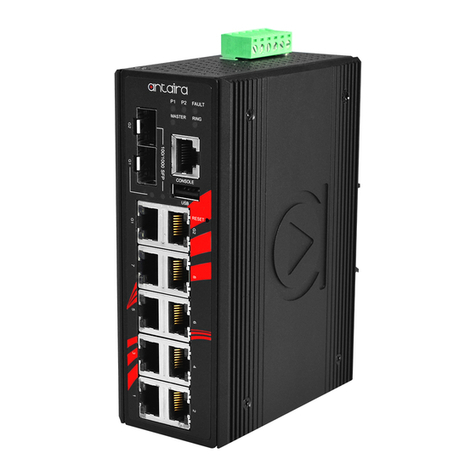
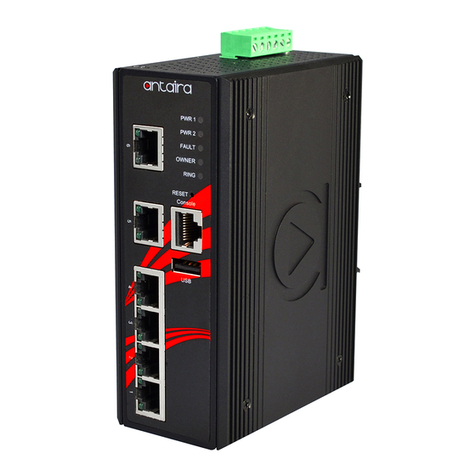
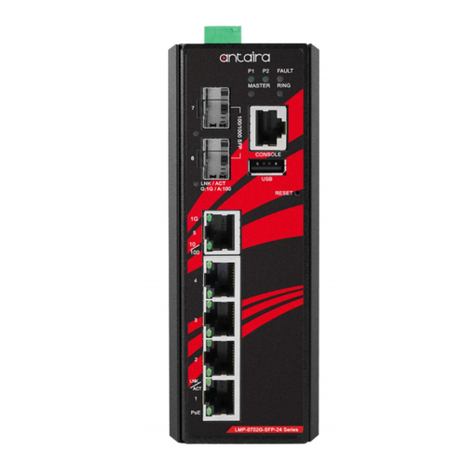
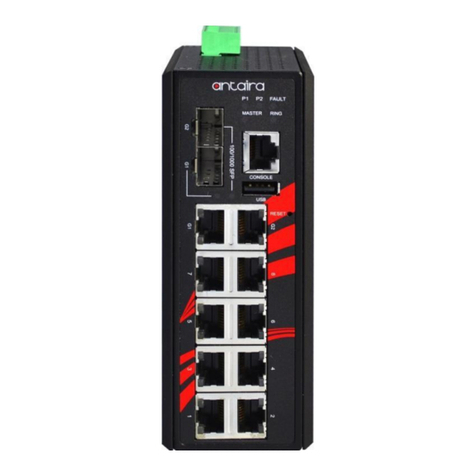
  9. ANTAIRA LMP-0602-24-V2 Series User manual

ANTAIRA LMP-0602-24-V2 Series User manual

Other manuals for LMP-0602-24-V2 Series

1

Other ANTAIRA Network Router manuals

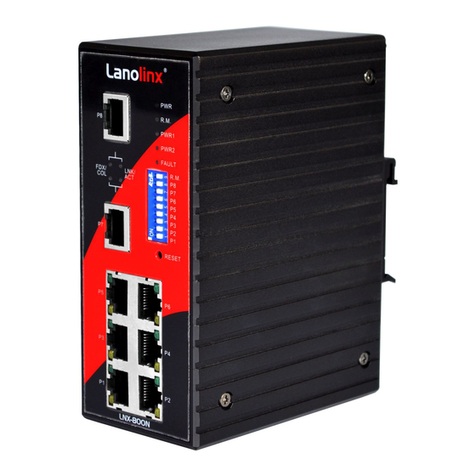
ANTAIRA LMX-0800G Series User manual

ANTAIRA

ANTAIRA LMX-0800G Series User manual

ANTAIRA LMP-0602 24-V2 Series User manual

ANTAIRA

ANTAIRA LMP-0602 24-V2 Series User manual

ANTAIRA LMP-1202G-SFP Series User manual

ANTAIRA

ANTAIRA LMP-1202G-SFP Series User manual

ANTAIRA STE-6104C-T-V2 User manual

ANTAIRA

ANTAIRA STE-6104C-T-V2 User manual

ANTAIRA LNP-C500G User manual

ANTAIRA

ANTAIRA LNP-C500G User manual

ANTAIRA LNX-1802G-T User manual

ANTAIRA

ANTAIRA LNX-1802G-T User manual

ANTAIRA LNX-800N User manual

ANTAIRA

ANTAIRA LNX-800N User manual

ANTAIRA ARS-7235-AC Series User manual

ANTAIRA

ANTAIRA ARS-7235-AC Series User manual

ANTAIRA LNP-1202G-SFP Series User manual

ANTAIRA

ANTAIRA LNP-1202G-SFP Series User manual

ANTAIRA LMX-0500 Series User manual

ANTAIRA

ANTAIRA LMX-0500 Series User manual

ANTAIRA ARX-7235-AC-PD-T User manual

ANTAIRA

ANTAIRA ARX-7235-AC-PD-T User manual

ANTAIRA LMP-0600 Series User manual

ANTAIRA

ANTAIRA LMP-0600 Series User manual

ANTAIRA LNP-1604G-SFP Series Installation and operation manual

ANTAIRA

ANTAIRA LNP-1604G-SFP Series Installation and operation manual

ANTAIRA LMP-0602 Series User manual

ANTAIRA

ANTAIRA LMP-0602 Series User manual

ANTAIRA LMX-0601G-SFP Series User manual

ANTAIRA

ANTAIRA LMX-0601G-SFP Series User manual

ANTAIRA LMP-1002C-SFP Series User manual

ANTAIRA

ANTAIRA LMP-1002C-SFP Series User manual

ANTAIRA LNX-1202G-SFP Series User manual

ANTAIRA

ANTAIRA LNX-1202G-SFP Series User manual

ANTAIRA LNX-501AG-SFP-T User manual

ANTAIRA

ANTAIRA LNX-501AG-SFP-T User manual

ANTAIRA LNX-500A User manual

ANTAIRA

ANTAIRA LNX-500A User manual

ANTAIRA LNP-0500G-BT Series User manual

ANTAIRA

ANTAIRA LNP-0500G-BT Series User manual

ANTAIRA LNX-800AG User manual

ANTAIRA

ANTAIRA LNX-800AG User manual

ANTAIRA LMX-2004G-SFP Series User manual

ANTAIRA

ANTAIRA LMX-2004G-SFP Series User manual

ANTAIRA LMP-0601G-SFP-24-V2 Series User manual

ANTAIRA

ANTAIRA LMP-0601G-SFP-24-V2 Series User manual

ANTAIRA LNX-0802C-SFP Series User manual

ANTAIRA

ANTAIRA LNX-0802C-SFP Series User manual

Popular Network Router manuals by other brands

NETGEAR JNR3210 null

NETGEAR

NETGEAR JNR3210 null

Allnet ALL0333AU user guide

Allnet

Allnet ALL0333AU user guide

HomeSeer HT-SEL Getting started guide

HomeSeer

HomeSeer HT-SEL Getting started guide

Sercomm Genesis OC3505D Quick installation guide

Sercomm

Sercomm Genesis OC3505D Quick installation guide

Billion BIPAC 5102 Series user manual

Billion

Billion BIPAC 5102 Series user manual

TP-Link TD-8817 QIG

TP-Link

TP-Link TD-8817 QIG

Motorola MR1900 user guide

Motorola

Motorola MR1900 user guide

Digi IX14 user guide

Digi

Digi IX14 user guide

Cisco NCS 540 Hardware installation guide

Cisco

Cisco NCS 540 Hardware installation guide

XAVi X8821e user manual

XAVi

XAVi X8821e user manual

BEC 6200WZL Quick installation guide

BEC

BEC 6200WZL Quick installation guide

MikroTik hAP ac3 Series quick start

MikroTik

MikroTik hAP ac3 Series quick start

Korenix JetNet 5428G Series user manual

Korenix

Korenix JetNet 5428G Series user manual

NETGEAR FS526T - Switch installation guide

NETGEAR

NETGEAR FS526T - Switch installation guide

Automated Logic ZN551 Technical instructions

Automated Logic

Automated Logic ZN551 Technical instructions

Cisco ASR 1000 Series Installation and configuration guide

Cisco

Cisco ASR 1000 Series Installation and configuration guide

EnGenius ESR-9710 quick start guide

EnGenius

EnGenius ESR-9710 quick start guide

Cisco 805 Series Product overview

Cisco

Cisco 805 Series Product overview

https://manuals.online logo
https://manuals.online logoBrands
  • About & Mission
  • Contact us
  • Privacy Policy
  • Terms and Conditions

Copyright 2026 Manuals.Online. All Rights Reserved.

Antaira Technologies
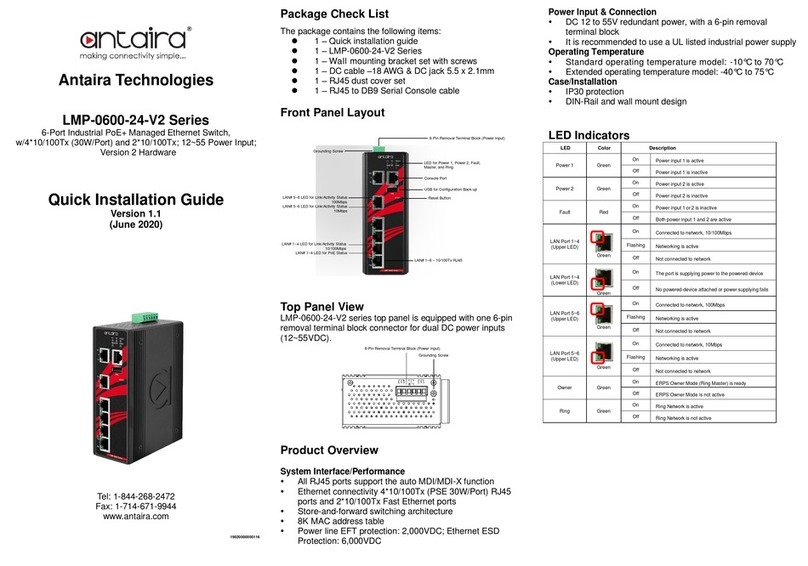
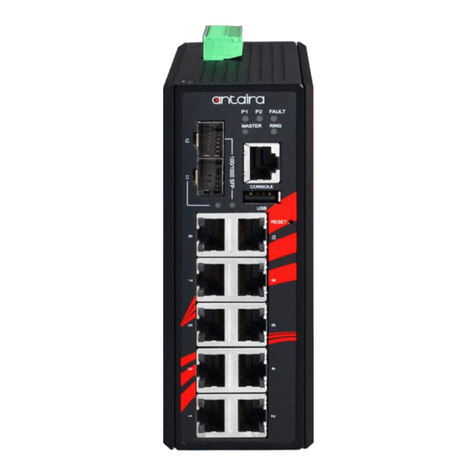
LMP-0602-XX-24-V2 Series
6-Port Industrial PoE+ Managed Ethernet Switch,
w/4*10/100Tx (30W/Port) and 2*100Fx, 12~36VDC Power Input;
Version 2 Hardware
Quick Installation Guide
Version 1.0
(October 2019)
Tel: 1-844-268-2472
Fax: 1-714-671-9944
www.antaira.com
19020000000112
Package Check List
The package contains the following items:
⚫1 –Quick installation guide
⚫1 –LMP-0602-XX-24-V2 Series
⚫1 –Wall mounting bracket set with screws
⚫1 –RJ45 to DB9 Serial Console cable
⚫1 –DC cable –18 AWG & DC jack 5.5 x 2.1mm
⚫1 –RJ45 dust cover set
Front Panel Layout
Top Panel View
LMP-0602-XX-24-V2 series top panel is equipped with one 6-pin
removal terminal block connector for dual DC power inputs
(12~36VDC).
Product Overview
System Interface/Performance
All RJ45 ports support the auto MDI/MDI-X function
Ethernet connectivity 4*10/100Tx (PSE: 30W/Port) RJ45
ports and 2*100Fx (SC/ST) fiber ports with multi-mode
(2km) or single-mode (30km)
Store-and-forward switching architecture
8K MAC address table
Power line EFT protection: 2,000VDC; Ethernet ESD
Protection: 6,000VDC
Power Input & Connection
DC 12 to 36V redundant power, with a 6-pin removal
terminal block
It is recommended to use a UL listed industrial power supply
Operating Temperature
Standard operating temperature model: -10°C to 70°C
Extended operating temperature model: -40°C to 75°C
Case/Installation
IP30 protection
DIN-Rail and wall mount design
LED Indicators
LED
Color
Description
Power 1
Green
On
Power input 1 is active
Off
Power input 1 is inactive
Power 2
Green
On
Power input 2 is active
Off
Power input 2 is inactive
Fault
Green/Red
Green
Preconfigured alarms are not detecting failure
Red
Preconfigured alarms are detecting failure
Off
Switch is in the process of booting
Owner
Green
On
ERPS Owner Mode (Ring Master) is ready
Off
ERPS Owner Mode is not active
Ring
Green
On
Ring Network is active
Off
Ring Network is not active
LAN Port 1~4
(Upper LED)
Green
On
Connected to network, 10/100Mbps
Flashing
Networking is active
Off
Not connected to network
LAN Port 1~4
(Lower LED)
Green
On
The port is supplying power to the powered-device
Off
No powered-device attached or power supplying
fails
Fiber Port 5~6
LINK/ACT
Green
On
Connected to network, 100Mbps
Flashing
Networking is active
Off
Not connected to network
Grounding Screw
6-Pin Removal Terminal Block (Power Input)
LAN# 1~4 –10/100Tx RJ45
LAN# 1~4 LED for Link/Activity Status
10/100Mbps
LAN# 1~4 LED for PoE Status
LED for Power 1, Power 2, Fault, Owner,
and Ring
Fiber Port #5~6 –100Fx
Serial Console
Fiber Port #5~6 –LED for
Link/Activity Status
Reset Button
USB for Configuration Back-up
Grounding Screw
6-Pin Removal Terminal Block (Power Input)
Quick Installation
Ethernet Ports
RJ45 Ports (Auto MDI/MDIX)
All RJ45 ports are auto-sensing for 10Base-T, 100Base-TX or
1000Base-T device connections. Please follow the wiring pin
assignment table below for Ethernet port installation.
Power Input Wiring
Please follow the steps below to insert the power wire:
1. Insert the positive and negative wires into the PWR1
(V1+, V1-) and PWR2 (V2+, V2-) contacts on the
terminal block connector as shown below in Figure 1.
2. Tighten the wire-clamp screws to prevent the wires from
loosening, as shown below in Figure 2.
Figure 1 Figure 2
Industrial Switch Mounting
DIN-Rail Mounting
The DIN-Rail bracket is pre-installed on
the industrial Ethernet switch from the
factory. Please refer to Figure 3 for a
DIN-Rail bracket installation reference.
Follow the steps below for installing the
industrial switch on the DIN-Rail track:
1. Insert the top of the DIN-Rail on to the
track as shown below in Figure 4.
2. Lightly pull down the bracket on to the
rail as shown below in Figure 5.
3. Check if the bracket is mounted tightly
on the rail.
4. To remove the industrial
Ethernet
switch
from the rail, do the opposite from the steps above.
Figure 4
Wall Mounting
Follow the steps below to mount the industrial Ethernet switch
using the wall mounting bracket as shown below in Figure 6.
1. Remove the DIN-Rail bracket from the industrial Ethernet
switch by loosening the screws.
2. Place the wall mounting brackets on the
top and bottom of the industrial Ethernet
switch.
3. Use the screws to screw the wall
mounting bracket on the industrial
Ethernet switch.
4. Use the hook holes at the corners of the
wall mounting bracket to hang the
industrial Ethernet switch on the wall.
5. To remove the wall mount bracket, do the
opposite from the steps above.
Field Maintenance and Service
⚫If the device requires servicing of any kind, the user is
required to disconnect and remove it from its mounting. The
initial installation should be done in a way that makes this as
convenient as possible.
⚫Voltage/power lines should be properly insulated as well as
other cables. Be careful when handling them so as to not trip
over.
⚫Do not under any circumstance insert foreign objects of any
kind into the heat dissipation holes located in the different
faces of the device. This may not only harm the internal
layout, but might cause harm to user as well.
⚫Do not under any circumstance open the device for any
reason. Please contact your dealer for any repair needed or
follow the instructions within the manual.
Warranty Policy
Warranty Conditions
Products supplied by Antaira Technologies are covered in this
warranty for sub-standard performance or defective
workmanship. The warranty is not, however, extended to goods
damaged in the following circumstances:
(a) Excessive forces or impacts
(b) War or an Act of God: wind storm, fire, flood, electric shock,
earthquake
(c) Use of unqualified power supply, connectors, or
unauthorized parts/kits
(d) Replacement with unauthorized parts
RMA and Shipping Costs Reimbursement
Customers shall always obtain an authorized "RMA" number
from Antaira before shipping the goods for repair or
replacement.
•Within the warranty period (based on the invoice date), all
parts and labor are free of charge to the customers.
•Customers are responsible for the cost of parts and labor, if
the products are out of warranty.
•For RMA service, customers are responsible for the shipping
expense for shipping the RMA unit(s) to Antaira. Antaira is
responsible for the shipping expense via a ground service
for the return repair/replace unit(s) back to customers.
Limited Liability
Antaira would not be held responsible for any consequential
losses from using Antaira’s product.
Warranty Period
5-Year Warranty
Antaira’s Customer Service and Support
•Antaira’s Technical Service & Support Centers:
+ 844-268-2472 (Antaira US Headquarter)
+ 48-22-862-88-81 (Antaira Europe Office)
+ 886-2-2218-9733 (Antaira Asia Office)
•Antaira’s Web Sites & Repair/Support Emails:
www.antaira.com / [email protected]
www.antaira.eu / [email protected]
www.antaira.com.tw / [email protected]
*Any changes will be announced on the Antaira website.

Figure 3
Figure 6
Figure 5