manuals.online logo
Brands
  1. Home
  2. •
  3. Brands
  4. •
  5. Asco
  6. •
  7. Industrial Equipment
  8. •
  9. Asco 4000 series User manual

Asco 4000 series User manual

Other manuals for 4000 series

1

This manual suits for next models

1

Other Asco Industrial Equipment manuals

Asco LI User manual

Asco

Asco LI User manual

Asco 450 Series User manual

Asco

Asco 450 Series User manual

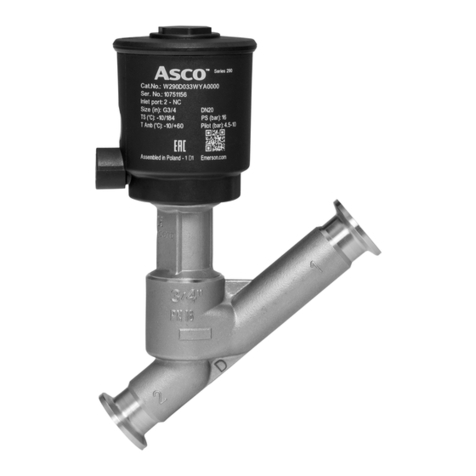
Asco 290 Series Instruction Manual

Asco

Asco 290 Series Instruction Manual

Asco 5350 User manual

Asco

Asco 5350 User manual

Asco P152 Series User manual

Asco

Asco P152 Series User manual

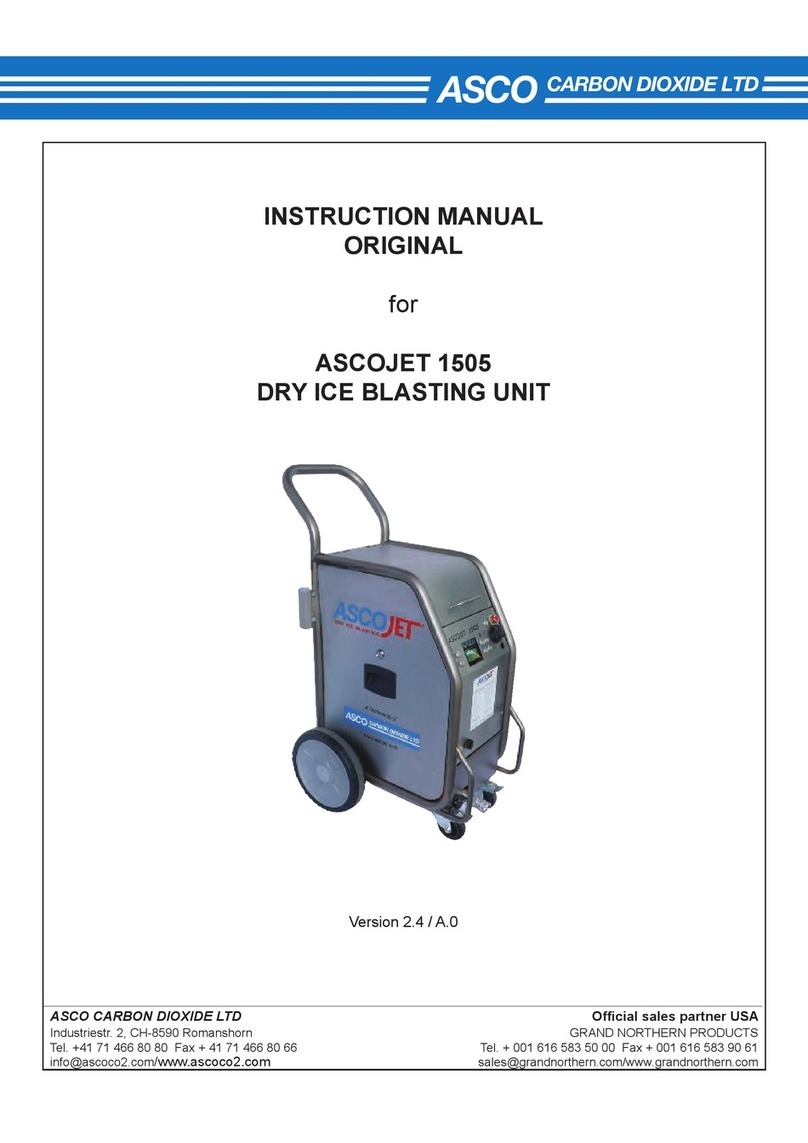
Asco ASCOJET 1505 User manual

Asco

Asco ASCOJET 1505 User manual

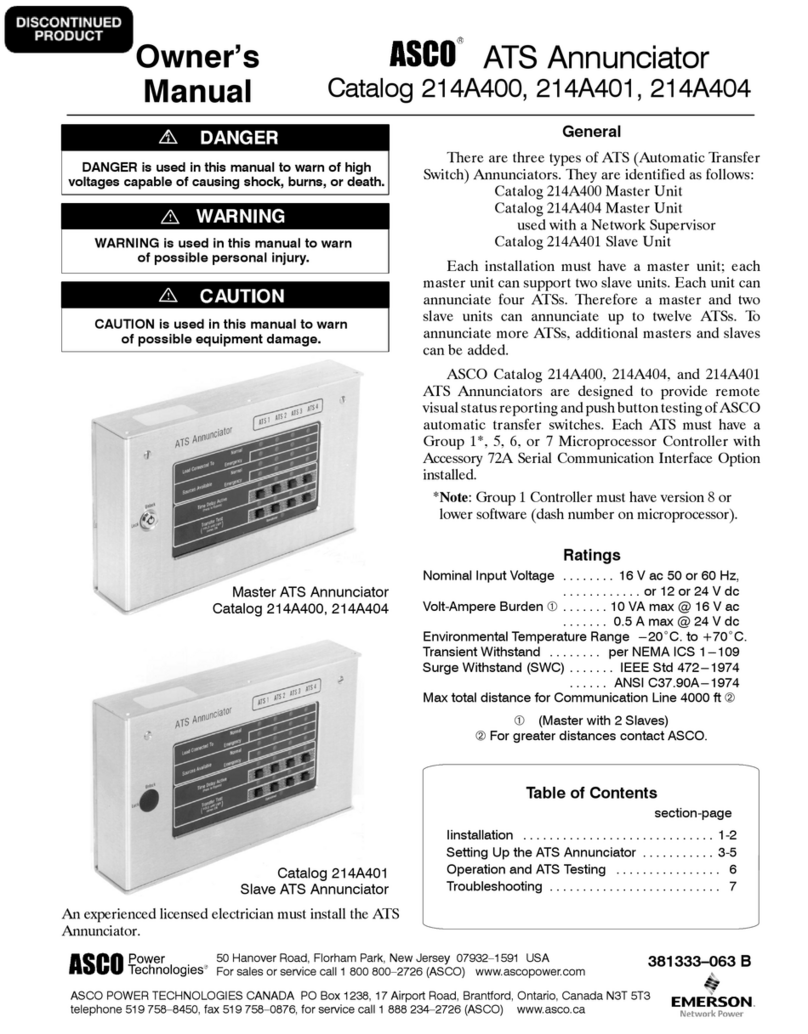
Asco 214A400 User manual

Asco

Asco 214A400 User manual

Popular Industrial Equipment manuals by other brands

ABB +Q957 user manual

ABB

ABB +Q957 user manual

G.B.C BASIC EDGE 50 instruction manual

G.B.C

G.B.C BASIC EDGE 50 instruction manual

Tronair Batpak 11-6602-1000 Operation & service manual

Tronair

Tronair Batpak 11-6602-1000 Operation & service manual

Pilz PNOZ mi2p Operation manual

Pilz

Pilz PNOZ mi2p Operation manual

Clemco Zero BNP 6012 manual

Clemco

Clemco Zero BNP 6012 manual

Erskine Attachments V-Plow Operator's manual

Erskine Attachments

Erskine Attachments V-Plow Operator's manual

ABB HT610965 Operation manual

ABB

ABB HT610965 Operation manual

Morra MH 540 user manual

Morra

Morra MH 540 user manual

Eaton S090ST manual

Eaton

Eaton S090ST manual

GRIGGIO G 240 P4 instructions

GRIGGIO

GRIGGIO G 240 P4 instructions

Nexen AIR CHAMP HT45 user manual

Nexen

Nexen AIR CHAMP HT45 user manual

WTE V5 installation manual

WTE

WTE V5 installation manual

ABB HT845232 Operation manual

ABB

ABB HT845232 Operation manual

SMC Networks CJP Series Operation manual

SMC Networks

SMC Networks CJP Series Operation manual

JohnDow Industries JDI-AFT58 Operator's manual

JohnDow Industries

JohnDow Industries JDI-AFT58 Operator's manual

IMB MB9016A instruction manual

IMB

IMB MB9016A instruction manual

Clarke CUMB1 Assembly & operating instructions

Clarke

Clarke CUMB1 Assembly & operating instructions

amiad Arkal Spin Klin 2 user guide

amiad

amiad Arkal Spin Klin 2 user guide

manuals.online logo
manuals.online logoBrands
  • About & Mission
  • Contact us
  • Privacy Policy
  • Terms and Conditions

Copyright 2025 Manuals.Online. All Rights Reserved.

381333–126 K
50 Hanover Road, Florham Park, New Jersey 07932–1591 USA
For sales or service call 1 800 800–2726 (ASCO) www.ascopower.com
ASCO POWER TECHNOLOGIES CANADA PO Box 1238, 17 Airport Road, Brantford, Ontario, Canada N3T 5T3
telephone 519 758–8450, fax 519 758–0876, for service call 1 888 234–2726 (ASCO) www.asco.ca
User’s Guide Group 5 Controller
for 4000 & 7000 Series
Automatic Transfer Switch Products
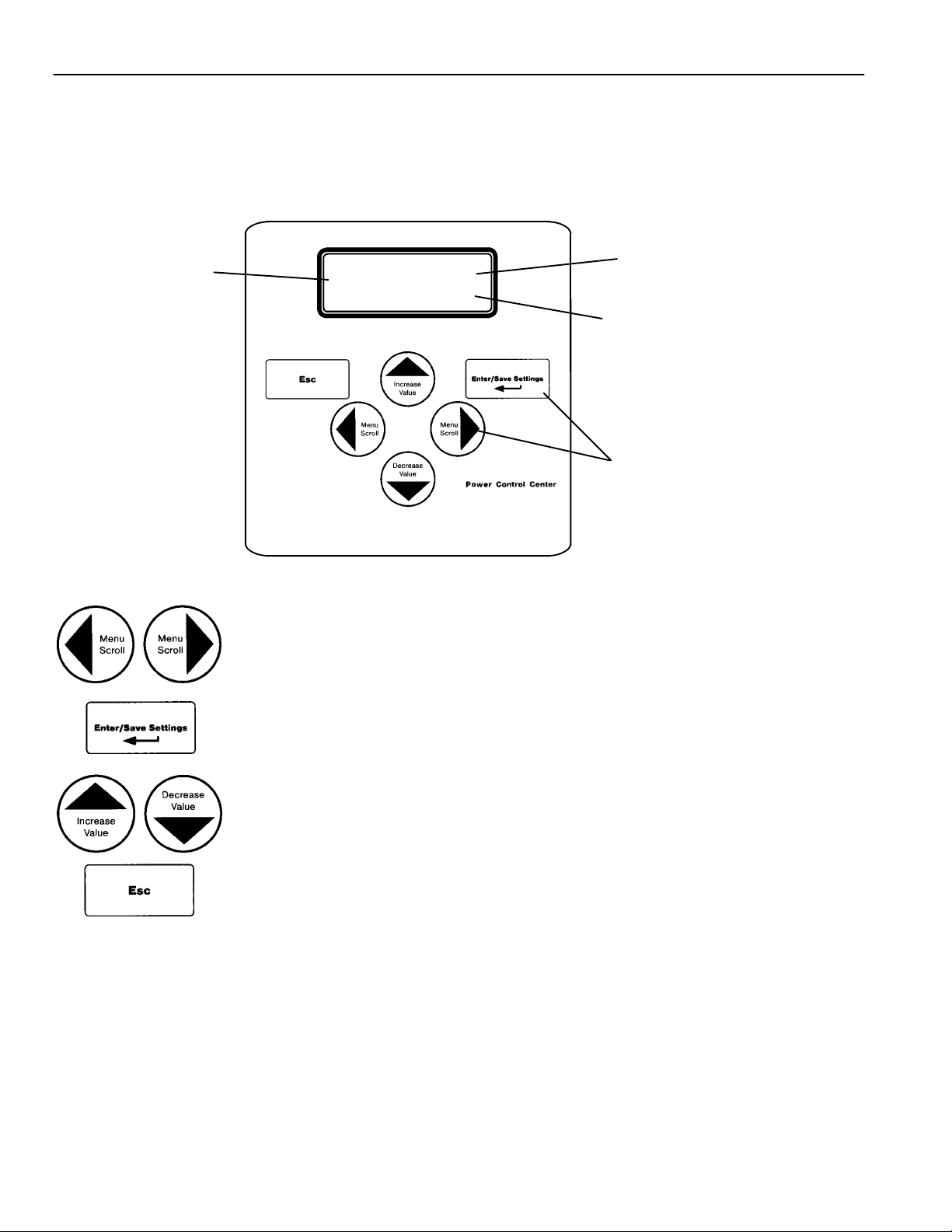
4–line
LCD
display
Enter/Save
Settings
key
Esc
key
Menu Scroll
(left/right)
keys
Increase (up)/
Decrease (down)
Value keys
cut–out opening
in enclosure
door
Power Control Center keypad and display
DANGER is used in this manual to warn of high
voltages capable of causing shock, burns, or death.
WARNINGisusedinthismanualtowarn
of possible personal injury.
CAUTIONisusedinthismanualtowarn
of possible equipment damage.
Refer to the outline and wiring drawings provided with
the 4000 or 7000 Series ATS product for all installation
and connection details and accessories.
Refer to the Operator’s Manual for the ASCO 4000 or
7000 Series ATS product for installation, functional
testing, sequence of operation,and troubleshooting.
Description
ASCO 4000 & 7000 Series Automatic Transfer Switch
products utilize the Group 5 Controller for sensing,
timing, and control functions. This state–of–the art
microprocessor–based controller includes a built–in
keypad and a four–line LCD display. All monitoring and
control functions can be done with the enclosure door
closed for greater convenience. In addition, all changes
in voltage settings (except for nominal voltage) and time
delayscanbemadethroughasystemofmenus.
TABLE OF CONTENTS
section-page
OVERVIEW
Controls 1-1..............................
Settings 1-2..............................
SETTINGS
How to Change a Setting 2-1...............
Voltage & Frequency 2-2...................
Time Delays 2-4..........................
Features 2-6..............................
General 2-8..............................
Engine Exerciser 2-10.....................
View Event Log 2-12.......................
Service — Statistics / Diagnostics 2-13......
OPERATING the CONTROLS
Status of ATS and Sources 3-1.............
Display Messages and Their Meanings 3-2...
DESCRIPTION of OPERATION
Open–Transition 4-1.......................
Closed–Transition 4-3......................
Delayed–Transition 4-6....................
APPENDIX
DIP switch actuators A-2...................
Voltage jumper blocks A-4.................
INDEX back page..........................
1--1 Overview
Control Overview
On the Power Control Center, six keys allow access to all monitoring and setting
functions. Two levels of screens are used. The status level provides information
about the automatic transfer switch. The settings level allows configuration of the
controller. Access to some settings may require entering a password (if the
controller is set for one – see page 2–1 and Appendix A–3).
top 2 lines show the
cause of any action
lower 2 lines show the
status of transfer sequence
4–line LCD display
tactile keys
(see below)
Power Control Center display and keypad.
Left–Right Arrows
The left Aand right "arrow keys (Menu Scroll) navigate through the screens.
Enter/Save Settings
The Enter/Save Settings ¿key move from the status level to the settings level
screens. It also is used to enter a new setting.
Up–Down Arrows
The up Yand down Barrow keys (Increase Value and Decrease Value) modifies
a setting (setup parameter) while in the settings level screens.
Esc key
The Esc key ignores a change and returns to the status level.
1--2Overview
Settings Overview
The controller settings can be displayed and changed from the keypad.
Some settings may require a password (if the controller is set up for one).
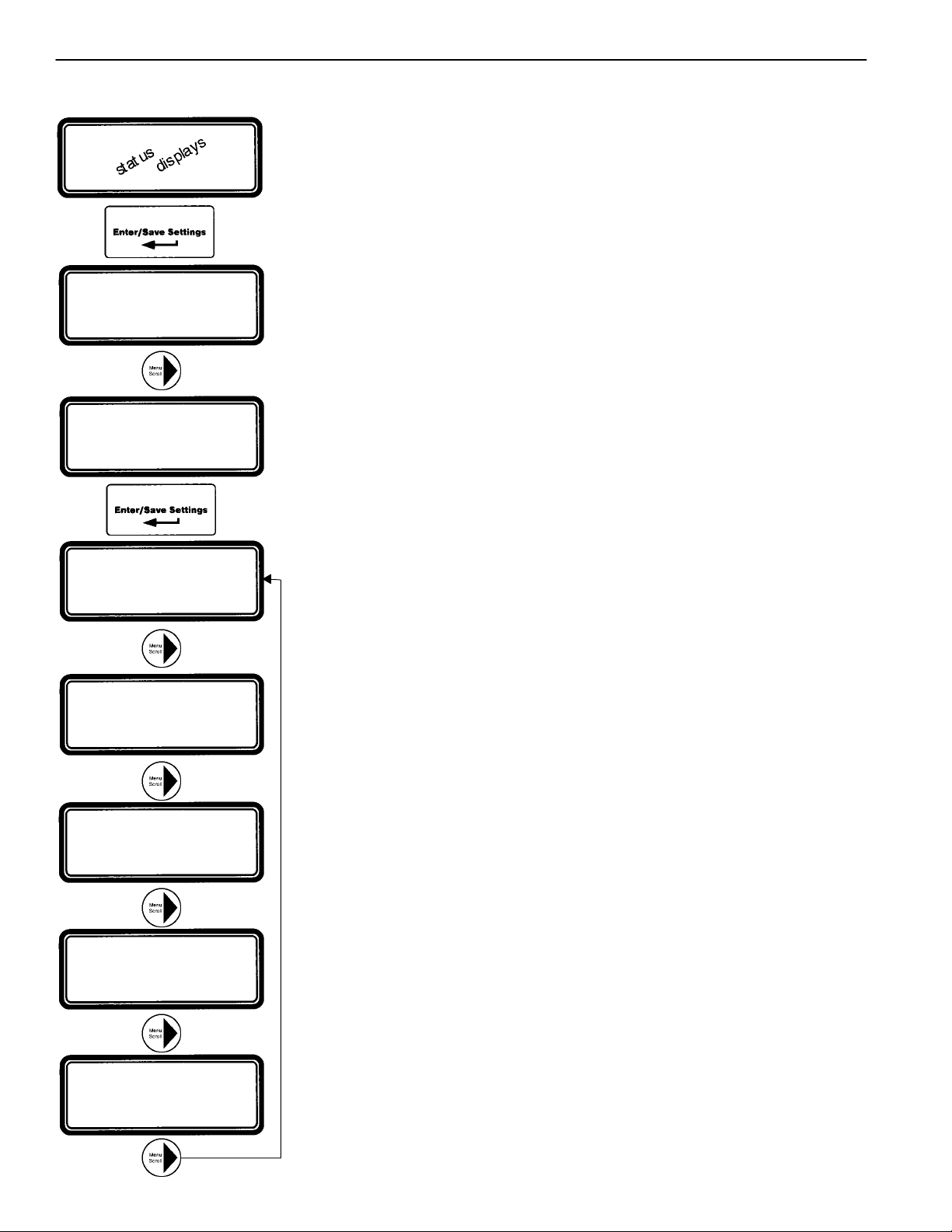
From the ATS Status display, press Enter/Save Settings ¿keytomovetothe
Settings level of menus.
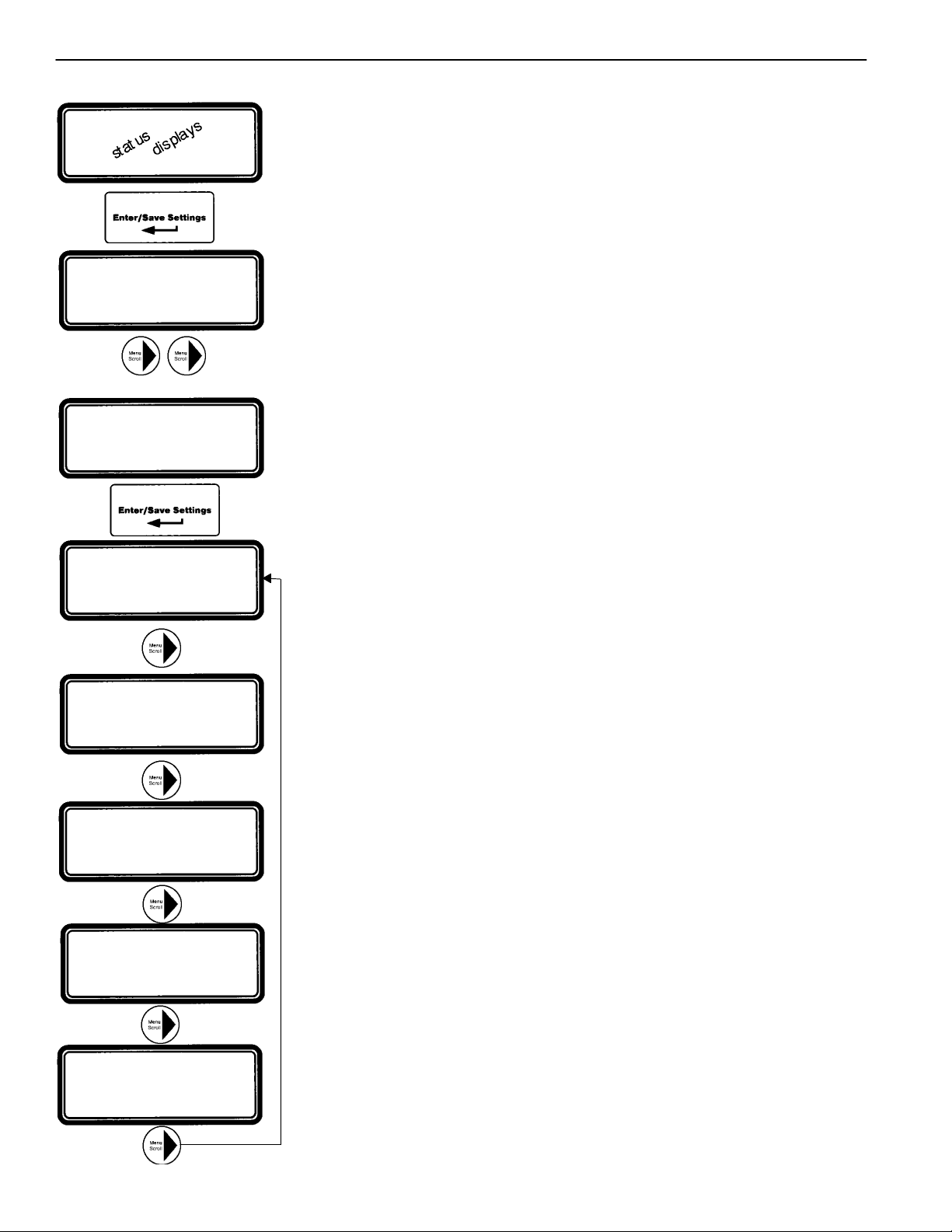
Press the right arrow key "to see the eight parameter information headings (as
shown below). An overview of each setting is listed below. The detailed menus
for each setting are on the following pages.
8 Parameter Menus (loop back to beginning)
SETTINGS
Time Delays
SETTINGS
Voltage DO PU
Frequency DO PU
SETTINGS
Features
SETTINGS
General
SETTINGS
Engine Exerciser
VIEW
Event Log
SERVICE
Statistics
Diagnostics
SERVICE
Factory
Selectable Features
Voltage and Frequency Settings seepage2–2
CP settings and Normal & Emergency voltage and frequency pickup & dropout.
Time Delay Settings seepage2–4
Bypass running time delay, and settings for all standard time delays.
Features Settings seepage2–6
Commit on transfer, shed load, phase rotation, and inphase monitor settings.
General Settings seepage2–8
Reset settings, language, communication, logging, and password.
Engine Exerciser Settings seepage2–10
Present date and time, seven exercise programs each with six parameters.
View Event Log seepage2–12
Last 99 events in date and time order; six types and seven reasons are logged.
Service Statistics/Diagnostics, Factory Selectable Features
For factory service use only. see pages 2–13
SETTINGS
Password
Default password is 1111 (see page 2–8)
2--1 Settings
How to Change a Setting
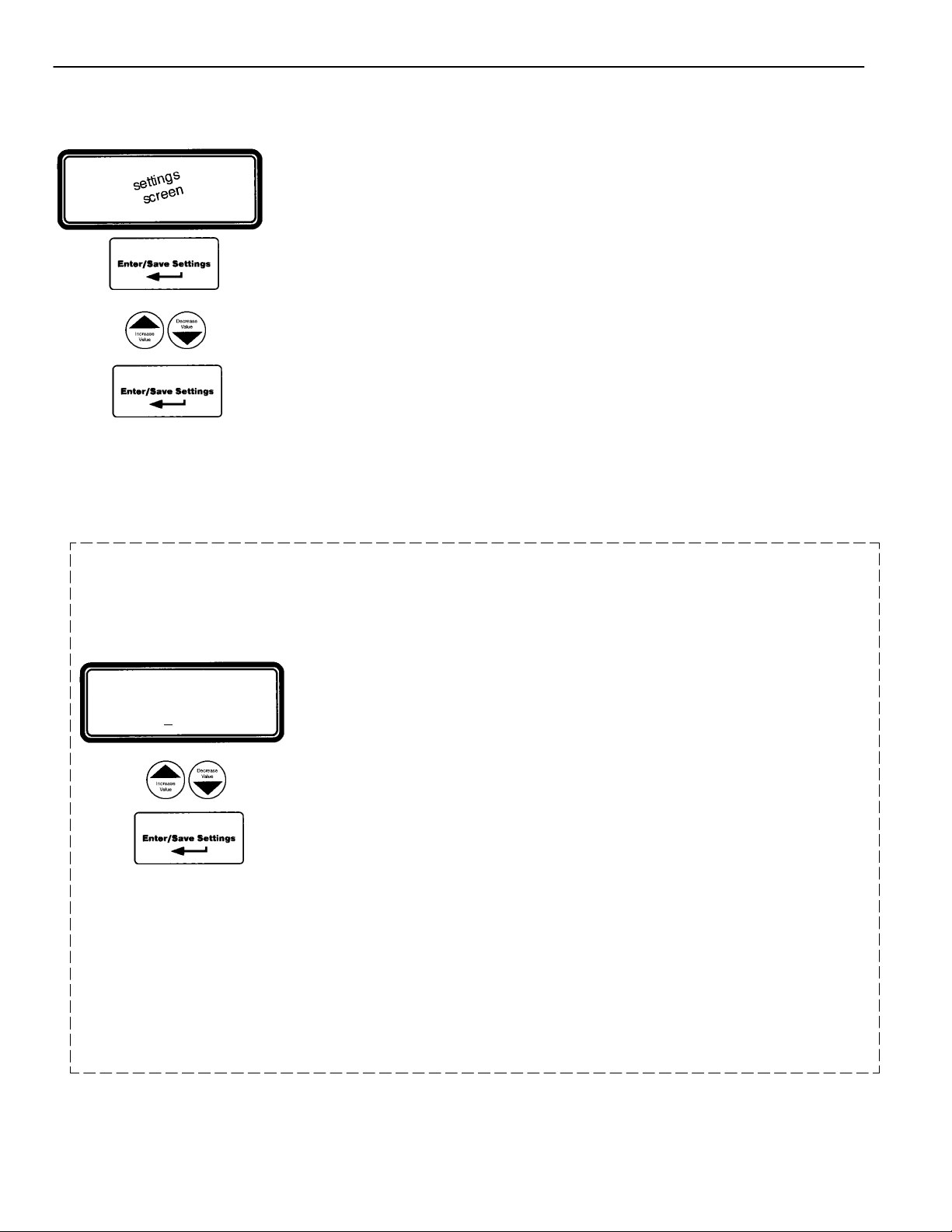
To change a setting in the controller (CP):
¡Navigate to the settings screen that you want to change (see page 1–2).
©Press Enter/Save Settings ¿key to start the first field blinking. If the controller
requires a password, see below.
¢Press up Yand down Barrow keys to change flashing digit(s) or word and press
Enter/Save Settings ¿keytomovetonextfield.
£Repeat step ¢until all the fields have been entered.
If a field is blinking, the CP is waiting for information to be entered.
The Esc key will end the editing session.
If Enter Password displays, you must enter the correct password first.
Use the up Yand down Barrow keys to change the flashing digit of the
password. Press the Enter/Save Settings ¿keytomovetonextnextdigit
(left to right). When the correct password is displayed, press the Enter/
Save Settings ¿key.
If WRONG PASSWORD !!! displays, you are returned to the first flashing
digit. When the correct password is displayed, press the Enter/Save
Settings ¿key.
You can now change the settings on the selected screen.
Once the password is entered it will stay unlocked for 5 minutes after last
key is pushed so that you do not have to keep entering it. So, to save time,
plan to make all your settings at one time.
Enter
Password
0000
¢
£
¡
©
Tip ☞
Tips ☞
Tip ☞
2 --- 2Settings
Voltage & Frequency Settings
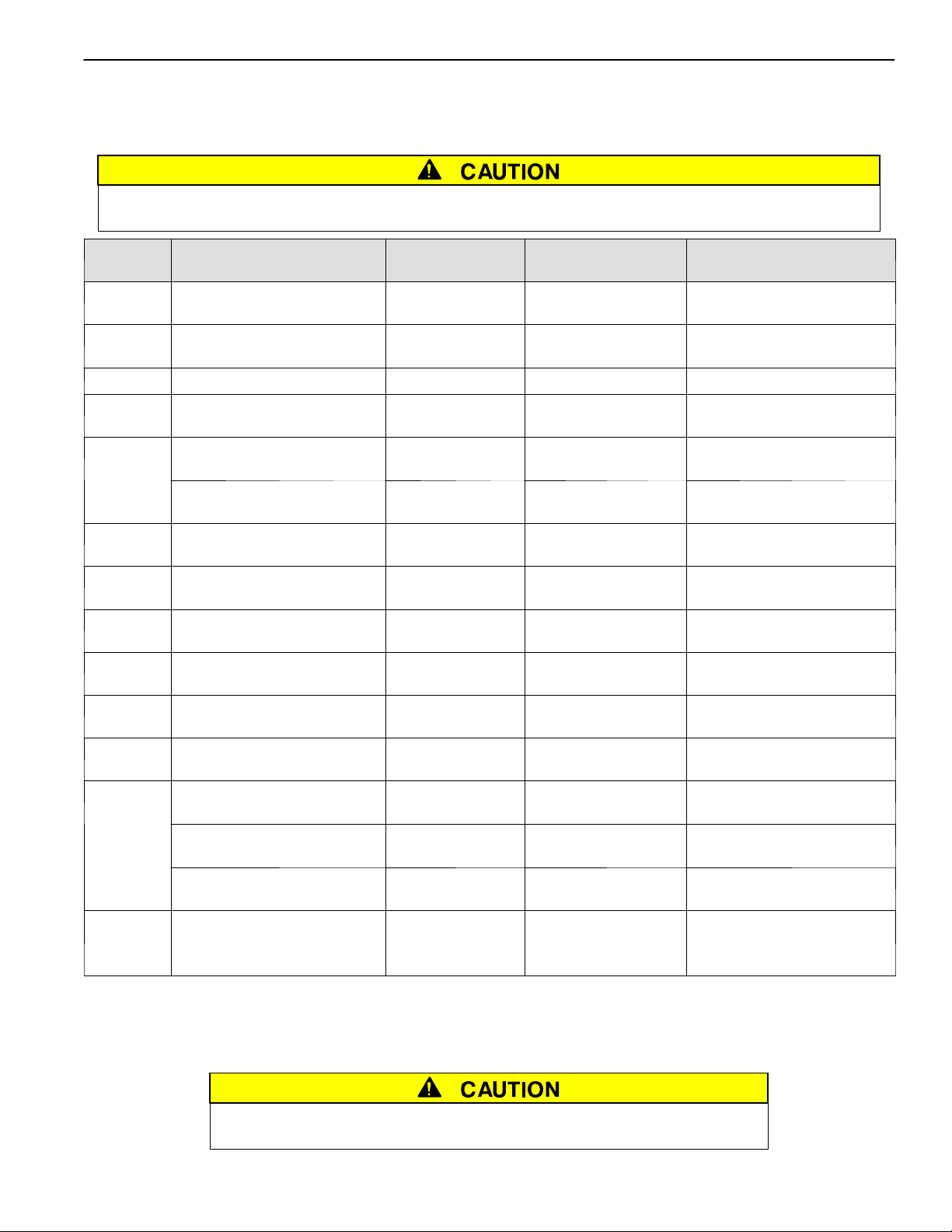
Unless otherwise specified on the order, the controller voltage and frequency
settings are set at the factory to the default values. If a setting must be changed,
carefully follow the procedure on the next page. Some settings may require a
password (if the controller is set up for one).
Any indiscriminate change in these settings may affect the normal
operation of the Automatic Transfer Switch. This change could allow
the load circuits to remain connected to an inadequate source.
Description Settings Default Setting
%ofnominal
Adjustment Range
increments of 1%
Display Screen
(see next page)
Dropout 85 % 70 to 98 % NORMAL VOLTAGE
Dropout
Pickup 90 % 85 to 100 % NORMAL VOLTAGE
Pickup
Normal
S
o
u
r
c
e
Over Voltage Trip * off 102 to 115 % NORMAL VOLTAGE
OV Trip
S
ource
Voltage Unbalance Enable no yes or no NORMALVOLTAGEUNBAL
Enable
Unbalance Dropout 20 % 5to20% NORMALVOLTAGEUNBAL
Dropout
Unbalance Pickup 10 % 3to18% NORMALVOLTAGEUNBAL
Pickup
Dropout 75 % 70 to 98 % EMERG VOLTAGE
Dropout
Pickup 90 % 85 to 100 % EMERG VOLTAGE
Pickup
Emergency
S
o
u
r
c
e
Over Voltage Trip * off 102 to 115 % EMERG VOLTAGE
OV Trip
S
ource
Voltage Unbalance Enable no yes or no EMERG VOLTAGE UNBAL
Enable
Unbalance Dropout 20 % 5to20% EMERG VOLTAGE UNBAL
Dropout
Unbalance Pickup 10 % 3to18% EMERG VOLTAGE UNBAL
Pickup
N
l
Dropout 90 % 85 to 98 % NORMAL FREQUENCY
Dropout
Normal
Source
F
r
e
q
u
e
n
c
y
Pickup 95 % 90 to 100 % NORMAL FREQUENCY
Pickup
F
r
e
q
u
e
n
c
y
Over Frequency Trip * off 102 to 110 % NORMAL FREQUENCY
OF Trip
E
Dropout 90 % 85 to 98 % EMERG FREQUENCY
Dropout
Emergency
Source
F
r
e
q
u
e
n
c
y
Pickup 95 % 90 to 100 % EMERG FREQUENCY
Pickup
F
r
e
q
u
e
n
c
y
Over Frequency Trip * off 102 to 110 % EMERG FREQUENCY
OF Trip
* The Over Voltage and Over Frequency reset is fixed at 2% below the trip setting.
2--3 Settings
Voltage & Frequency Settings
The controller (CP) voltage and frequency setting can be displayed and changed
from the keypad. See the table on the previous page. Some settings may require
a password (if the controller is set up for one).
¡From any of the Status displays, press the Enter/Save Settings ¿key to move
to the Settings level of menus.
©Press the Enter/Save Settings ¿keytomovetotheCP Settings display.
¢Then you can press the right arrow "key to see the othervoltage and frequency
displays (as shown below). An overview explanation of each setting is listed
below.
5 Voltage & Frequency Menus (last menu loops back to first)
CP Settings seepage2–1
This display shows the base configuration of the controller. These settings are
hardware activated and cannot be changed from the keypad:
Nominal source voltage — Normal and Emergency sources
Nominalsourcefrequency—50or60Hz
Normal & Emergency source sensing — single or 3 phase
Switch type — open, closed, or delayed transition
Normal Voltage seepage2–1
This display shows pickup, dropout, and over–voltage trip settings for the
Normal source. They are in percentage of nominal voltage and volts rms.
Normal Frequency seepage2–1
This display shows pickup, dropout, and over–frequency trip settings for the
Normal source. They are in percentage of nominal frequency and Hz.
Normal Voltage Unbalance seepage2–1
This display appears only if the CP is set for 3 phase sensing on Normal. When
enabled, the CP considers the Normal source unacceptable if the calculated
voltage unbalance is greater than the specified dropout.
Emerg Voltage seepage2–1
This display shows pickup, dropout, and over–voltage trip settings for the
Emergency source. They are in percent of nominal voltage and volts rms.
Emerg Frequency seepage2–1
This display shows pickup, dropout, and over–frequency trip settings for
Emergency source. They are in percentage of nominal frequency and Hz.
Emerg Voltage Unbalance (not shown) see page 2–1
This display appears only if the CP is set for 3 phase sensing on Emergency.
When enabled, the CP considers the Emergency source unacceptable if the
calculated voltage unbalance is greater than the specified dropout.
SETTINGS
Voltage DO PU
Frequency DO PU
¡
©
¢
CP SETTINGS
Volt= V Freq= Hz
Phase= N: Ph E: Ph
ATS Type= TS
NORMAL VOLTAGE
Dropout: % V
Pickup: % V
OV Trip: _
NORMAL FREQUENCY-
Dropout: % Hz
Pickup: % Hz
OF Trip: _
NORMAL VOLTAGE UNBAL
Enable: NO
Dropout: 20%
Pickup: 10%
_
EMERG FREQUENCY-
Dropout: % Hz
Pickup: % Hz
OF Trip: _
EMERG VOLTAGE
Dropout: % V
Pickup: % V
OV Trip: _
2 --- 4Settings
Time Delay Settings
Unless otherwise specified on the order, the Controller time delay settings are set at the
factory to the default values. If a setting must be changed, follow the procedure on the
next page. Some settings may require a password (if controller is set up for one).
Any indiscriminate change in these settings may affect the normal operation of the Automatic Trans-
fer Switch. This change could allow the load circuits to remain connected to an inadequate source.
Feature Time Delay Default Setting Adjustment Range
1 sec. increments
Display Screen
(see next page)
1C ③override momentary
Normal source outages 1second 0to6sec
see CAUTION below TD NormFail
1F override momentary
Emergency source outages 00to60min59sec TD EmrgFail
2B transfer to Emergency 00to60min59sec TD N>E
2E unloaded running
(engine cooldown) 5 minutes 0to60min59sec TD EngCool
3
A
retransfer to Normal
(if Normal fails) 30 minutes 0to60min59sec TD E>N if
Normal Fail
3
A
retransfer to Normal
(if just a test) 30 seconds 0 to 9 hours
59 min 59 sec
TD E>N if
Te s t M o d e
31F ④Normal to Emergency
pre–transfer signal 00to5min59sec TD N>E Xfer Signal
PreXfer
31M ④Normal to Emergency
post–transfer signal 00to5min59sec TD N>E Xfer Signal
PostXfer
31F, 31M bypass 31F & 31M
if Normal fails no yes or no TD N>E Xfer Signal
BypassIfNFail
31G ④Emergency to Normal
pre–transfer signal 00to5min59sec TD E>N Xfer Signal
PreXfer
31N ④Emergency to Normal
post–transfer signal 00to5min59sec TD E>N Xfer Signal
PostXfer
31G, 31N bypass 31G & 31N
if Emergency fails no yes or no TD E>N Xfer Signal
BypassIfEFail
4
A
C
T
S
,
in sync 1.5 second 0to3.0seconds
0.1 sec increments
CTTS TD
SyncMonitorTD
4
A
C
T
S
,
7ACTS,
7ACTB
l
①
failure to synchronize 5 minutes 0to5min59sec CTTS TD
FailToSyncTD
only①extended parallel time 0.5 second 0.100 to 1.000 sec
0.01 sec increments
CTTS TD
XtdParallelTD
4ADTS,
7ADTS/B
only②delay transition time 00to5min59sec DTTS TD
LoadDisconnDelay
①These time delays appear only on the display for a 4ACTS, 7ACTS, or 7ACTB closed–transition transfer switch.
②This time delay appears only on the display for a 4ADTS, 7ADTS, or 7ADTB delayed–transition transfer switch
③Standard adjustment up to 6 seconds (total power outage). For additional time delay contact ASI. See CAUTION.
④If output contacts required, contact ASI at 1–800–800–2726.
Do not set Feature 1C TD longer than 6 sec. unless an external 24 V dc
power supply is included. Contact ASI if longer than 6 sec. is required.
2 --- 5 Settings
Time Delay Settings
The controller time delay (TD) settings can be displayed and changed from the
keypad. Some settings may require a password (if the control panel is set up for
one).
①From any of the Status displays, press the Enter/Save Settings key to move to
the Settings level of menus.
②Press the right arrow keytomovetotheSetting Time Delays display.
③Now press Enter/Save Settings keytomovetothefirstTime Delay menu.
④Yo u c a n p r e s s t h e right arrow key to see the other time delay menus (as shown
below). An overview explanation of each setting is listed below.
5 Time Delay Menus (last menu loops back to first)
Bypass Currently Running TD seepage2–1
This display allows you to bypass some time delays. When the display is set
to Yes the controller will bypass any of these time delays
Feature 1C — Momentary Normal failure time delay
Feature 2B — Normal to Emergency transfer time delay
Feature 3A — Emergency to Normal transfer time delay
External Battery: see CAUTION on bottom of page 2–4
Ye s means external battery connected, Feature 1C can be set longer than 6 sec.
No mean there is no external battery, Feature 1C can be set for 0–6 sec. only
Standard Time Delays seepage2–1
This display shows the settings for the following standard time delays:
Feature 1C — Momentary Normal source failure time delay
Feature 2B — Normal to Emergency transfer time delay
Feature1F—MomentaryEmergencysourcefailuretimedelay
Feature 2E — Engine cooldown time delay
TD E>N if seepage2–1
This display shows the settings for Feature 3A retransfer to Normal time
delay. There are two modes:
Normal source outage — retransfer TD if Normal fails
Transfer Test — retransfer TD if just a test
TD N>E Xfer Signal seepage2–1
This display shows the settings for the time delays used to signal external
equipment before and after transfer from Normal to Emergency:
Feature 31F — Pre–transfer time delay signal
Feature 31M — Post–transfer time delay signal
TD E>N Xfer Signal seepage2–1
This display shows the settings for the time delays used to signal external
equipment before and after retransfer from Emergency to Normal:
Feature 31G — Pre–transfer time delay signal
Feature 31N — Post–transfer time delay signal
CTTS TDs (not shown) see page 2–1
DTTS TD (not shown) see page 2–1
SETTINGS
Voltage DO PU
Frequency DO PU
SETTINGS
Time Delays
①
②
③
Bypass Currently
Running TD: _
External Battery: No
TD NormFail: min s
TD N>E: min s
TD EmrgFail: min s
TD EngCool: min s
TD E>N if
Normal Fail: min s
Test Mode: h min s
TD N>E Xfer Signal
BypassIfNFail:
PreXfer: min s
PostXfer: min s
TD E>N Xfer Signal
BypassIfEFail:
PreXfer: min s
PostXfer: min s
④
2 --- 6Settings
Features Settings
Unless otherwise specified on the order, the controller features settings are set at the
factory to the default values. If a setting must be changed, follow the procedure on the
next page. Some settings may require a password (if the controller is set up for one).
Any indiscriminate change in these settings may affect the normal operation of the Automatic Trans-
fer Switch. This change could allow the load circuits to remain connected to an inadequate source.
Feature Default Setting Adjustment Range Display Screen
(see next page)
commit to transfer no yes or no Commit to Xfer After
TD Norm Fail
shed load direction from E from N or from E SHED LOAD
Direction
shed load in phase no yes or no SHED LOAD
InPhase
shed load in phase time delay 1.5 second 0to3.0seconds
0.1 sec increments
SHED LOAD
TD
shed load isolate load
on source failure ②yes yes or no SHED LOAD
IsoLoadOnSrcFail
shed load isolate load on test 17 ②no yes or no SHED LOAD
IsoLoadOnTest17
phase rotation monitor enable ③no yes or no
PHASE ROTATION
MONITOR
Enable
phase rotation monitor reference ③ABC ABC or CBA
PHASE ROTATION
MONITOR
Reference
inphase monitor enable ④no yes or no
IN–PHASE
MONITOR
Enable
inphase monitor time delay ④1.5 second 0to3.0seconds
0.1 sec increments
IN–PHASE
MONITOR
Time Delay
failure to sync auto bypass ①no yes or no CTTS BYPASS/SHED LD
FailSyncAutoByps
bypass time delay ①0second 0to59seconds
1 sec increments
CTTS BYPASS/SHED LD
Bypass DT Delay
bypass in phase ①no yes or no CTTS BYPASS/SHED LD
Bypass InPhase
Y–Y primary failure detection enable no yes or no Y–Y PRI FAIL DETECT
Enable
Y–Y primary failure sensing time delay 1.0 second 0to9.9seconds
0.1 sec increments
Y–Y PRI FAIL DETECT
Sense Delay
Y–Y primary failure retransfer time delay 1.0 hour 0to23hrs59min.
1 min. increments
Y–Y PRI FAIL DETECT
TD E>N Y–Y
①These features appear only on the display for a 4ACTS, 7ACTS, or 7ACTB closed–transition transfer switch.
②These features appear only on the display for a 4ACTS, 7ACTS or 7ACTB closed–transition transfer switch
or a 4ADTS, 7ADTS, or 7ADTB delayed–transition transfer switch.
③These features do not appear on the display unless both sources have 3 phase sensing enabled.
④These features appear only on a 4ATS, 7ATS, or 7ATB (open–transition automatic transfer switch).
2--7 Settings
Features Settings
The controller (CP) Features settings can be displayed and changed from the key-
pad. Some settings may require a password (if the controller is set up for one).
¡From any of the Status displays, press the Enter/Save Settings ¿key to move
to the Settings level of menus.
©Then press the right arrow "key to move to Setting Time Delays menu.
¢Press the right arrow "key again to move to Settings Features menu.
£Now press Enter/Save Settings ¿keytomovetothefirstFeatures display
¤You can press the right arrow "key to see the other Features menus (as shown
below). An overview explanation of each setting is listed below.
7 Features Menus (last menu loops back to first)
Commit to Xfer After TD Normal Fail seepage2–1
This display shows the commit to transfer setting. It affects the transfer
sequence as follows:
Ye s — If Normal fails, CP continues transfer sequence to emergency
even if Normal returns before Emergency becomes acceptable.
No — If Normal fails, CP cancels the transfer sequence to emergency
if Normal returns before Emergency becomes acceptable.
Shed Load seepage2–1
This display shows status of 3 load shed parameters:
Direction —from Emergency or from Normal
InPhase —yes means transfer delayed until sources are in phase
TD — 3 second default time delay
Shed Load Options seepage2–1
This display appears only for 4ACTS, 4ADTS, 7ACTS, 7ACTB, 7ADTS, or
7ADTB. It determines switch position after the shed load transfer.
IsoLoadOnSrcFail — determines switch position during a source failure.
IsoLoadOnTest17 — deterines switch position during feature 17 activation.
Ye s — Load is not connected to either source. (see wiringdiagram
No — Load is connected to the opposite source. for feature 17 desc.)
Phase Rotation Monitor seepage2–1
This display shows status of phase rotation monitor and desired reference
phase rotation. It only appears if both sources are set to 3–phase sensing.
Enabled —Ye s means phase rotation is considered as part of the
source acceptability criteria for each source. If the phase rotation of the
source does not match the reference phase rotation, that source is considered
unacceptable. If phase rotation of the two sources is different, the load will
be transferred to the source with the reference phase rotation.
Reference — phase rotation order: ABC or CBA (ABC is default)
In–Phase Monitor seepage2–1
This display appears only for 4ATS, 7ATS or 7ATB. This display shows status
of in–phase monitor and in–phase time delay (1.5 seconds is default setting).
Enabled —Ye s means in–phase transfer is initiated when any of these
conditions are met: Transfer Test (Feature 5) signal, connected source fails,
retransfer to acceptable Normal occurs and Emergency source acceptable.
CTTS Bypass / Shed Load (not shown)see page 2–1
This display shows status of the closed–transition bypass options.
FailSyncAutoBypass —Ye s means if the fail to sync alarm occurs, the controller
will bypass the closed–transition mode and will make a delayed–transiton
transfer. The load disconnect time is set by the Bypass DT Delay parameter.
Bypass InPhase —Ye s means the inphase monitor is active during load transfer.
SETTINGS
Voltage DO PU
Frequency DO PU
¡
©¢
Commit to Xfer After
TD Normal Fail: _
SHED LOAD
Direction:
InPhase: TD: s
PHASE ROTATION
MONITOR
Enable:
Reference:
£
SETTINGS
Features
¤
IN--PHASE
MONITOR
Enable:
Time Delay: s
SHED LOAD
IsoLoadOnSrcFail yes
IsoLoadOnTest17 no