manuals.online logo
Brands
  1. Home
  2. •
  3. Brands
  4. •
  5. AstroJet
  6. •
  7. Printer
  8. •
  9. AstroJet AJ-180 User manual

AstroJet AJ-180 User manual

Other AstroJet Printer manuals

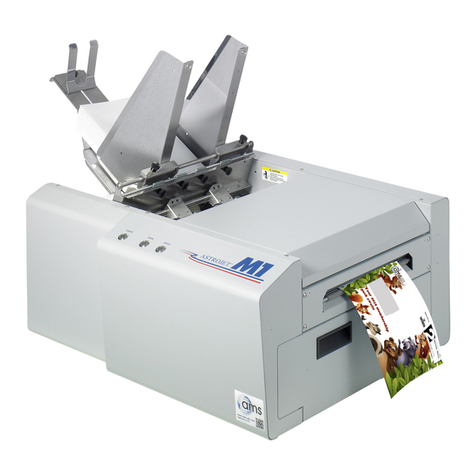
AstroJet M1 User manual

AstroJet

AstroJet M1 User manual

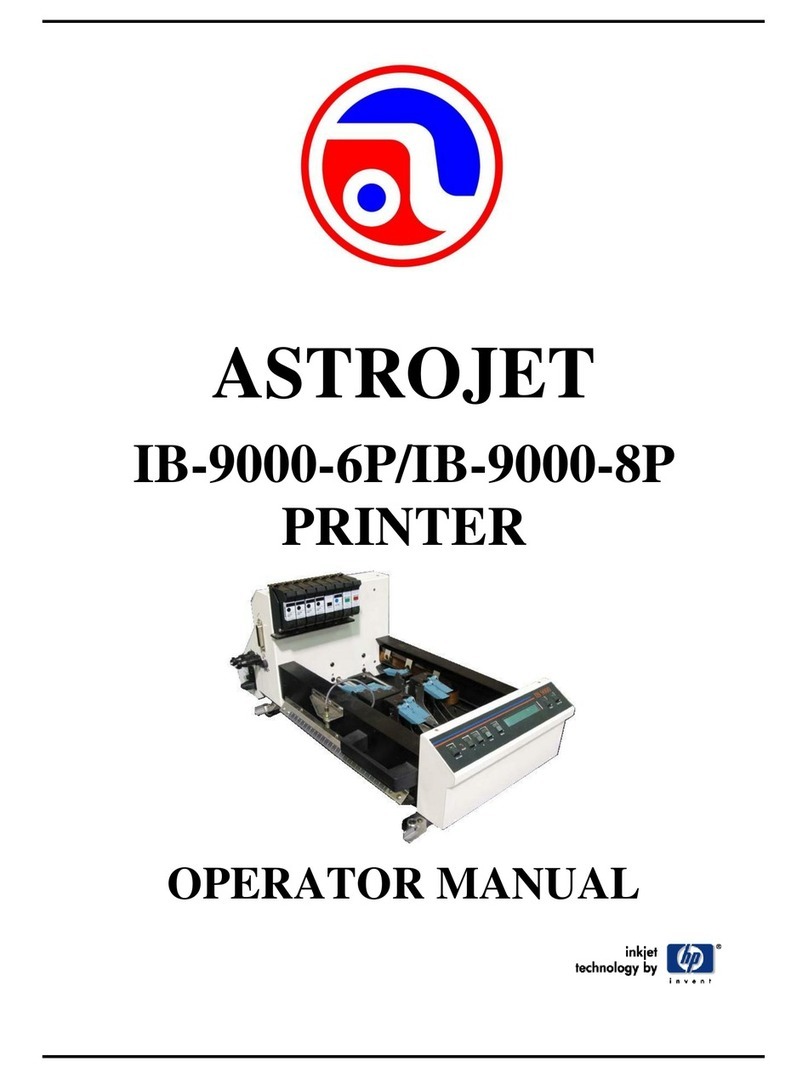
AstroJet IB-9000-6P User manual

AstroJet

AstroJet IB-9000-6P User manual

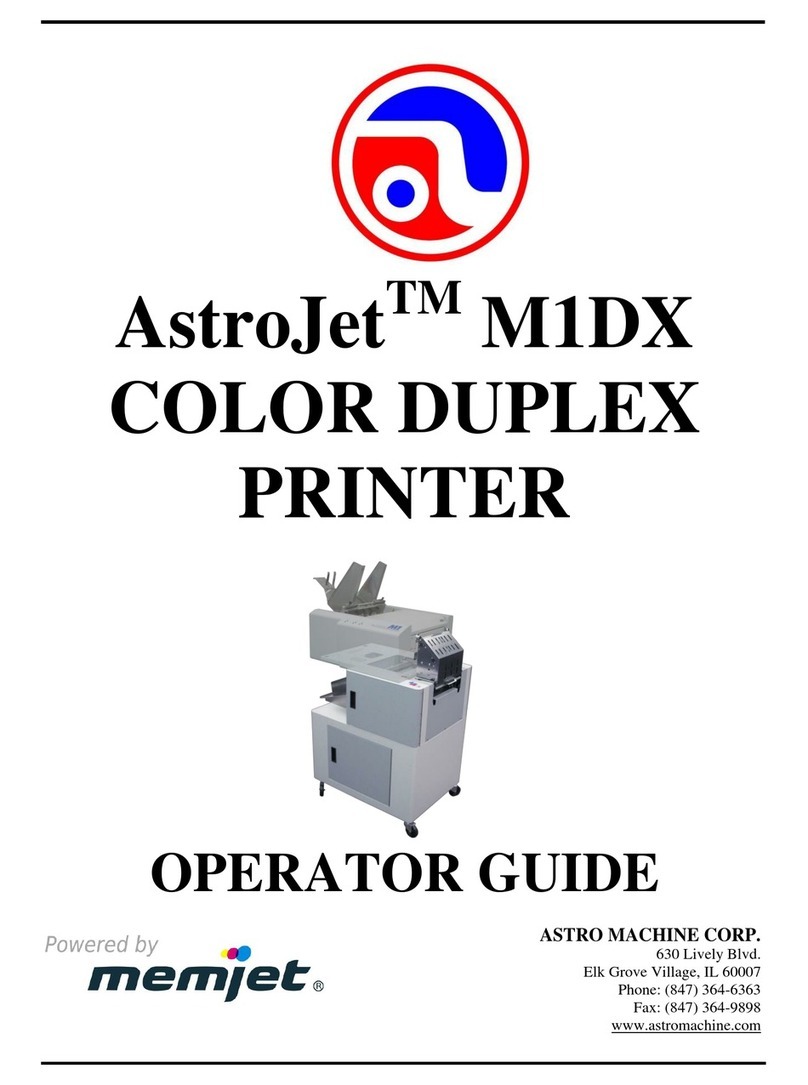
AstroJet M1DX Manual

AstroJet

AstroJet M1DX Manual

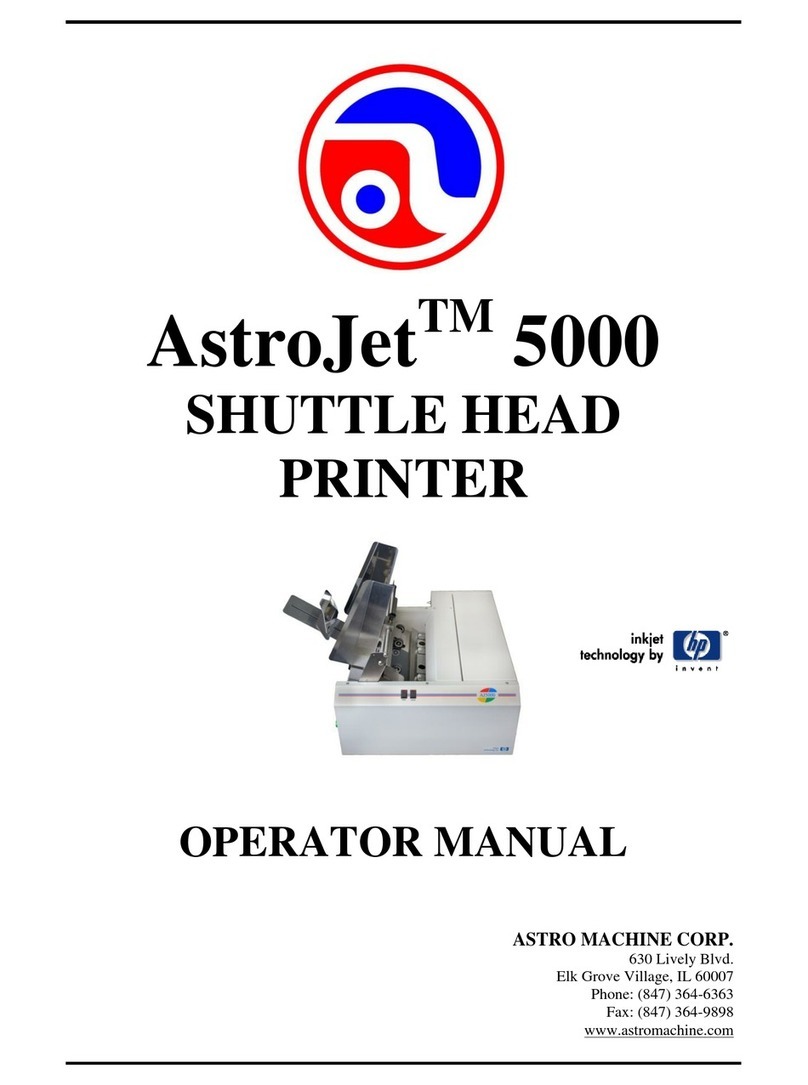
AstroJet 5000 User manual

AstroJet

AstroJet 5000 User manual

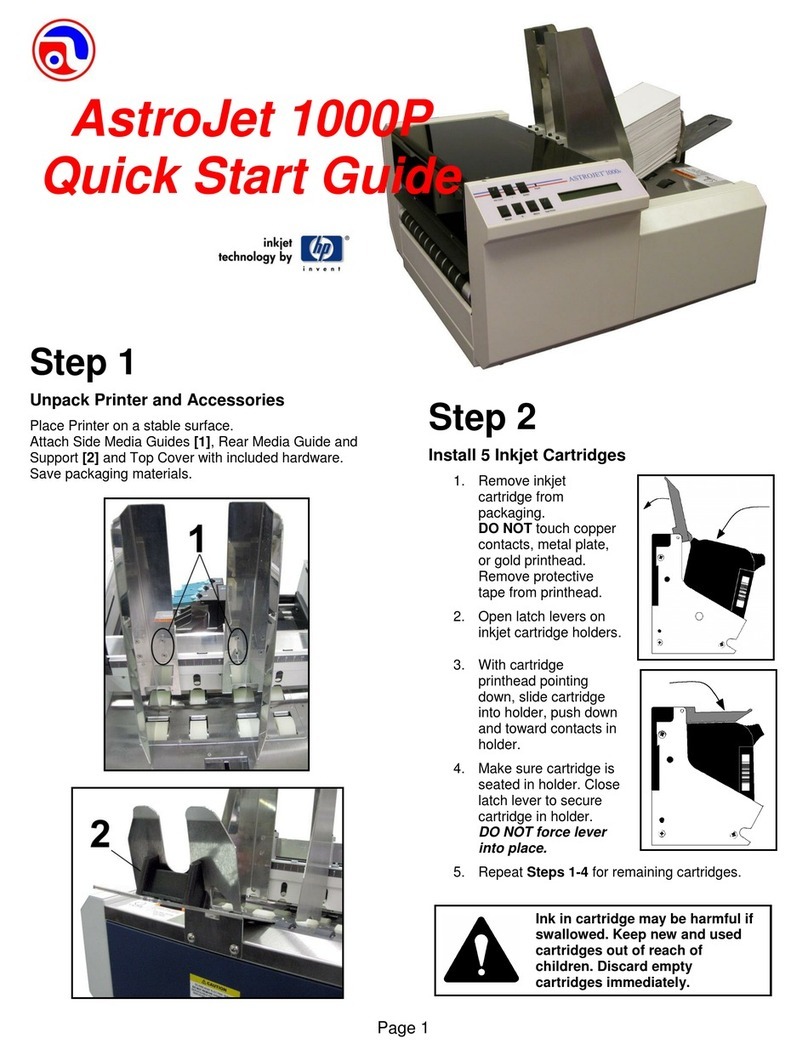
AstroJet 1000P User manual

AstroJet

AstroJet 1000P User manual

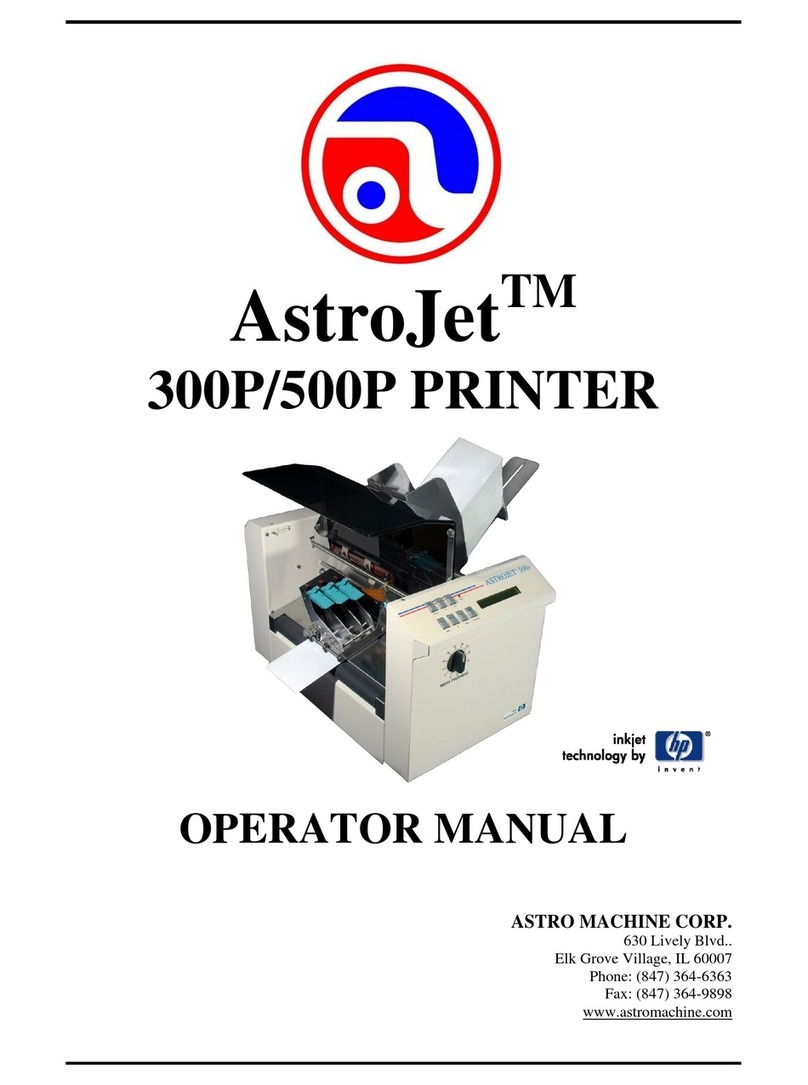
AstroJet 300P User manual

AstroJet

AstroJet 300P User manual

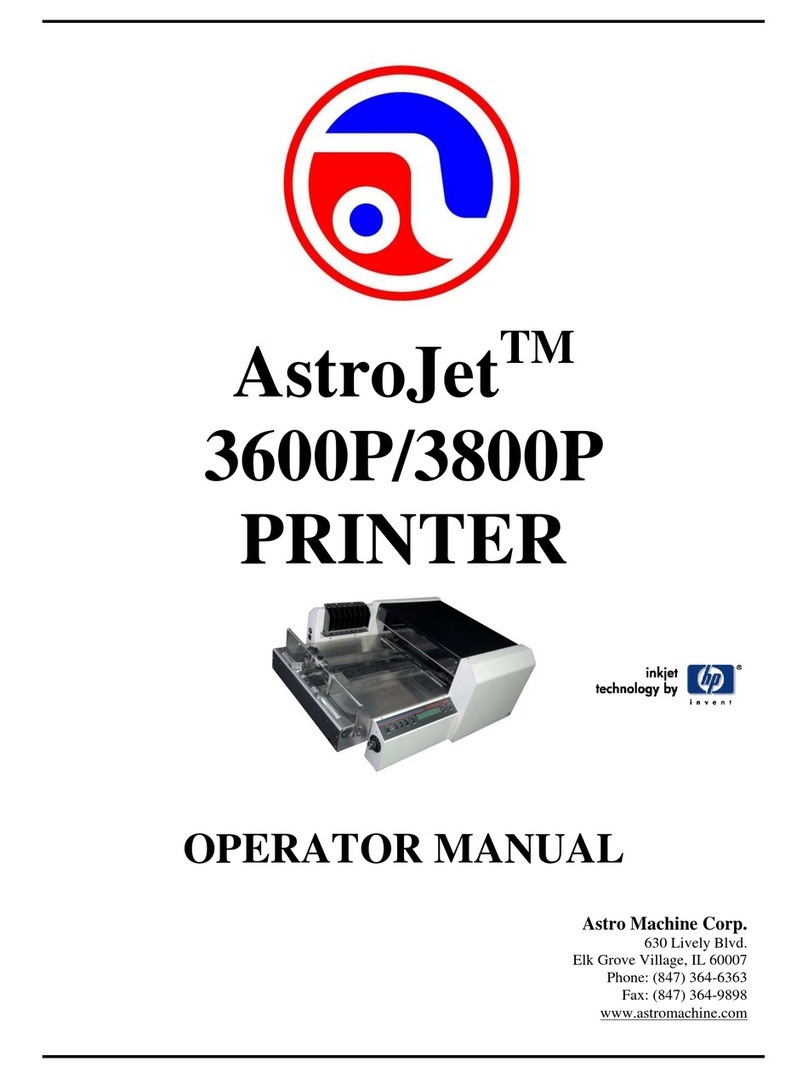
AstroJet 3600P? 3800P User manual

AstroJet

AstroJet 3600P? 3800P User manual

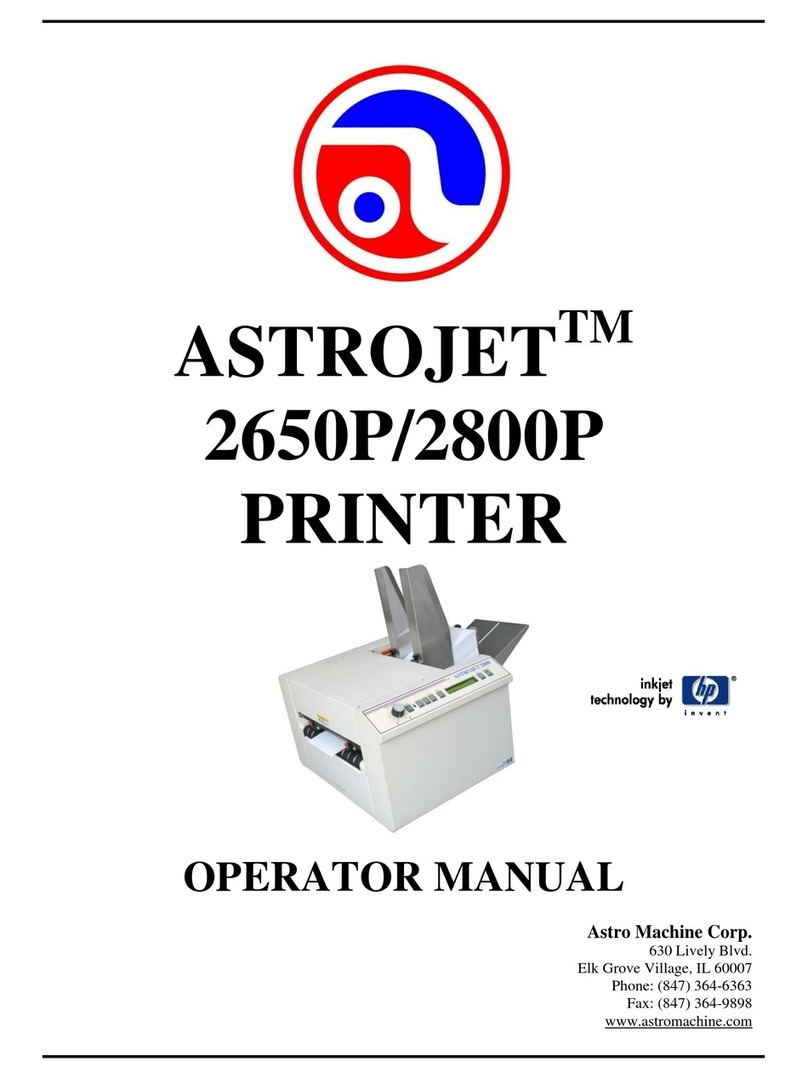
AstroJet 2650P User manual

AstroJet

AstroJet 2650P User manual

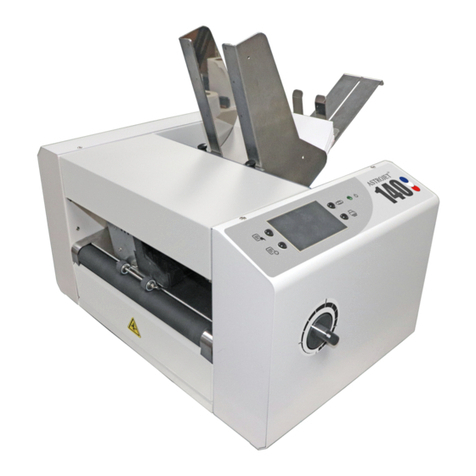
AstroJet 140 User manual

AstroJet

AstroJet 140 User manual

AstroJet AJ-140 User manual

AstroJet

AstroJet AJ-140 User manual

Popular Printer manuals by other brands

Evolis Elypso user guide

Evolis

Evolis Elypso user guide

Lexmark 522n - C Color Laser Printer Service manual

Lexmark

Lexmark 522n - C Color Laser Printer Service manual

Panduit COUGAR LS9Q Operator's manual

Panduit

Panduit COUGAR LS9Q Operator's manual

Olivetti PG L2140 Operation guide

Olivetti

Olivetti PG L2140 Operation guide

Samsung SL-M2820DW user manual

Samsung

Samsung SL-M2820DW user manual

Kyocera FS-9530DN specification

Kyocera

Kyocera FS-9530DN specification

Canon LASER SHOT LBP-1210 Specifications

Canon

Canon LASER SHOT LBP-1210 Specifications

Canon PIXMA PRO-1 Series Getting started

Canon

Canon PIXMA PRO-1 Series Getting started

Canon LBP113w Getting started

Canon

Canon LBP113w Getting started

Lexmark Infoprint 1332 user manual

Lexmark

Lexmark Infoprint 1332 user manual

Epson M1120 user guide

Epson

Epson M1120 user guide

TransAct POSJET 1500 Spare parts

TransAct

TransAct POSJET 1500 Spare parts

Telpar MTP-1500 user manual

Telpar

Telpar MTP-1500 user manual

Star DP8340 SERIES user manual

Star

Star DP8340 SERIES user manual

MGI JETVARNISH 3DS user manual

MGI

MGI JETVARNISH 3DS user manual

Kyocera TASKalfa PA4500ci Operation guide

Kyocera

Kyocera TASKalfa PA4500ci Operation guide

Emaar EP-360 user manual

Emaar

Emaar EP-360 user manual

Fujitsu DL7400 user manual

Fujitsu

Fujitsu DL7400 user manual

manuals.online logo
manuals.online logoBrands
  • About & Mission
  • Contact us
  • Privacy Policy
  • Terms and Conditions

Copyright 2025 Manuals.Online. All Rights Reserved.

Page 1
Step 1
Unpack Printer and Accessories
Place Printer on a stable surface. Save packaging
material.
Step 2
Connect Power to Printer
1. Check that the Printer
is set for the power
to be used (115V or
220V) [A].
2. Connect one end of
the power cord to the
rear receptacle on
the Printer.
3. Plug other end into a
115-220 Volt AC
(depending on
Printer voltage),
50/60 Hz. grounded
outlet.
DO NOT TURN POWER SWITCH ON YET
Connect Printer to Computer
USB 3.1 Port: Plug
USB cable into
connector [1]. Cable
used to connect
Printer to computer
must not exceed 6
feet long.
Ethernet (Network)
Port: Plug network
Ethernet cable into
connector [2].
Wi-Fi Port: Connect Wi-Fi antenna (included) to this
port [3] for wireless Printer monitoring or operation
through your network.
DO NOT CONNECT USB CABLE
OR NETWORK CABLE YET.
DO NOT TURN PRINTER POWER
SWITCH [1] ON YET.
AstroJet AJ-180
Quick Start Guide
Page 2
Step 3
Install Inkjet Cartridges
The AJ-180holds 8 Inkjet Cartridges.
1. Remove inkjet
cartridge from
packaging.
DO NOT touch
copper contacts,
metal plate, or gold
printhead. Remove
protective tape from
Printhead.
2. [A] With Cartridge’s
Printhead pointing
down and while
keeping the
Cartridge lightly in
contact with the
edge of the Latch
Lever: Slide the
Cartridge into
Holder at as vertical
an angle as
possible.
[B] Push straight
back toward
contacts in the
Printhead Holder.
NOTE: Be careful
not to bend the
contact pins in the
Holder or to
damage the
surface of the
Cartridge.
[C] Make sure
Cartridge is seated
in Holder.
3. Close Latch Lever
to secure Cartridge
in Holder.
DO NOT force Lever into place.
4. Repeat Steps 1-3 for remaining Inkjet Cartridges.
Ink in Cartridge may be harmful if
swallowed. Keep new and used
Cartridges out of reach of
children. Discard empty
Cartridges immediately.
Step 4
Adjust Printer to Media
Place one piece of media on center of conveyor portion
of Feeder. Adjust Side Guides [1] to media. Use Media
Retainer Assembly [2] to help hold media down.
NOTE: Two narrow Belts can be moved by turning
Printer ON and sliding Belt Guide Adjusters (located
under Conveyor Table) in the appropriate direction
until they are under the media.
Page 3
Step 5
Install Print Driver
Download the latest Printer Driver from the Printer
manufacturer's website. Make sure the USB or Network
cables are connected to the Printer and your computer
and that the Printer is switched on.
If your Network requires a static IP address, see
“Network Settings” in the Operator Manual.
If you wish to use WiFi, see “WiFi Setup” in the
Operator Manual.
1. Open the downloaded Printer Driver Folder:
Select and double-click “Setup.exe”.
2. “Add, Update or Delete Printer”window
opens. Click “Add New Printer”. Click Next>.
3. The “Connect Printer” window opens. Make
sure the Printer is plugged in and switched on
and that it is connected by USB, Network or
WiFi to your computer. Click “Yes”
4. The "Want to Install Printer…" window opens.
If that is correct. Click “Yes”.
5. The Driver will load and the next screen allows
you to “Name Your Printer”. Unless another
printer has the same name on your system or
network, ignore this step and click Next>.
6. Click Finish to complete the installation.
7. In “Devices and Printers” check that Printer is
available and active.
8. Using the Printer Touchscreen: Press the
Network icon on the Tools screen to open the
Network Settings screen. Select Network
Setup to enter the settings for connecting the
Printer to your network. Uncheck the DHCP
box. This will ensure that the Printer's IP
address won't change each time the Printer is
powered down.
Step 6
To install Accessories and for Printer set-up or
operation, please refer to “AstroJet AJ-180 Printer
Operator Manual” supplied with Printer.
© 2020 Astro Machine Corp 04/22/2020
AJ-180 Quick Start Guide
630 Lively Blvd.
Elk Grove Village, IL 60007
Phone: (847) 364-6363
Fax: (847) 364 9898
www.astromachine.com