2
Using the EU24 Expansion Module
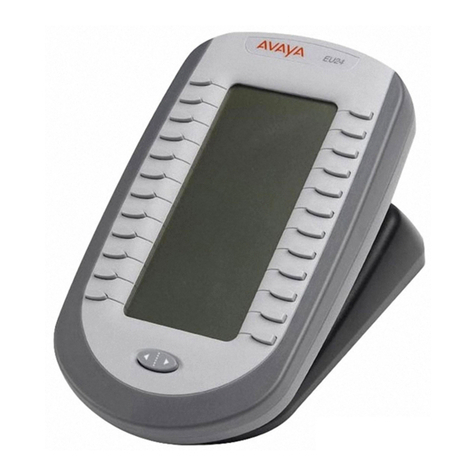
The following sections explain how to use the features of the EU24 Expansion Module. For more information,
consult your system manager.
Viewing the Alternate Display
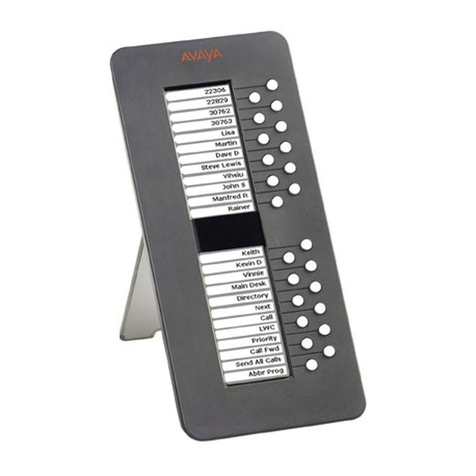
Although the EU24 Expansion Module supports an additional 24 call appearance/feature buttons, it only displays
the button labels and icons for one column at a time. A dotted line separates the left column from the right column.
When you are viewing the labels and icons for the left column, the icons for the right column are displayed to the
right of the dotted line. To view the column not currently displayed, press the Alternate Display button.
Selecting a Call Appearance/Feature Button
To select an available call appearance or feature, press the button next to the label in the column currently
displayed.
If the call appearance or feature is not currently displayed, use the Alternate Display key to access the additional
12 call appearance/feature button labels.
Understanding Call Appearance/Feature Button Status Icons
When a call arrives for a call appearance on the EU24 Expansion Module, the bell icon blinks on the corresponding
call appearance. To answer the call, press the button associated with the call appearance.
The icons displayed on the call appearance allow you to determine the status (for example, on hold) of each call on
the EU24 Expansion Module. Icons also indicate whether a feature has been administered for a particular button
on the EU24 Expansion Module. The following table contains an explanation of these icons.
Status Icons
Icon Definition
Ringing An incoming call is waiting to be answered.
Active The call you are currently handling.
On hold A call currently on hold.
On soft hold A call put on hold during a transfer or
conference.
Feature
active
Button on left side of the display currently is
enabled.
Feature
active
Button on right side of the display currently
is enabled.
Feature
pending
Your request is being processed but is not
immediately available.