5. Perform basic configu-
ration
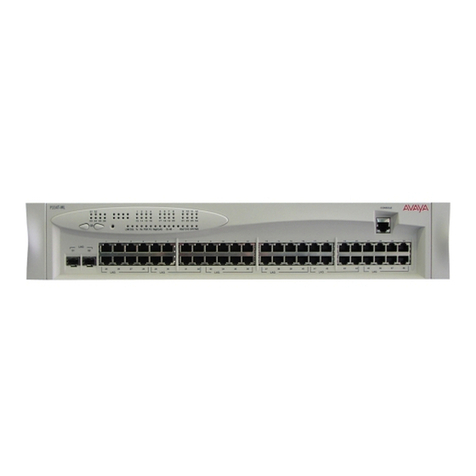
To connect a PC terminal or VT-100
terminal to the Avaya P120
1. Connect the terminal or PC to the
console port on the P120 using the
supplied serial (RJ-45 to DB-9
adapter) cable.
2. Configure the serial port settings of
the PC as follows:
• 9600 Baud
• No parity
• 8 data bits
• 1 stop bit
• No flow control
3. If you are using a PC, initiate a
VT-100 terminal emulation session
using an application such as
HyperTerminal.
4. Press “Enter” several times until the
CajunP120> command prompt is
displayed.
Setting the Mandatory Parameters
If you wish to change the default parame-
ters shown on the opposite page and con-
figure the mandatory parameters, Avaya
recommends that you use the Command
Line Interface (CLI).
For further information, please refer to
Chapter 5 of the P120 User’s Guide.
To Establish a Telnet Session to the
Avaya P120 via the Network
1. Verify that the Avaya P120 and your
PC are on the same local network. If
the Avaya P120 is set with its default
IP address, then change the PC’s IP
address so that it will be on the same
subnet as the Avaya P120’s default
address (149.49.32.x). If you want to
use secure Telnet, the port to which
the PC is connected must be on the
same VLAN as the agent.
2. Click on Start>Settings>Control
Panel>Network from the Windows
taskbar.
3. Select TCP/IP from the list of
installed network components.
4. Click on Properties.
In the IP address Property Sheet,
enter the address 149.49.32.134 and
the net mask 255.255.255.0
5. Click on OK.
6. Connect a Avaya P120 front panel
port to your network.
7. Connect your PC to the network.
8. Start the Telnet session at the prompt
by typing telnet
<Cajun_P120_IP_address>
, e.g.,
telnet 149.49.32.134
9. Enter the Avaya P120 user-level pass-
word. The default is norm in lower
case letters (do not use uppercase).
The CajunP120> prompt will dis-
play when you have established com-
munications with the Avaya P120.