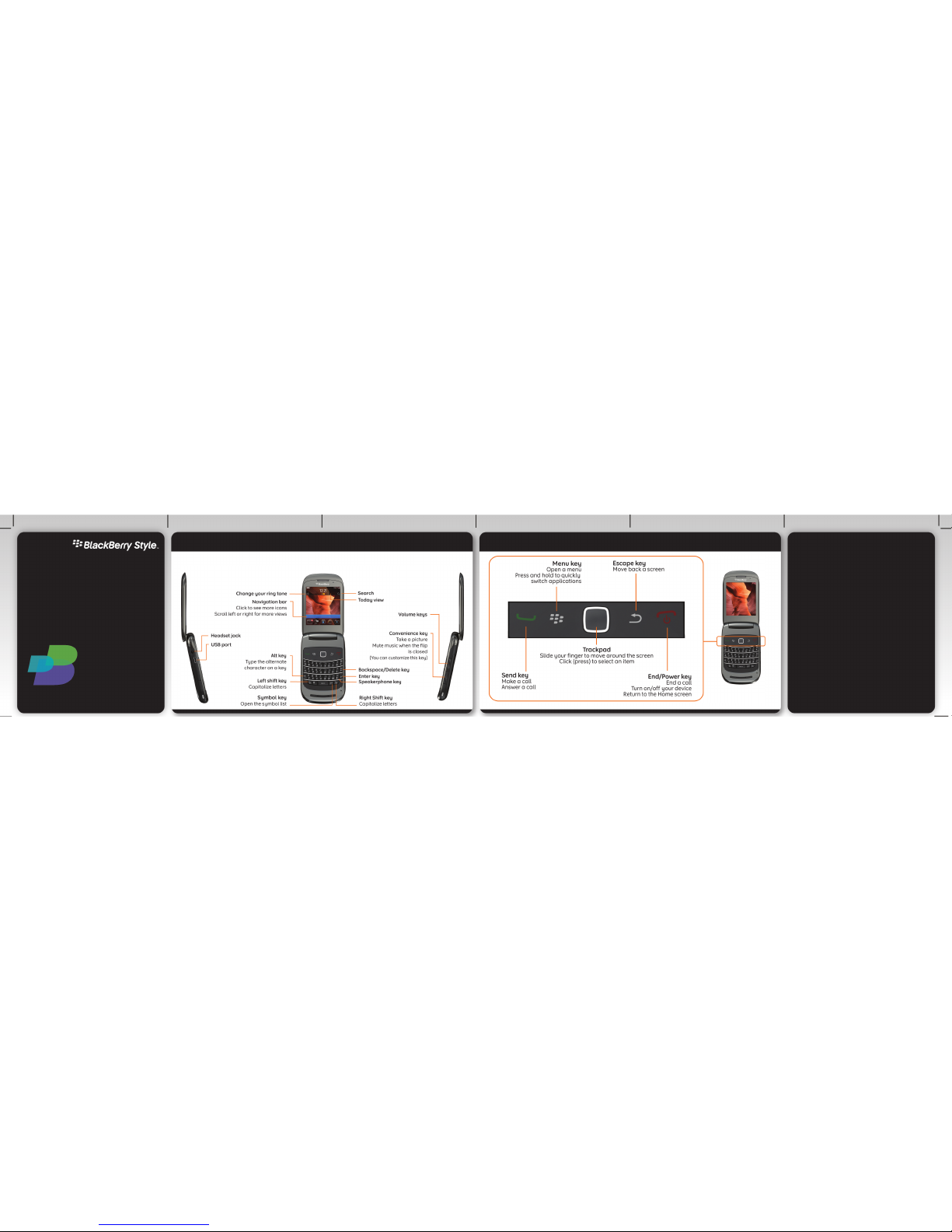
Change your wallpaper
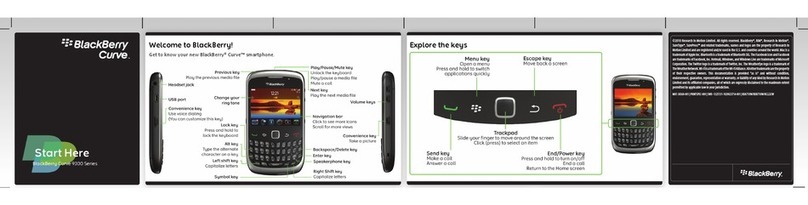
1. From the Home screen, press the key.
2. Click Options > Change Wallpaper.
•To take a picture, click Camera. Click the
camera icon.
•To use an existing picture, click a category. Click
a picture.
3. Press the key > Set As Wallpaper.
4. Press the key to return to the Home screen.
Connect using Wi-Fi
1. On the Home screen, click the connections area
at the top of the screen, or click the Manage
Connections icon.
2. Click Set Up Wi-Fi Network.
3. If prompted, click Turn on Wi-Fi.
4. If you want to connect to a public hotspot or Wi-
Fi® network that does not require a password,
select the Show Open networks only check box.
5. Click the Wi-Fi network that you want to connect
to.
Download apps and themes
You can download applications, themes, and ring
tones from your wireless service provider's web site
(if available) or from the BlackBerry App World™
storefront.
1. To download a theme, on the Home screen, click
the Options icon.
2. Click Display > Screen Display.
3. Press the key > Download Themes.
Your wireless service provider must support this feature.
Additional data charges might apply. For information, contact your wireless
service provider.
BlackBerry Desktop Software 6.0
You can use the BlackBerry® Desktop Software to
back up and restore BlackBerry device data and sync
calendar appointments, music, pictures, and more
between your device and computer.
To download the BlackBerry Desktop Software, go to
www.blackberry.com/desktopsoftware.
Sync your media files
1. Connect your BlackBerry® device to your
computer.
2. On your computer, open the BlackBerry® Desktop
Software.
•If you're using a Windows® computer, click
Music, Pictures, or Videos.
•If you're using a Mac computer, in the Media
section in the left pane, click Music. Mac users
can sync only music.
For more information, see the Help in the BlackBerry
Desktop Software.
Need more help?
•www.blackberry.com/gettingstarted: Find
getting started information.
•Your wireless service provider web site: Find
information about your wireless network or
wireless service plan.
CAUTION: Use only those accessories approved by Research In
Motion. Using any accessories not approved by RIM for use with this
particular device model might invalidate any approval or warranty
applicable to the device, might result in the non-operation of the
device, and might be dangerous.