manuals.online logo
Brands
  1. Home
  2. •
  3. Brands
  4. •
  5. Blu
  6. •
  7. Cell Phone
  8. •
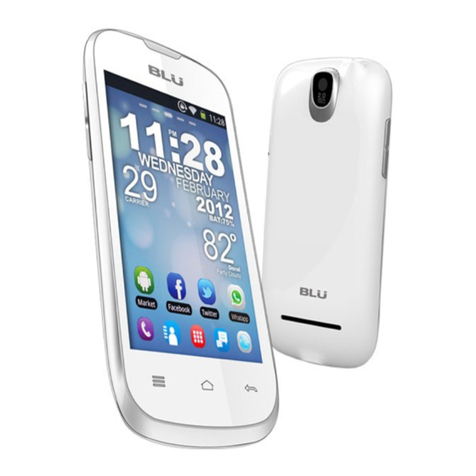
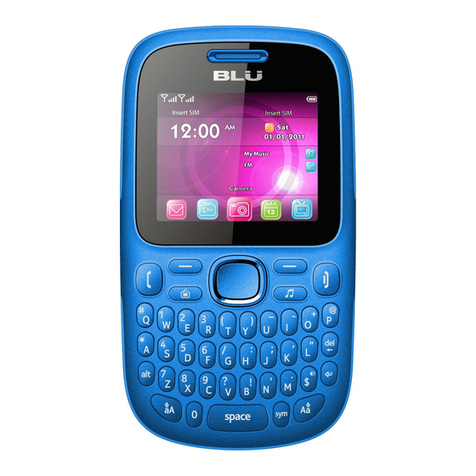
  9. Blu CHARLESTON TOUCH User manual

Blu CHARLESTON TOUCH User manual

Other Blu Cell Phone manuals

Blu Zoey 2.4 User manual

Blu

Blu Zoey 2.4 User manual

Blu DASH 4.5 User manual

Blu

Blu DASH 4.5 User manual

Blu TANK 4.5 User manual

Blu

Blu TANK 4.5 User manual

Blu Zoey User manual

Blu

Blu Zoey User manual

Blu BLUSTX10 User manual

Blu

Blu BLUSTX10 User manual

Blu SPORT 4.5 User manual

Blu

Blu SPORT 4.5 User manual

Blu VIEW 1 B100DL User manual

Blu

Blu VIEW 1 B100DL User manual

Blu G71 PLUS User manual

Blu

Blu G71 PLUS User manual

Blu Samba TV User manual

Blu

Blu Samba TV User manual

Blu STUDIO MINI LTE 2 User manual

Blu

Blu STUDIO MINI LTE 2 User manual

Blu Tank 3 User manual

Blu

Blu Tank 3 User manual

Blu Deejay II User manual

Blu

Blu Deejay II User manual

Blu GRAND 5.5HDII User manual

Blu

Blu GRAND 5.5HDII User manual

Blu Jenny TV User manual

Blu

Blu Jenny TV User manual

Blu G71L User manual

Blu

Blu G71L User manual

Blu STUDIO 5.0 S User manual

Blu

Blu STUDIO 5.0 S User manual

Blu ADVANCE 4.0L User manual

Blu

Blu ADVANCE 4.0L User manual

Blu Studio Selfie LTE User manual

Blu

Blu Studio Selfie LTE User manual

Blu BLUB100DL User manual

Blu

Blu BLUB100DL User manual

Blu Deejay User manual

Blu

Blu Deejay User manual

Blu G9 User manual

Blu

Blu G9 User manual

Blu Dash Music 2 User manual

Blu

Blu Dash Music 2 User manual

Blu Zoey User manual

Blu

Blu Zoey User manual

Blu Life Play X User manual

Blu

Blu Life Play X User manual

Popular Cell Phone manuals by other brands

Nokia 6700 classic user guide

Nokia

Nokia 6700 classic user guide

LG L34C user guide

LG

LG L34C user guide

Ericsson T60d manual

Ericsson

Ericsson T60d manual

Zte Score M user manual

Zte

Zte Score M user manual

Sony Xperia Z1 Compact Startup guide

Sony

Sony Xperia Z1 Compact Startup guide

AT AT-Q5 user manual

AT

AT AT-Q5 user manual

Vingtor ACM-M-A-V2 Installation/configuration

Vingtor

Vingtor ACM-M-A-V2 Installation/configuration

Olitech EasyFlip 2 Quick setup guide

Olitech

Olitech EasyFlip 2 Quick setup guide

Zte Atrium Z793C user manual

Zte

Zte Atrium Z793C user manual

Alcatel IDEAL manual

Alcatel

Alcatel IDEAL manual

Zte BLADE A520 quick start guide

Zte

Zte BLADE A520 quick start guide

switel M222 user manual

switel

switel M222 user manual

LG LG-P503 user guide

LG

LG LG-P503 user guide

LG F2410 user guide

LG

LG F2410 user guide

Argom E500 manual

Argom

Argom E500 manual

Hisense U30 user manual

Hisense

Hisense U30 user manual

Argom Tech E401 user manual

Argom Tech

Argom Tech E401 user manual

Nokia 3595 - Cell Phone - GSM Manual Del Usuario

Nokia

Nokia 3595 - Cell Phone - GSM Manual Del Usuario

manuals.online logo
manuals.online logoBrands
  • About & Mission
  • Contact us
  • Privacy Policy
  • Terms and Conditions

Copyright 2025 Manuals.Online. All Rights Reserved.

-0-
Phone Specifications
Dimensions (W×D×H): 92mm*50mm*13.8mm
Lithium battery
Rated capacity: 3.7V 700mAh
Continuous standby duration: (Relates to network status) 120 hours
Continuous conversation duration: (Relates to network status) 2.5-3 hours
Please refer to their labels for other data related to the battery and the charger
USB cable: shielded cable with cores
1 Phone overview
-1-
2 Getting started
2.1 Installing the SIM Cards
An SIM card carries useful information, including your mobile phone number, PIN (Personal Identification
Number), PUK (PIN Unlocking Key), IMSI (International Mobile Subscriber Identity), network information,
contacts data, and short messages data.
1) Hold the Power key for a while to power off the mobile phone.
2) Pull the middle-bottom breach of the back cover outward and then lift the back cover away.
3) Lift the battery away.
4) Insert the SIM card into the SIM card slot lightly with the corner cutting of the card aligning to the notch
of the slot and the gold plate of the card facing download, till the SIM card cannot be further pushed in.
-2-
5) With the metallic contacts of the battery facing the metallic contacts in the battery slot, press the battery
down until it locks into place,then fix its back cover.
Linking to the Network
After the SIM card and the mobile phone are successfully unlocked, the mobile phone automatically
searches for an available network.
-3-
3 Input method
To Shift Entry Methods
Tap the left-top icon of phone screen to switch between input methods.
English Input
Tap the keypad icon on the phone screen to pop out a keypad simulator. Each of the number keys 1 to 9 is
used to represent multiple characters. Quickly and continuously press a key till the character you want
appears. Input the next character after the cursor moves.
4 Using the Menus
Messages
You are able to create, read, send and delete messages through this function.
Note: If the short message memory is full, a blinking message icon appears on the top of the screen.
Phonebook
The mobile phone can store up to 100 telephone numbers.
Calendar
Once you enter this menu, there is a monthly-view calendar for you to view.
Call History
Through this function, you can see the list of missed calls, dialed calls, received calls, all calls, delete
records, call timer, message counter, GPRS counter.
Bluetooth
With Bluetooth, you can make a wireless connection to other compatible devices, such as mobile phones,
computers, headsets and car kits. You can use the Bluetooth to send images, video clips, music, sound
clips and notes, and transfer files from your compatible pc.
Web
Internet service
You can use Browser to view web pages and search for information on the web.
WAP
STK service is the tool kit of SIM card. This phone supports the service function .The specific items are
depended by SIM card and network. Service menu will be auto added to the phone menu when supported
-4-
by network and SIM card.
Data account
This function enables you to set data account related parameters.
Games
A game named Magic Sushi is embedded in the phone. For specific operation, please refer to ‘help’ option
of the game.
Image viewer
Pictures taken by camera can be scanned through this function.
Video player
You can use this function to play video files.
File manager
The phone provides a certain space for users to manage files and supports the T-Flash card. You can use
the file manager to conveniently manage various directories and files on the phone and the T-Flash card.
Settings
Date and time
You can set time and date through this function.
Dual SIM switch
Manually selected by user and automatically decided by SIM cards are available for you to choose.
You can select one of them as per your needs.
Dual SIM settings
Dual-SIM refers to two SIM card slots, and the two cards can standby at the same time or set one of them
to display on the idle screen.
Pen calibration
Click anywhere on the screen with your style to start calibration. Then follow the prompt and operate, this
operation allows the screen to respond more quickly and correctly.
Phone Settings
Time and date: set the home city, time/data, format or update the time and date with time zone.
Schedule power on/off: Set the time when the mobile phone will be automatically powered on or off.
-5-
Alert: Before entering an area where the use of mobile phones is forbidden, make sure that the scheduled
power-on function is deactivated to avoid accidents.
Language: Select the display language for the mobile phone.
Pref. input method: Select an input method as preferred input method as per your need.
Flight mode: when this function is engaged, it will suspend many of the device's signal transmitting
functions – thereby disabling the device's capacity to place or receive calls or text messages– while still
permitting use of other functions that do not require signal transmission (e.g., games, built-in camera,
MP3 player.)
UART: SIM1 and SIM2 are available for you to choose, you can select one of them as per your need.
Display Settings
Through this function, you can set the wallpaper, screen saver, turn on screen, off screen, display time and
date, display operator name, owner number display, backlight..
Call settings
Caller ID: You can select the ID set by the network, hide the ID, or send the ID. By default, the ID set by
the network is chosen.
Call waiting: Network dependent.
Call divert: This network function enables you to forward incoming calls to another number you have
previously specified.
Call barring: The call barring function enables you to bar calls as needed. When setting this function,
you need to use a network barring code, which can be obtained from the network operator.
Line switching: Switch to Line 1 or Line 2. By default, Line 1 is used.
Note: If you choose Line 2, dialing may fail. This depends on the implementation of the network operator.
Common call settings
Blacklist: He or she can’t call you if you set the blacklist status to on and add his or her number to
blacklist.
Auto redial:Set it to On or Off to enable or disable auto redial. To end the auto redial process, press
the End key.
Call time display: Choose to display call time or not in a call.

-6-
Call time reminder: To set single or periodic tone in a call to make you know the time.
Auto quick end: This function enables you to end a call at a preset time.
Reject by SMS: Reject an incoming call and reply the caller a short message to state that you are not
available at this moment.
Connect notice: Once this function is enabled, the phone would vibrate to remind you when a call is
connected.
Answer mode: Once select any key; you can press any key except the end key to answer an incoming
call.
Network settings
Through this function, you can select network and set preferred network.

Security Settings
This function provides you with related settings about safety use.
Note: The initial phone lock code is 0000.
Restore Factory Settings
Use this function to restore factory settings.
Note: The initial password for restore factory settings is 0000.
Timer
The timer is a simple application for measuring time with possibility to register several results and suspend
/ resume measurement.
Chat
You will be able to log on to Facebook, MSN, Twitter and Yahoo through this feature.
User Profiles
The mobile phone contains multiple user profiles, including General, Silent, Meeting, Outdoor and my style.
Drive converter
Weight and length can be converted through this feature.
Currency Converter
Entering the range of foreign currency, may make the conversion between local and foreign currency....
-7-
Camera
Use this function to capture pictures.
Video recorder
This function enables you to record dynamic pictures.
Sound recorder
You can record AMR & WAV format audio files through this function.
FM radio
You need to insert earphone into its corresponding jack before using this function.
Audio player
Use this function to play audio files.
Alarm
Five alarm clocks are set but deactivated by default. You can activate one, multiple or all of them as
needed.
World clock
Access this menu to view time of main cities in various time zones.
Tasks
This function enables you to create new memos.
Calculator
The calculator can add, subtract, multiply and divide.
-8-
FCC Regulations:
This mobile phone complies with part 15 of the FCC Rules. Operation is subject to the following two
conditions: (1) This device may not cause harmful interference, and (2) this device must accept any
interference received, including interference that may cause undesired operation.
This mobile phone has been tested and found to comply with the limits for a Class B digital device,
pursuant to Part 15 of the FCC Rules. These limits are designed to provide reasonable protection against
harmful interference in a residential installation. This equipment generates, uses and can radiated radio
frequency energy and, if not installed and used in accordance with the instructions, may cause harmful
interference to radio communications. However, there is no guarantee that interference will not occur in a
particular installation If this equipment does cause harmful interference to radio or television reception,
which can be determined by turning the equipment off and on, the user is encouraged to try to correct the
interference by one or more of the following measures:
-Reorient or relocate the receiving antenna.
-Increase the separation between the equipment and receiver.
-Connect the equipment into an outlet on a circuit different from that to which the receiver is connected.
-Consult the dealer or an experienced radio/TV technician for help.
Changes or modifications not expressly approved by the party responsible for compliance could void the
user‘s authority to operate the equipment.
The antenna(s) used for this transmitter must not be co-located or operating in conjunction with any other
antenna or transmitter.
-9-
4RF Exposure Information (SAR)
This mobile phone meets the government’s requirements for exposure to radio waves.
This phone is designed and manufactured not to exceed the emission limits for exposure to radio
frequency (RF) energy set by the Federal Communications Commission of the U.S. Government.
The exposure standard for wireless mobile phones employs a unit of measurement known as the Specific
Absorption Rate, or SAR. The SAR limit set by the FCC is 1.6W/kg. *Tests for SAR are conducted using
standard operating positions accepted by the FCC with the phone transmitting at its highest certified power
level in all tested frequency bands. Although the SAR is determined at the highest certified power level,
the actual SAR level of the phone while operating can be well below the maximum value. This is because
the phone is designed to operate at multiple power levels so as to use only the poser required to reach the
network. In general, the closer you are to a wireless base station antenna, the lower the power output.
The highest SAR value for the model phone as reported to the FCC when tested for use at the ear is 0.497
W/kg and when worn on the body, as described in this user guide, is 0.411 W/kg (Body-worn
measurements differ among phone models, depending upon available accessories and FCC
requirements.)
While there may be differences between the SAR levels of various phones and at various positions, they all
meet the government requirement.
The FCC has granted an Equipment Authorization for this model phone with all reported SAR levels
evaluated as in compliance with the FCC RF exposure guidelines. SAR information on this model phone
is on file with the FCC and can be found under the Display Grant section of www.fcc.gov/oet/ea/fccid after
searching on FCC ID: YHLBLUCHARLESTC.